Extract Pages in JavaScript (ES5) PDF Viewer
14 Aug 20263 minutes to read
The PDF Viewer component enables users to extract pages from a document using the Extract Pages option in the Organize Pages UI and to control extraction programmatically. The Extract Pages tool is available by default in Organize Pages.
Extract Pages in Organize Pages
- Open the Organize Pages panel in the PDF Viewer toolbar.
- Locate and click the Extract Pages option.
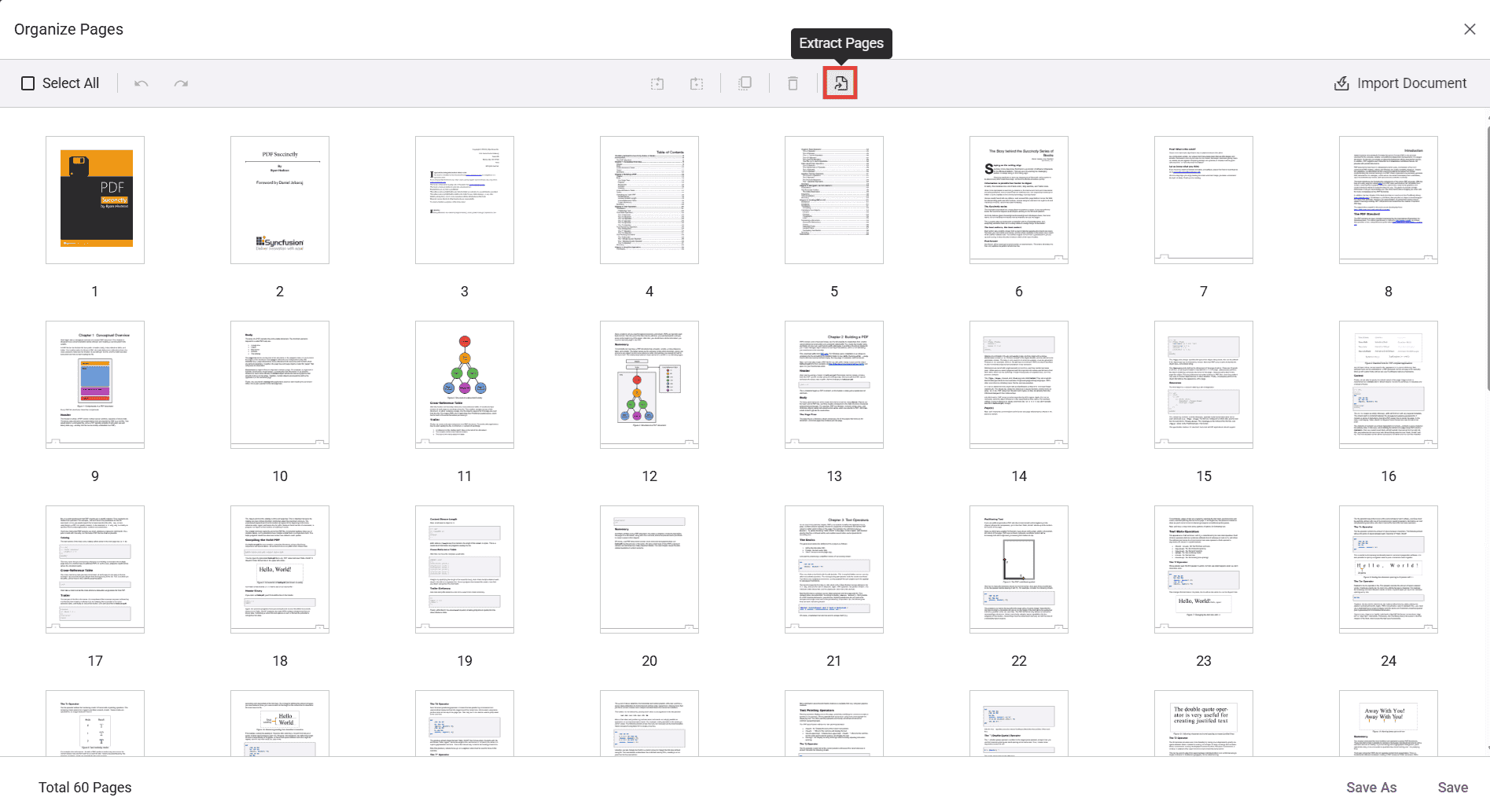
When selected, a secondary toolbar dedicated to extraction is displayed.
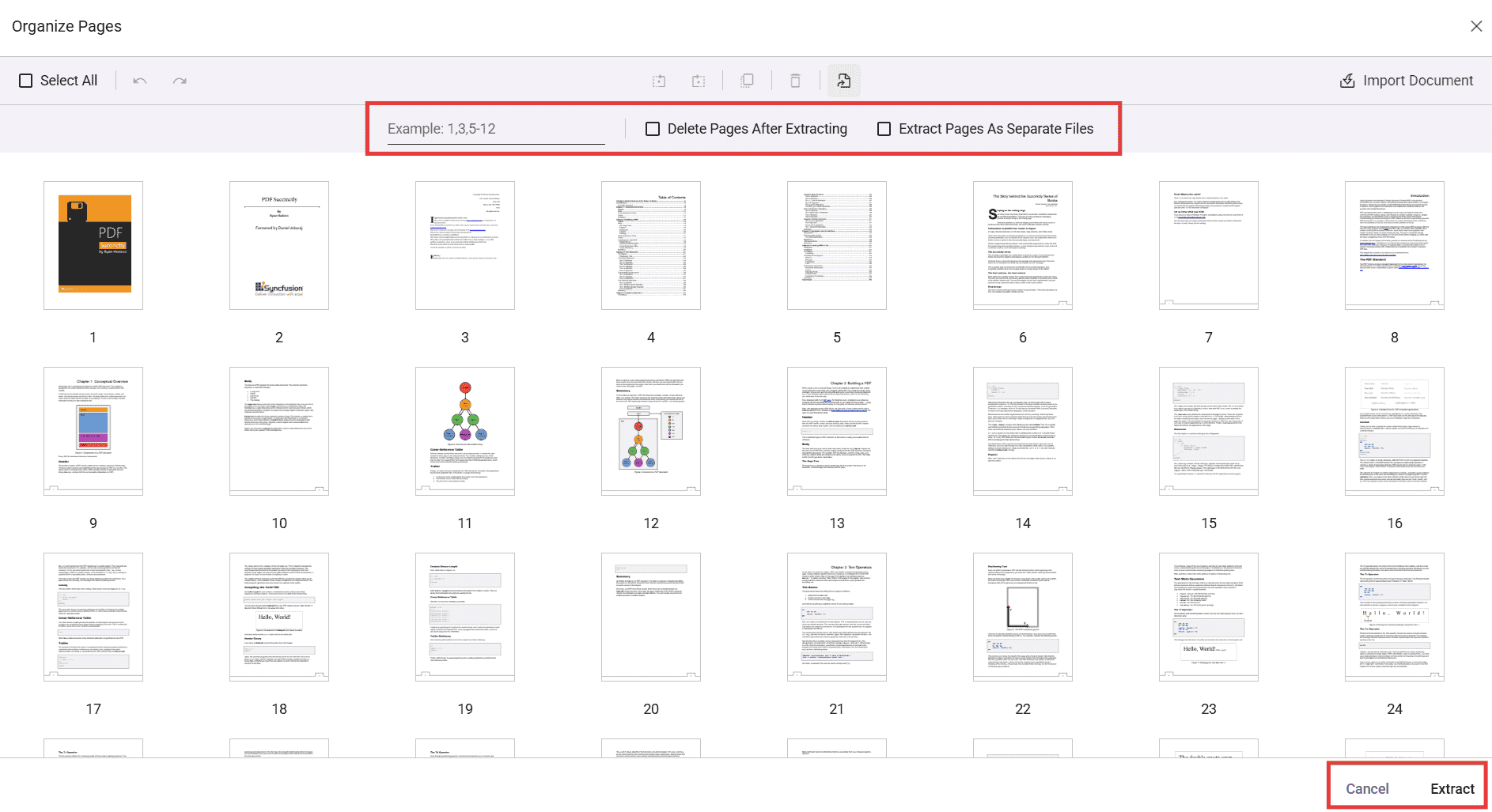
Extract pages using the UI
You can extract by typing page numbers/ranges or by selecting thumbnails.
- Click Extract Pages in the Organize Pages panel.
- In the input box, enter the pages to extract. Supported formats include:
- Single pages: 1,3,5
- Ranges: 2-6
- Combinations: 1,4,7-9
- Alternatively, select the page thumbnails you want instead of typing values.
- Click Extract to download the extracted pages as a new PDF. Click Cancel to close the tool.
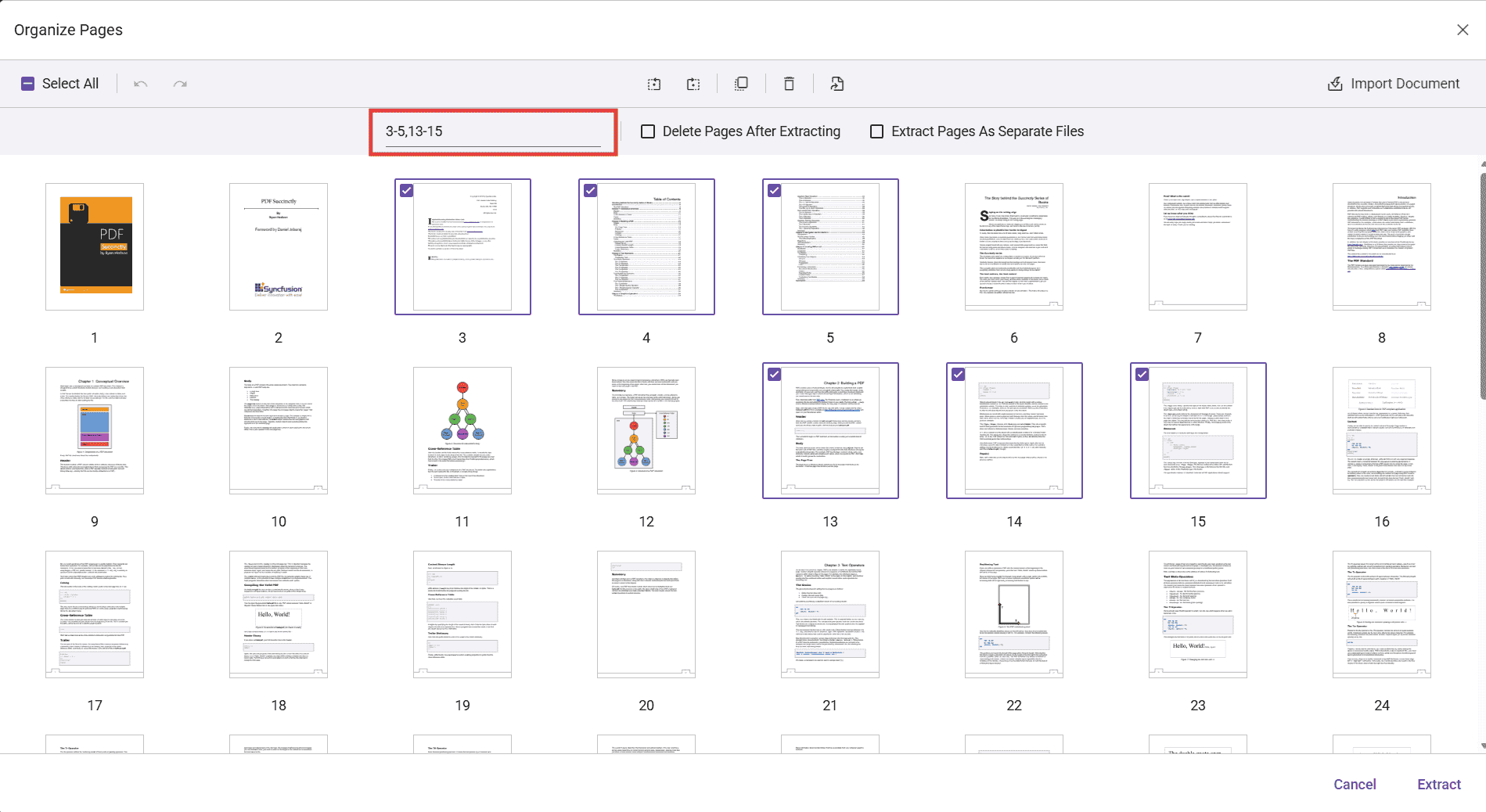
Page numbers are 1-based (first page is 1). You can start anywhere—enter single pages or ranges like 2-3, 5, or 7-9. Invalid or out-of-range entries are ignored.
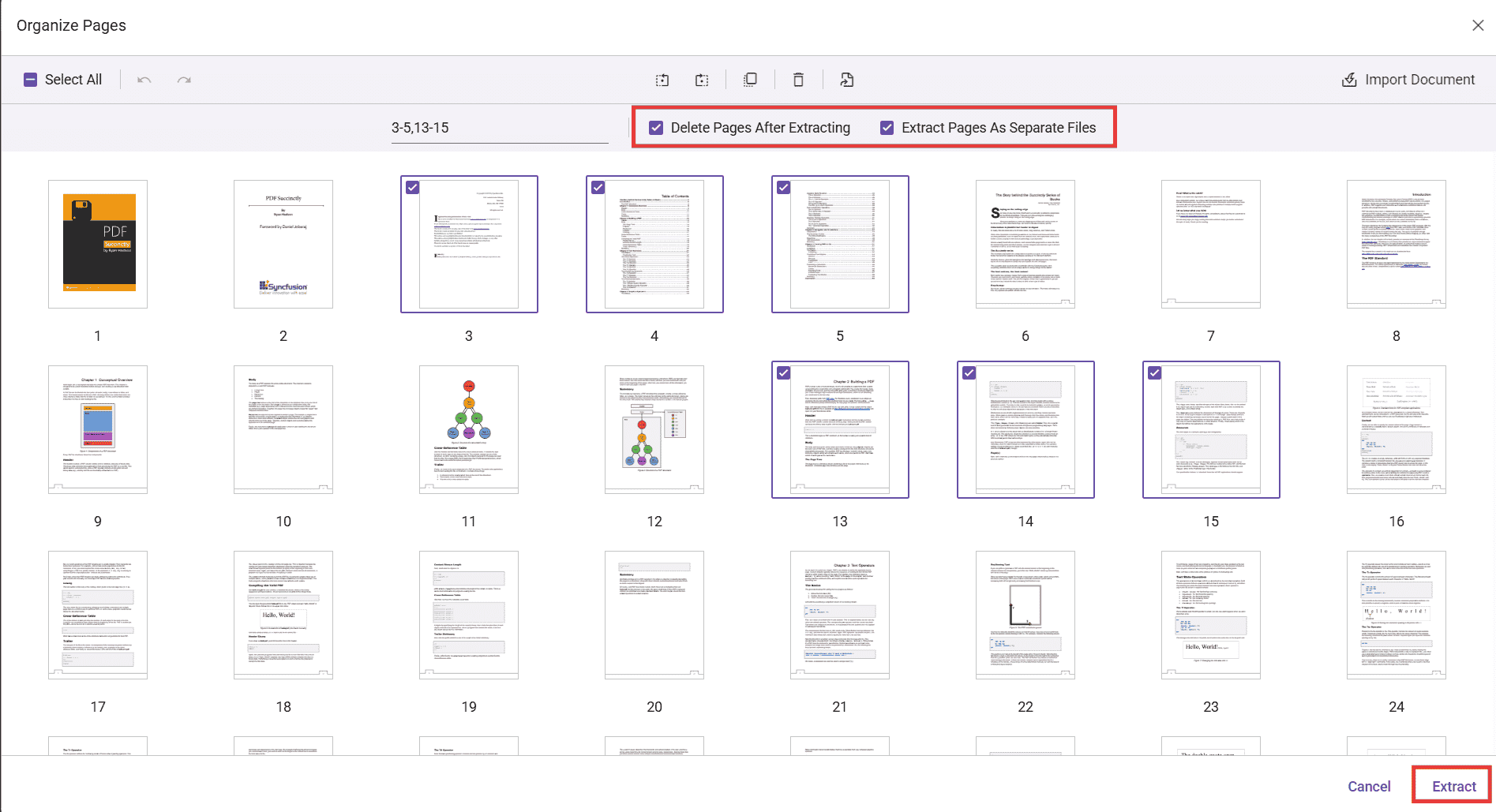
Extraction options (checkboxes)
Two options appear in the secondary toolbar:
-
Delete Pages After Extracting:
- When enabled, the selected/entered pages are removed from the document opened in the viewer after the extraction completes. The extracted pages are still downloaded as a new file.
- Example: If you enter 1,2 and extract, a PDF containing pages 1 and 2 is downloaded, and pages 1 and 2 are removed from the currently loaded document in the viewer.
-
Extract Pages As Separate Files:
- When enabled, every selected page is exported as an individual PDF file.
- Example: If you select pages 3, 5, and 6, three separate PDFs are downloaded (3.pdf, 5.pdf, and 6.pdf). If you enter a range (e.g., 2-4), pages 2, 3, and 4 are each downloaded as separate PDFs.
Programmatic options and APIs
You can control the Extract Pages experience via settings and invoke extraction through code.
Enable/disable Extract Pages
Use the canExtractPages API to enable or disable the Extract Pages option. When set to false, the Extract Pages tool is disabled in the toolbar. The default value is true.
Use the following code snippet to enable or disable the Extract Pages option:
// Enable the Extract Pages Tool
viewer.pageOrganizerSettings = { canExtractPages: true };
// Disable the Extract Pages Tool
viewer.pageOrganizerSettings = { canExtractPages: false };Use the showExtractPagesOption API to show or hide the Extract Pages option. When set to false, the Extract Pages tool is removed from the toolbar. The default value is true.
Use the following code snippet to remove the Extract Pages option:
// Remove the Extract Pages option entirely from the UI
viewer.pageOrganizerSettings = { showExtractPagesOption: false }
Extract pages and load the result programmatically
You can extract pages programmatically using the extractPages method. The method accepts a page-selection string (for example, "1,2" or "2-4") and returns the extracted PDF as a Uint8Array, which can be passed directly to viewer.load() or saved as a file.
The following example extracts pages 1 and 2, then immediately loads the extracted pages back into the viewer.
<button id="extractPage">Extract Pages</button>document.getElementById('extractPage').addEventListener('click', function () {
// Extract pages 1 and 2
var array = viewer.extractPages("1,2");
// Load the extracted pages back into the viewer
viewer.load(array,"");
// Inspect the result if needed
console.log(array);
});