Hyperlink Navigation in Flutter PDF Viewer
14 Aug 20263 minutes to read
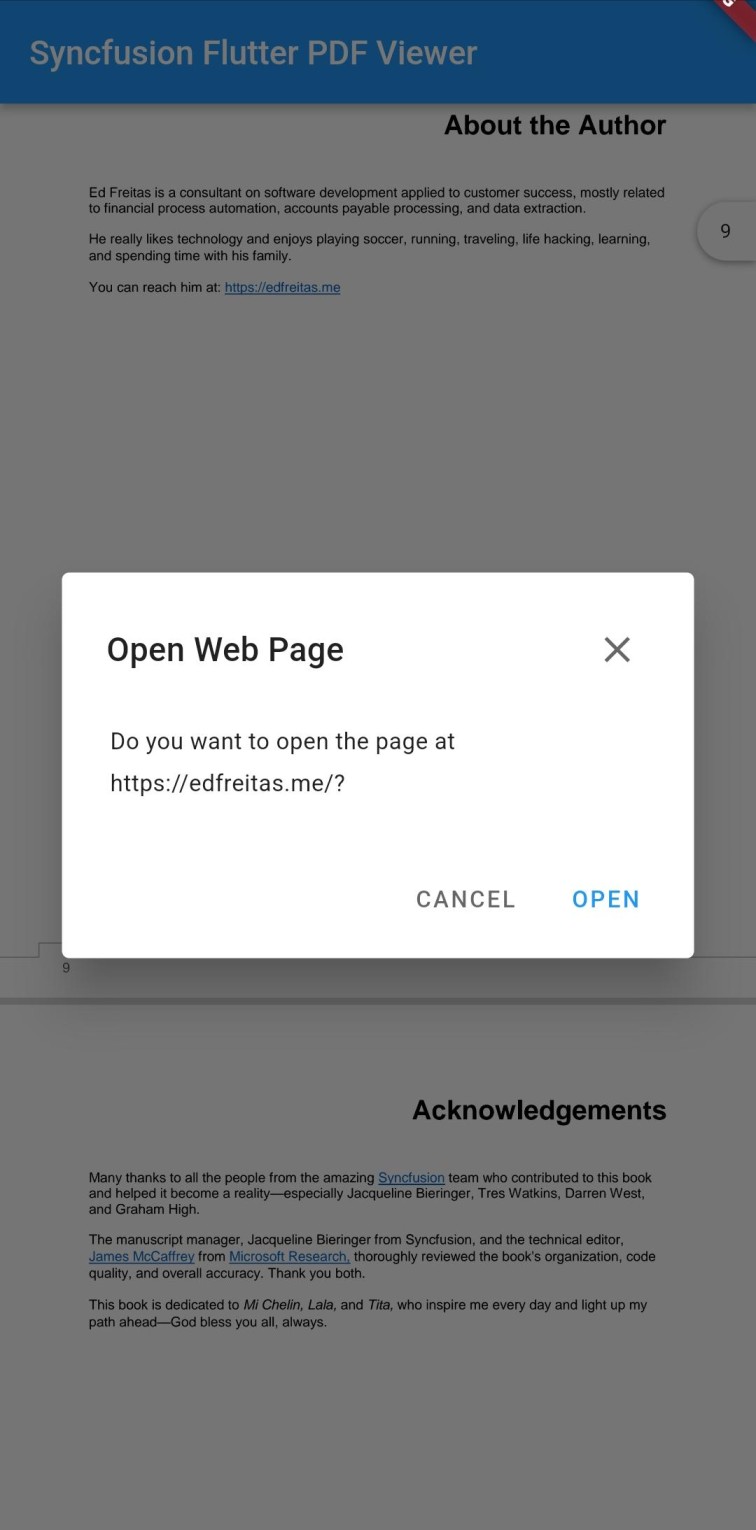
The SfPdfViewer allows you to open URLs or website links in the default browser. You can hide the built-in hyperlink navigation dialog or add a customized one using the available callbacks with supported functionalities.
Enable or Disable the Hyperlink Navigation
You can enable or disable the hyperlink navigation using the enableHyperlinkNavigation property. By default, the hyperlink navigation is enabled. The following code example explains how to disable it.
@override
  Widget build(BuildContext context) {
    return Scaffold(
      appBar: AppBar(
        title: const Text('Flutter PDF Viewer'),
      ),
      body: SfPdfViewer.network(
        'https://cdn.syncfusion.com/content/PDFViewer/flutter-succinctly.pdf',
        enableHyperlinkNavigation: false,
      ),
    );
  }
Customize the Visibility of the Hyperlink Navigation Dialog
By default, the built-in hyperlink navigation dialog will be displayed when any hyperlink is clicked. You can customize the visibility of the hyperlink navigation dialog using the canShowHyperlinkDialog property. The following code example explains how to hide the built-in dialog.
@override
  Widget build(BuildContext context) {
    return Scaffold(
      appBar: AppBar(
        title: const Text('Flutter PDF Viewer'),
      ),
      body: SfPdfViewer.network(
        'https://cdn.syncfusion.com/content/PDFViewer/flutter-succinctly.pdf',
        canShowHyperlinkDialog: false,
      ),
    );
  }
Callbacks
The SfPdfViewer hyperlink navigation supports the PdfHyperlinkClickedCallback to notify when any hyperlink is clicked. This callback can also be used to implement a custom hyperlink dialog or to override the default navigation behavior.
Hyperlink Clicked Callback
The onHyperlinkClicked callback triggers when any hyperlink in the PDF document is clicked. The PdfHyperlinkClickedDetails provides the uri of the clicked hyperlink in the PDF document. Returning false from the callback prevents the default hyperlink navigation dialog from being displayed, allowing you to implement custom hyperlink handling. The following code example explains the same.
@override
  Widget build(BuildContext context) {
    return Scaffold(
      appBar: AppBar(
        title: const Text('Flutter PDF Viewer'),
      ),
      body: SfPdfViewer.network(
        'https://cdn.syncfusion.com/content/PDFViewer/flutter-succinctly.pdf',
        onHyperlinkClicked: (PdfHyperlinkClickedDetails details) {
          print(details.uri);
        },
      ),
    );
  }