Text search in Blazor PDF Viewer
17 Aug 20264 minutes to read
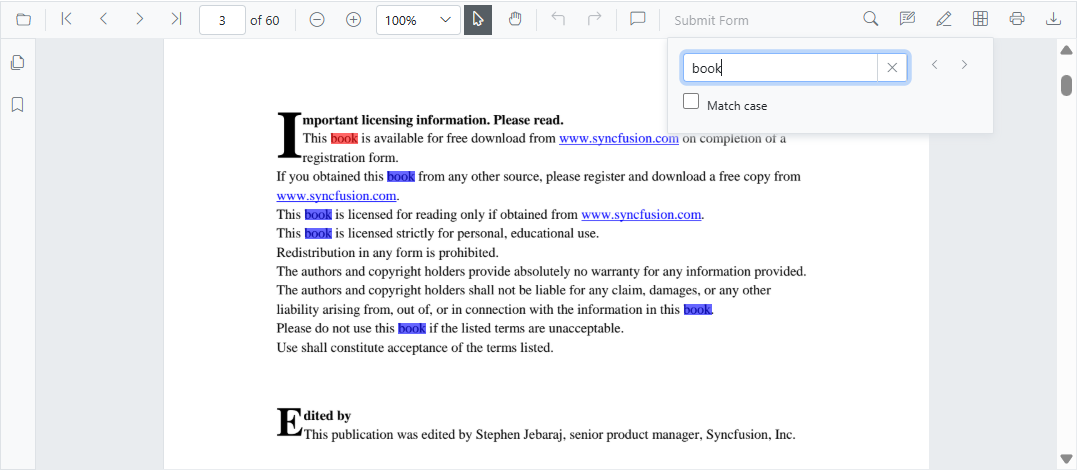
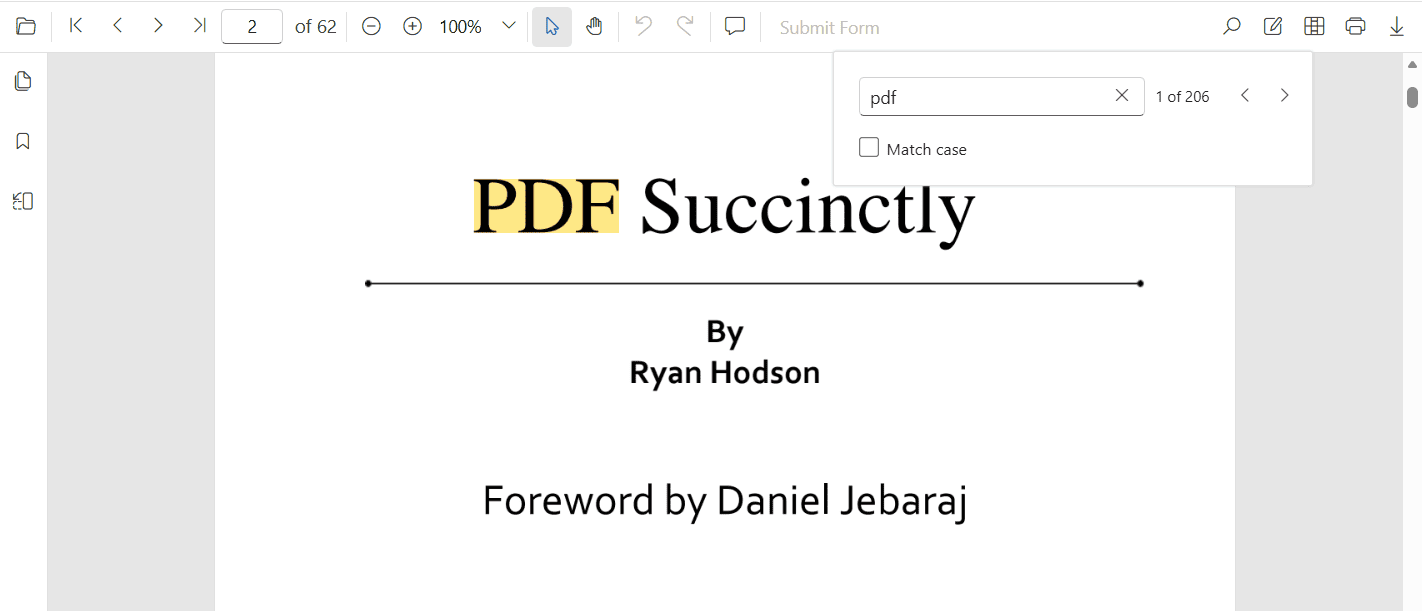
The text search feature in the Blazor PDF Viewer locates and highlights matching content within a document. Enable or disable this capability using the following configuration.
The text search functionality requires setting
EnableTextSearchproperty totrue. Otherwise, the search UI and APIs will not be accessible.
Text search features in UI
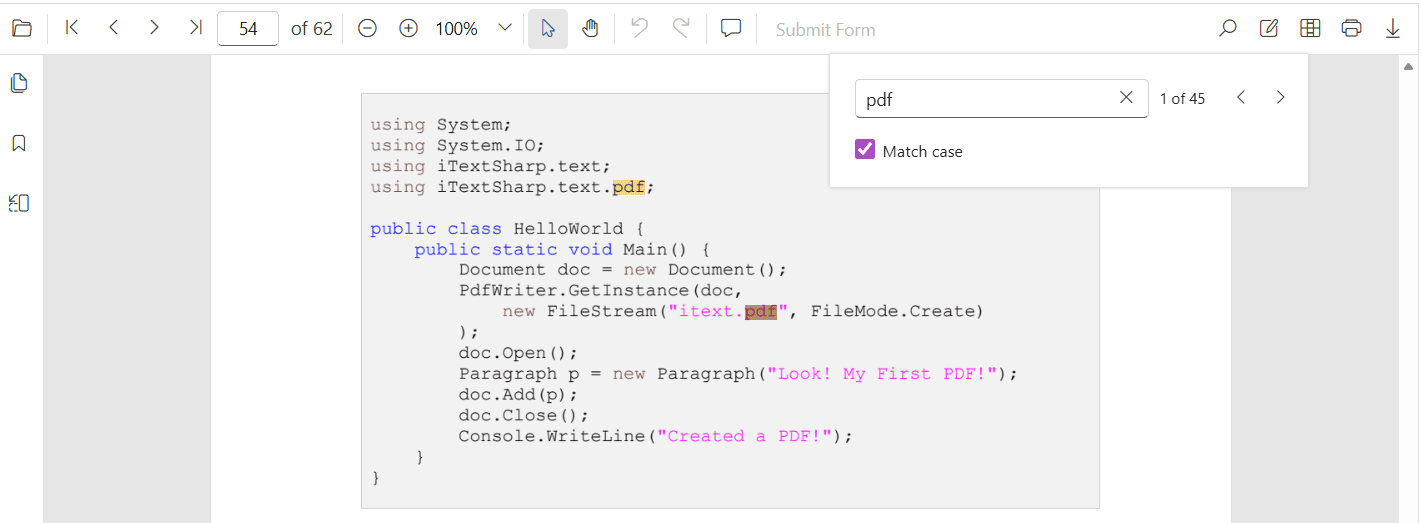
Search text with the Match Case option
Enable the Match Case checkbox to limit results to case-sensitive matches. Navigation commands then step through each exact match in sequence.
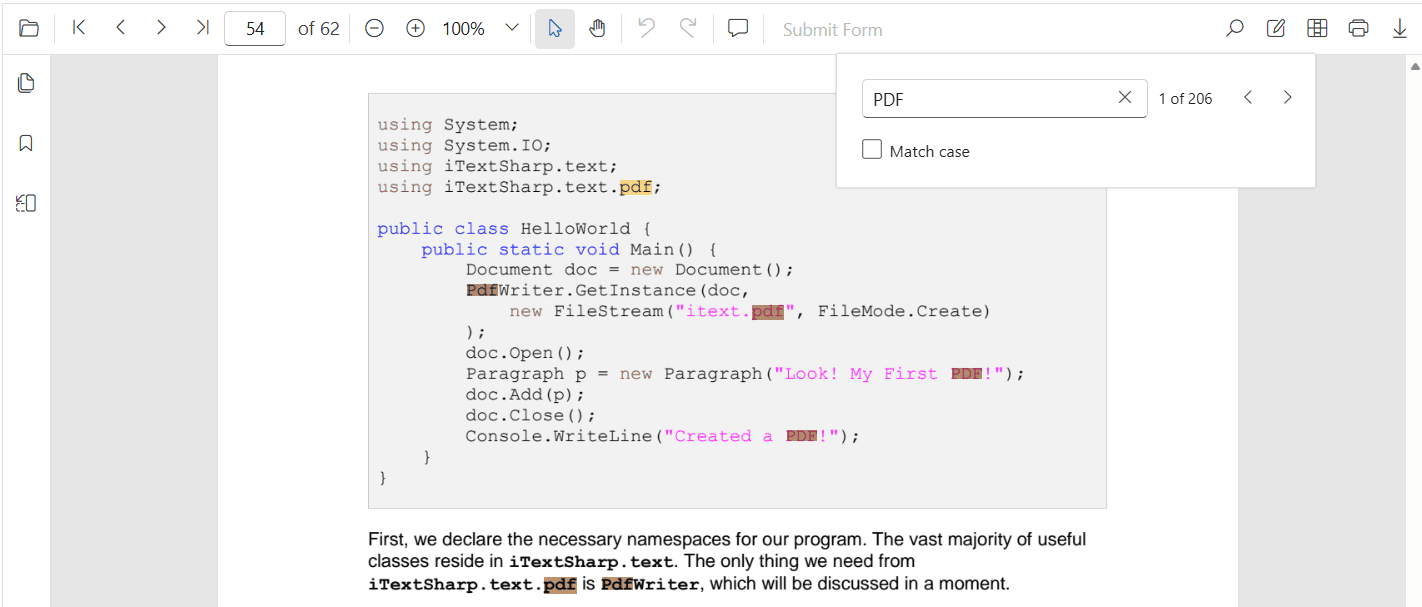
Search text without the Match Case option
Leave the Match Case option cleared to highlight every occurrence of the query, regardless of capitalization, and navigate through each result.
Programmatic text search
The Blazor PDF Viewer provides options to toggle the text search feature and APIs to customize the text search behavior programmatically.
Enable or disable text search
Use the following snippet to enable text search.
@using Syncfusion.Blazor.SfPdfViewer

<SfPdfViewer2 EnableTextSearch="true"
             DocumentPath="https://cdn.syncfusion.com/content/pdf/pdf-succinctly.pdf"
             Height="100%"
             Width="100%">
</SfPdfViewer2>
Use the following snippet to disable text search.
@using Syncfusion.Blazor.SfPdfViewer

<SfPdfViewer2 EnableTextSearch="false"
             DocumentPath="https://cdn.syncfusion.com/content/pdf/pdf-succinctly.pdf"
             Height="100%"
             Width="100%">
</SfPdfViewer2>
Programmatic text search APIs
While the PDF Viewer toolbar offers an interactive search experience, you can also trigger and customize searches programmatically by calling the following APIs.
SearchTextAsync
Use the SearchTextAsync method to start a search with optional filters that control case sensitivity.
// SearchTextAsync(string searchText, bool isMatchCase)
await pdfViewer.SearchTextAsync("search text", false);
Set the isMatchCase parameter to true to perform a case-sensitive search that mirrors the Match Case option in the search panel.
// This will only find instances of "PDF" in uppercase.
await pdfViewer.SearchTextAsync("PDF", true);
If SearchNextAsync or SearchPreviousAsync is called before SearchTextAsync, no navigation occurs because there is no active search query.
SearchNextAsync
SearchNextAsync method searches for the next occurrence of the current query starting from the currently active match.
// SearchNextAsync()
await pdfViewer.SearchNextAsync();
SearchPreviousAsync
SearchPreviousAsync method searches for the previous occurrence of the current query starting from the currently active match.
// SearchPreviousAsync()
await pdfViewer.SearchPreviousAsync();
CancelTextSearchAsync
CancelTextSearchAsync method cancels the current text search and removes the highlighted occurrences from the PDF Viewer.
// CancelTextSearchAsync()
await pdfViewer.CancelTextSearchAsync();
Complete example
Use the following code snippet to implement text search using the SearchTextAsync API. Place the sample PDF in wwwroot/Data so the DocumentPath resolves at runtime.
@using Syncfusion.Blazor.SfPdfViewer

<button @onclick="SearchText">Search Text</button>
<button @onclick="PreviousSearch">Previous Search</button>
<button @onclick="NextSearch">Next Search</button>
<button @onclick="CancelSearch">Cancel Search</button>

<SfPdfViewer2 @ref="pdfViewer"
             DocumentPath="https://cdn.syncfusion.com/content/pdf/pdf-succinctly.pdf"
             Height="100%"
             Width="100%">
</SfPdfViewer2>

@code {
    private SfPdfViewer2 pdfViewer;

    private async Task SearchText()
    {
        await pdfViewer.SearchTextAsync("search text", false);
    }

    private async Task PreviousSearch()
    {
        await pdfViewer.SearchPreviousAsync();
    }

    private async Task NextSearch()
    {
        await pdfViewer.SearchNextAsync();
    }

    private async Task CancelSearch()
    {
        await pdfViewer.CancelTextSearchAsync();
    }
}
Expected result: the viewer highlights occurrences of search text and navigation commands jump between matches.
Customize text search highlight colors
Use PdfViewerTextSearchColorSettings to customize the highlight appearance used for search results. Configure SearchColor for other matches and SearchHighlightColor for the current match. By default, distinct colors are applied for the current occurrence and other matches; adjust these to align with application theme and accessibility contrast requirements. The SearchColor and SearchHighlightColor properties accept CSS color values, such as named colors (red, blue) or hex codes (#FF0000).
@using Syncfusion.Blazor.SfPdfViewer

<SfPdfViewer2 Height="100%" Width="100%" DocumentPath="@DocumentPath">
    <PdfViewerTextSearchColorSettings SearchColor="blue" SearchHighlightColor="red"></PdfViewerTextSearchColorSettings>
</SfPdfViewer2>

@code{
    private string DocumentPath { get; set; } = "wwwroot/Data/PDF_Succinctly.pdf";
}