Zoom pages in Organize Pages in Blazor PDF Viewer
17 Aug 20262 minutes to read
Overview
This guide explains how to change the thumbnail zoom level in the Organize Pages UI so you can view more detail or see more pages at once.
Prerequisites
- EJ2 Blazor PDF Viewer installed
-
PageOrganizerSettingsconfigured in the PDF Viewer component
Steps
-
Open the Organize Pages view
- Click the Organize Pages button in the viewer toolbar to open the thumbnails panel.
-
Locate the zoom control
- Find the thumbnail zoom slider in the Organize Pages toolbar.
-
Adjust zoom
- Drag the slider to increase or decrease thumbnail size.
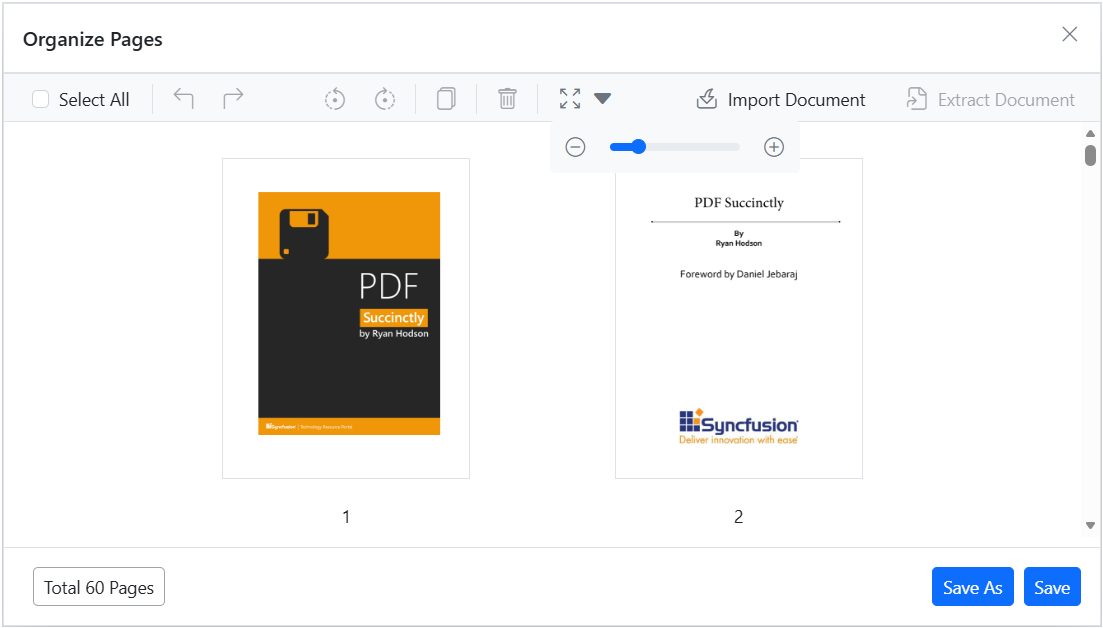
- Select a zoom level that balances page detail and the number of visible thumbnails for your task.
Expected result
- Thumbnails resize interactively; larger thumbnails show more detail while smaller thumbnails allow viewing more pages at once.
Configure thumbnail zoom settings
To customize the thumbnail zoom behavior, use the PageOrganizerSettings property with the following options:
| Property | Type | Description |
|---|---|---|
ImageZoom |
double | Sets the current thumbnail zoom level |
ImageZoomMin |
int | Minimum zoom level (2 to 5) |
ImageZoomMax |
int | Maximum zoom level (2 to 5) |
ShowImageZoomingSlider |
bool | Shows or hides the zoom slider |
<SfPdfViewer2 DocumentPath="https://cdn.syncfusion.com/content/pdf/pdf-succinctly.pdf" Height="100%" Width="100%">
    <PageOrganizerSettings ShowImageZoomingSlider="true" ImageZoom="3" ImageZoomMin="2" ImageZoomMax="5"></PageOrganizerSettings>
</SfPdfViewer2>
The
ImageZoomMinandImageZoomMaxproperties accept values from 2 to 5 only.
Show or hide the Zoom Pages slider
To show or hide the Zoom Pages slider in the Organize Pages toolbar, set the ShowImageZoomingSlider property in PageOrganizerSettings.
Troubleshooting
-
Zoom control not visible: Confirm
ShowImageZoomingSlideris set totruein thePageOrganizerSettings. -
Zoom slider not responding: Ensure
ImageZoomMinis less than or equal toImageZoomMax.