Rotate pages using the Organize Pages view in Blazor PDF Viewer
17 Jul 20262 minutes to read
Overview
This guide explains how to rotate individual or multiple pages using the Organize Pages UI in the Blazor PDF Viewer. Each click rotates the selected page(s) by 90°; repeated clicks achieve 180° and 270° rotations.
Outcome: Pages are rotated in the viewer and persisted when saved or exported.
Prerequisites
- Blazor PDF Viewer (SfPdfViewer) installed
- PDF Viewer configured with
DocumentPathproperty or document loaded viaLoadAsync()method
Steps
-
Open the Organize Pages view
- Click the Organize Pages button in the viewer toolbar to open the Organize Pages panel.
-
Select pages to rotate
- Click a single thumbnail, or use Shift+click or Ctrl+click to select multiple pages.
-
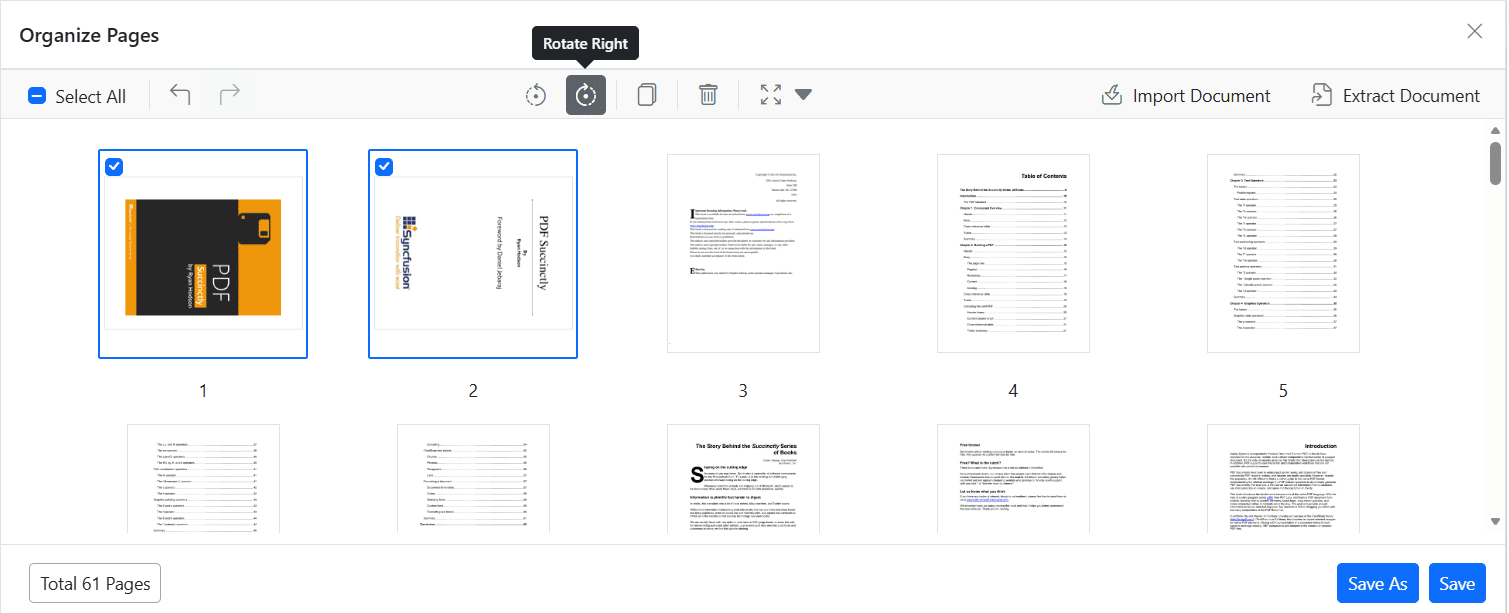
Rotate pages using toolbar buttons
- Use Rotate Right to rotate 90° clockwise.
- Use Rotate Left to rotate 90° counter-clockwise.
- Click the button again to apply additional 90° increments.
-
Rotate multiple pages at once
- When multiple thumbnails are selected, the Rotate action applies to every selected page.
-
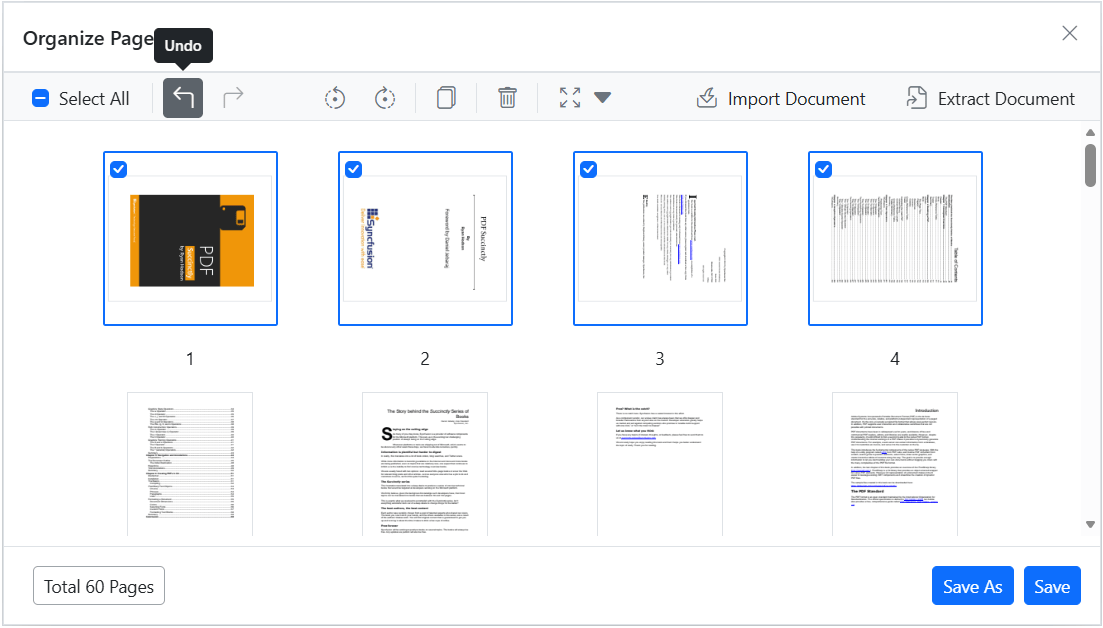
Undo or reset rotation
- Use Undo (Ctrl+Z) or Redo (Ctrl+Y) in the Organize Pages toolbar to revert or reapply the last rotation.
- Alternatively, click Rotate Left or Rotate Right again to step the page in 90° increments.
-
Persist rotations
- Click Save or Save As to persist rotations in the saved/downloaded PDF. Exporting pages also preserves the new orientation.
Expected result
- Pages rotate in-place in the Organize Pages panel when using the rotate controls.
- Saving or exporting the document preserves the new orientation.
Enable or disable Rotate Pages button
To enable or disable the Rotate Pages button in the Organize Pages toolbar, update the pageOrganizerSettings. See Organize pages toolbar customization for details
Troubleshooting
-
Rotate controls disabled: Ensure
PageOrganizerSettings.canRotateis not set tofalse. - Changes not saved: Verify that the server-side PDF processing is configured correctly.