How to Reduce slowness when running WASM in Visual Studio
14 Aug 20261 minute to read
You may experience slow performance when running or debugging Blazor WebAssembly apps in Visual Studio. This is caused by the Enable .NET 9+ Mono WASM debugger option, which can introduce overhead during debugging sessions.
Solution
- In Visual Studio, open Tools > Options.
- Expand Debugging and select General.
- Clear (uncheck) the Enable .NET 9+ Mono WASM debugger option.
- Click OK to apply the change.
- Restart your debugging session for the change to take effect.
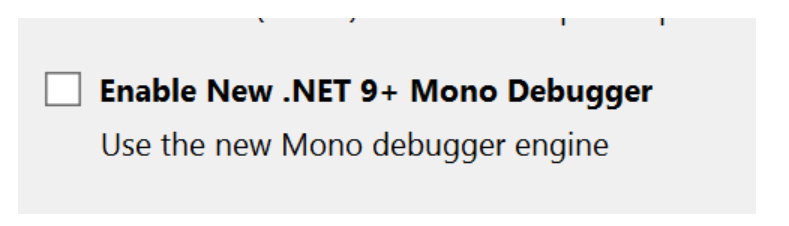
Disabling this option reduces startup time and improves responsiveness. The setting is per-user and applies to all Blazor WebAssembly projects on the machine.
Impact of disabling
When the option is disabled, managed-code stepping and watch-window evaluation during Blazor WebAssembly debugging are not available. To re-enable full debugging, repeat steps 1–3, check the Enable .NET 9+ Mono WASM debugger option, and click OK.
For background details and guidance, see the following resources:
- Performance Regression debugging Blazor WebAssembly with .NET 9
- Performance Regression in Blazor WebAssembly with .NET 9