Customize the Organize Pages Toolbar in ASP.NET MVC PDF Viewer
14 Aug 20265 minutes to read
The redaction toolbar in the Syncfusion ASP.NET MVC PDF Viewer can be customized by rearranging existing items, hiding default items, or adding new ones. You can also place custom items at specific index positions among the existing toolbar items.
Enable the redaction toolbar
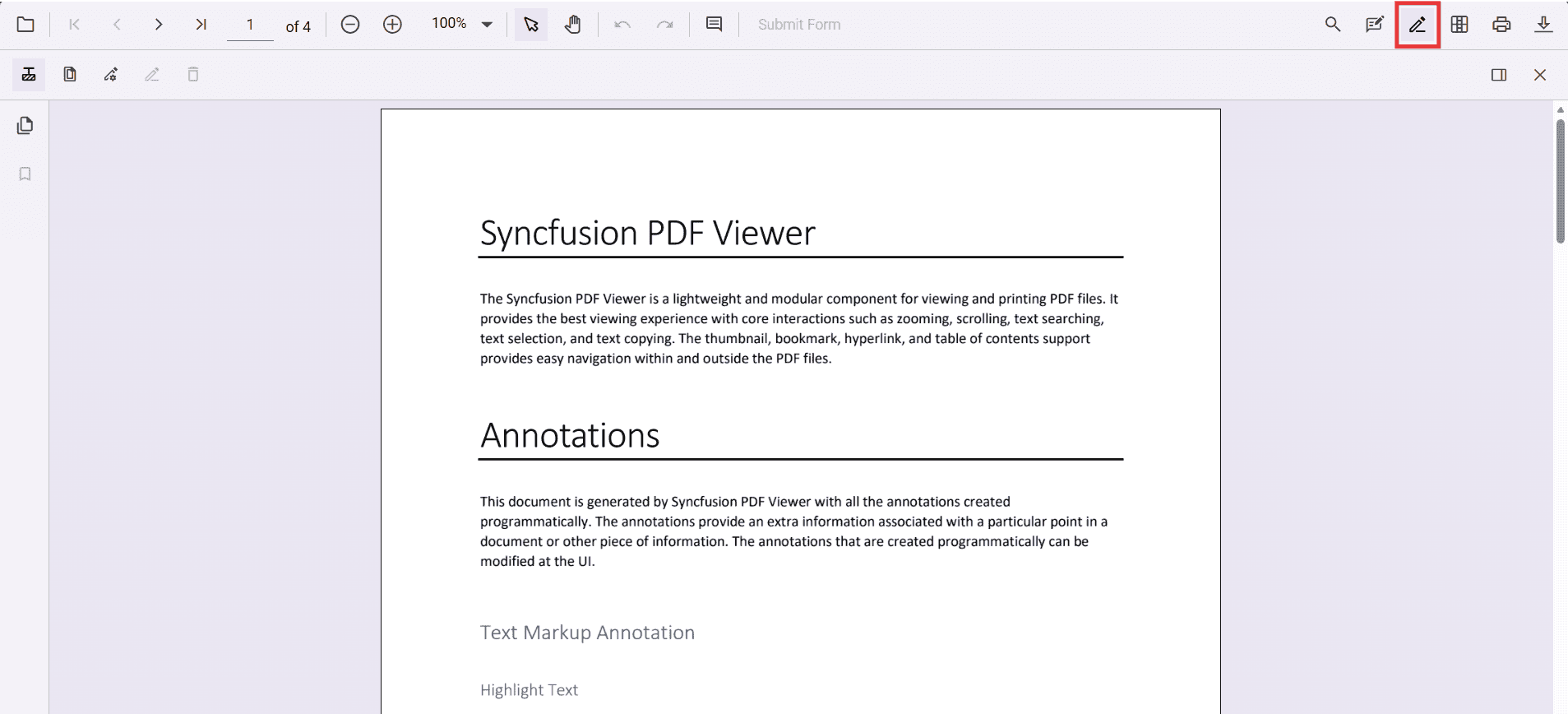
To enable the redaction toolbar, configure the toolbarSettings.toolbarItems property of the PdfViewer instance to include the RedactionEditTool.
The following example shows how to enable the redaction toolbar:
<div class="text-center">
    @Html.EJS().PdfViewer("pdfViewer")
        .ResourceUrl("https://cdn.syncfusion.com/ej2/31.2.12/dist/ej2-pdfviewer-lib")
        .DocumentPath("https://cdn.syncfusion.com/content/pdf/pdf-succinctly.pdf")
        .Height("640px")
        .Render()
</div>
<script type="text/javascript">
    window.onload = function () {
        var viewer = document.getElementById('pdfViewer').ej2_instances[0];
        // Include RedactionEditTool in the primary toolbar
        viewer.toolbarSettings = {
            toolbarItems: [
                'OpenOption',
                'UndoRedoTool',
                'PageNavigationTool',
                'MagnificationTool',
                'PanTool',
                'SelectionTool',
                'CommentTool',
                'SubmitForm',
                'AnnotationEditTool',
                'RedactionEditTool',
                'FormDesignerEditTool',
                'SearchOption',
                'PrintOption',
                'DownloadOption'
            ]
        };
    }
</script>
Refer to the following image for the toolbar view:
Show or hide the redaction toolbar
You can toggle the redaction toolbar either using the built-in toolbar icon or programmatically with the showRedactionToolbar method.
Display the redaction toolbar using the toolbar icon
When RedactionEditTool is included in the toolbar settings, clicking the redaction icon in the primary toolbar will show or hide the redaction toolbar.
Display the redaction toolbar programmatically
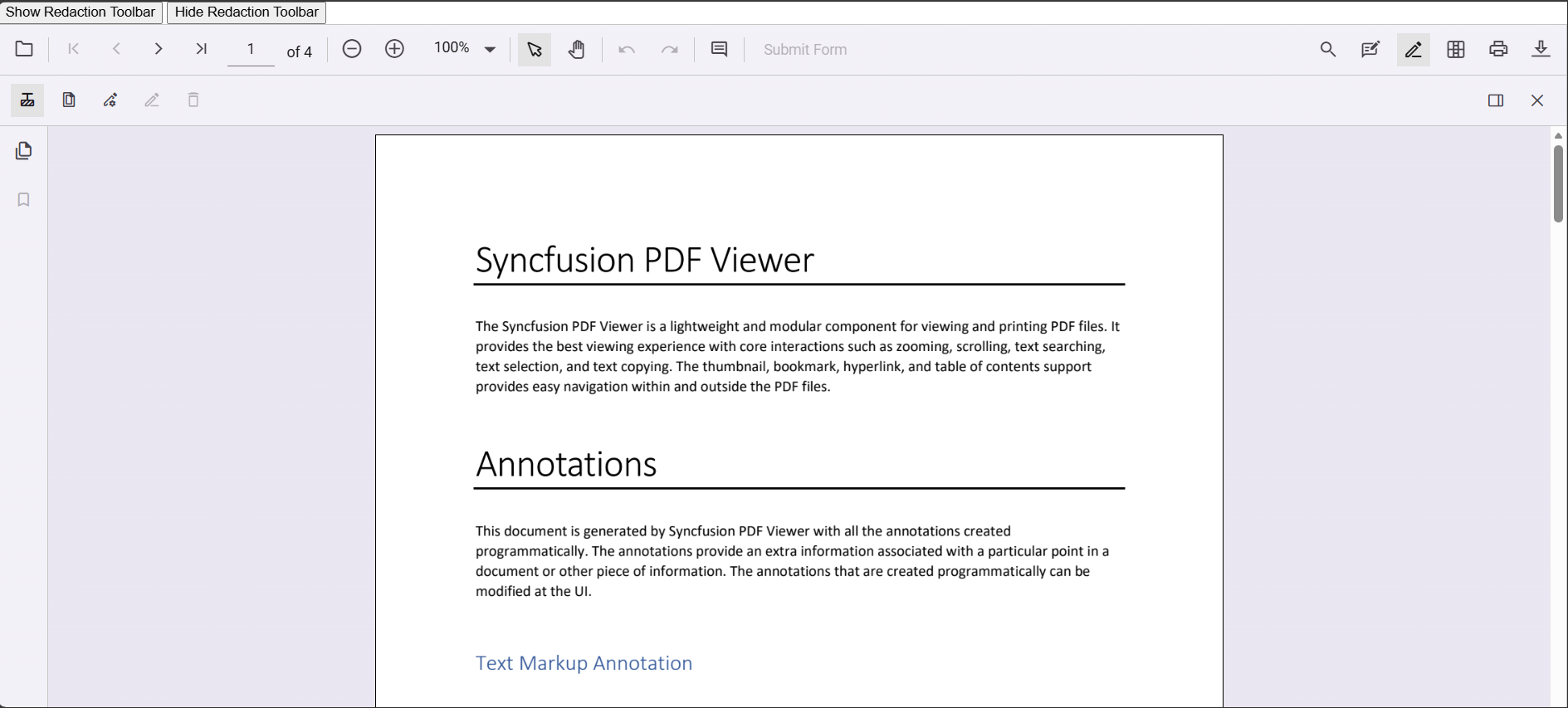
You can also control visibility through code by calling viewer.toolbar.showRedactionToolbar(true/false).
The following example demonstrates toggling the redaction toolbar programmatically:
<div class="content-wrapper">
    <!-- Separate buttons: Show and Hide Redaction toolbar -->
    <div style="margin-bottom:8px; display:flex; gap:8px;">
        <button type="button" onclick="showRedactionToolbar()">Show Redaction Toolbar</button>
        <button type="button" onclick="hideRedactionToolbar()">Hide Redaction Toolbar</button>
    </div>
    @Html.EJS().PdfViewer("pdfViewer")
        .ResourceUrl("https://cdn.syncfusion.com/ej2/31.2.12/dist/ej2-pdfviewer-lib")
        .DocumentPath("https://cdn.syncfusion.com/content/pdf/pdf-succinctly.pdf")
        .Height("640px")
        .Render()
</div>
<script type="text/javascript">
    window.onload = function () {
        window.viewer = document.getElementById('pdfViewer').ej2_instances[0];
        // Includes RedactionEditTool in the primary toolbar
        viewer.toolbarSettings = {
            toolbarItems: [
                'OpenOption', 'UndoRedoTool', 'PageNavigationTool', 'MagnificationTool', 'PanTool',
                'SelectionTool', 'CommentTool', 'SubmitForm', 'AnnotationEditTool', 'RedactionEditTool',
                'FormDesignerEditTool', 'SearchOption', 'PrintOption', 'DownloadOption'
            ]
        };
    };
    // Separate handlers for show/hide (no toggle)
    function showRedactionToolbar() {
        if (!window.viewer) return;
        viewer.toolbar.showRedactionToolbar(true);
    }
    function hideRedactionToolbar() {
        if (!window.viewer) return;
        viewer.toolbar.showRedactionToolbar(false);
    }
</script>Refer to the following image for details: