Measurement Annotation in ASP.NET MVC PDF Viewer
21 Oct 202624 minutes to read
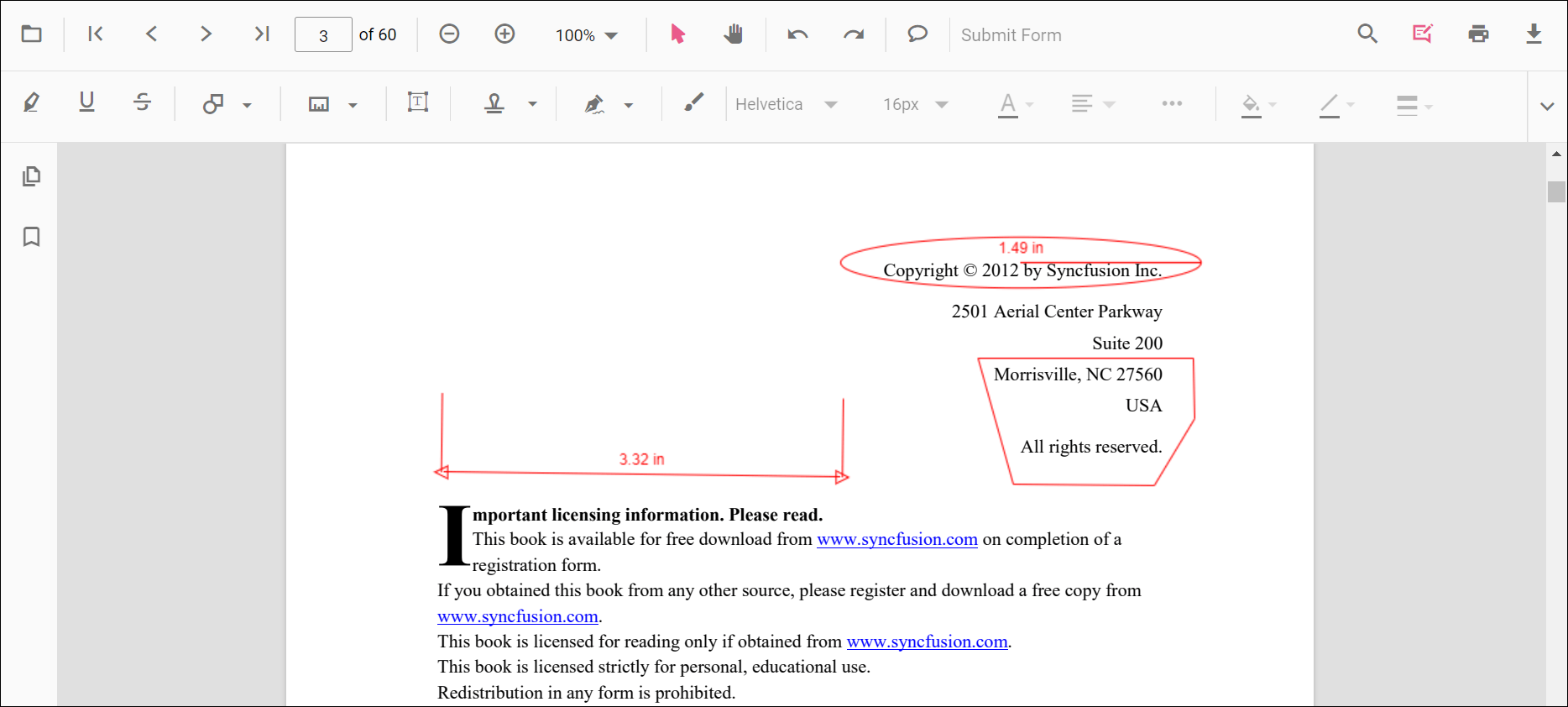
The PDF Viewer provides options to add measurement annotations. The supported measurement annotations are:
- Distance
- Perimeter
- Area
- Radius
- Volume
Adding measurement annotations to the PDF document
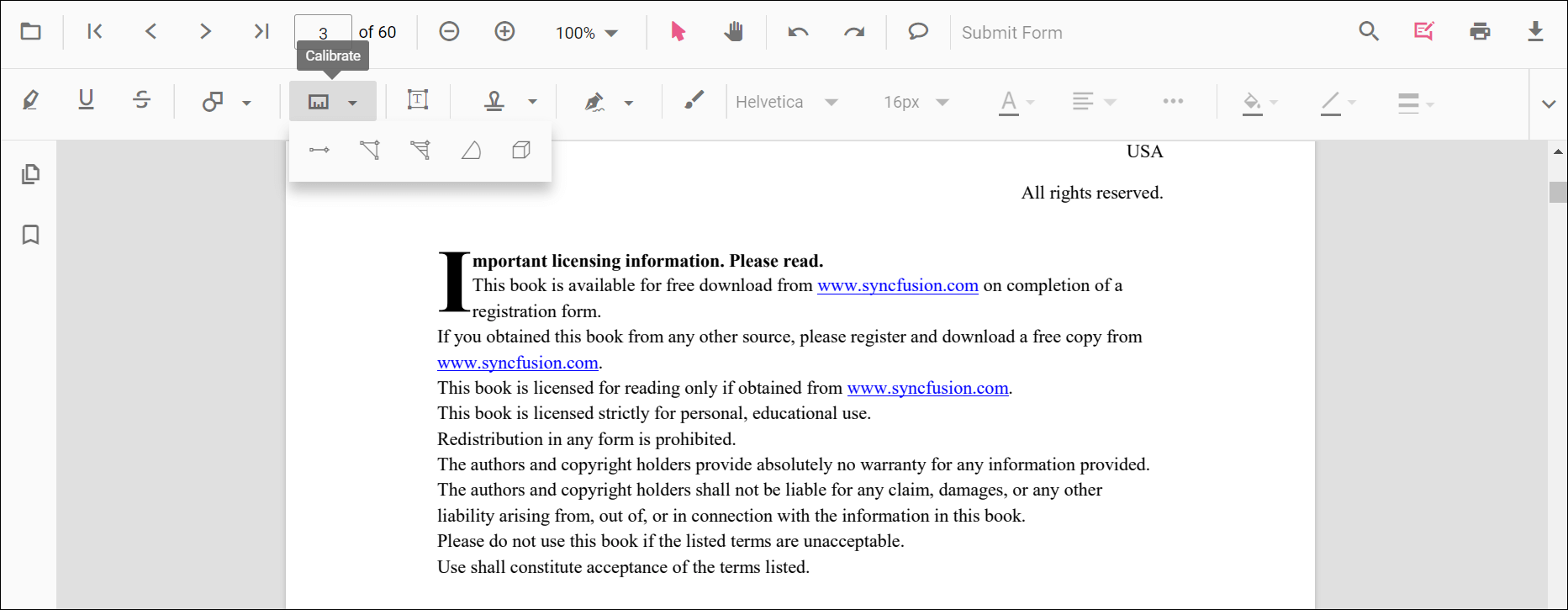
The measurement annotations can be added to the PDF document using the annotation toolbar.
- Click the Edit Annotation button in the PDF Viewer toolbar. A toolbar appears below it.
- Click the Measurement Annotation drop-down button. The pop-up lists available measurement annotation types.
- Select a measurement type to enable its annotation mode.
- Measure and add annotations on the pages of the PDF document.
When in pan mode, selecting a measurement annotation switches the PDF Viewer to text select mode.
The following example switches to distance annotation mode.
<!--Element to set measurement annotation mode-->
<button id="set" onclick="addAnnot()">Distance</button>
<div style="width:100%;height:600px">
    @Html.EJS().PdfViewer("pdfviewer").DocumentPath("https://cdn.syncfusion.com/content/pdf/pdf-succinctly.pdf").Render()
</div>
<script>
    function addAnnot() {
        var pdfViewer = document.getElementById('pdfviewer').ej2_instances[0];
        pdfViewer.annotation.setAnnotationMode('Distance');
    }
</script>
<!--Element to set measurement annotation mode-->
<button id="set" onclick="addAnnot()">Distance</button>
<div style="width:100%;height:600px">
@Html.EJS().PdfViewer("pdfviewer").ServiceUrl(VirtualPathUtility.ToAbsolute("~/PdfViewer/")).DocumentPath("https://cdn.syncfusion.com/content/pdf/pdf-succinctly.pdf").Render()
</div>
<script>
function addAnnot() {
var pdfViewer = document.getElementById('pdfviewer').ej2_instances[0];
pdfViewer.annotation.setAnnotationMode('Distance');
}
</script>Add a measurement annotation to the PDF document programmatically
The PDF Viewer library allows adding measurement annotations programmatically using the addAnnotation() method.
Here is an example showing how to add measurement annotations programmatically using addAnnotation():
<button onclick="addDistanceAnnotation()">Add Distance Annotation programmatically</button>
<button onclick="addPerimeterAnnotation()">Add Perimeter Annotation programmatically</button>
<button onclick="addAreaAnnotation()">Add Area Annotation programmatically</button>
<button onclick="addRadiusAnnotation()">Add Radius Annotation programmatically</button>
<button onclick="addVolumeAnnotation()">Add Volume Annotation programmatically</button>

<div style="width:100%;height:600px">
    @Html.EJS().PdfViewer("pdfviewer").DocumentPath("https://cdn.syncfusion.com/content/pdf/pdf-succinctly.pdf").Render()
</div>

<script>
    function addDistanceAnnotation() {
        var viewer = document.getElementById('pdfviewer').ej2_instances[0];
        viewer.annotation.addAnnotation("Distance", {
            offset: { x: 200, y: 230 },
            pageNumber: 1,
            vertexPoints: [{ x: 200, y: 230 }, { x: 350, y: 230 }]
        });
    }
    function addPerimeterAnnotation() {
        var viewer = document.getElementById('pdfviewer').ej2_instances[0];
        viewer.annotation.addAnnotation("Perimeter", {
            offset: { x: 200, y: 350 },
            pageNumber: 1,
            vertexPoints: [{ x: 200, y: 350 }, { x: 285, y: 350 }, { x: 286, y: 412 }]
        });
    }
    function addAreaAnnotation() {
        var viewer = document.getElementById('pdfviewer').ej2_instances[0];
        viewer.annotation.addAnnotation("Area", {
            offset: { x: 200, y: 500 },
            pageNumber: 1,
            vertexPoints: [{ x: 200, y: 500 }, { x: 288, y: 499 }, { x: 289, y: 553 }, { x: 200, y: 500 }]
        });
    }
    function addRadiusAnnotation() {
        var viewer = document.getElementById('pdfviewer').ej2_instances[0];
        viewer.annotation.addAnnotation("Radius", {
            offset: { x: 200, y: 630 },
            pageNumber: 1,
            width: 90,
            height: 90
        });
    }
    function addVolumeAnnotation() {
        var viewer = document.getElementById('pdfviewer').ej2_instances[0];
        viewer.annotation.addAnnotation("Volume", {
            offset: { x: 200, y: 810 },
            pageNumber: 1,
            vertexPoints: [{ x: 200, y: 810 }, { x: 200, y: 919 }, { x: 320, y: 919 }, { x: 320, y: 809 }, { x: 200, y: 810 }]
        });
    }
</script><button onclick="addDistanceAnnotation()">Add Distance Annotation programmatically</button>
<button onclick="addPerimeterAnnotation()">Add Perimeter Annotation programmatically</button>
<button onclick="addAreaAnnotation()">Add Area Annotation programmatically</button>
<button onclick="addRadiusAnnotation()">Add Radius Annotation programmatically</button>
<button onclick="addVolumeAnnotation()">Add Volume Annotation programmatically</button>
<div style="width:100%;height:600px">
@Html.EJS().PdfViewer("pdfviewer").ServiceUrl(VirtualPathUtility.ToAbsolute("~/PdfViewer/")).DocumentPath("https://cdn.syncfusion.com/content/pdf/pdf-succinctly.pdf").Render()
</div>
<script>
function addDistanceAnnotation() {
var viewer = document.getElementById('pdfviewer').ej2_instances[0];
viewer.annotation.addAnnotation("Distance", {
offset: { x: 200, y: 230 },
pageNumber: 1,
vertexPoints: [{ x: 200, y: 230 }, { x: 350, y: 230 }]
});
}
function addPerimeterAnnotation() {
var viewer = document.getElementById('pdfviewer').ej2_instances[0];
viewer.annotation.addAnnotation("Perimeter", {
offset: { x: 200, y: 350 },
pageNumber: 1,
vertexPoints: [{ x: 200, y: 350 }, { x: 285, y: 350 }, { x: 286, y: 412 }]
});
}
function addAreaAnnotation() {
var viewer = document.getElementById('pdfviewer').ej2_instances[0];
viewer.annotation.addAnnotation("Area", {
offset: { x: 200, y: 500 },
pageNumber: 1,
vertexPoints: [{ x: 200, y: 500 }, { x: 288, y: 499 }, { x: 289, y: 553 }, { x: 200, y: 500 }]
});
}
function addRadiusAnnotation() {
var viewer = document.getElementById('pdfviewer').ej2_instances[0];
viewer.annotation.addAnnotation("Radius", {
offset: { x: 200, y: 630 },
pageNumber: 1,
width: 90,
height: 90
});
}
function addVolumeAnnotation() {
var viewer = document.getElementById('pdfviewer').ej2_instances[0];
viewer.annotation.addAnnotation("Volume", {
offset: { x: 200, y: 810 },
pageNumber: 1,
vertexPoints: [{ x: 200, y: 810 }, { x: 200, y: 919 }, { x: 320, y: 919 }, { x: 320, y: 809 }, { x: 200, y: 810 }]
});
}
</script>Edit an existing measurement annotation programmatically
To modify an existing measurement annotation programmatically, use the editAnnotation() method.
Here is an example of using editAnnotation():
<button onclick="editDistanceAnnotation()">edit Distance Annotation programmatically</button>
<button onclick="editPerimeterAnnotation()">edit Perimeter Annotation programmatically</button>
<button onclick="editAreaAnnotation()">edit Area Annotation programmatically</button>
<button onclick="editRadiusAnnotation()">edit Radius Annotation programmatically</button>
<button onclick="editVolumeAnnotation()">edit Volume Annotation programmatically</button>

<div style="width:100%;height:600px">
    @Html.EJS().PdfViewer("pdfviewer").DocumentPath("https://cdn.syncfusion.com/content/pdf/pdf-succinctly.pdf").Render()
</div>

<script>
    function editDistanceAnnotation() {
        var viewer = document.getElementById('pdfviewer').ej2_instances[0];
        for (let i = 0; i < viewer.annotationCollection.length; i++) {
            if (viewer.annotationCollection[i].subject === "Distance calculation") {
                viewer.annotationCollection[i].annotationSelectorSettings.resizerShape = "Circle"
                viewer.annotationCollection[i].strokeColor = "#0000FF";
                viewer.annotationCollection[i].thickness = 2;
                viewer.annotationCollection[i].fillColor = "#FFFF00";
                viewer.annotation.editAnnotation(viewer.annotationCollection[i]);
            }
        }
    }
    function editPerimeterAnnotation() {
        var viewer = document.getElementById('pdfviewer').ej2_instances[0];
        for (let i = 0; i < viewer.annotationCollection.length; i++) {
            if (viewer.annotationCollection[i].subject === "Perimeter calculation") {
                viewer.annotationCollection[i].annotationSelectorSettings.resizerShape = "Circle"
                viewer.annotationCollection[i].strokeColor = "#0000FF";
                viewer.annotationCollection[i].thickness = 2;
                viewer.annotationCollection[i].fillColor = "#FFFF00";
                viewer.annotation.editAnnotation(viewer.annotationCollection[i]);
            }
        }
    }
    function editAreaAnnotation() {
        var viewer = document.getElementById('pdfviewer').ej2_instances[0];
        for (let i = 0; i < viewer.annotationCollection.length; i++) {
            if (viewer.annotationCollection[i].subject === "Area calculation") {
                viewer.annotationCollection[i].annotationSelectorSettings.resizerShape = "Circle"
                viewer.annotationCollection[i].strokeColor = "#0000FF";
                viewer.annotationCollection[i].thickness = 2;
                viewer.annotationCollection[i].fillColor = "#FFFF00";
                viewer.annotation.editAnnotation(viewer.annotationCollection[i]);
            }
        }
    }
    function editRadiusAnnotation() {
        var viewer = document.getElementById('pdfviewer').ej2_instances[0];
        for (let i = 0; i < viewer.annotationCollection.length; i++) {
            if (viewer.annotationCollection[i].subject === "Radius calculation") {
                viewer.annotationCollection[i].annotationSelectorSettings.resizerShape = "Circle"
                viewer.annotationCollection[i].strokeColor = "#0000FF";
                viewer.annotationCollection[i].thickness = 2;
                viewer.annotationCollection[i].fillColor = "#FFFF00";
                viewer.annotation.editAnnotation(viewer.annotationCollection[i]);
            }
        }
    }
    function editVolumeAnnotation() {
        var viewer = document.getElementById('pdfviewer').ej2_instances[0];
        for (let i = 0; i < viewer.annotationCollection.length; i++) {
            if (viewer.annotationCollection[i].subject === "Volume calculation") {
                viewer.annotationCollection[i].annotationSelectorSettings.resizerShape = "Circle"
                viewer.annotationCollection[i].strokeColor = "#0000FF";
                viewer.annotationCollection[i].thickness = 2;
                viewer.annotationCollection[i].fillColor = "#FFFF00";
                viewer.annotation.editAnnotation(viewer.annotationCollection[i]);
            }
        }
    }
</script><button onclick="editDistanceAnnotation()">edit Distance Annotation programmatically</button>
<button onclick="editPerimeterAnnotation()">edit Perimeter Annotation programmatically</button>
<button onclick="editAreaAnnotation()">edit Area Annotation programmatically</button>
<button onclick="editRadiusAnnotation()">edit Radius Annotation programmatically</button>
<button onclick="editVolumeAnnotation()">edit Volume Annotation programmatically</button>
<div style="width:100%;height:600px">
@Html.EJS().PdfViewer("pdfviewer").ServiceUrl(VirtualPathUtility.ToAbsolute("~/PdfViewer/")).DocumentPath("https://cdn.syncfusion.com/content/pdf/pdf-succinctly.pdf").Render()
</div>
<script>
function editDistanceAnnotation() {
var viewer = document.getElementById('pdfviewer').ej2_instances[0];
for (let i = 0; i < viewer.annotationCollection.length; i++) {
if (viewer.annotationCollection[i].subject === "Distance calculation") {
viewer.annotationCollection[i].annotationSelectorSettings.resizerShape = "Circle"
viewer.annotationCollection[i].strokeColor = "#0000FF";
viewer.annotationCollection[i].thickness = 2;
viewer.annotationCollection[i].fillColor = "#FFFF00";
viewer.annotation.editAnnotation(viewer.annotationCollection[i]);
}
}
}
function editPerimeterAnnotation() {
var viewer = document.getElementById('pdfviewer').ej2_instances[0];
for (let i = 0; i < viewer.annotationCollection.length; i++) {
if (viewer.annotationCollection[i].subject === "Perimeter calculation") {
viewer.annotationCollection[i].annotationSelectorSettings.resizerShape = "Circle"
viewer.annotationCollection[i].strokeColor = "#0000FF";
viewer.annotationCollection[i].thickness = 2;
viewer.annotationCollection[i].fillColor = "#FFFF00";
viewer.annotation.editAnnotation(viewer.annotationCollection[i]);
}
}
}
function editAreaAnnotation() {
var viewer = document.getElementById('pdfviewer').ej2_instances[0];
for (let i = 0; i < viewer.annotationCollection.length; i++) {
if (viewer.annotationCollection[i].subject === "Area calculation") {
viewer.annotationCollection[i].annotationSelectorSettings.resizerShape = "Circle"
viewer.annotationCollection[i].strokeColor = "#0000FF";
viewer.annotationCollection[i].thickness = 2;
viewer.annotationCollection[i].fillColor = "#FFFF00";
viewer.annotation.editAnnotation(viewer.annotationCollection[i]);
}
}
}
function editRadiusAnnotation() {
var viewer = document.getElementById('pdfviewer').ej2_instances[0];
for (let i = 0; i < viewer.annotationCollection.length; i++) {
if (viewer.annotationCollection[i].subject === "Radius calculation") {
viewer.annotationCollection[i].annotationSelectorSettings.resizerShape = "Circle"
viewer.annotationCollection[i].strokeColor = "#0000FF";
viewer.annotationCollection[i].thickness = 2;
viewer.annotationCollection[i].fillColor = "#FFFF00";
viewer.annotation.editAnnotation(viewer.annotationCollection[i]);
}
}
}
function editVolumeAnnotation() {
var viewer = document.getElementById('pdfviewer').ej2_instances[0];
for (let i = 0; i < viewer.annotationCollection.length; i++) {
if (viewer.annotationCollection[i].subject === "Volume calculation") {
viewer.annotationCollection[i].annotationSelectorSettings.resizerShape = "Circle"
viewer.annotationCollection[i].strokeColor = "#0000FF";
viewer.annotationCollection[i].thickness = 2;
viewer.annotationCollection[i].fillColor = "#FFFF00";
viewer.annotation.editAnnotation(viewer.annotationCollection[i]);
}
}
}
</script>Edit the properties of measurement annotations
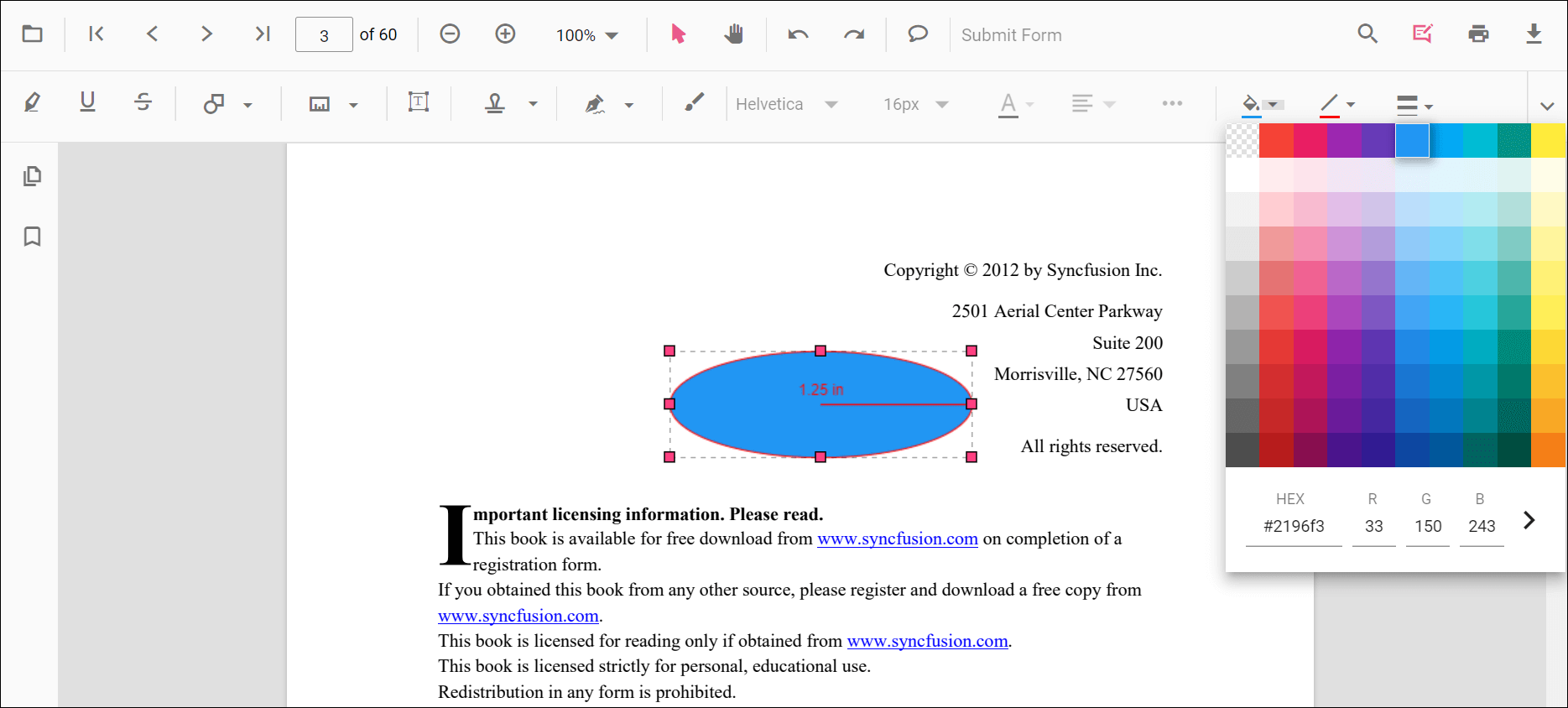
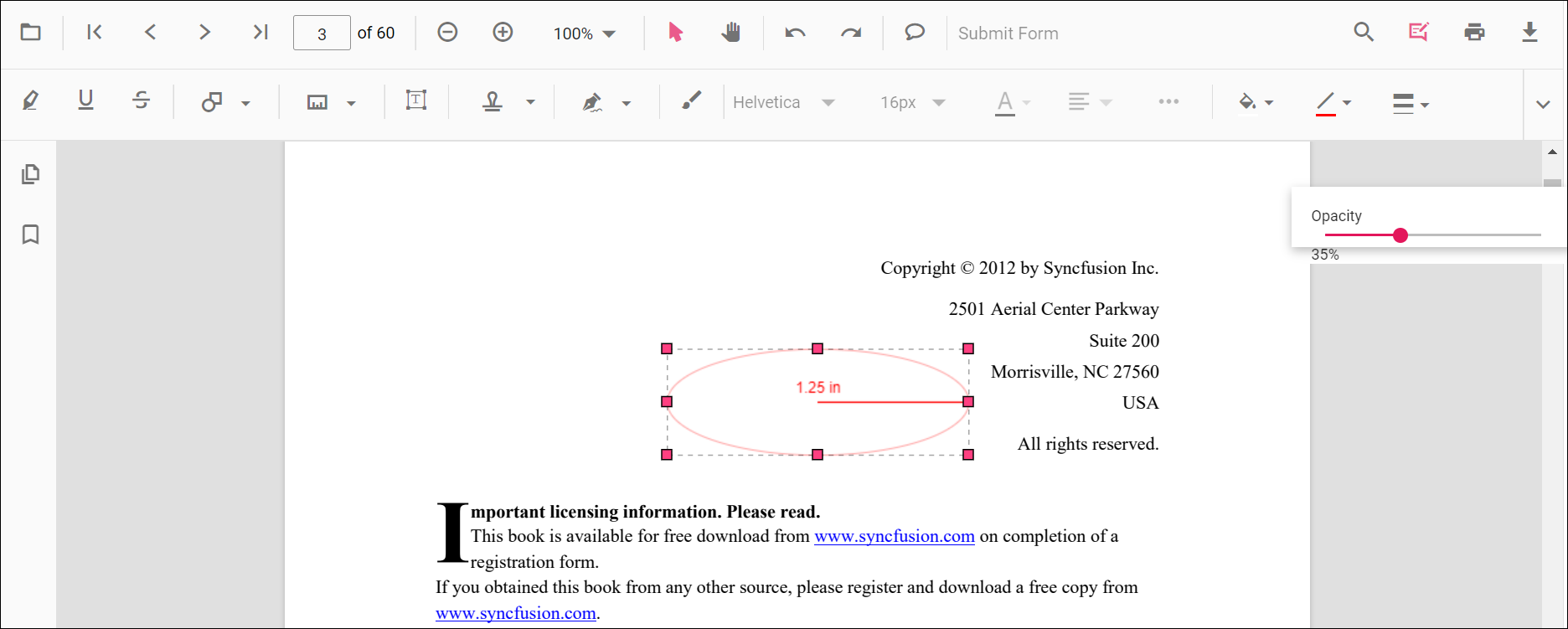
The fill color, stroke color, thickness, and opacity can be edited using the Edit Color, Edit Stroke Color, Edit Thickness, and Edit Opacity tools in the annotation toolbar.
Edit fill color
The fill color of the annotation can be edited using the color palette provided in the Edit Color tool.
Edit stroke color
The stroke color of the annotation can be edited using the color palette provided in the Edit Stroke Color tool.

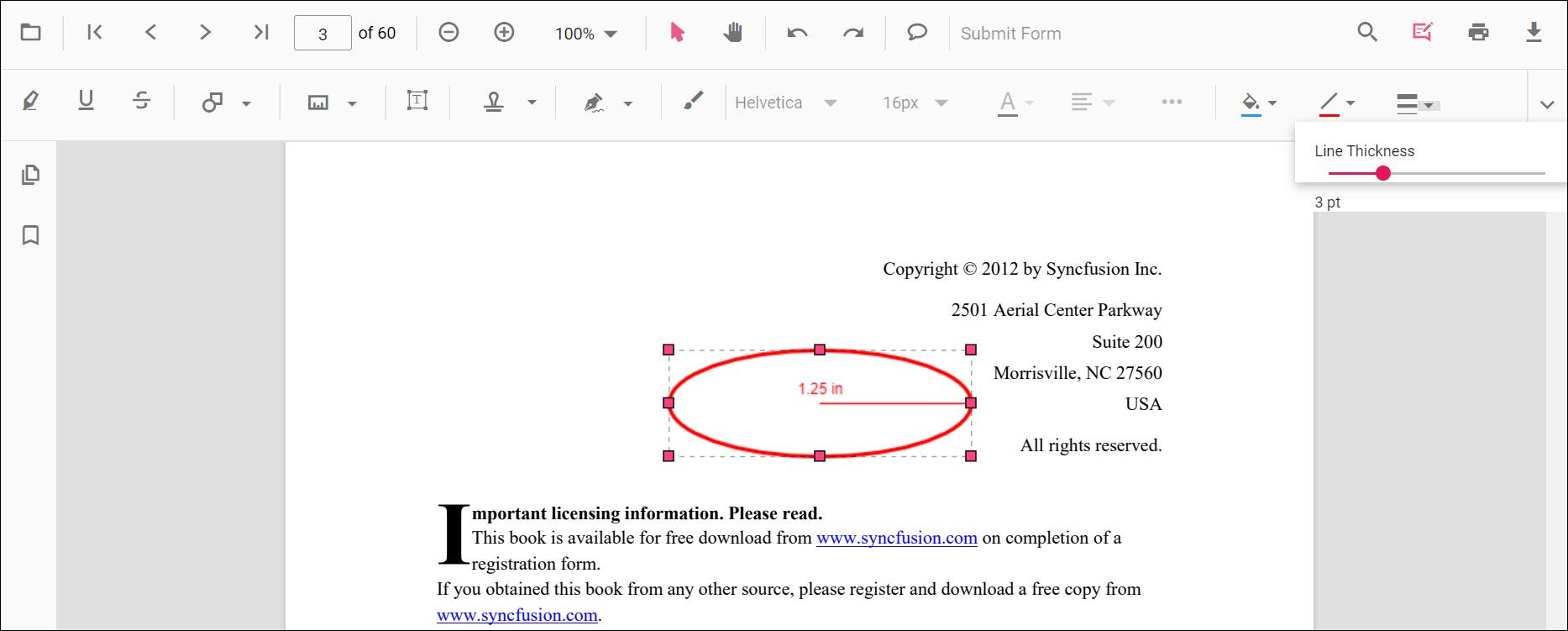
Edit thickness
The border thickness can be edited using the range slider provided in the Edit Thickness tool.
Edit opacity
The opacity of the annotation can be edited using the range slider provided in the Edit Opacity tool.
Edit the line properties
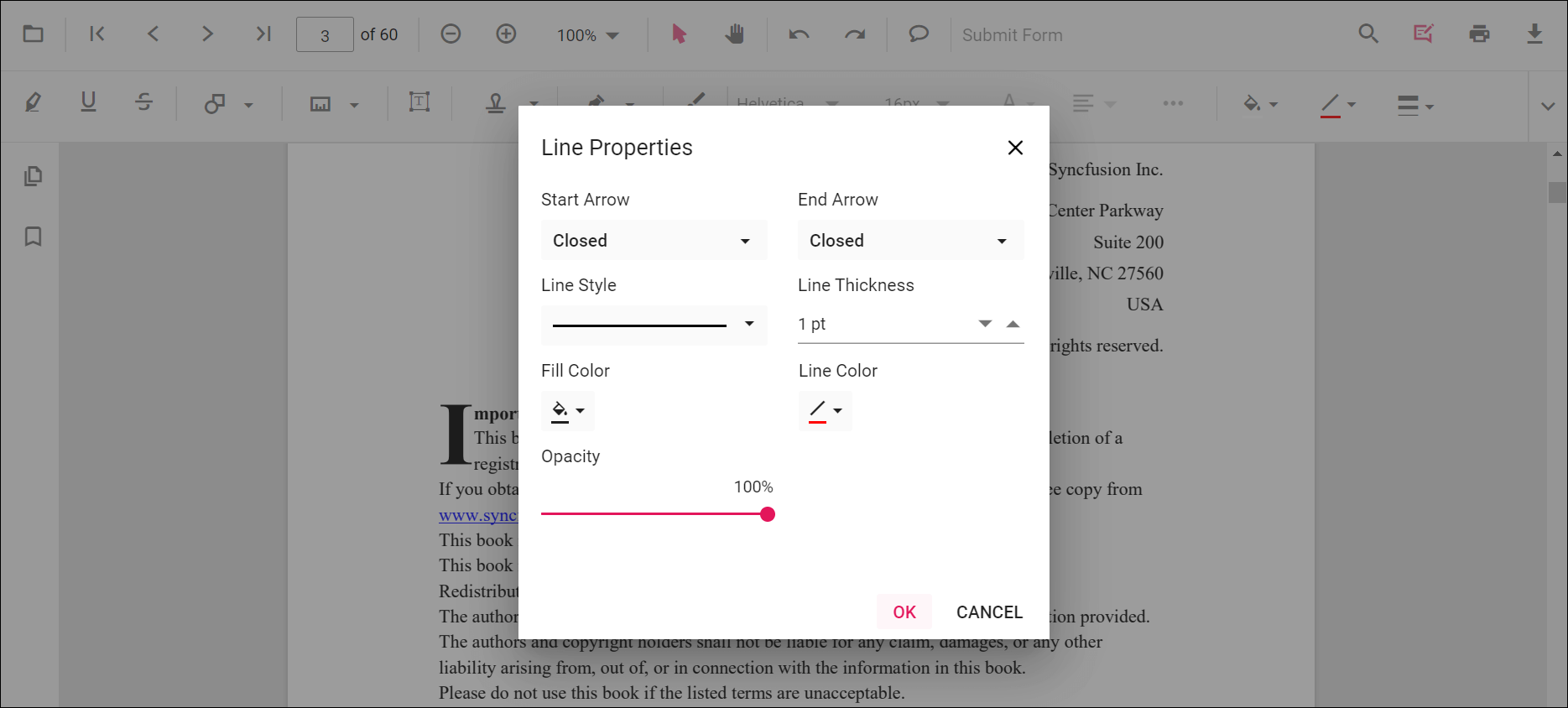
Line-based measurement annotations (distance and perimeter) have additional options in the Line Properties window. Open it by right-clicking the annotation and selecting Properties from the context menu.
Supported Border Styles
In addition to the default Solid border, measurement annotations support additional border styles. The supported styles depend on the annotation type.
| Annotation | Solid | Cloud | Dashed |
|---|---|---|---|
| Area | ✓ | ✓ | ✓ |
| Radius | ✓ | ✓ | ✓ |
| Volume | ✓ | ✓ | ✓ |
| Distance | ✓ | — | ✓ |
| Perimeter | ✓ | — | ✓ |
Use the PdfViewerBorderStyle enum together with the optional BorderDashArray (Dashed) and CloudIntensity (Cloud) settings on the corresponding settings object (PdfViewerAreaSettings, PdfViewerRadiusSettings, PdfViewerVolumeSettings, PdfViewerDistanceSettings, PdfViewerPerimeterSettings).
public enum PdfViewerBorderStyle
{
    Solid,
    Dashed,
    Cloud
}| Property | Type | Description |
|---|---|---|
BorderStyle |
PdfViewerBorderStyle |
Specifies the border style. Supported values: Solid, Cloud, and Dashed. |
BorderDashArray |
double[] |
Specifies the dash pattern when BorderStyle is Dashed. |
CloudIntensity |
double |
Specifies the cloud border intensity. Supported range: 1 to 2; default value: 1. |
CloudIntensityis honored only whenBorderStyleisCloud.
BorderStyle,BorderDashArray, andCloudIntensityare preserved during save, reload, import, and export.
Apply a Cloud Border (Area, Radius, Volume)
<div style="width:100%;height:600px">
    @Html.EJS().PdfViewer("pdfviewer").DocumentPath("https://cdn.syncfusion.com/content/pdf/pdf-succinctly.pdf").AreaSettings(new Syncfusion.EJ2.PdfViewer.PdfViewerAreaSettings { FillColor = "yellow", StrokeColor = "orange", Thickness = 2, Opacity = 0.9, BorderStyle = Syncfusion.EJ2.PdfViewer.PdfViewerBorderStyle.Cloud, CloudIntensity = 2 }).RadiusSettings(new Syncfusion.EJ2.PdfViewer.PdfViewerRadiusSettings { FillColor = "orange", StrokeColor = "pink", Thickness = 2, Opacity = 0.9, BorderStyle = Syncfusion.EJ2.PdfViewer.PdfViewerBorderStyle.Cloud, CloudIntensity = 2 }).VolumeSettings(new Syncfusion.EJ2.PdfViewer.PdfViewerVolumeSettings { FillColor = "pink", StrokeColor = "yellow", Thickness = 2, Opacity = 0.9, BorderStyle = Syncfusion.EJ2.PdfViewer.PdfViewerBorderStyle.Cloud, CloudIntensity = 2 }).Render()
</div><div style="width:100%;height:600px">
@Html.EJS().PdfViewer("pdfviewer").ServiceUrl(VirtualPathUtility.ToAbsolute("~/PdfViewer/")).DocumentPath("https://cdn.syncfusion.com/content/pdf/pdf-succinctly.pdf").AreaSettings(new Syncfusion.EJ2.PdfViewer.PdfViewerAreaSettings { FillColor = "yellow", StrokeColor = "orange", Thickness = 2, Opacity = 0.9, BorderStyle = Syncfusion.EJ2.PdfViewer.PdfViewerBorderStyle.Cloud, CloudIntensity = 2 }).RadiusSettings(new Syncfusion.EJ2.PdfViewer.PdfViewerRadiusSettings { FillColor = "orange", StrokeColor = "pink", Thickness = 2, Opacity = 0.9, BorderStyle = Syncfusion.EJ2.PdfViewer.PdfViewerBorderStyle.Cloud, CloudIntensity = 2 }).VolumeSettings(new Syncfusion.EJ2.PdfViewer.PdfViewerVolumeSettings { FillColor = "pink", StrokeColor = "yellow", Thickness = 2, Opacity = 0.9, BorderStyle = Syncfusion.EJ2.PdfViewer.PdfViewerBorderStyle.Cloud, CloudIntensity = 2 }).Render()
</div>Apply a Dashed Border (Area, Radius, Volume, Distance, Perimeter)
<div style="width:100%;height:600px">
    @Html.EJS().PdfViewer("pdfviewer").DocumentPath("https://cdn.syncfusion.com/content/pdf/pdf-succinctly.pdf").DistanceSettings(new Syncfusion.EJ2.PdfViewer.PdfViewerDistanceSettings { FillColor = "blue", StrokeColor = "green", Thickness = 2, Opacity = 0.9, BorderStyle = Syncfusion.EJ2.PdfViewer.PdfViewerBorderStyle.Dashed, BorderDashArray = new double[] { 5, 5 } }).PerimeterSettings(new Syncfusion.EJ2.PdfViewer.PdfViewerPerimeterSettings { FillColor = "green", StrokeColor = "blue", Thickness = 2, Opacity = 0.9, BorderStyle = Syncfusion.EJ2.PdfViewer.PdfViewerBorderStyle.Dashed, BorderDashArray = new double[] { 5, 5 } }).AreaSettings(new Syncfusion.EJ2.PdfViewer.PdfViewerAreaSettings { FillColor = "yellow", StrokeColor = "orange", Thickness = 2, Opacity = 0.9, BorderStyle = Syncfusion.EJ2.PdfViewer.PdfViewerBorderStyle.Dashed, BorderDashArray = new double[] { 5, 5 } }).RadiusSettings(new Syncfusion.EJ2.PdfViewer.PdfViewerRadiusSettings { FillColor = "orange", StrokeColor = "pink", Thickness = 2, Opacity = 0.9, BorderStyle = Syncfusion.EJ2.PdfViewer.PdfViewerBorderStyle.Dashed, BorderDashArray = new double[] { 5, 5 } }).VolumeSettings(new Syncfusion.EJ2.PdfViewer.PdfViewerVolumeSettings { FillColor = "pink", StrokeColor = "yellow", Thickness = 2, Opacity = 0.9, BorderStyle = Syncfusion.EJ2.PdfViewer.PdfViewerBorderStyle.Dashed, BorderDashArray = new double[] { 5, 5 } }).Render()
</div><div style="width:100%;height:600px">
@Html.EJS().PdfViewer("pdfviewer").ServiceUrl(VirtualPathUtility.ToAbsolute("~/PdfViewer/")).DocumentPath("https://cdn.syncfusion.com/content/pdf/pdf-succinctly.pdf").DistanceSettings(new Syncfusion.EJ2.PdfViewer.PdfViewerDistanceSettings { FillColor = "blue", StrokeColor = "green", Thickness = 2, Opacity = 0.9, BorderStyle = Syncfusion.EJ2.PdfViewer.PdfViewerBorderStyle.Dashed, BorderDashArray = new double[] { 5, 5 } }).PerimeterSettings(new Syncfusion.EJ2.PdfViewer.PdfViewerPerimeterSettings { FillColor = "green", StrokeColor = "blue", Thickness = 2, Opacity = 0.9, BorderStyle = Syncfusion.EJ2.PdfViewer.PdfViewerBorderStyle.Dashed, BorderDashArray = new double[] { 5, 5 } }).AreaSettings(new Syncfusion.EJ2.PdfViewer.PdfViewerAreaSettings { FillColor = "yellow", StrokeColor = "orange", Thickness = 2, Opacity = 0.9, BorderStyle = Syncfusion.EJ2.PdfViewer.PdfViewerBorderStyle.Dashed, BorderDashArray = new double[] { 5, 5 } }).RadiusSettings(new Syncfusion.EJ2.PdfViewer.PdfViewerRadiusSettings { FillColor = "orange", StrokeColor = "pink", Thickness = 2, Opacity = 0.9, BorderStyle = Syncfusion.EJ2.PdfViewer.PdfViewerBorderStyle.Dashed, BorderDashArray = new double[] { 5, 5 } }).VolumeSettings(new Syncfusion.EJ2.PdfViewer.PdfViewerVolumeSettings { FillColor = "pink", StrokeColor = "yellow", Thickness = 2, Opacity = 0.9, BorderStyle = Syncfusion.EJ2.PdfViewer.PdfViewerBorderStyle.Dashed, BorderDashArray = new double[] { 5, 5 } }).Render()
</div>Set default properties during control initialization
Default properties for measurement annotations can be set before creating the control using DistanceSettings, PerimeterSettings, AreaSettings, RadiusSettings, and VolumeSettings.
Refer to the following code sample to set the default annotation settings.
<div style="width:100%;height:600px">
    @Html.EJS().PdfViewer("pdfviewer").DocumentPath("https://cdn.syncfusion.com/content/pdf/pdf-succinctly.pdf").DistanceSettings(new Syncfusion.EJ2.PdfViewer.PdfViewerDistanceSettings { FillColor = "blue", Opacity = 0.6, StrokeColor = "green" }).PerimeterSettings(new Syncfusion.EJ2.PdfViewer.PdfViewerPerimeterSettings { FillColor = "green", Opacity = 0.6, StrokeColor = "blue" }).AreaSettings(new Syncfusion.EJ2.PdfViewer.PdfViewerAreaSettings { FillColor = "yellow", Opacity = 0.6, StrokeColor = "orange" }).RadiusSettings(new Syncfusion.EJ2.PdfViewer.PdfViewerRadiusSettings { FillColor = "orange", Opacity = 0.6, StrokeColor = "pink" }).VolumeSettings(new Syncfusion.EJ2.PdfViewer.PdfViewerVolumeSettings { FillColor = "pink", Opacity = 0.6, StrokeColor = "yellow" }).Render()
</div><div style="width:100%;height:600px">
@Html.EJS().PdfViewer("pdfviewer").ServiceUrl(VirtualPathUtility.ToAbsolute("~/PdfViewer/")).DocumentPath("https://cdn.syncfusion.com/content/pdf/pdf-succinctly.pdf").DistanceSettings(new Syncfusion.EJ2.PdfViewer.PdfViewerDistanceSettings { FillColor = "blue", Opacity = 0.6, StrokeColor = "green" }).PerimeterSettings(new Syncfusion.EJ2.PdfViewer.PdfViewerPerimeterSettings { FillColor = "green", Opacity = 0.6, StrokeColor = "blue" }).AreaSettings(new Syncfusion.EJ2.PdfViewer.PdfViewerAreaSettings { FillColor = "yellow", Opacity = 0.6, StrokeColor = "orange" }).RadiusSettings(new Syncfusion.EJ2.PdfViewer.PdfViewerRadiusSettings { FillColor = "orange", Opacity = 0.6, StrokeColor = "pink" }).VolumeSettings(new Syncfusion.EJ2.PdfViewer.PdfViewerVolumeSettings { FillColor = "pink", Opacity = 0.6, StrokeColor = "yellow" }).Render()
</div>Edit scale ratio and unit of the measurement annotation
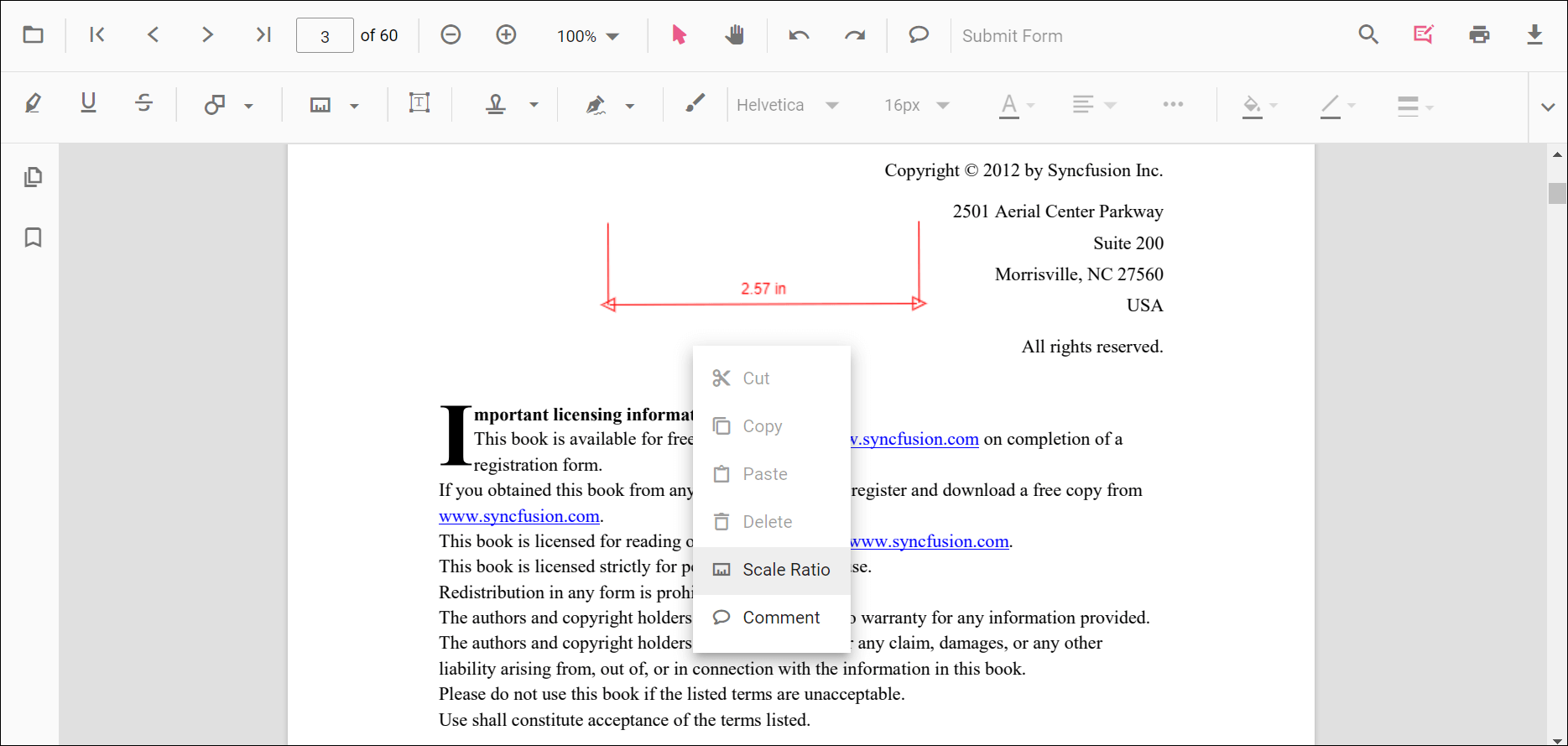
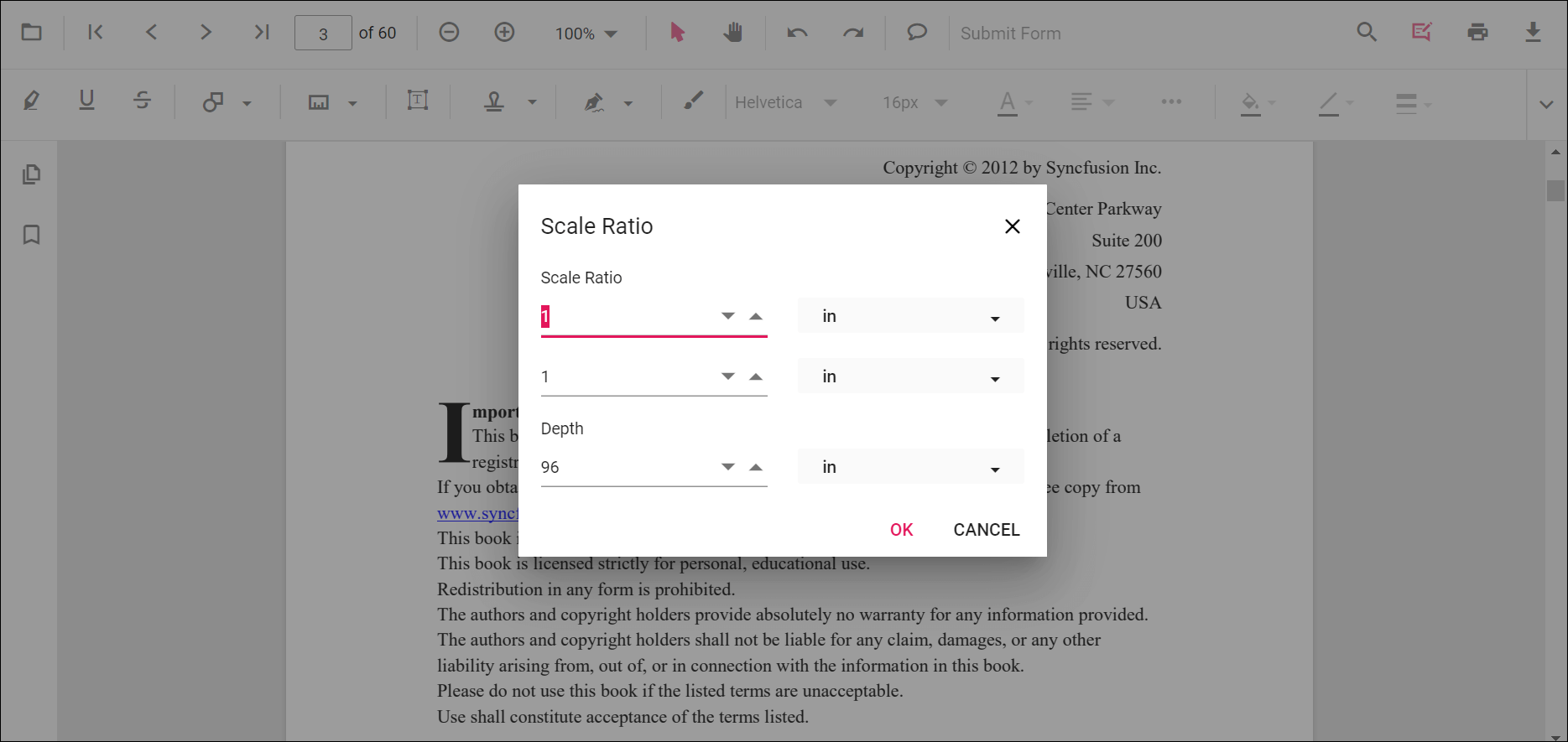
The scale ratio and unit of measurement can be modified using the scale ratio option provided in the context menu of the PDF Viewer control.
The Units of measurements support for the measurement annotations in the PDF Viewer are
- Inch
- Millimeter
- Centimeter
- Point
- Pica
- Feet
Set default scale ratio settings during control initialization
The properties of scale ratio for measurement annotation can be set before creating the control using the ScaleRatioSettings as shown in the following code sample.
<div style="width:100%;height:600px">
    @Html.EJS().PdfViewer("pdfviewer").DocumentPath("https://cdn.syncfusion.com/content/pdf/pdf-succinctly.pdf").MeasurementSettings(new Syncfusion.EJ2.PdfViewer.PdfViewerMeasurementSettings { ScaleRatio = 2, ConversionUnit = Syncfusion.EJ2.PdfViewer.CalibrationUnit.Cm }).Render()
</div><div style="width:100%;height:600px">
@Html.EJS().PdfViewer("pdfviewer").ServiceUrl(VirtualPathUtility.ToAbsolute("~/PdfViewer/")).DocumentPath("https://cdn.syncfusion.com/content/pdf/pdf-succinctly.pdf").MeasurementSettings(new Syncfusion.EJ2.PdfViewer.PdfViewerMeasurementSettings { ScaleRatio = 2, ConversionUnit = Syncfusion.EJ2.PdfViewer.CalibrationUnit.Cm }).Render()
</div>