Free Text Annotation in ASP.NET MVC PDF Viewer
14 Aug 202611 minutes to read
The PDF Viewer control provides options to add, edit, and delete free text annotations.
Add a free text annotation to the PDF document
Free text annotations can be added to the PDF document using the annotation toolbar.
- Click the Edit Annotation button in the PDF Viewer toolbar. The annotation toolbar appears below it.
- Select the Free Text Annotation button to enable free text annotation mode.
- Add text anywhere on the pages of the PDF document.
When in pan mode, selecting free text annotation switches the PDF Viewer to text select mode.
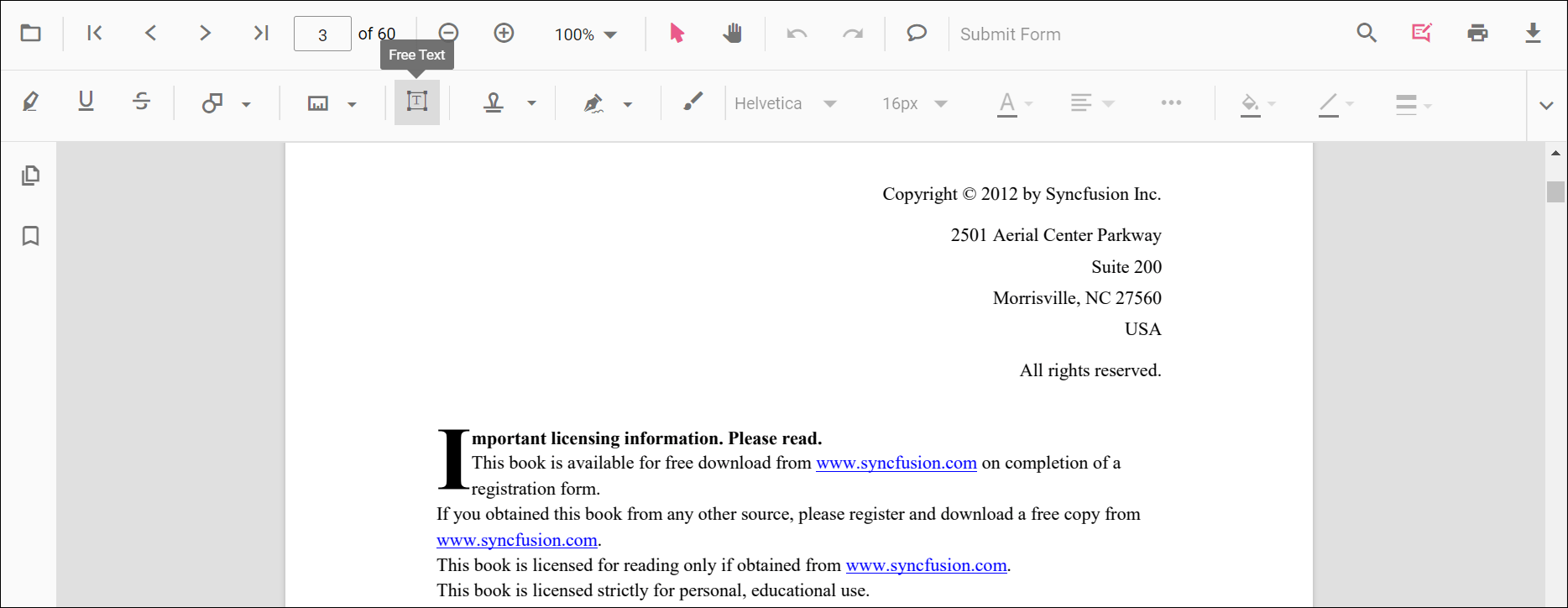
The following example switches to free text annotation mode using a button click.
<!--Element to set free text annotation mode-->
<button id="set" onclick="addAnnot()">FreeText</button>
<div style="width:100%;height:600px">
    @Html.EJS().PdfViewer("pdfviewer").DocumentPath("https://cdn.syncfusion.com/content/pdf/pdf-succinctly.pdf").Render()
</div>
<script>
    function addAnnot() {
        var pdfViewer = document.getElementById('pdfviewer').ej2_instances[0];
        pdfViewer.annotation.setAnnotationMode('FreeText');
    }
</script>
<!--Element to set free text annotation mode-->
<button id="set" onclick="addAnnot()">FreeText</button>
<div style="width:100%;height:600px">
@Html.EJS().PdfViewer("pdfviewer").ServiceUrl(VirtualPathUtility.ToAbsolute("~/PdfViewer/")).DocumentPath("https://cdn.syncfusion.com/content/pdf/pdf-succinctly.pdf").Render()
</div>
<script>
function addAnnot() {
var pdfViewer = document.getElementById('pdfviewer').ej2_instances[0];
pdfViewer.annotation.setAnnotationMode('FreeText');
}
</script>Add a free text annotation programmatically to the PDF document
The PDF Viewer library allows adding a free text annotation programmatically using the addAnnotation() method.
Here is an example of adding a free text annotation programmatically using addAnnotation():
<button id="set" onclick="addAnnotation()">Add annotation programmatically</button>

<div style="width:100%;height:600px">
    @Html.EJS().PdfViewer("pdfviewer").DocumentPath("https://cdn.syncfusion.com/content/pdf/pdf-succinctly.pdf").Render()
</div>

<script>
    function addAnnotation() {
        var pdfViewer = document.getElementById('pdfviewer').ej2_instances[0];
        pdfViewer.annotation.addAnnotation("FreeText", {
            offset: { x: 100, y: 150 },
            fontSize: 16,
            fontFamily: "Helvetica",
            pageNumber: 1,
            width: 200,
            height: 40,
            isLock: false,
            textAlignment: 'Center',
            borderStyle: 'solid',
            borderWidth: 2,
            borderColor: 'red',
            fillColor: 'blue',
            fontColor: 'white',
            defaultText: "Syncfusion"
        });
    }
</script><button id="set" onclick="addAnnotation()">Add annotation programmatically</button>
<div style="width:100%;height:600px">
@Html.EJS().PdfViewer("pdfviewer").ServiceUrl(VirtualPathUtility.ToAbsolute("~/PdfViewer/")).DocumentPath("https://cdn.syncfusion.com/content/pdf/pdf-succinctly.pdf").Render()
</div>
<script>
function addAnnotation() {
var pdfViewer = document.getElementById('pdfviewer').ej2_instances[0];
pdfViewer.annotation.addAnnotation("FreeText", {
offset: { x: 100, y: 150 },
fontSize: 16,
fontFamily: "Helvetica",
pageNumber: 1,
width: 200,
height: 40,
isLock: false,
textAlignment: 'Center',
borderStyle: 'solid',
borderWidth: 2,
borderColor: 'red',
fillColor: 'blue',
fontColor: 'white',
defaultText: "Syncfusion"
});
}
</script>Change the content of an existing free text annotation programmatically
To change the content of an existing free text annotation programmatically, use the editAnnotation() method.
Here is an example of changing the content of a free text annotation using editAnnotation():
<button id="set" onclick="editAnnotation()">Edit annotation programmatically</button>

<div style="width:100%;height:600px">
    @Html.EJS().PdfViewer("pdfviewer").DocumentPath("https://cdn.syncfusion.com/content/pdf/pdf-succinctly.pdf").Render()
</div>

<script>
    function editAnnotation() {
        var viewer = document.getElementById('pdfviewer').ej2_instances[0];
        for (let i = 0; i < viewer.annotationCollection.length; i++) {
            if (viewer.annotationCollection[i].subject === "Text Box") {
                var width = viewer.annotationCollection[i].bounds.width;
                var height = viewer.annotationCollection[i].bounds.height;
                viewer.annotationCollection[i].bounds = { x: 100, y: 100, width: width, height: height };
                viewer.annotationCollection[i].dynamicText = 'syncfusion';
                viewer.annotation.editAnnotation(viewer.annotationCollection[i]);
            }
        }
    }
</script><button id="set" onclick="editAnnotation()">Edit annotation programmatically</button>
<div style="width:100%;height:600px">
@Html.EJS().PdfViewer("pdfviewer").ServiceUrl(VirtualPathUtility.ToAbsolute("~/PdfViewer/")).DocumentPath("https://cdn.syncfusion.com/content/pdf/pdf-succinctly.pdf").Render()
</div>
<script>
function editAnnotation() {
var viewer = document.getElementById('pdfviewer').ej2_instances[0];
for (let i = 0; i < viewer.annotationCollection.length; i++) {
if (viewer.annotationCollection[i].subject === "Text Box") {
var width = viewer.annotationCollection[i].bounds.width;
var height = viewer.annotationCollection[i].bounds.height;
viewer.annotationCollection[i].bounds = { x: 100, y: 100, width: width, height: height };
viewer.annotationCollection[i].dynamicText = 'syncfusion';
viewer.annotation.editAnnotation(viewer.annotationCollection[i]);
}
}
}
</script>The current version of the PDF Viewer does not edit existing document text. New free text annotations can be added and modified within the document.
Edit the properties of free text annotations
Font family, font size, styles, font color, text alignment, fill color, stroke color, border thickness, and opacity can be edited using the Font Family, Font Size, Font Color, Text Align, Font Style, Edit Color, Edit Stroke Color, Edit Thickness, and Edit Opacity tools in the annotation toolbar.
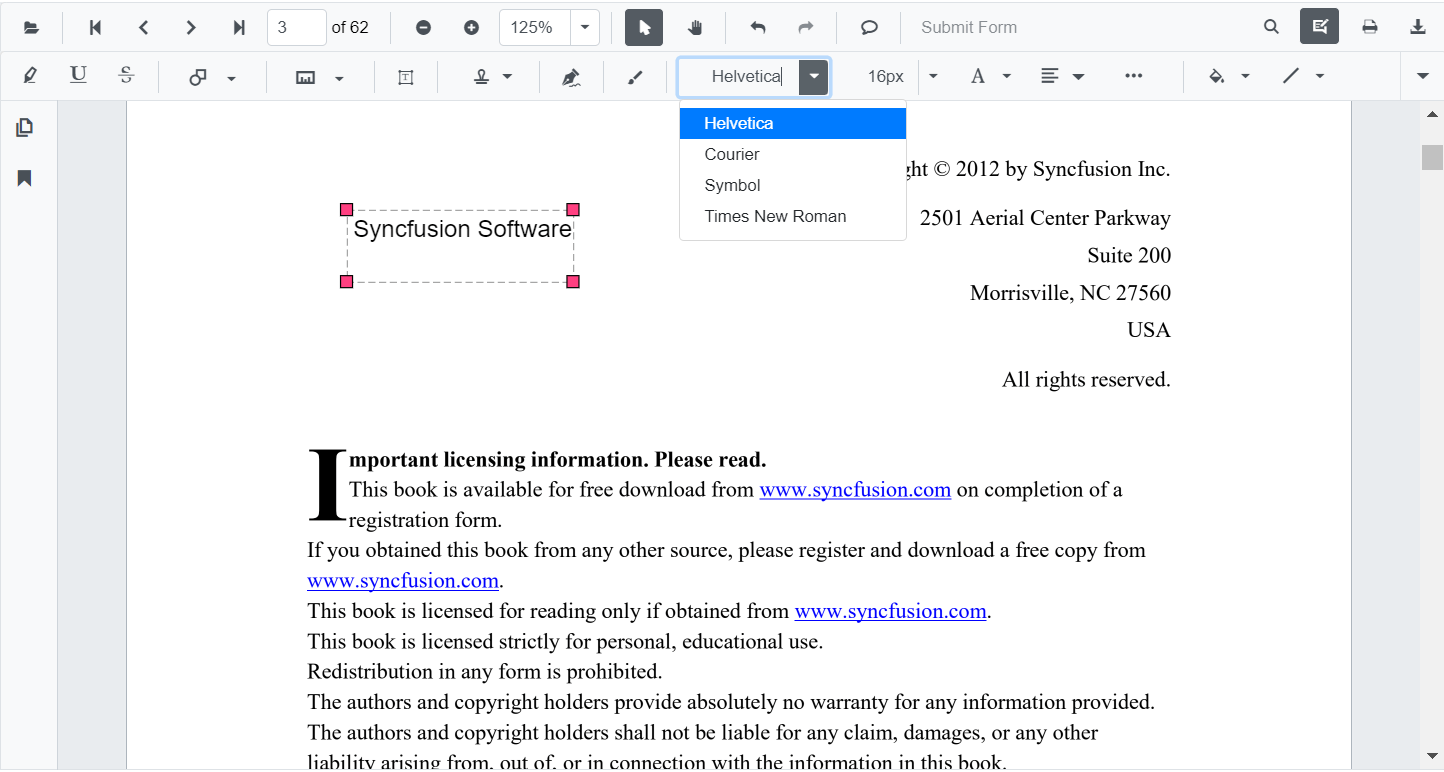
Edit font family
Edit the font family by selecting a font in the Font Family tool.
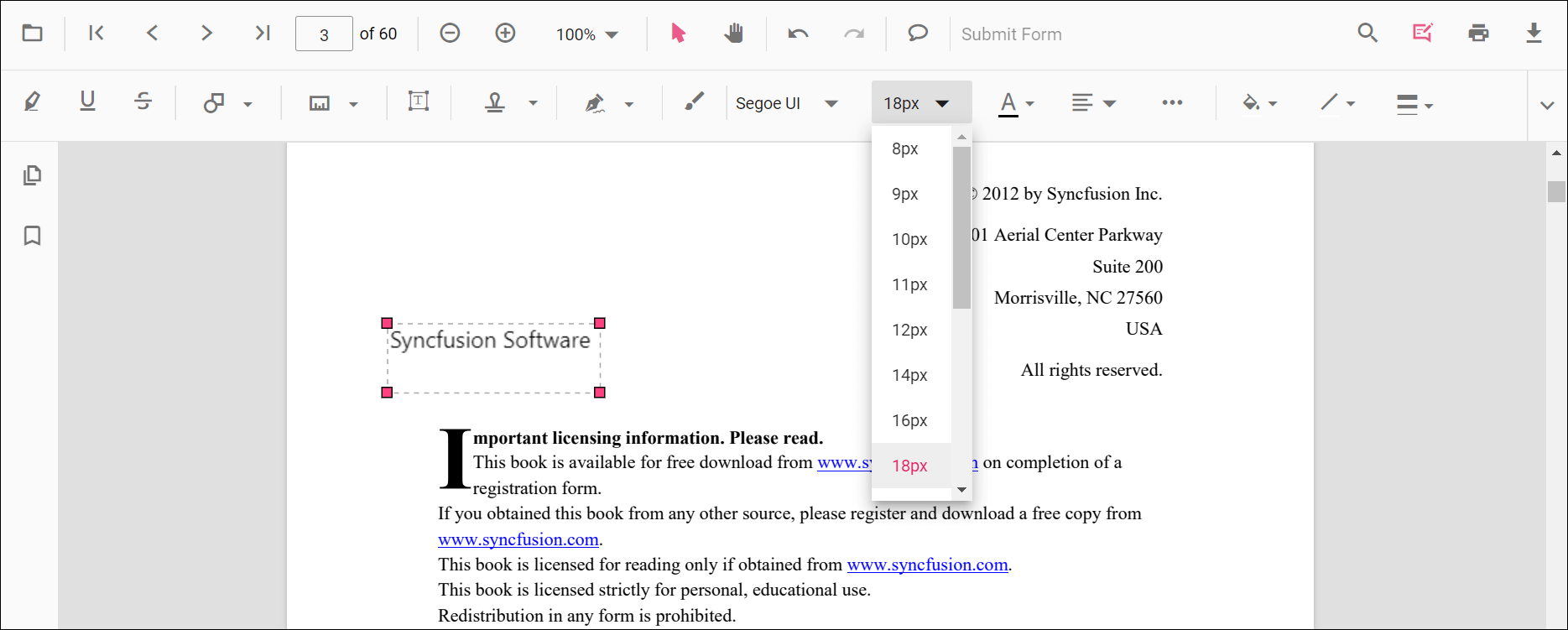
Edit font size
Edit the font size by selecting a size in the Font Size tool.
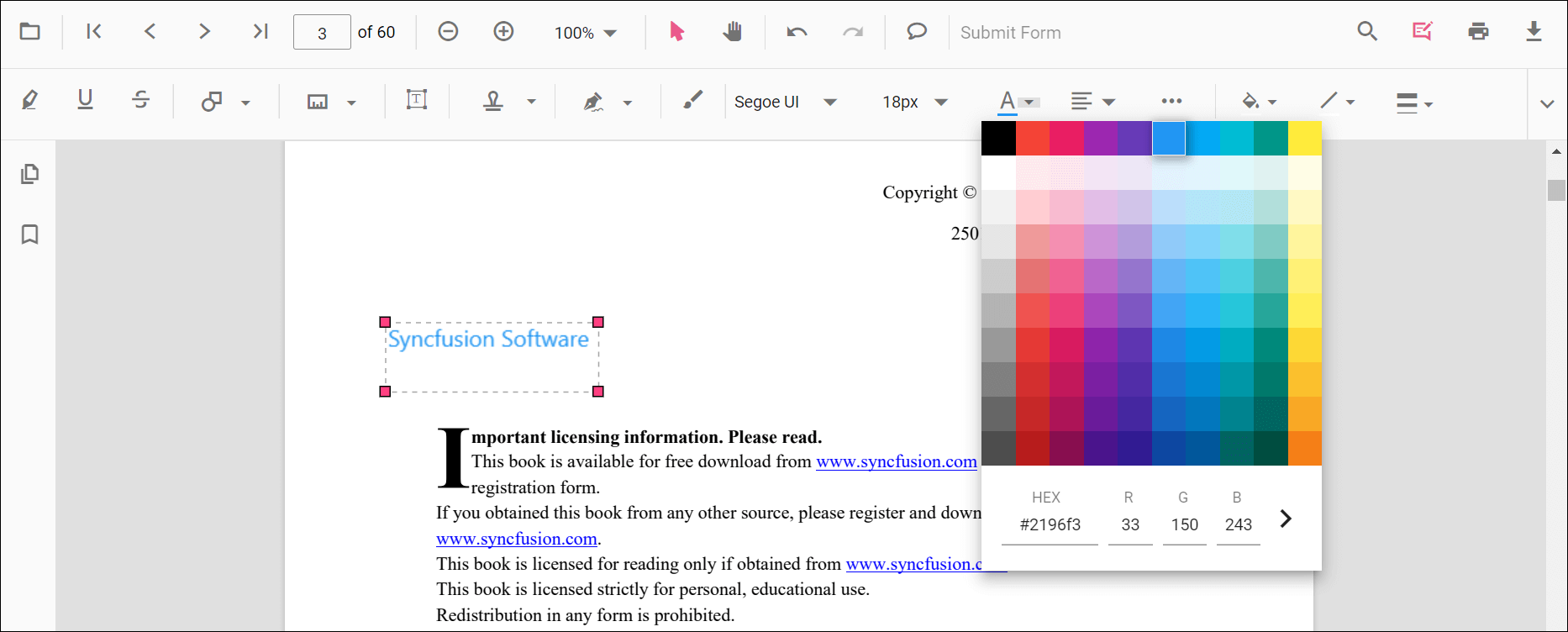
Edit font color
Edit the font color using the color palette in the Font Color tool.
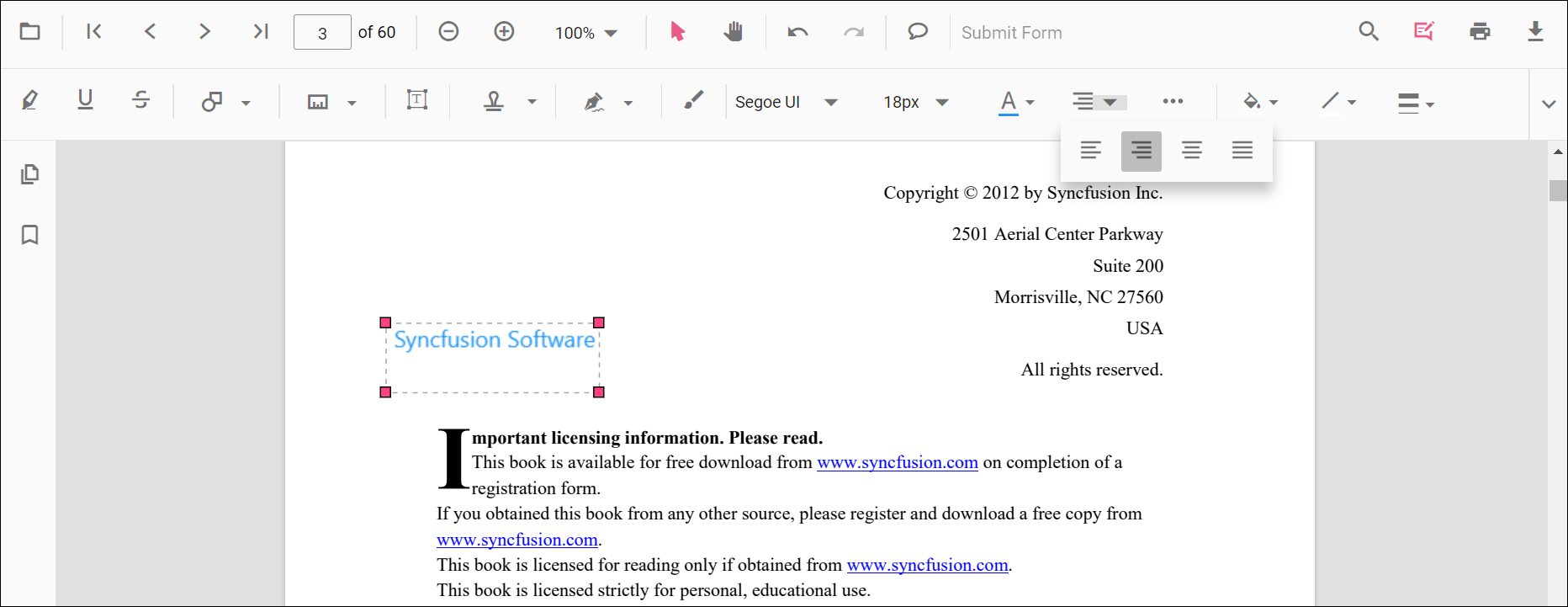
Edit text alignment
Align text by selecting an option from the Text Align tool.
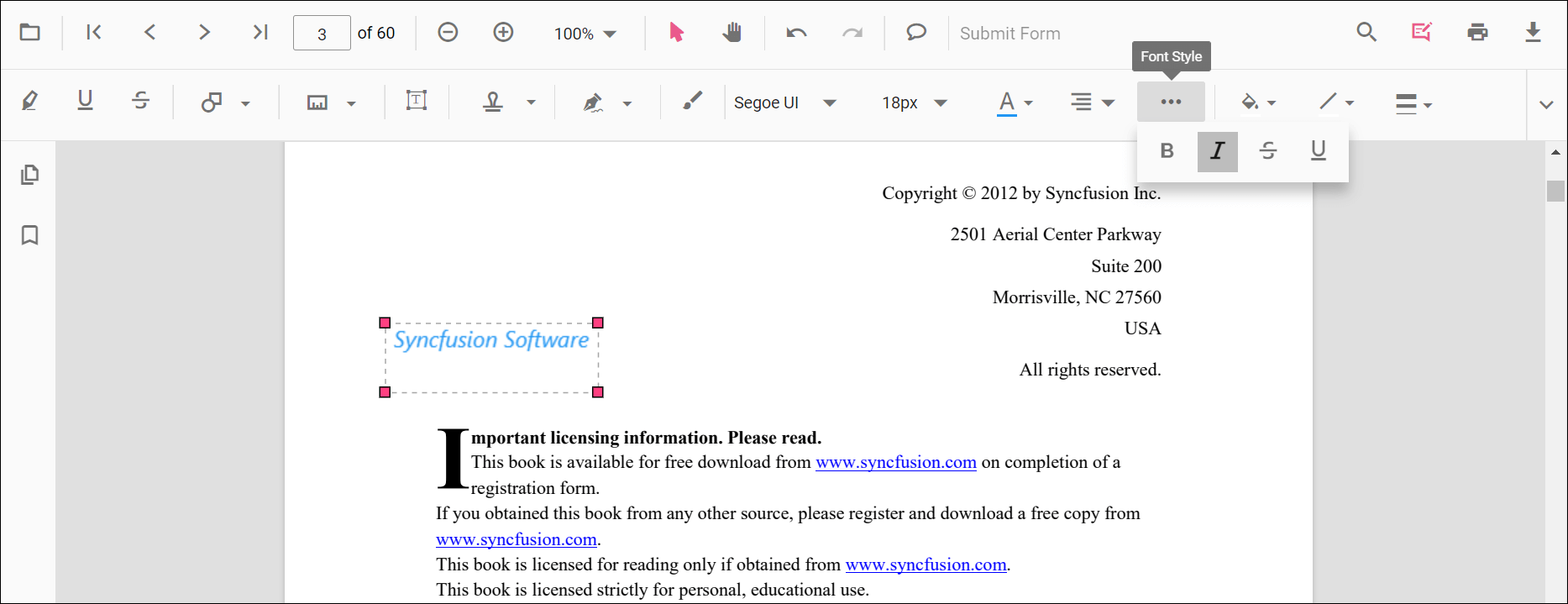
Edit text styles
Edit text styles by selecting options in the Font Style tool.
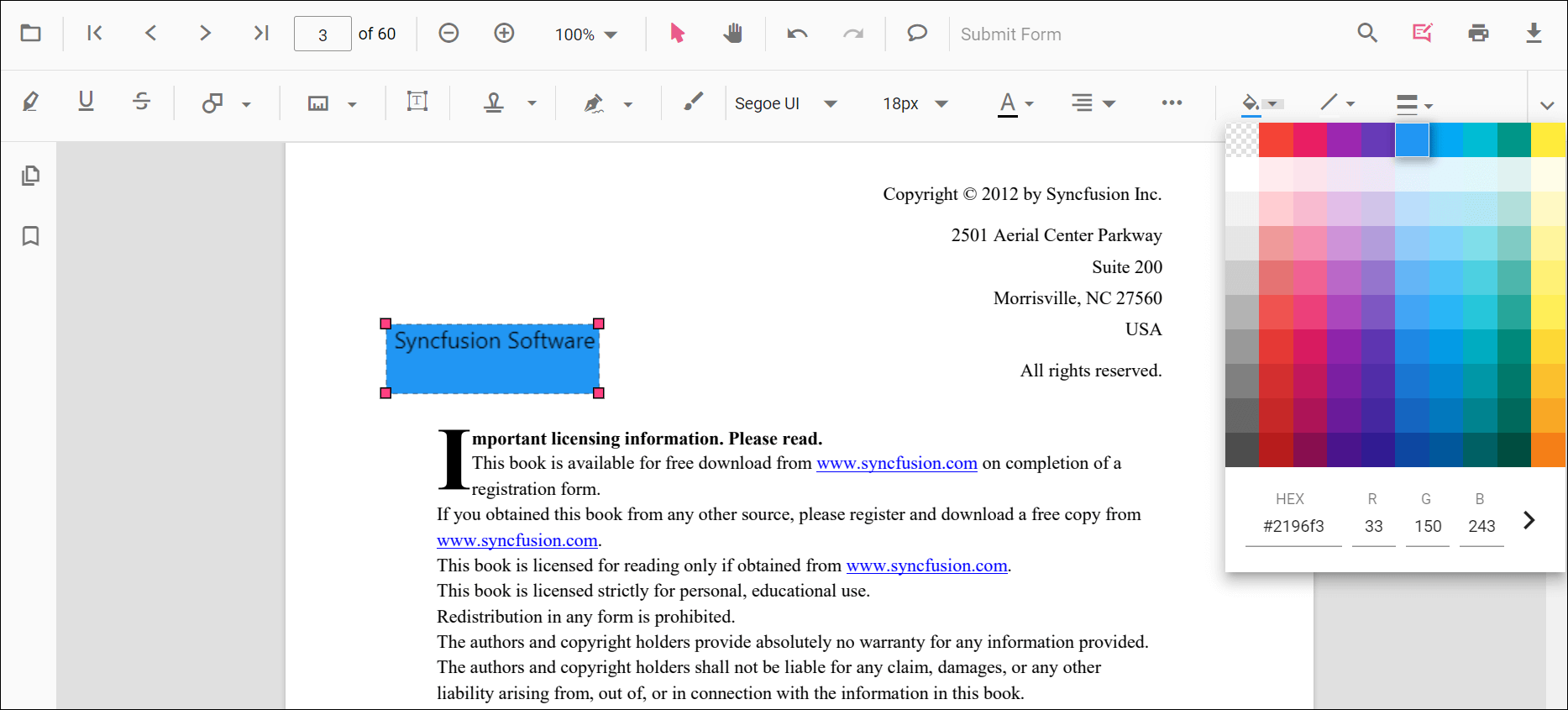
Edit fill color
Edit the fill color using the color palette in the Edit Color tool.
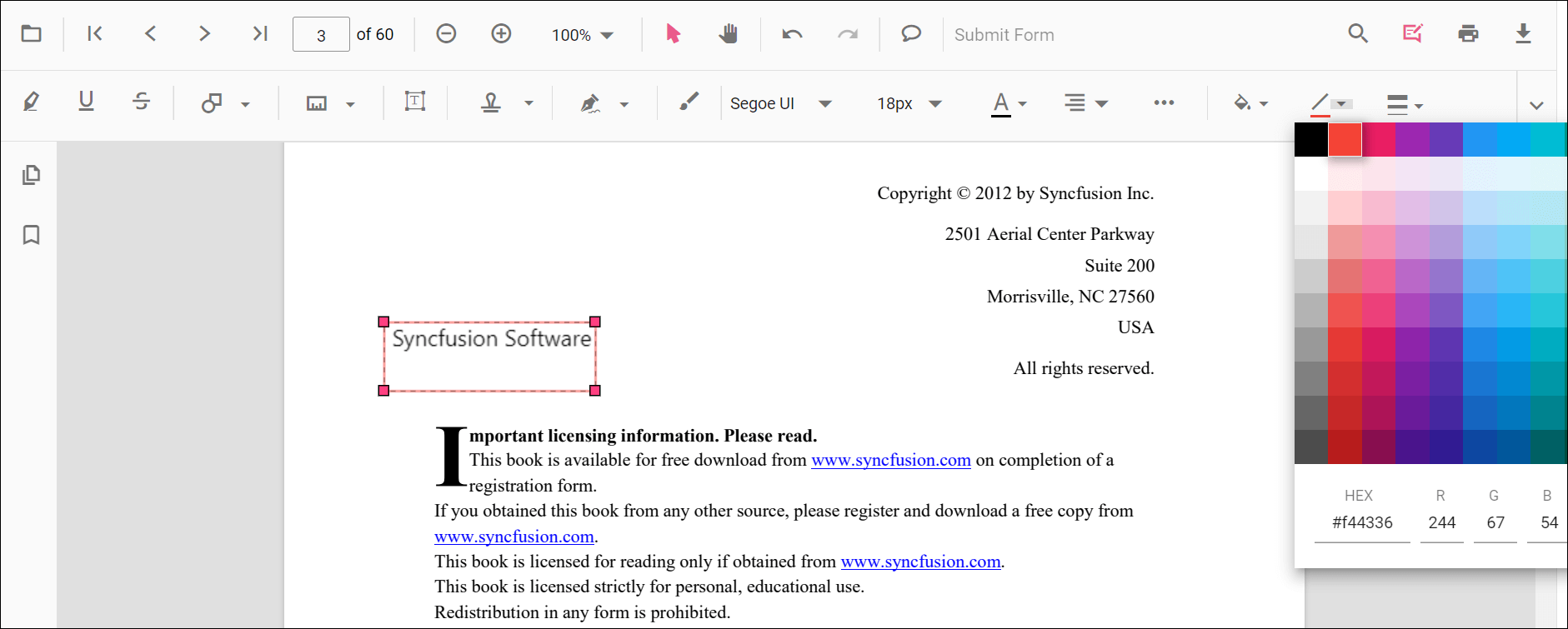
Edit stroke color
Edit the stroke color using the color palette in the Edit Stroke Color tool.
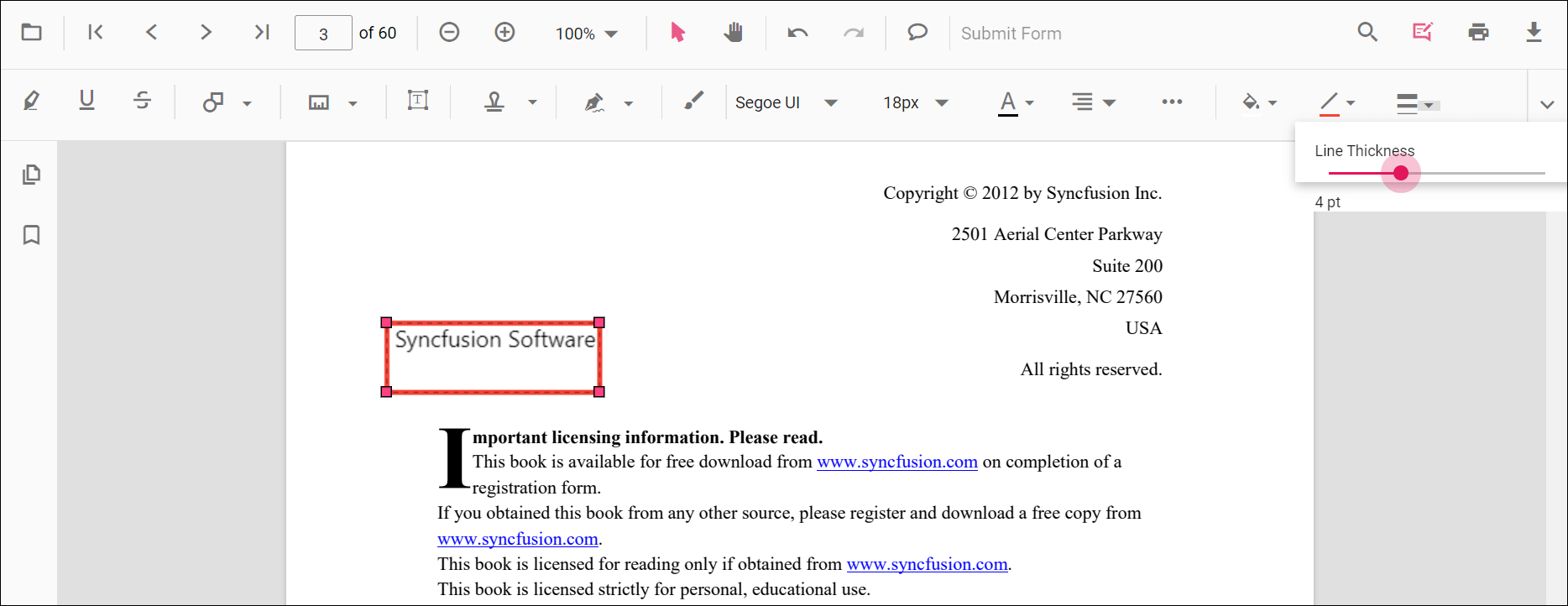
Edit thickness
Edit border thickness using the range slider in the Edit Thickness tool.
Edit opacity
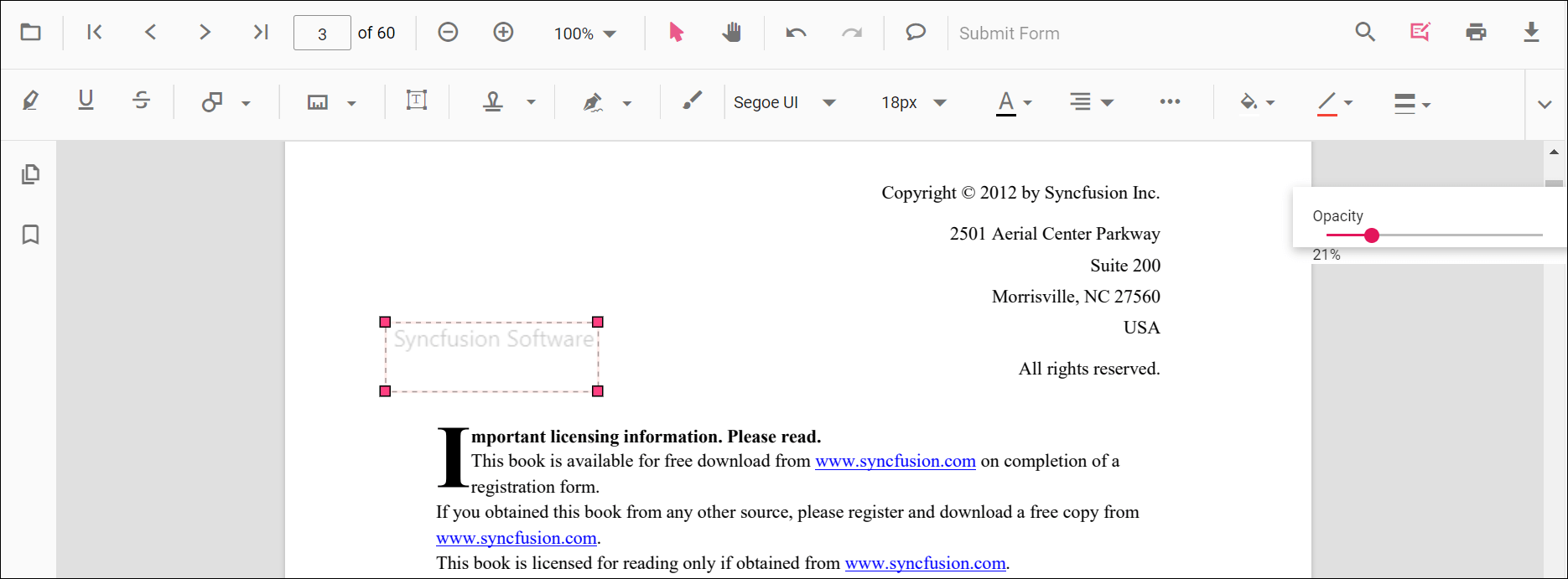
Edit opacity using the range slider in the Edit Opacity tool.
Set default properties during control initialization
Default properties for free text annotations can be set before creating the control using FreeTextSettings.
After changing default values, the selected values are applied. The following example sets default free text annotation settings.
<div style="width:100%;height:600px">
    @Html.EJS().PdfViewer("pdfviewer").DocumentPath("https://cdn.syncfusion.com/content/pdf/pdf-succinctly.pdf").FreeTextSettings(new Syncfusion.EJ2.PdfViewer.PdfViewerFreeTextSettings { FillColor = "green", BorderColor = "blue", FontColor = "yellow" }).Render()
</div><div style="width:100%;height:600px">
@Html.EJS().PdfViewer("pdfviewer").ServiceUrl(VirtualPathUtility.ToAbsolute("~/PdfViewer/")).DocumentPath("https://cdn.syncfusion.com/content/pdf/pdf-succinctly.pdf").FreeTextSettings(new Syncfusion.EJ2.PdfViewer.PdfViewerFreeTextSettings { FillColor = "green", BorderColor = "blue", FontColor = "yellow" }).Render()
</div>You can also enable the autofit support for free text annotation by using the EnableAutoFit boolean property in FreeTextSettings as below. The width of the free text rectangle box will be increased based on the text added to it.
<div style="width:100%;height:600px">
    @Html.EJS().PdfViewer("pdfviewer").DocumentPath("https://cdn.syncfusion.com/content/pdf/pdf-succinctly.pdf").FreeTextSettings(new Syncfusion.EJ2.PdfViewer.PdfViewerFreeTextSettings { EnableAutoFit = true }).Render()
</div><div style="width:100%;height:600px">
@Html.EJS().PdfViewer("pdfviewer").ServiceUrl(VirtualPathUtility.ToAbsolute("~/PdfViewer/")).DocumentPath("https://cdn.syncfusion.com/content/pdf/pdf-succinctly.pdf").FreeTextSettings(new Syncfusion.EJ2.PdfViewer.PdfViewerFreeTextSettings { EnableAutoFit = true }).Render()
</div>