Annotations in Mobile View in ASP.NET MVC PDF Viewer
14 Aug 20262 minutes to read
To Open the Annotation Toolbar
Step 1: To enable the annotation toolbar, click the Edit Annotation button.
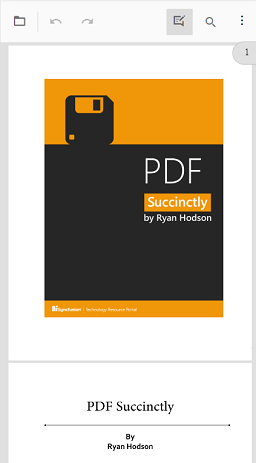
Step 2: After enabling the annotation toolbar.
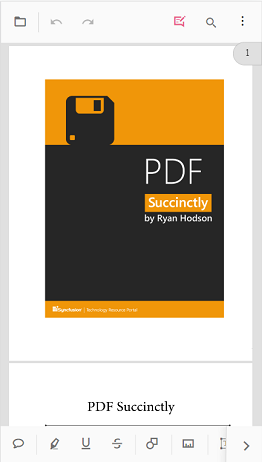
To add sticky notes annotation
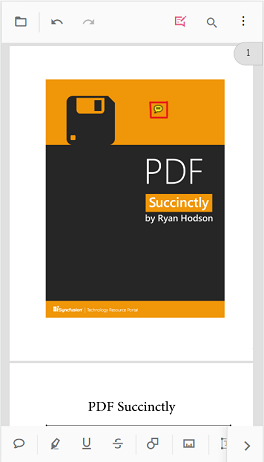
Step 1: click the Sticky Notes icon and then click on the page where you want to add this.
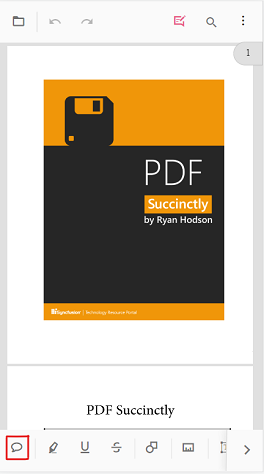
Step 2: Click in the page to add the sticky notes annotation.
To add text markup annotation
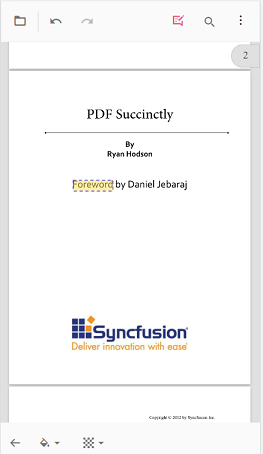
Step 1: click any one of the text markup icons, then select the text you want to mark, then touch the selected text to apply the markup annotation.
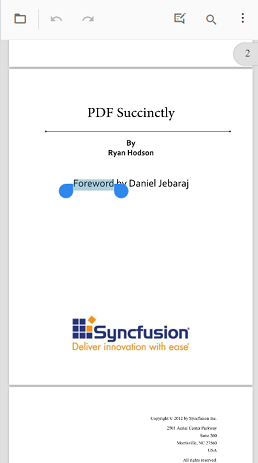
Step 2: Add the text markup annotation in the PDF page
To add shape and measure annotations
Step 1: click the shape/measure icon in the toolbar. It will show the toolbar with shape/measure types.
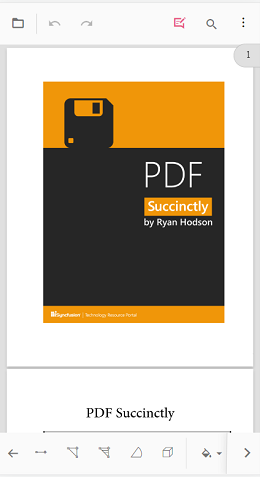
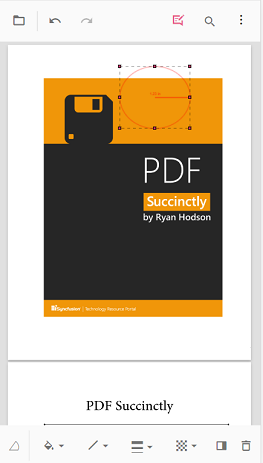
Step 2: Click the shape/measure type and add annotation to the page.
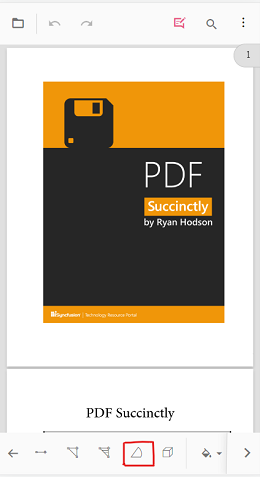
Step 3: Add the annotation in the PDF page.
To add the stamp annotation
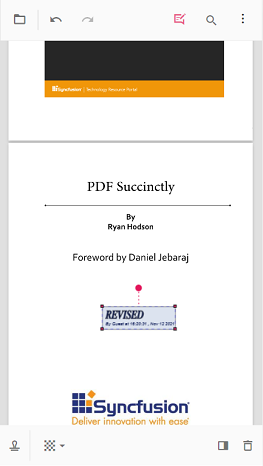
Step 1: click the stamp icon and select the stamp type from the menu items.
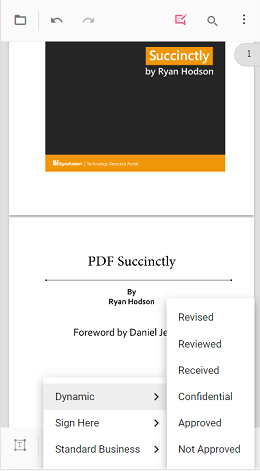
Step 2: Add the stamp annotation in the page.
To add signature
Step 1: click the signature icon. This will open the signature canvas to draw a signature. After drawn the sign, should click the create button and touch the viewer to add the signature.
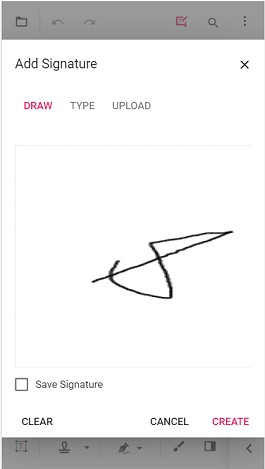
Step 2: Add the signature in the page.
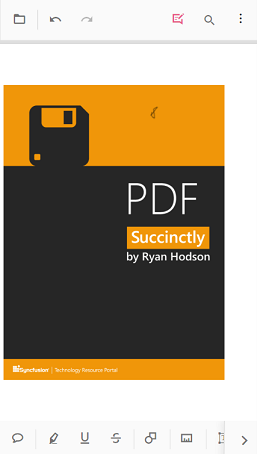
To add ink annotation
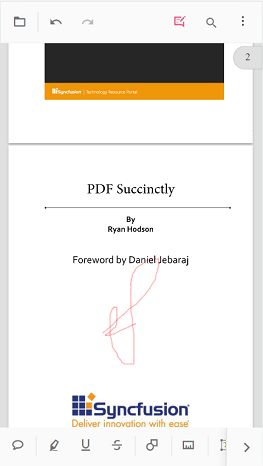
Step 1: Click the ink icon tool and draw on the page.
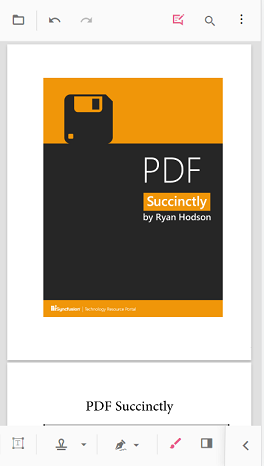
Step 2: Add the ink annotation in the page.
Change Annotation Property (Before adding)
Step 1: We can change the properties before adding the annotation.
Step 2: Click the annotation icon, this will show the toolbar with corresponding properties. We can change the property and add the annotation in the page.
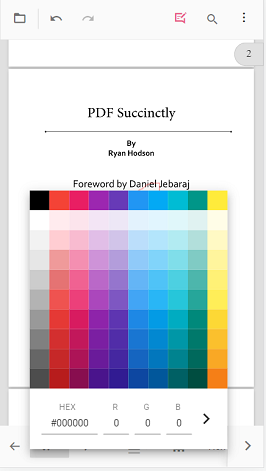
Change Annotation Property (After Adding)
Step 1: We can change the annotation property after adding the annotation.
Step 2: Select the added annotation, it will show the corresponding property tool. This will help you to change the property of the annotation.
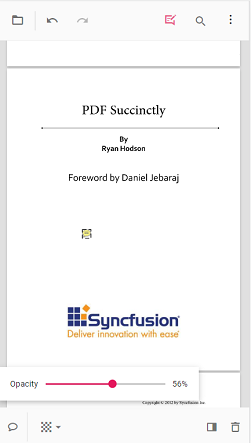
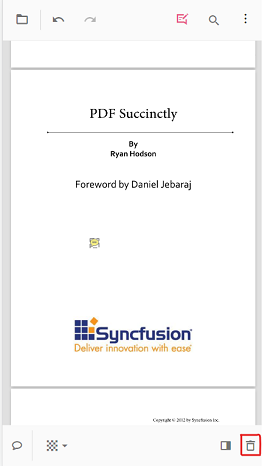
Delete Annotation
Step 1: To delete the annotation, first select the annotation, it will show the property toolbar. In the property tool there is an icon to delete the annotation.
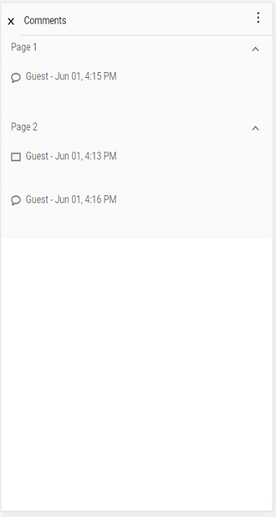
Open Comment Panel
Step 1: We can open the comment panel through the icon in the property tool or through the annotation toolbar.
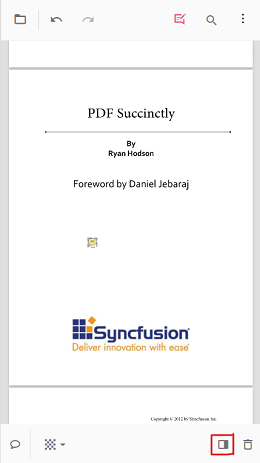
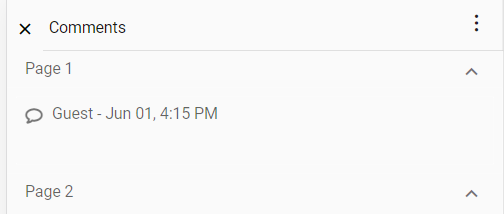
Step 2: After opening the comment panel
Close the comment panel
Step 1: To close the comment panel, click the close button.