Ui Interactions in ASP.NET Core PDF Viewer
14 Aug 20261 minute to read
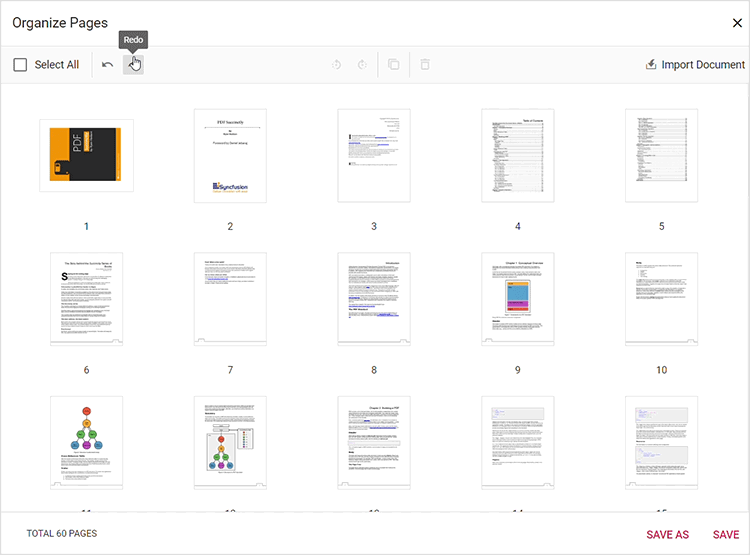
The PDF Viewer provides an intuitive interface for organizing pages with the following UI interactions.
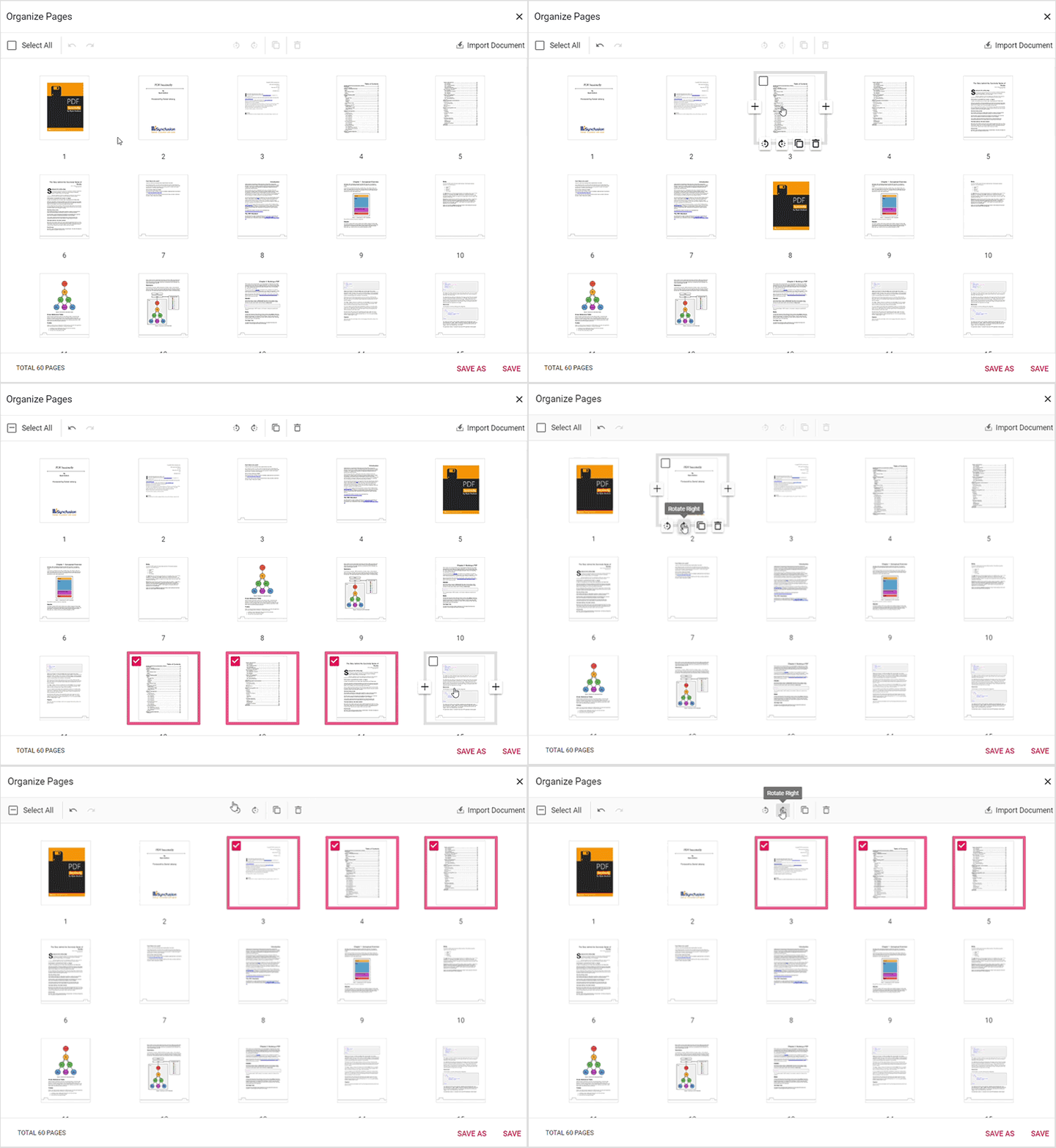
Rotating PDF pages
Adjust page orientation using the rotate controls in the Organize Pages dialog.
- Rotate clockwise: Rotates selected pages 90 degrees clockwise.
- Rotate counter-clockwise: Rotates selected pages 90 degrees counter-clockwise.
Rearranging PDF pages
Change page sequence with drag-and-drop.
- Drag and drop: Drag a thumbnail to the desired position and release to reorder.
Inserting new pages
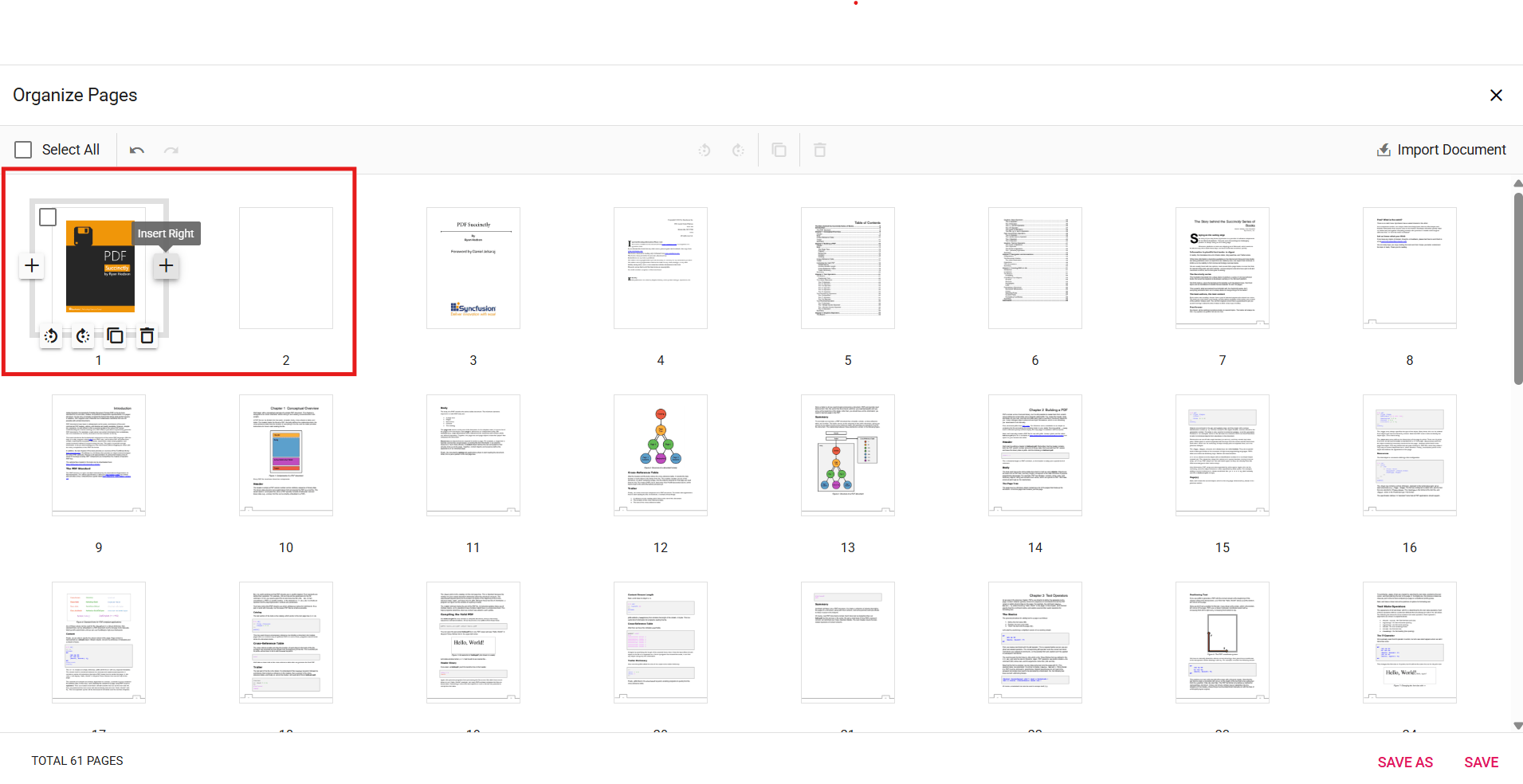
Add blank pages at the required position.
- Insert blank page left: Inserts a blank page to the left of the selected page.
- Insert blank page right: Inserts a blank page to the right of the selected page.
Deleting PDF pages
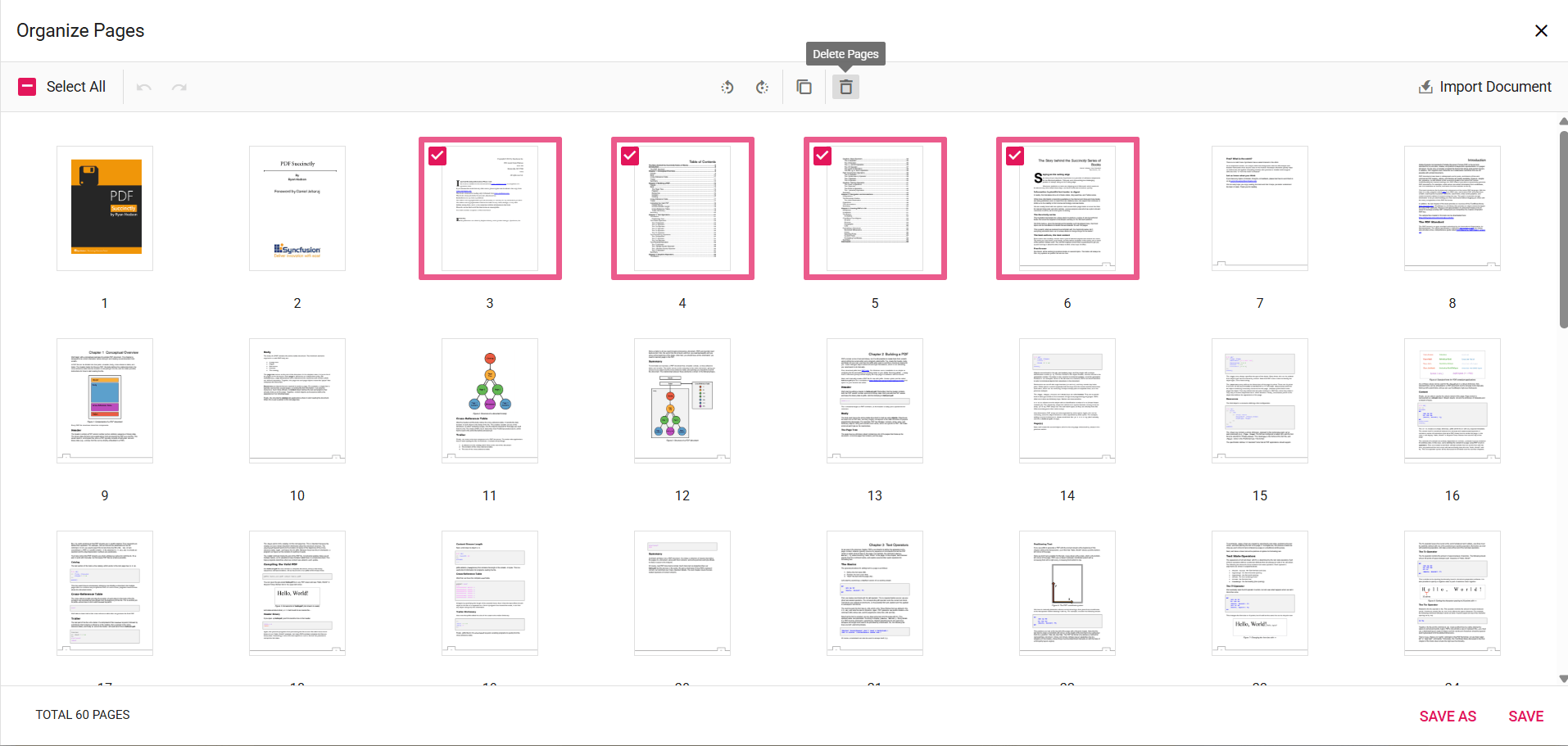
Remove unwanted pages from the document:
- Select pages to delete: Click or tap thumbnails to select pages; multiple selection is supported.
- Delete selected pages: Use the delete option to remove selected pages.
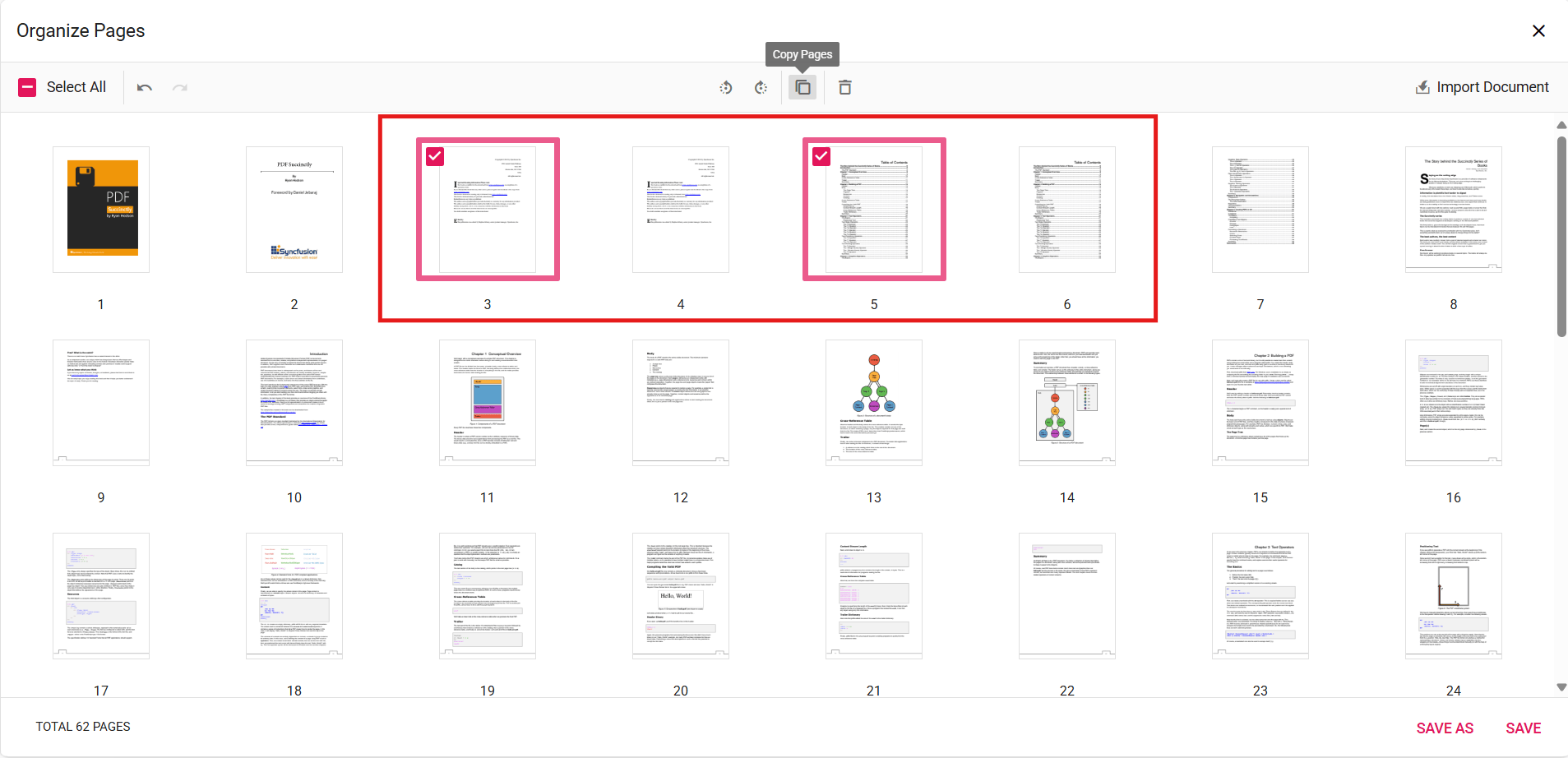
Copying PDF pages
Duplicate pages within your PDF document effortlessly:
- Select pages to copy: Click or tap thumbnails to select pages to duplicate.
- Copy selected pages: Copied pages insert to the right of the selection.
Importing a PDF document
Import another PDF document into the current document:
- Import PDF Document: Click Import Document to select and import a PDF. Imported pages appear as thumbnails and insert to the right of selection (or at start if none selected). Pages merge when saved.

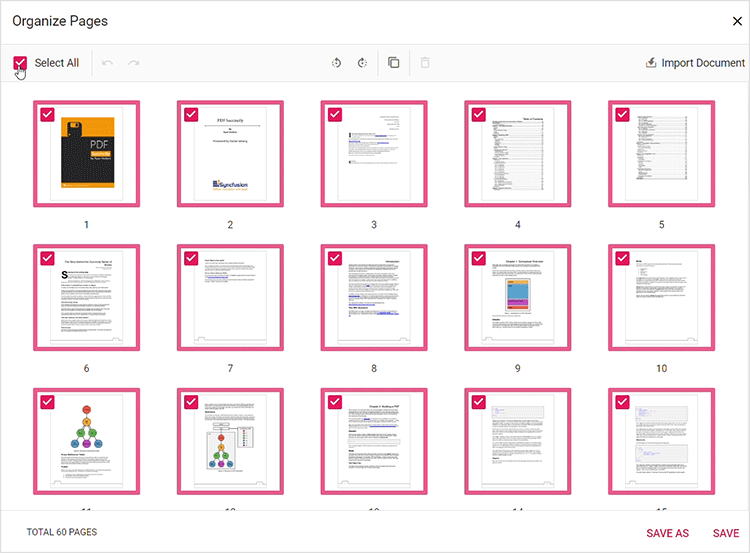
Selecting all pages
Select all pages for bulk operations such as rotation or deletion.
Zooming page thumbnails
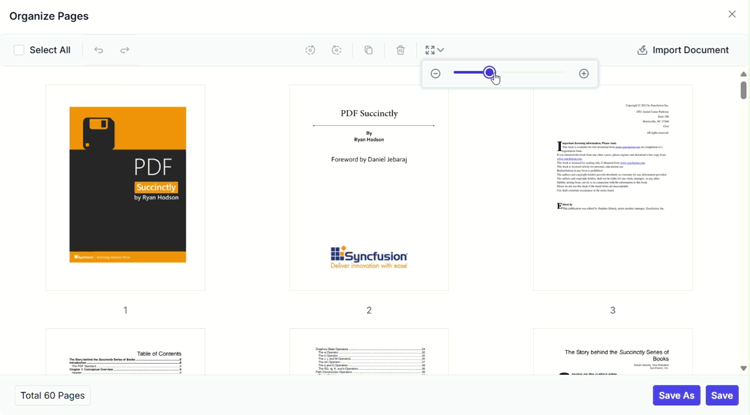
Adjust thumbnail size for better visibility:
- Use the zoom slider to adjust thumbnail size.
- Zoom in for detailed page view.
- Zoom out to display more pages simultaneously.
Real-time updates and saving
Changes display instantly. Click Save to apply changes or Save As to download an updated copy.
Keyboard shortcuts
The following keyboard shortcuts are available:
- Ctrl+Z: Undo the previous action.
- Ctrl+Y: Redo the last undone action.
- Ctrl+Scroll: Zoom thumbnails in or out.