Mobile Toolbar in ASP.NET Core PDF Viewer
14 Aug 20264 minutes to read
The mobile PDF Viewer provides various features for viewing, searching, annotating, and managing PDF documents on mobile devices. It includes essential tools such as search, download, bookmarking, annotation, and page organization. Users can enable desktop toolbar features in mobile mode to access a more extensive set of actions.
Mobile Mode Toolbar Configuration
In mobile mode, the toolbar is optimized for small screens and presents the most common actions for working with PDF documents. Key features available in mobile mode include:
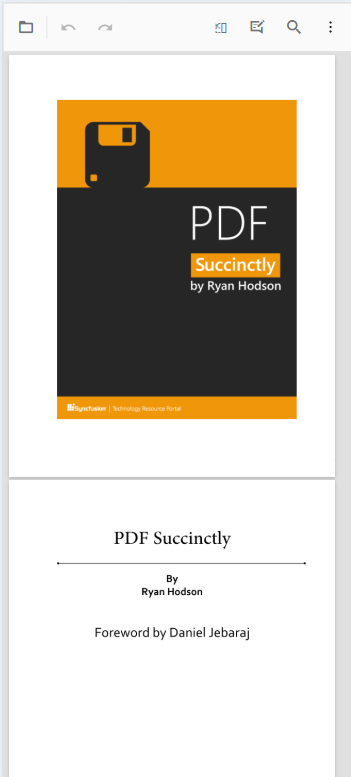
Main Toolbar Options
OpenOption: Tap to load a PDF document.
SearchOption: Access the search bar to find text within the document.
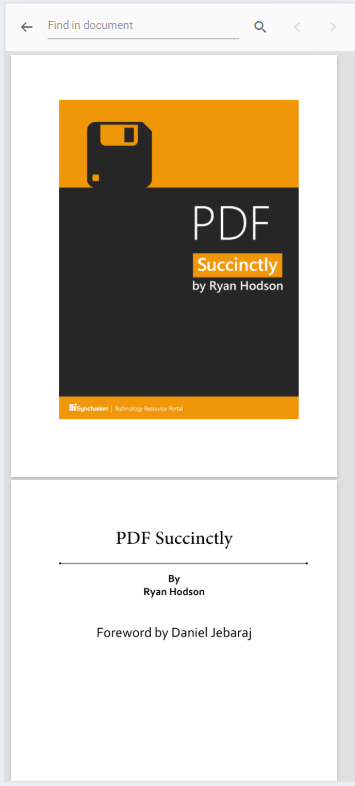
UndoRedoTool: Quickly undo or redo annotations.
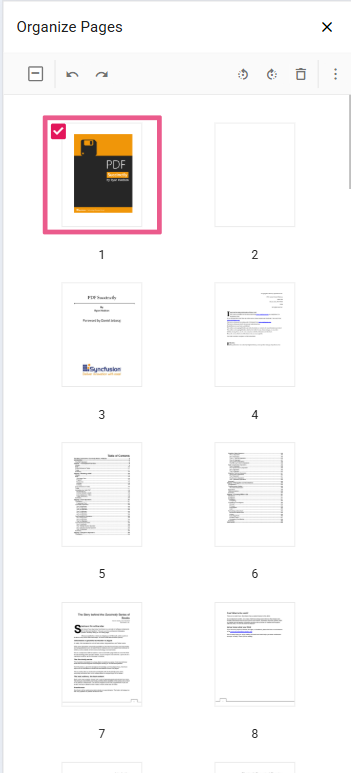
OrganizePagesTool: Enable or disable page organization features to modify document pages.
AnnotationEditTool: Activate or deactivate annotation editing to add or modify annotations.
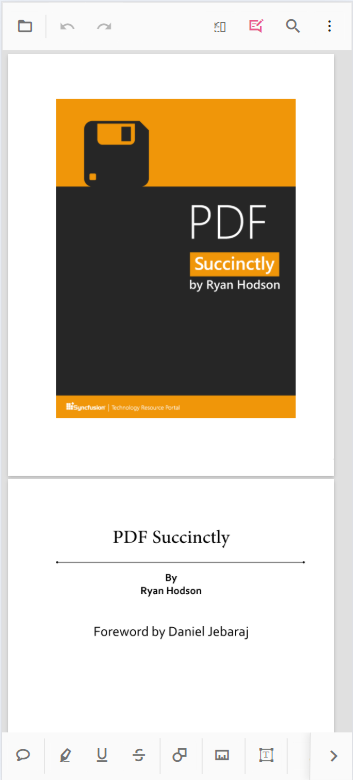
In mobile mode, the annotation toolbar is displayed at the bottom of the viewer.
More Options Menu
The More options menu provides additional actions such as:
DownloadOption: Tap to download the currently opened PDF document.
BookmarkOption: View bookmarks within the document.
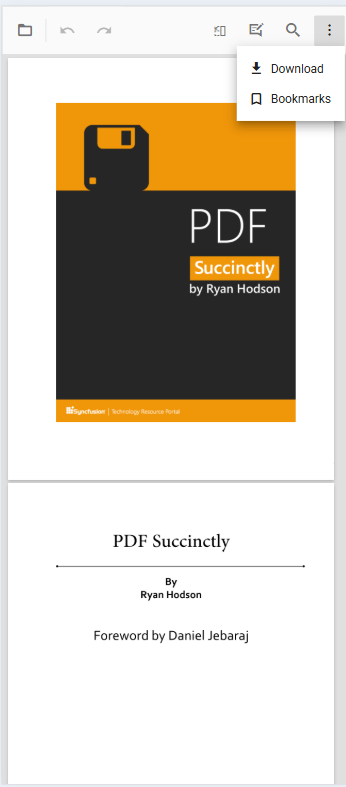
Enable Desktop Mode on Mobile
The desktop toolbar can be enabled on mobile devices using the enableDesktopMode API. This brings desktop-like features to the mobile PDF Viewer, providing access to additional toolbar actions typically available on desktop platforms.
Steps to Enable Desktop Mode
- Set
enableDesktopModeto true in the configuration. - The desktop toolbar layout replaces the mobile toolbar, allowing access to more actions and controls.
<div style="width:100%;height:600px">
    <ejs-pdfviewer id="pdfviewer"
                   style="height:600px"
                   documentPath="https://cdn.syncfusion.com/content/pdf/pdf-succinctly.pdf"
                   enableDesktopMode="true">
    </ejs-pdfviewer>
</div>
<div style="width:100%;height:600px">
<ejs-pdfviewer id="pdfviewer"
style="height:600px"
serviceUrl="/api/PdfViewer"
documentPath="https://cdn.syncfusion.com/content/pdf/pdf-succinctly.pdf"
enableDesktopMode="true">
</ejs-pdfviewer>
</div>Enable Scrolling in Desktop Mode with Touch Gestures
Smooth scrolling of PDF documents on mobile devices in desktop mode can be enabled by setting enableTextSelection to false.
<div style="width:100%;height:600px">
    <ejs-pdfviewer id="pdfviewer"
                   style="height:600px"
                   documentPath="https://cdn.syncfusion.com/content/pdf/pdf-succinctly.pdf"
                   enableDesktopMode="true"
                   enableTextSelection="false">
    </ejs-pdfviewer>
</div>
<div style="width:100%;height:600px">
<ejs-pdfviewer id="pdfviewer"
style="height:600px"
serviceUrl="/api/PdfViewer"
documentPath="https://cdn.syncfusion.com/content/pdf/pdf-succinctly.pdf"
enableDesktopMode="true"
enableTextSelection="false">
</ejs-pdfviewer>
</div>Print Option Availability
The Print option is not available in mobile mode by default. To use print on mobile devices, enable the desktop toolbar using the enableDesktopMode API.
How to Use Print on Mobile
- Enable desktop mode: Set
enableDesktopModeto true to load the desktop toolbar on a mobile device. - Print option: Once desktop mode is enabled, the print option becomes available.
Print is unavailable in mobile mode unless desktop mode is enabled.