Zoom Pages in Organize Pages in Angular PDF Viewer
14 Aug 20261 minute to read
Overview
This guide explains how to change the thumbnail zoom level in the Organize Pages UI so you can view more detail or an overview of more pages.
Outcome: Page thumbnails resize interactively to suit your task.
Prerequisites
- EJ2 Angular PDF Viewer installed
-
ToolbarandPageOrganizerservices injected in PDF Viewer -
pageOrganizerSettings.showImageZoomingSlideris set totrue
Steps
-
Open the Organize Pages view
- Click the Organize Pages button in the viewer toolbar to open the thumbnails panel.
-
Locate the zoom control
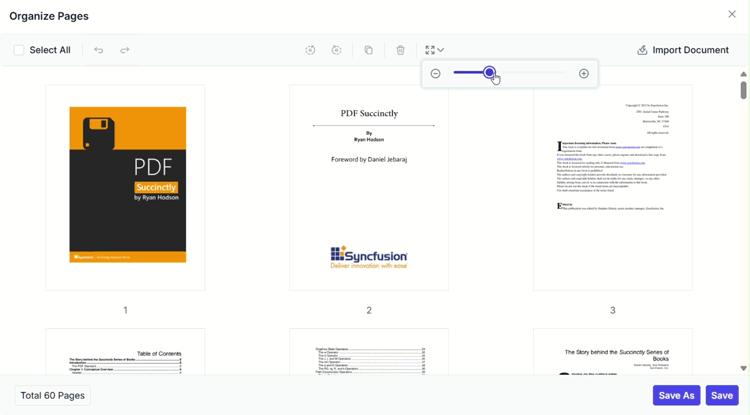
- Find the thumbnail zoom slider in the Organize Pages toolbar.
-
Adjust zoom
- Drag the slider to increase or decrease thumbnail size.
-
Choose an optimal zoom level
- Select a zoom level that balances page detail and the number of visible thumbnails for your task.
Expected result
- Thumbnails resize interactively; larger thumbnails show more detail while smaller thumbnails allow viewing more pages at once.
Show or hide Zoom Pages button
To enable or disable the Zoom Pages button in the Organize Pages toolbar, update the pageOrganizerSettings. See Organize pages toolbar customization for the guidelines.
Troubleshooting
-
Zoom control not visible: Confirm
pageOrganizerSettings.showImageZoomingSlideris set totrue.