Import Pages in Angular PDF Viewer
14 Aug 20261 minute to read
Overview
This guide explains how to import pages from another PDF into the current document using the Organize Pages UI in the EJ2 Angular PDF Viewer.
Outcome: Imported pages appear as thumbnails and are merged into the original document when saved or exported.
Prerequisites
- EJ2 Angular PDF Viewer installed
- PDF Viewer is injected with
PageOrganizermodule -
resourceUrl(standalone) orserviceUrl(server-backed) configured when required
Steps
-
Open the Organize Pages view
- Click the Organize Pages button in the viewer navigation toolbar to open the Organize Pages dialog.
-
Start import
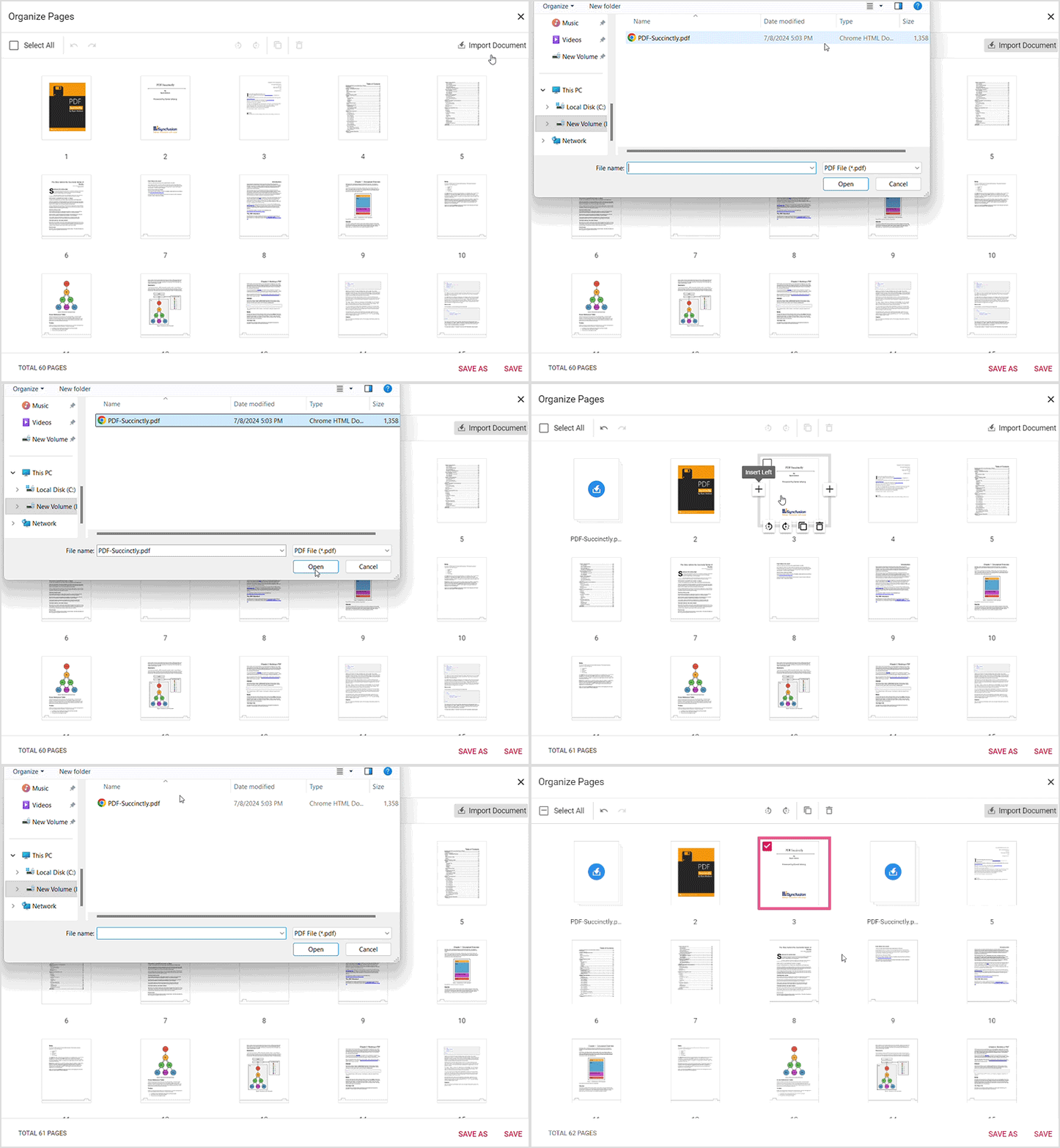
- Click Import Document and choose a valid PDF file from your local file system.
-
Place imported pages
- Imported pages appear as thumbnails. If a thumbnail is selected, the imported pages are inserted to the right of the selection; otherwise they are appended at the start of the document.
-
Persist changes
- Click Save or Save As (or download) to persist the merged document.
Expected result
- Imported pages display as a single thumbnail in Organize Pages and are merged into the original PDF when saved or exported.
Enable or disable Import Pages button
To enable or disable the Import Pages button in the Organize Pages toolbar, update the pageOrganizerSettings. See Organize pages toolbar customization for the guidelines.
Troubleshooting
- Import fails: Ensure the selected file is a valid PDF and the browser file picker is permitted.
- Imported pages not visible: Confirm that the import is persisted using Save or Save As.
-
Import option disabled: Ensure
pageOrganizerSettings.canImportis set totrueto enable the import option.