Magnification in Angular PDF Viewer
14 Aug 20264 minutes to read
The PDF Viewer includes magnification controls—ZoomIn, ZoomOut, Zoom, FitPage, and FitWidth—in the
default toolbar. The magnification controls can be shown or hidden in the toolbar.
The following examples show how to enable magnification in the PDF Viewer. The examples keep the
component code and providers as shown; ensure the MagnificationService is included in the
component providers when using the toolbar and programmatic API.
import { Component, OnInit } from '@angular/core';
import { LinkAnnotationService, BookmarkViewService, MagnificationService,
         ThumbnailViewService, ToolbarService, NavigationService,
         TextSearchService, AnnotationService, TextSelectionService,
         PrintService
       } from '@syncfusion/ej2-angular-pdfviewer';

@Component({
  selector: 'app-container',
  // specifies the template string for the PDF Viewer component
  template: `<div class="content-wrapper">
                  <ejs-pdfviewer id="pdfViewer"
                                [documentPath]='document'
                                enableMagnification="true"
                                style="height:640px;display:block">
                  </ejs-pdfviewer>
            </div>`,
  providers: [ LinkAnnotationService, BookmarkViewService, MagnificationService,
               ThumbnailViewService, ToolbarService, NavigationService,
               AnnotationService, TextSearchService, TextSelectionService,
               PrintService]
  })
  export class AppComponent implements OnInit {
    public document = 'https://cdn.syncfusion.com/content/pdf/pdf-succinctly.pdf';
  }
import { Component, OnInit } from '@angular/core';
import { LinkAnnotationService, BookmarkViewService, MagnificationService,
ThumbnailViewService, ToolbarService, NavigationService,
TextSearchService, AnnotationService, TextSelectionService,
PrintService
} from '@syncfusion/ej2-angular-pdfviewer';
@Component({
selector: 'app-container',
// specifies the template string for the PDF Viewer component
template: `<div class="content-wrapper">
<ejs-pdfviewer id="pdfViewer"
[serviceUrl]='service'
[documentPath]='document'
enableMagnification="true"
style="height:640px;display:block">
</ejs-pdfviewer>
</div>`,
providers: [ LinkAnnotationService, BookmarkViewService, MagnificationService,
ThumbnailViewService, ToolbarService, NavigationService,
AnnotationService, TextSearchService, TextSelectionService,
PrintService]
})
export class AppComponent implements OnInit {
public service = 'https://document.syncfusion.com/web-services/pdf-viewer/api/pdfviewer';
public document = 'https://cdn.syncfusion.com/content/pdf/pdf-succinctly.pdf';
}The following magnification options are available in the default toolbar:
- ZoomIn: Zoom in from the current zoom value.
- ZoomOut: Zoom out from the current zoom value.
- Zoom: Select a specific zoom level.
- FitPage: Fit the page height within the available viewport.
- FitWidth: Fit the page width to the viewport.
- Auto: Automatically adjust zoom to fit content when the viewport size changes.
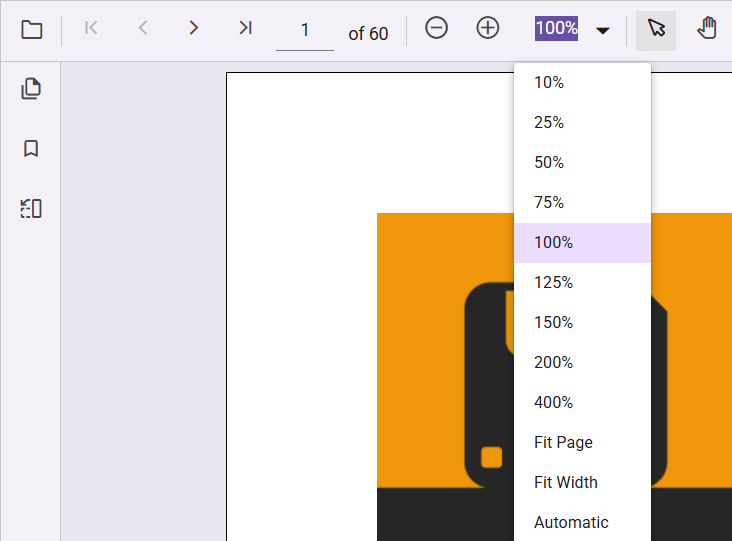
The PDF Viewer supports zoom values from 10% to 400%.