Create an Angular PDF Viewer with Agentic UI Builder
14 Aug 20262 minutes to read
This article explains how to build a Syncfusion® Angular PDF Viewer by entering natural-language instructions into the Syncfusion® Angular Agentic UI Builder (which runs on Syncfusion’s MCP Server). Describe your requirements, and the tool will generate a complete PDF Viewer implementation.
Prerequisites
- Ensure the Angular Agentic UI Builder extension is installed in your IDE. See the official installation guide.
- Have an existing Angular project ready (JavaScript or TypeScript, any supported version) before using the Agentic UI Builder.
Usage
After installation, open your Angular project in your IDE, launch the AI assistant, and run the #sf_angular_ui_builder command describing the UI you want. For example:
Example:
#sf_angular_ui_builder Create standalone Angular PDF Viewer using the Bootstrap 5 theme with all the modules. Install the required packages, import the theme CSS in the correct order, and initialize the PDF Viewer.
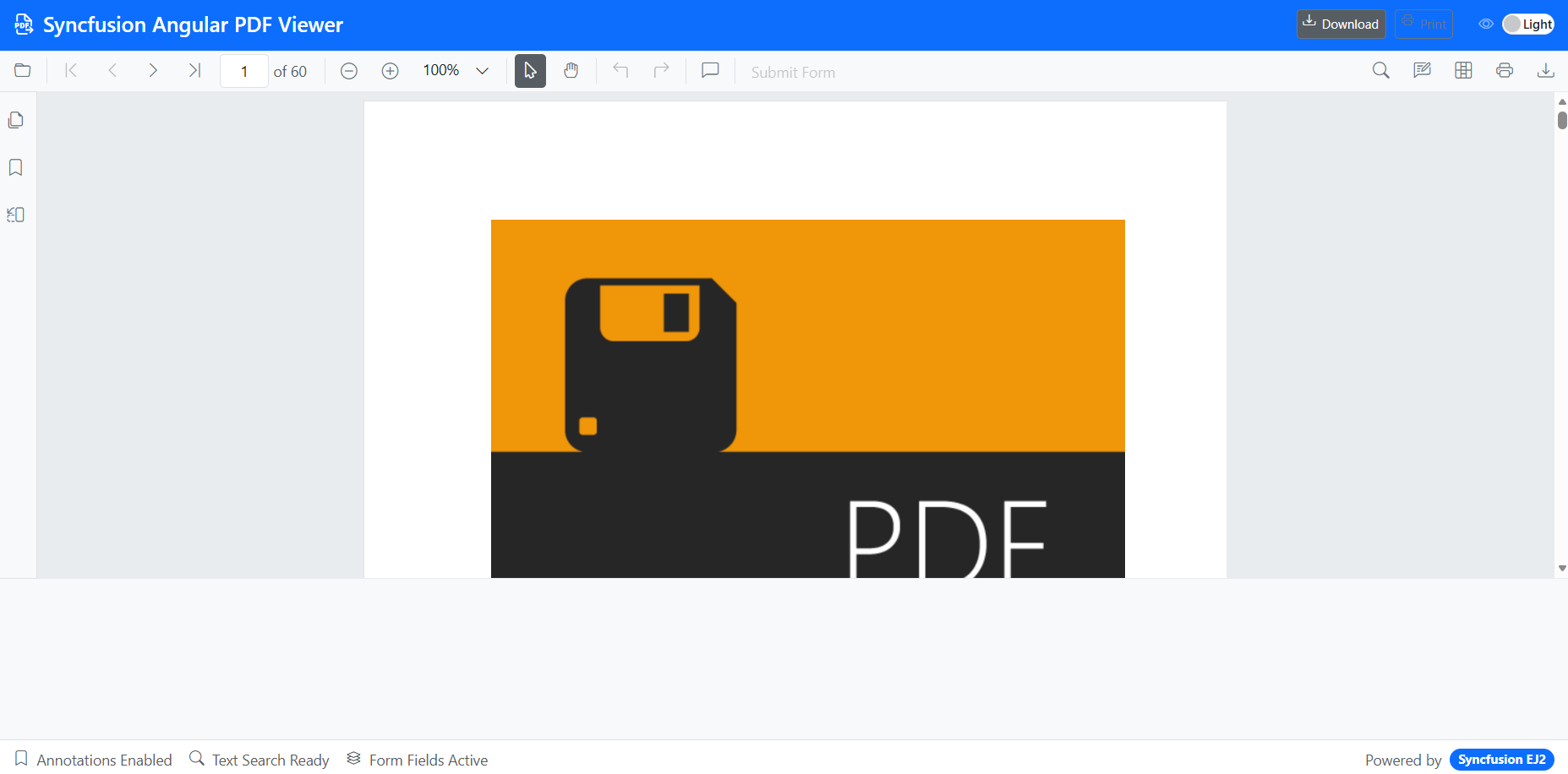
The UI Builder generates complete implementations including layout, components, and styling. A preview of the generated output appears below:
Individual Tools
You can directly call individual tools using their specific tool names when you need focused assistance. This is helpful when you want targeted support from a particular tool.
Layout Tool (#sf_angular_layout)
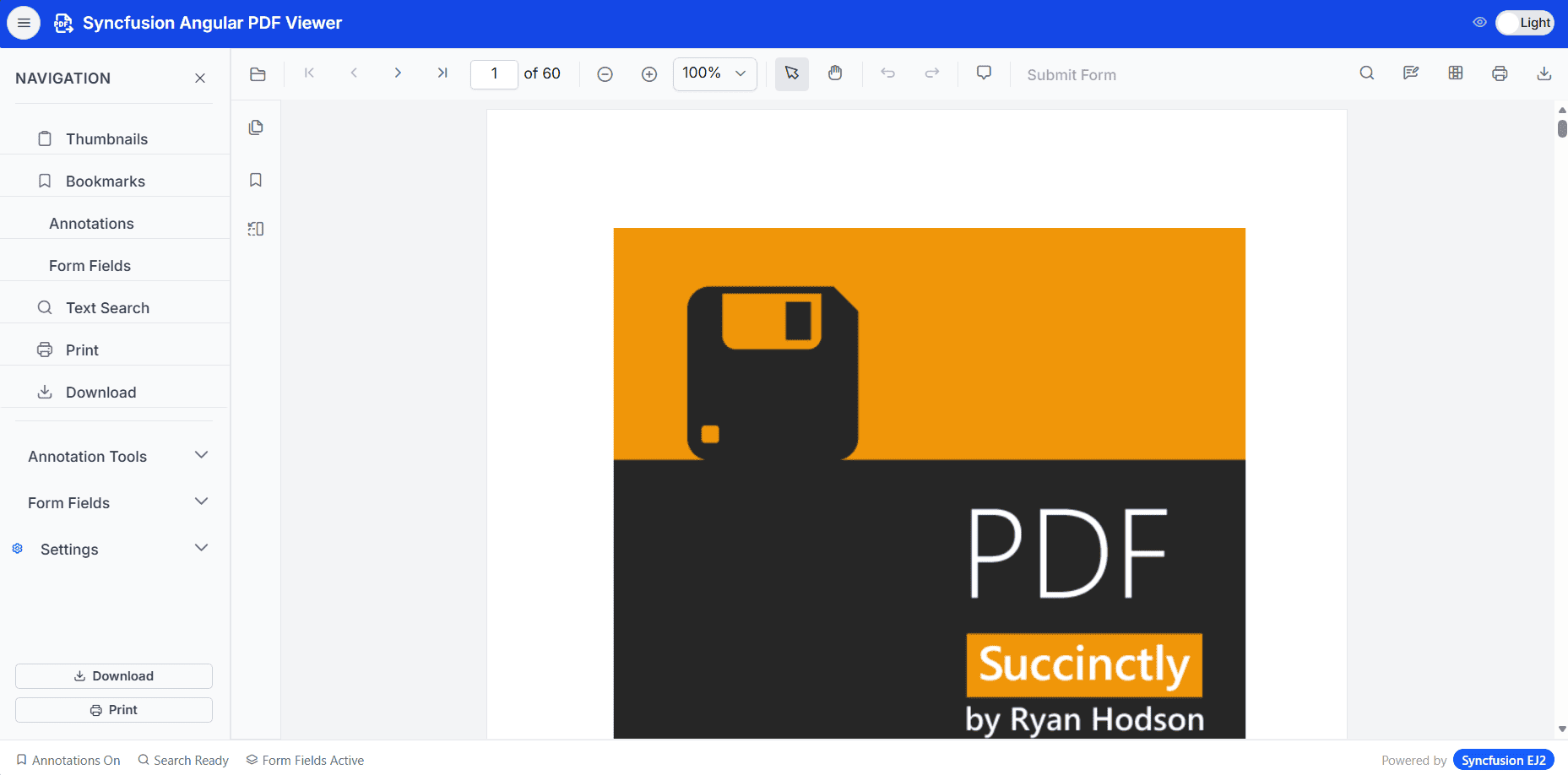
This tool provides a collection of pre-built, responsive UI layout templates and blocks commonly used across different page sections and design patterns.
When to use: For creating page structures, responsive layouts, or using ready-made UI patterns.
Example:
#sf_angular_layout Add a navigation bar and footer for PDF Viewer
Component Tool (#sf_angular_component)
This tool offers quick reference details for Syncfusion Angular components, including their properties, events, methods, and basic usage examples.
When to use: When you need essential API information or structure details to correctly implement a specific component.
Example:
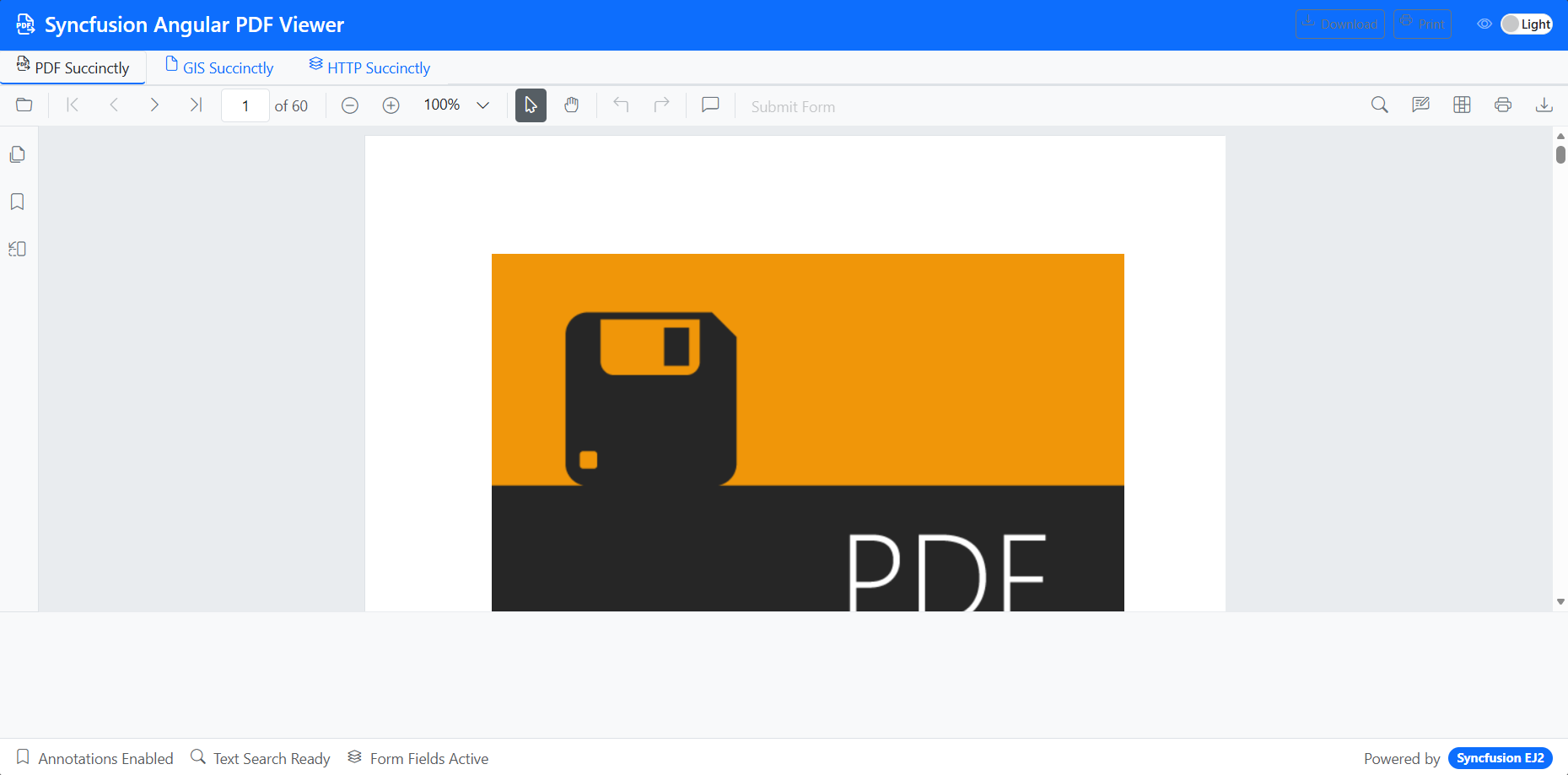
#sf_angular_component Integrate a tab component in the existing PDF Viewer setup
Style Tool (#sf_angular_style)
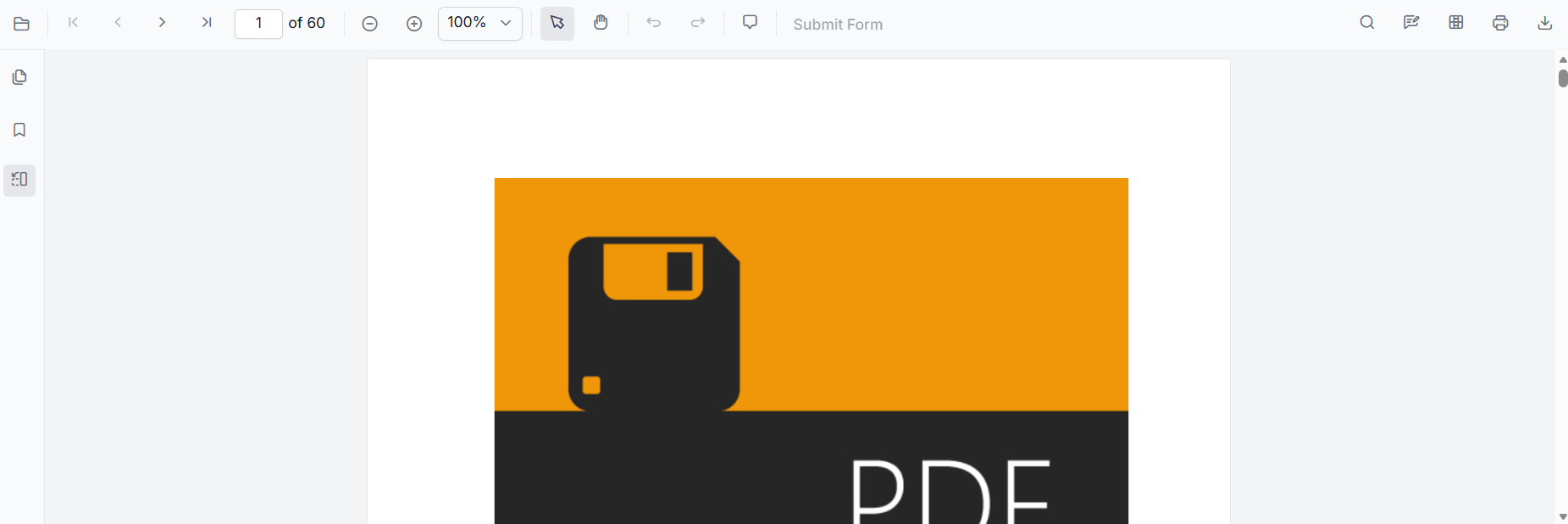
This tool provides options for configuring themes, setting up styling, and integrating icons for Syncfusion Angular components. It supports multiple themes such as Tailwind 3 CSS, Bootstrap 5.3, Material 3, and Fluent 2, along with light and dark mode setups and consistent icon usage.
When to use: When applying themes, customizing colors, modifying component appearance, or adding icons to the UI.
Example:
#sf_angular_style Change the theme to tailwind 3 for the PDF Viewer setup
Tips & Best Practices
- Turn on Agent mode in your IDE to enable smooth, multi-step operations with confirmation prompts.
- Use higher-capability models (Claude Sonnet 4.5 or newer, GPT-5) as they typically produce more accurate, higher-quality code.
- If a step times out or becomes unresponsive, cancel it and retry.
- Review the generated code and commands before applying them in a production environment.
See Also
- For examples of prompt patterns and customization options for layouts, components, and styles, refer to the prompt Library.