Save PDF documents to Dropbox
17 Aug 20262 minutes to read
To save a PDF file to Dropbox Cloud Storage, you can follow the steps below.
Step 1: Create a Dropbox API app
To create a Dropbox API App, follow the official documentation provided by Dropbox at this link. The process involves visiting the Dropbox Developer website and using their App Console to set up your API app. This app will allow you to interact with Dropbox programmatically, enabling secure access to files and data.
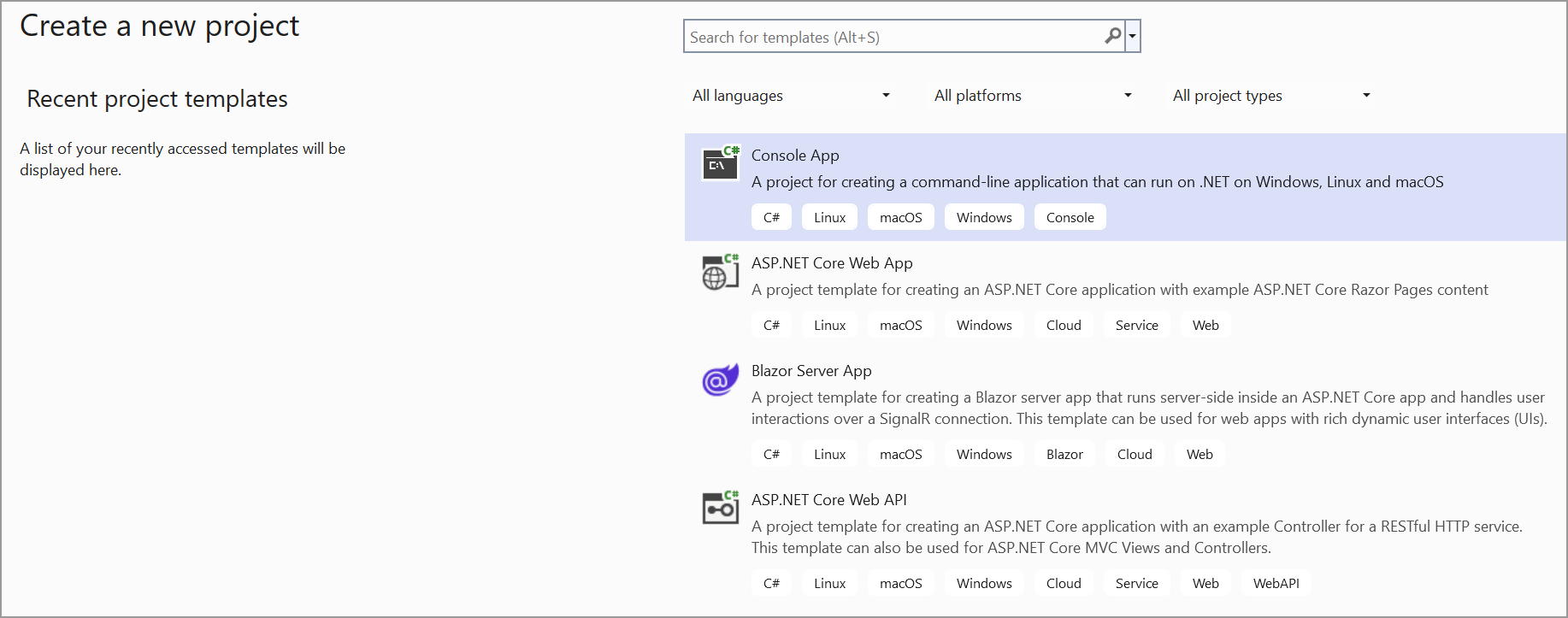
Step 2: Create a simple console application.
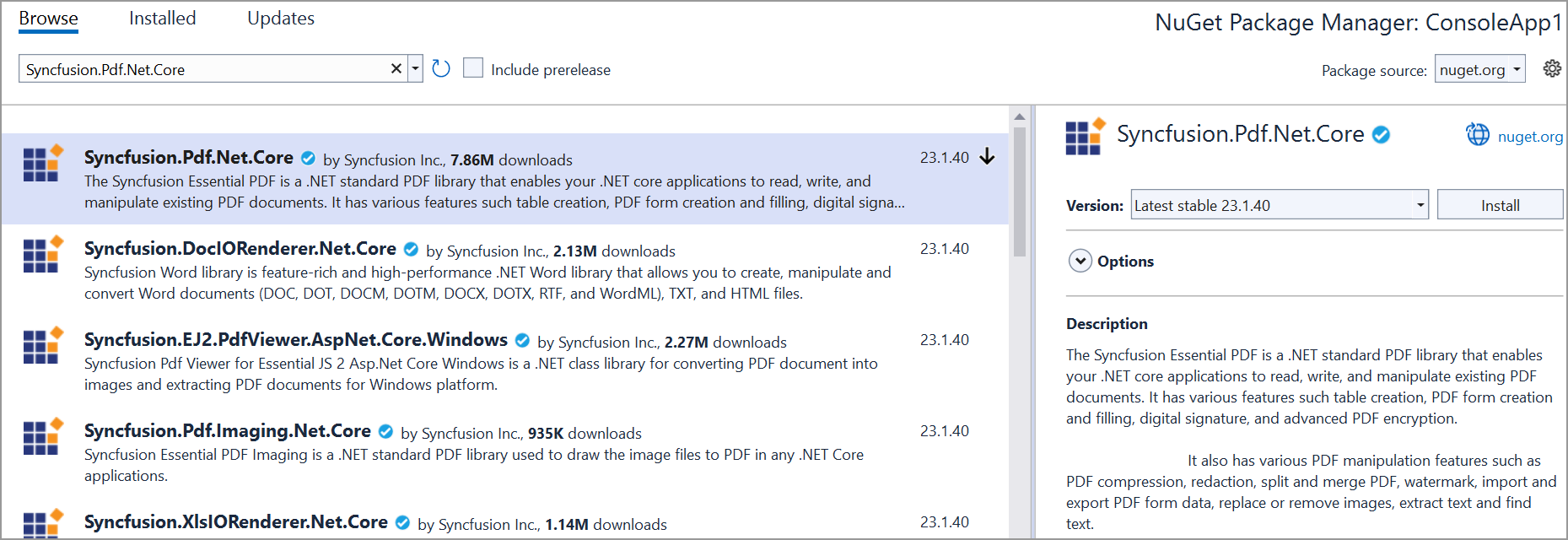
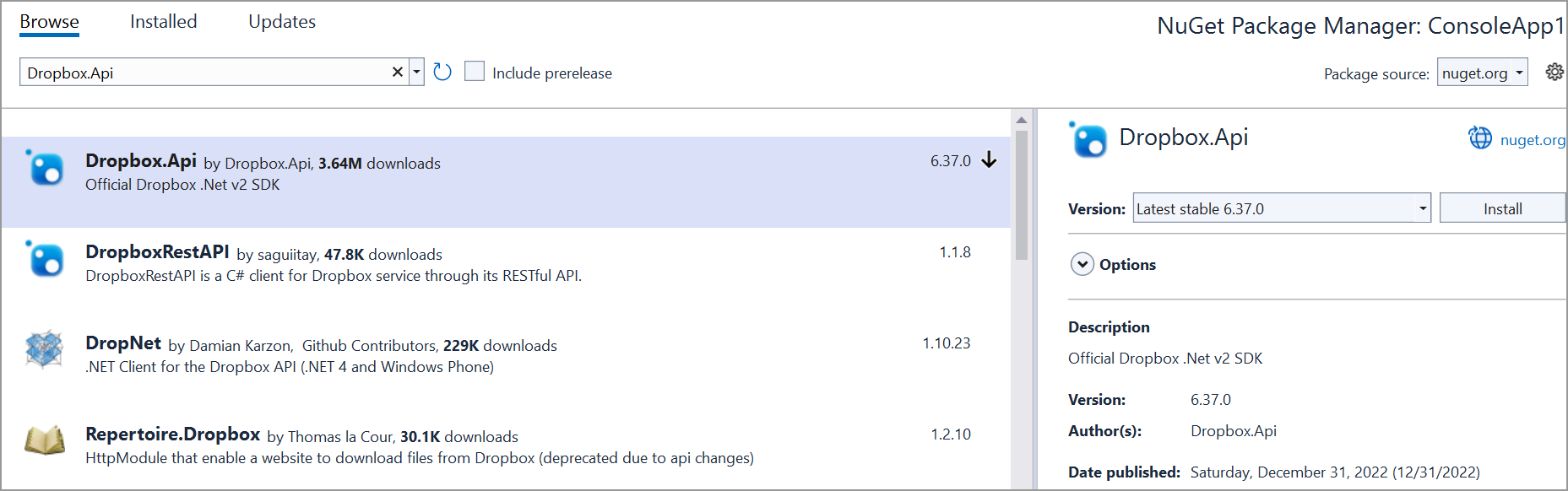
Step 3: Install the Syncfusion.Pdf.Net.Core and Dropbox.Api NuGet packages as a reference to your project from the NuGet.org.
Step 4: Include the following namespaces in the Program.cs file.
using Syncfusion.Pdf.Graphics;
using Syncfusion.Pdf;
using Dropbox.Api;
using Dropbox.Api.Files;
using Syncfusion.Drawing;
Step 5: Add the below code example to create a simple PDF and save in Dropbox Cloud Storage.
// Create a new PDF document.
PdfDocument doc = new PdfDocument();
// Add a new page to the document.
PdfPage page = doc.Pages.Add();
// Get the graphics object for the page to draw on.
PdfGraphics graphics = page.Graphics;
// Create a font for drawing text.
PdfFont font = new PdfStandardFont(PdfFontFamily.Helvetica, 12);
// Draw the text.
graphics.DrawString("Hello, World!", font, PdfBrushes.Black, new PointF(10, 10));
// Save the PDF to a memory stream.
MemoryStream stream = new MemoryStream();
doc.Save(stream);
// Close the PDF document.
doc.Close(true);

// Replace with your actual access token.
var accessToken = "YOUR_ACCESS_TOKEN";
// Specify the path in Dropbox where the PDF should be uploaded.
var dropboxFilePath = "/folder/Sample.pdf";

// Initialize a DropboxClient with the provided access token and upload the PDF.
using (var dbx = new DropboxClient(accessToken))
{
    var uploadResult = await dbx.Files.UploadAsync(
        dropboxFilePath,
        WriteMode.Overwrite.Instance,
        body: new MemoryStream(stream.ToArray()));
}
You can download a complete working sample from GitHub.