Open and Save PDF Document in Linux
13 Aug 20264 minutes to read
The .NET Core PDF library is used to create, read, and edit PDF documents programmatically without the dependency on Adobe Acrobat. Using this library, you can open and save PDF documents on Linux OS.
Steps to open and save PDF documents programmatically:
Step 1: Execute the following command in the Linux terminal to create a new .NET Core Console application project.
dotnet new consoleStep 2: Install the Syncfusion.Pdf.Net.Core NuGet package as a reference to your project from NuGet.org by executing the following command.
dotnet add package Syncfusion.Pdf.Net.Core -v xx.x.x.xx -s https://www.nuget.org/Starting with v16.2.0.x, if you reference Syncfusion® assemblies from the trial setup or from the NuGet feed, you also have to add the “Syncfusion.Licensing” assembly reference and include a license key in your projects. Please refer to this link to know about registering the Syncfusion® license key in your application to use our components.
Step 3: Include the following Namespaces in the Program.cs file.
using Syncfusion.Pdf;
using Syncfusion.Pdf.Graphics;
using Syncfusion.Drawing;
using System.IO;
Step 4: Add the following code sample to the Program.cs file to open an existing PDF document in the .NET Core application on Linux.
//Open an existing PDF document.
FileStream fileStream = new FileStream("Input.pdf", FileMode.Open, FileAccess.Read);
PdfLoadedDocument loadedDocument = new PdfLoadedDocument(fileStream);
Step 5: Add the following code example to add a paragraph and table to the PDF document.
//Get the first page from the document.
PdfLoadedPage page = loadedDocument.Pages[0] as PdfLoadedPage;
//Create PDF graphics for the page.
PdfGraphics graphics = page.Graphics;

//Create a PdfGrid.
PdfGrid pdfGrid = new PdfGrid();
//Add values to the list.
List<object> data = new List<object>();
Object row1 = new { Product_ID = "1001", Product_Name = "Bicycle", Price = "10,000" };
Object row2 = new { Product_ID = "1002", Product_Name = "Head Light", Price = "3,000" };
Object row3 = new { Product_ID = "1003", Product_Name = "Break wire", Price = "1,500" };
data.Add(row1);
data.Add(row2);
data.Add(row3);
//Add list to IEnumerable.
IEnumerable<object> dataTable = data;

//Assign data source.
pdfGrid.DataSource = dataTable;
//Apply built-in table style.
pdfGrid.ApplyBuiltinStyle(PdfGridBuiltinStyle.GridTable4Accent3);
//Draw the grid to the page of the PDF document.
pdfGrid.Draw(graphics, new RectangleF(40, 400, page.Size.Width - 80, 0));
Step 6: Add the following code example to save the PDF document in .NET Core application on Linux.
//Create a FileStream to save the PDF document.
using (FileStream outputStream = new FileStream("Result.pdf", FileMode.Create, FileAccess.ReadWrite))
{
    //Save the PDF file.
    loadedDocument.Save(outputStream);
}
Step 7: Execute the following command to restore the NuGet packages.
dotnet restore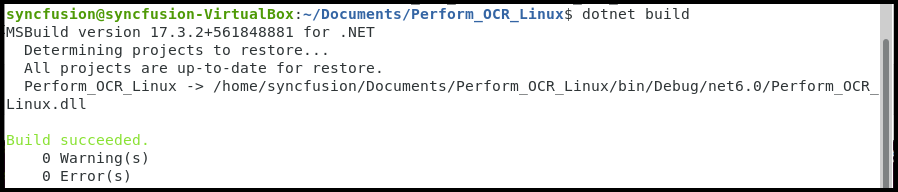
Step 8: Execute the following command in terminal to run the application.
dotnet run
A complete working sample can be downloaded from GitHub.
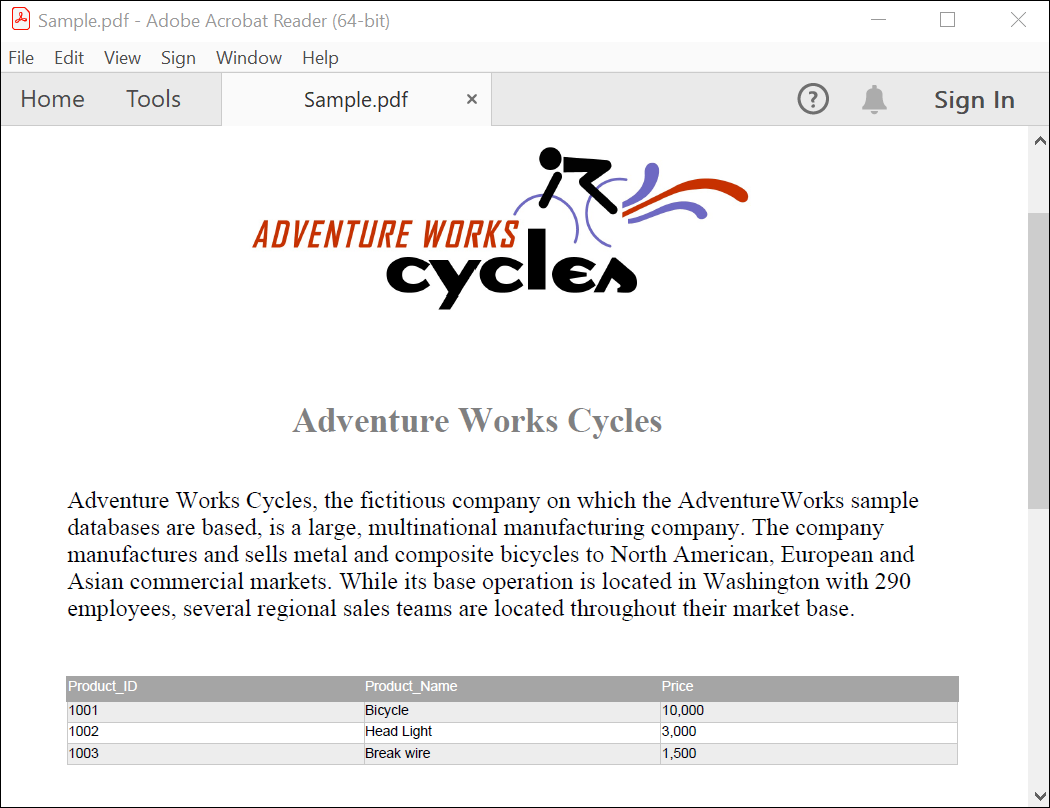
By executing the program, you will get the PDF document as follows. The output will be saved in parallel to program.cs file.
Click here to explore the rich set of Syncfusion® PDF library features.