Getting Started with .NET PDF Library in Windows Forms
13 Aug 20266 minutes to read
The .NET PDF library is used to create, read, and edit PDF documents. This library also offers functionality to merge, split, stamp, work with forms, and secure PDF files.
To include the .NET PDF library into your Windows Forms application, please refer to the NuGet Package Required or Assemblies Required documentation.
Steps to create a PDF document in Windows Forms
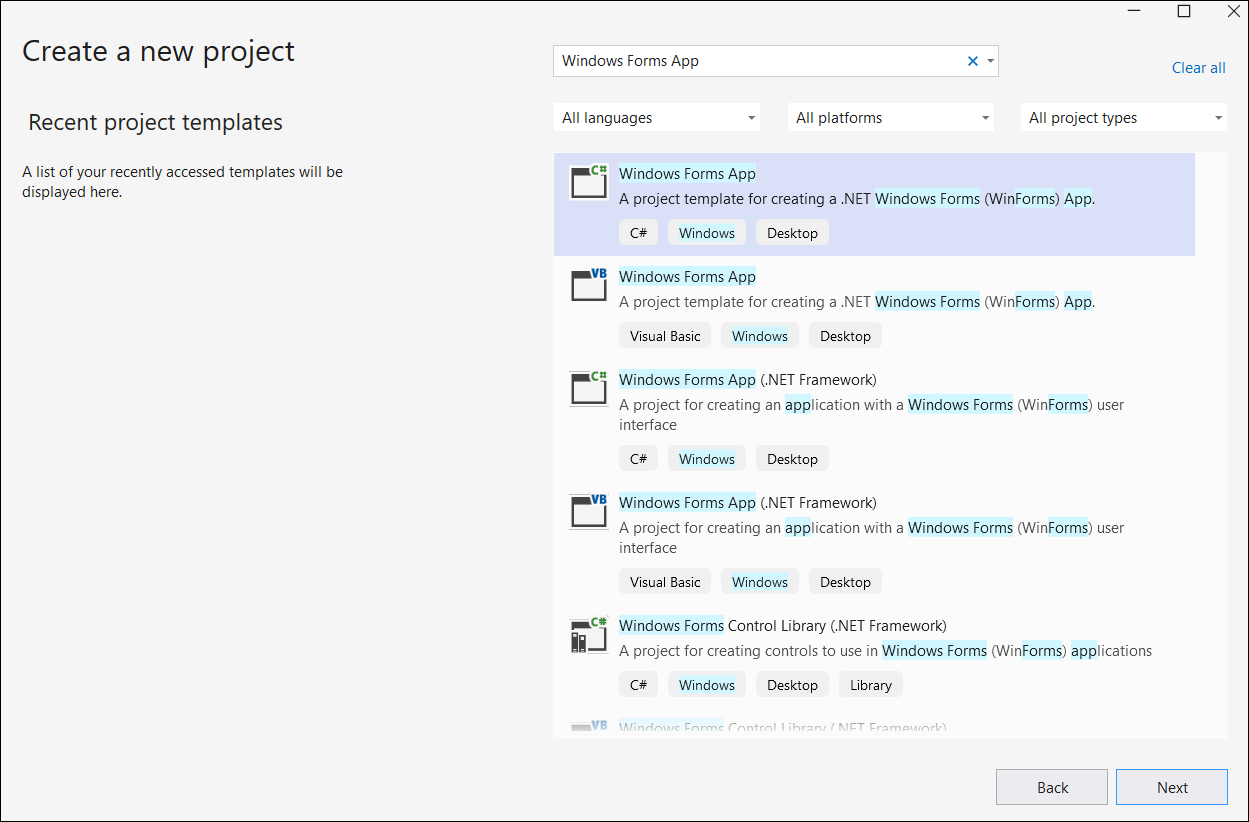
Step 1: Create a new Windows Forms App project in Visual Studio, targeting .NET Framework 4.6.2 (or later) or .NET 8.0/9.0/10.0 (Windows).
Step 2: Install the Syncfusion.Pdf.WinForms NuGet package as a reference to your application from NuGet.org.
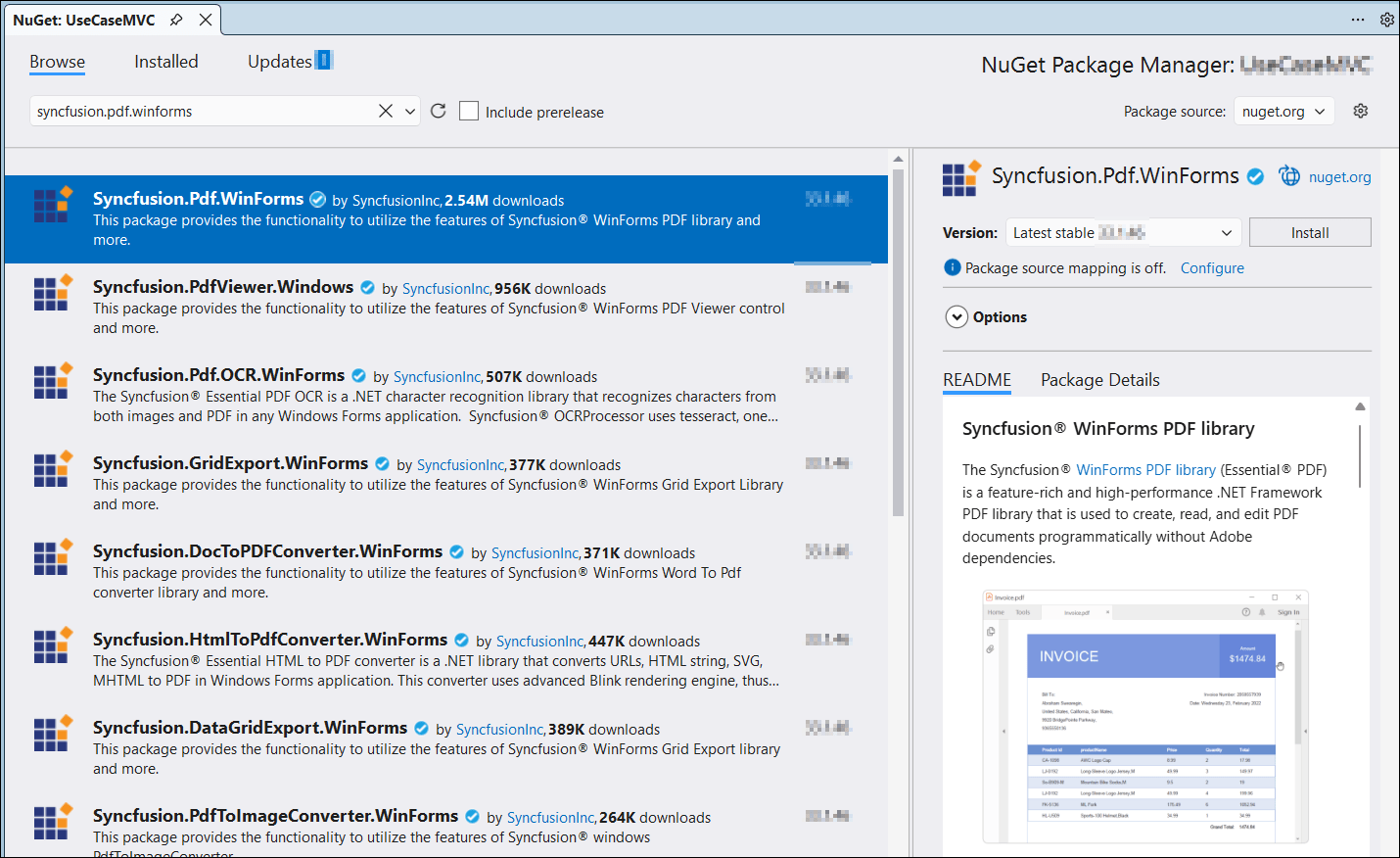
The Syncfusion.Pdf.WinForms NuGet package supports .NET Framework 4.6.2 and later, as well as .NET 8.0, 9.0, and 10.0 (Windows) for WinForms — all from the same package. Select the project template that matches your target framework in Visual Studio.
Starting with v16.2.0.x, if you reference Syncfusion® assemblies from trial setup or from the NuGet feed, you also have to add the
Syncfusion.Licensingassembly reference and include a license key in your projects. Please refer to this link to learn about registering the Syncfusion® license key in your application to use our components.
Step 3: Register the Syncfusion® license key in the Program.cs file before any Syncfusion component is used, to remove the evaluation watermark. Replace "YOUR LICENSE KEY" with the actual key from your Syncfusion® account.
using Syncfusion.Licensing;
using System;
using System.Windows.Forms;

namespace Create_new_PDF_document
{
    static class Program
    {
        /// <summary>
        ///  The main entry point for the application.
        /// </summary>
        [STAThread]
        static void Main()
        {
            //Register the Syncfusion license key to remove the evaluation watermark.
            Syncfusion.Licensing.SyncfusionLicenseProvider.RegisterLicense("YOUR LICENSE KEY");

            Application.EnableVisualStyles();
            Application.SetCompatibleTextRenderingDefault(false);
            Application.Run(new Form1());
        }
    }
}
The license must be registered once during application startup, before instantiating any Syncfusion® component (for example, before creating a
PdfDocument).
Step 4: Add the following namespaces to the Form1.cs file.
using Syncfusion.Pdf;
using Syncfusion.Pdf.Graphics;
using System;
using System.Drawing;
using System.Windows.Forms;
Step 5: Add a new button in Form1.Designer.cs to create a PDF document as follows. Place the field declarations at the class level (above InitializeComponent) and assign Name values so the controls are easy to identify.
public partial class Form1 : Form
{
    private Button btnCreate;
    private Label label;

    private void InitializeComponent()
    {
        btnCreate = new Button();
        label = new Label();

        //Label
        label.Name = "lblInfo";
        label.Location = new System.Drawing.Point(0, 40);
        label.Size = new System.Drawing.Size(426, 35);
        label.Text = "Click the button to generate a PDF file by Essential PDF";
        label.TextAlign = System.Drawing.ContentAlignment.MiddleCenter;

        //Button
        btnCreate.Name = "btnCreate";
        btnCreate.Location = new System.Drawing.Point(180, 110);
        btnCreate.Size = new System.Drawing.Size(85, 26);
        btnCreate.Text = "Create PDF";
        btnCreate.Click += new EventHandler(btnCreate_Click);

        //Form setup
        ClientSize = new System.Drawing.Size(450, 150);
        Controls.Add(label);
        Controls.Add(btnCreate);
        Text = "Create PDF";
    }
}
Step 6: In Form1.cs, create the btnCreate_Click event handler and add the following code sample to generate a PDF document using the PdfDocument class. The DrawString method of the PdfGraphics object is used to draw the text on the PDF page.
private void btnCreate_Click(object sender, EventArgs e)
{
  //Create a new PDF document.
  using (PdfDocument document = new PdfDocument())
  {
    //Add a page to the document.
    PdfPage page = document.Pages.Add();
    //Create PDF graphics for a page.
    PdfGraphics graphics = page.Graphics;
    //Set the standard font.
    PdfFont font = new PdfStandardFont(PdfFontFamily.Helvetica, 20);
    //Draw the text.
    graphics.DrawString("Hello World!!!", font, PdfBrushes.Black, new PointF(0, 0));
    //Save the document.
    document.Save("Output.pdf");
  }
}
You can download a complete working sample from GitHub.
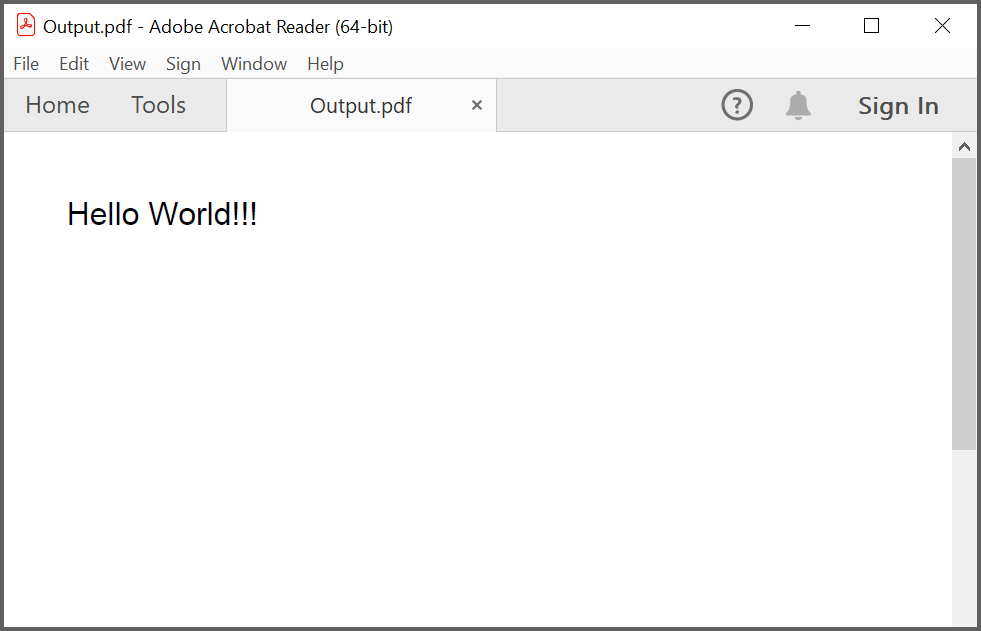
By executing the program, you will get the PDF document as follows.
Explore the rich set of Syncfusion® PDF library features.
An online sample link to create a PDF document.
Next steps
If a valid license key is not registered, an evaluation watermark is applied to the generated PDF document. To remove the watermark, register the license key in Program.cs at application startup (as shown in Step 3). Refer to the licensing overview for details.