# Steps to create PDF document in AWS Elastic Beanstalk

The [Syncfusion<sup>&reg;</sup> .NET Core PDF library](https://www.syncfusion.com/document-processing/pdf-framework/net-core) is used to create, read, and edit PDF documents programmatically without the dependency of Adobe Acrobat. Using this library, open and save PDF documents in AWS Elastic Beanstalk. 

## Steps to create a PDF document in AWS Elastic Beanstalk

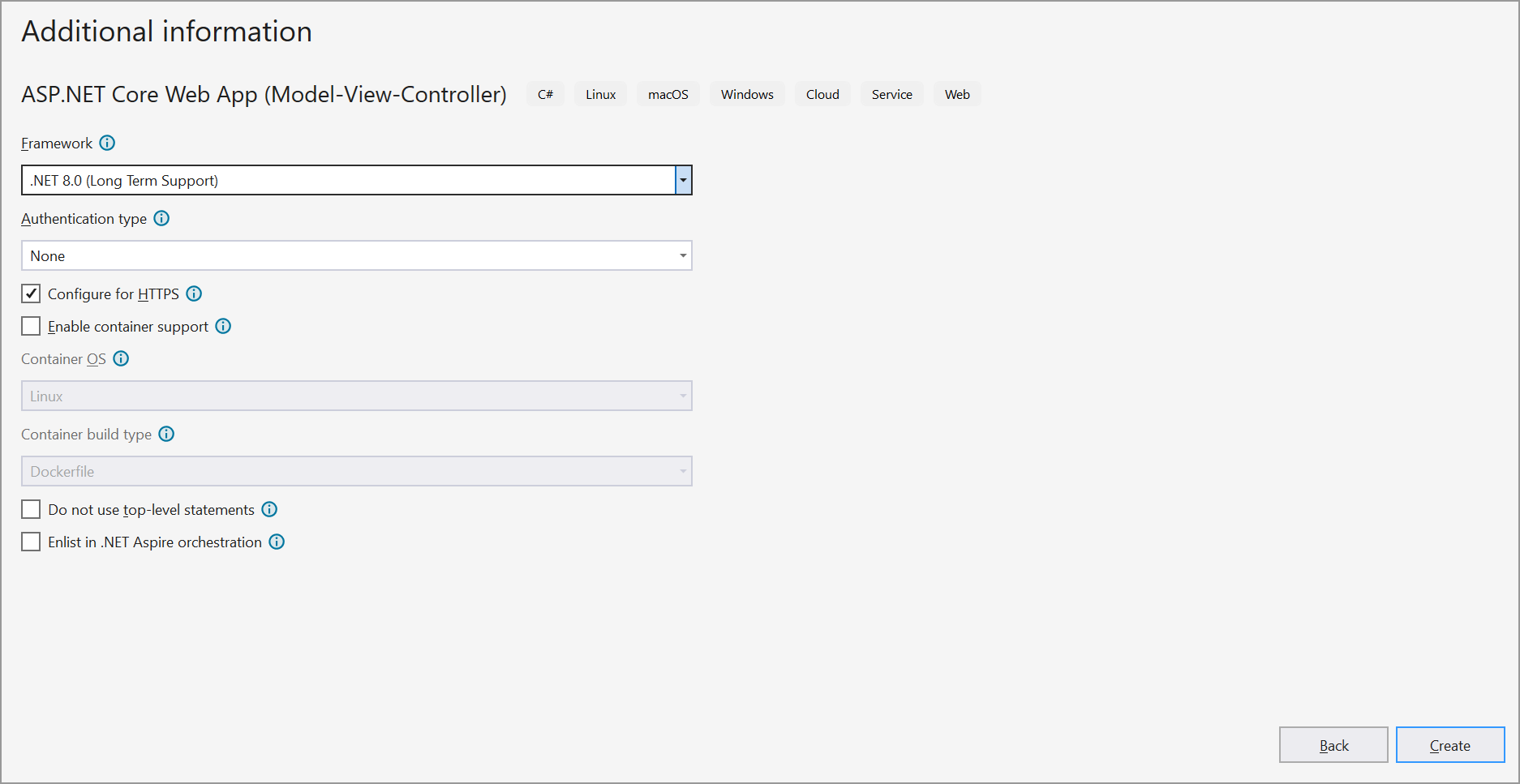
Step 1: Create a new C# ASP.NET Core Web Application project.
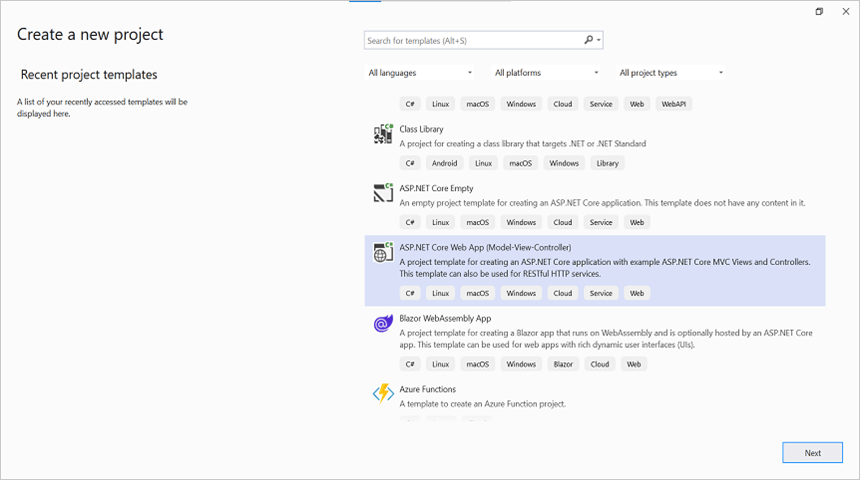
![ASP.NET Core project](GettingStarted_images/Create-Project.png)

Step 2: In configuration windows, name your project and select Next.
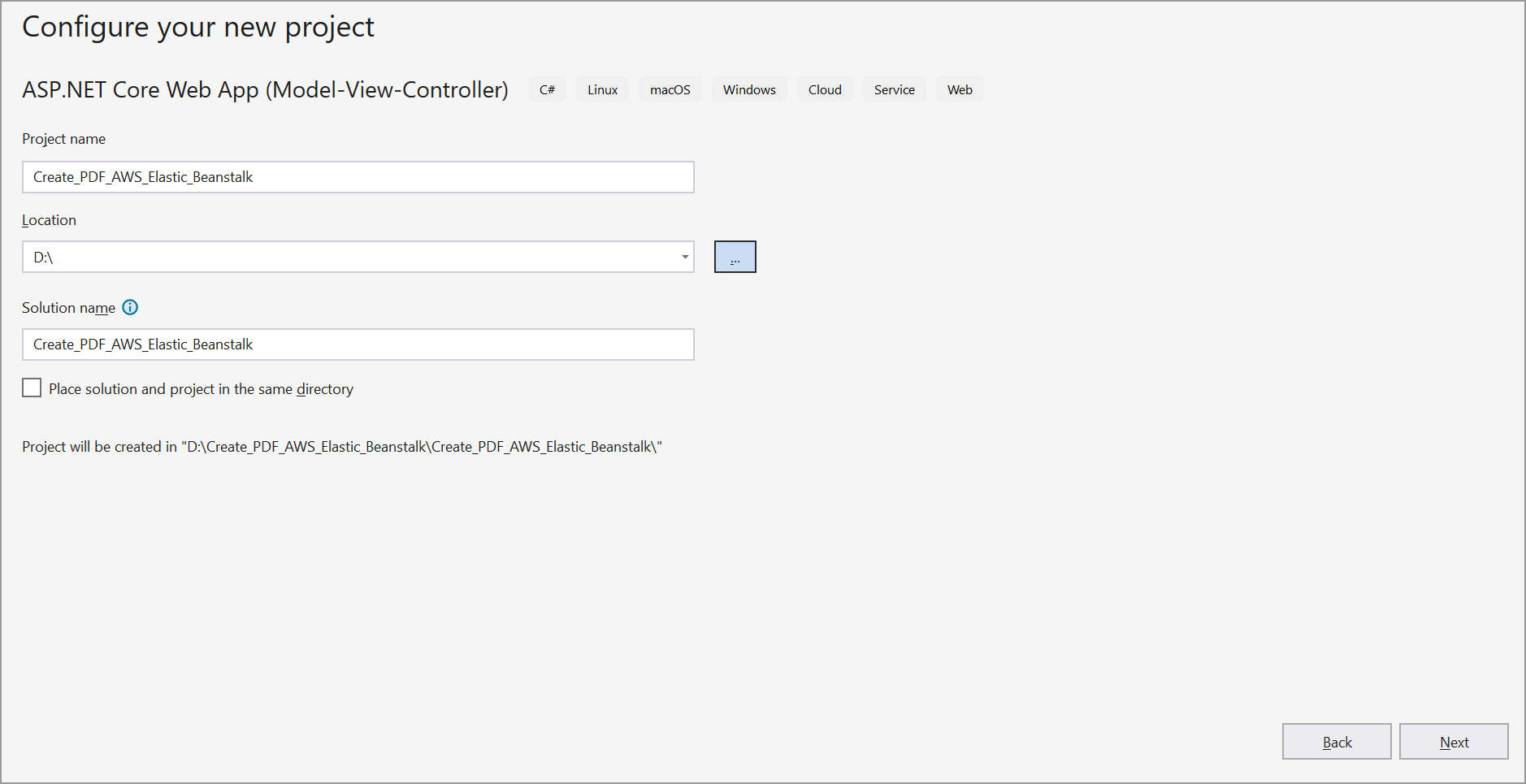
![Create a Project](GettingStarted_images/AWS-Elastic-Beanstalk-Project.png)

![Configuration](GettingStarted_images/AWS-Elastic-Beanstalk-Configuration.png)

Step 3: Install the [Syncfusion.Pdf.Net.Core](https://www.nuget.org/packages/Syncfusion.Pdf.Net.Core/) NuGet package as a reference to your project from [NuGet.org](https://www.nuget.org/).
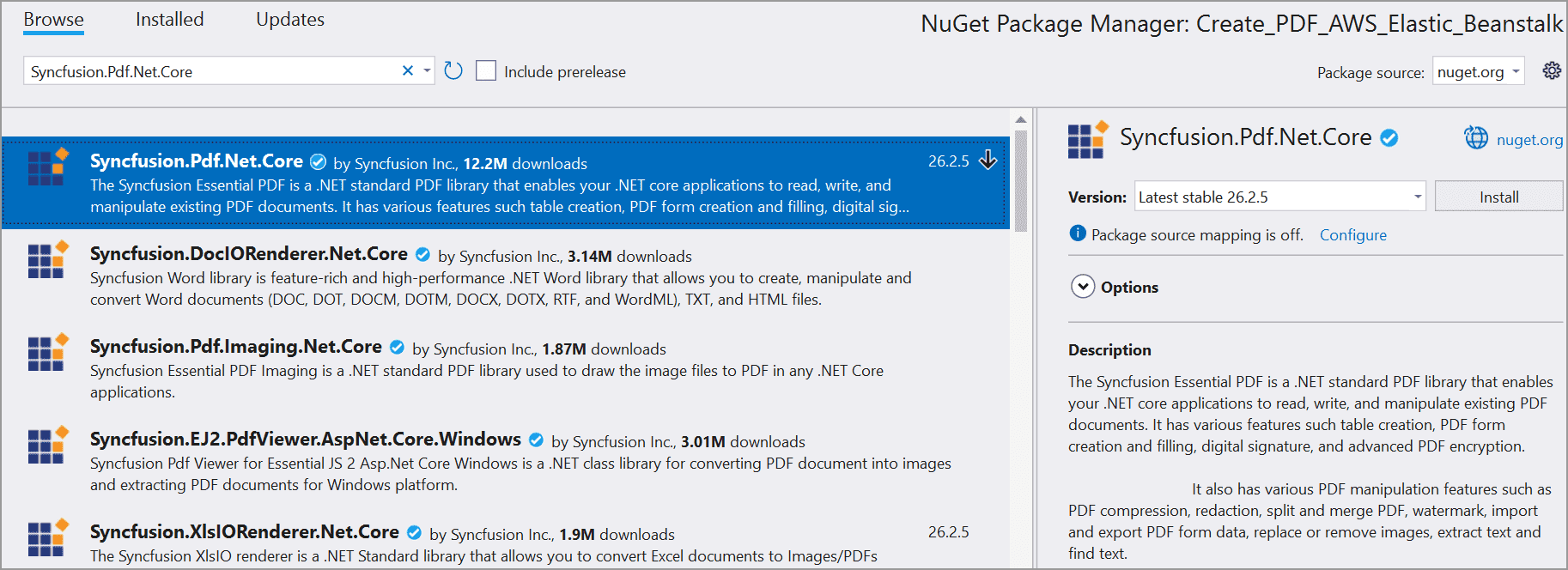
![Install NuGet package](GettingStarted_images/NuGet-Package-AWS-Elastic-Beanstalk.png)

Step 4: A default controller named HomeController.cs gets added to create the ASP.NET Core MVC project. Include the following namespaces in that HomeController.cs file.

{% tabs %}
{% highlight c# tabtitle="C#" %}

    using Syncfusion.Pdf;
    using Syncfusion.Pdf.Graphics;
    using Syncfusion.Pdf.Grid;
    using Syncfusion.Pdf.Parsing;
    using Syncfusion.Drawing;

{% endhighlight %}
{% endtabs %}

Step 5: Add a new button in index.cshtml as follows

{% tabs %}
{% highlight c# tabtitle="C#" %}

   @{
    Html.BeginForm("CreatePDF", "Home", FormMethod.Get);
    {
        <div>
            <input type="submit" value="Create PDF" style="width:150px;height:27px" />
            <br />
            <div class="text-danger">
                @ViewBag.Message
            </div>
        </div>
    }
    Html.EndForm();
}

{% endhighlight %}
{% endtabs %}

Step 6: Add a new action method named CreatePDF in HomeController.cs file and include the below code example to generate a PDF document in HomeController.cs.

{% tabs %}
{% highlight c# tabtitle="C#" %}

    public IActionResult CreatePDF()
    {
        //Open an existing PDF document.
        FileStream fileStream = new FileStream("Data/Input.pdf", FileMode.Open, FileAccess.Read);
        PdfLoadedDocument document = new PdfLoadedDocument(fileStream);

        //Get the first page from a document.
        PdfLoadedPage page = document.Pages[0] as PdfLoadedPage;

        //Create PDF graphics for the page.
        PdfGraphics graphics = page.Graphics;

        //Create a PdfGrid.
        PdfGrid pdfGrid = new PdfGrid();
        //Add values to the list.
        List<object> data = new List<object>();
        data.Add(new { Product_ID = "1001", Product_Name = "Bicycle", Price = "10,000" });
        data.Add(new { Product_ID = "1002", Product_Name = "Head Light", Price = "3,000" });
        data.Add(new { Product_ID = "1003", Product_Name = "Break wire", Price = "1,500" });

        //Assign data source.
        pdfGrid.DataSource = data;

        //Apply built-in table style.
        pdfGrid.ApplyBuiltinStyle(PdfGridBuiltinStyle.GridTable4Accent3);

        //Draw the grid to the page of PDF document.
        pdfGrid.Draw(graphics, new RectangleF(40, 400, page.Size.Width - 80, 0));
        //Create the memory stream.
        MemoryStream stream = new MemoryStream();
        //Save the document to the memory stream.
        document.Save(stream);
        //Close the documet
	    document.Close(true); 
	    //Return the PDF file as a download
        return File(stream.ToArray(), System.Net.Mime.MediaTypeNames.Application.Pdf, "Output.pdf");
    }

{% endhighlight %}
{% endtabs %}

Step 7: Click the Publish to AWS Elastic Beanstalk (Legacy) option by right-clicking the project to publish the application in the AWS Elastic Beanstalk environment.
![Publish to AWS Elastic Beanstalk](GettingStarted_images/Publish-AWS-Elastic-Beanstalk.png)

Step 8: Add the AWS profile in the Publish to AWS Elastic Beanstalk Window. After creating the profile, Choose Create a new application environment or Re-deploy to the existing environment. Then, click Next.
![Publish to AWS Elastic Beanstalk](GettingStarted_images/Publish-to-AWS-Elastic-Beanstalk.png)

Step 9: Click Next from the Application Options window.
![Application Options Window](GettingStarted_images/Application-Options-Window.png)

Step 10: Click Deploy from the Review window.
![Deploy From the Review Window](GettingStarted_images/Deploy-From-the-Review-Window.png)

Step 11: Click the URL link to launch the application once the Environment is updated successfully and Environment status is healthy.
![Launch Application Window](GettingStarted_images/Launch-Application-Window.png)

Step 12: Now, the webpage will open in the browser. Click the button to convert the webpage to a PDF document.
![Console Window](GettingStarted_images/Console-Page-AWS-Elastic-Beanstalk.png)


By executing the program, you will get the PDF document as follows.

![Open and save a PDF document in AWS Lambda](GettingStarted_images/Output.png)

Users can download the [AWS Elastic Beanstalk](https://github.com/SyncfusionExamples/PDF-Examples/tree/master/Getting%20Started/AWS/AWSElasticBeanstalk) project from GitHub.

Click [here](https://www.syncfusion.com/document-processing/pdf-framework/net-core?_gl=1*7czwz1*_ga*OTcwNzc5NDkuMTY4MTEwMjEwNA..*_ga_WC4JKKPHH0*MTY4OTg0NTE0Ni4zMzguMC4xNjg5ODQ1MTQ2LjYwLjAuMA..) to explore the rich set of Syncfusion<sup>&reg;</sup> PDF library features.

An online sample link to [create a PDF document](https://ej2.syncfusion.com/aspnetcore/PDF/HelloWorld#/bootstrap5) in ASP.NET Core