Getting Started with WPF PDF to Image Converter Library
13 Aug 20261 minute to read
The Syncfusion® PDF to Image converter is a .NET library used to convert a PDF document to an image in a WPF application.
Steps to convert PDF document to Image in WPF
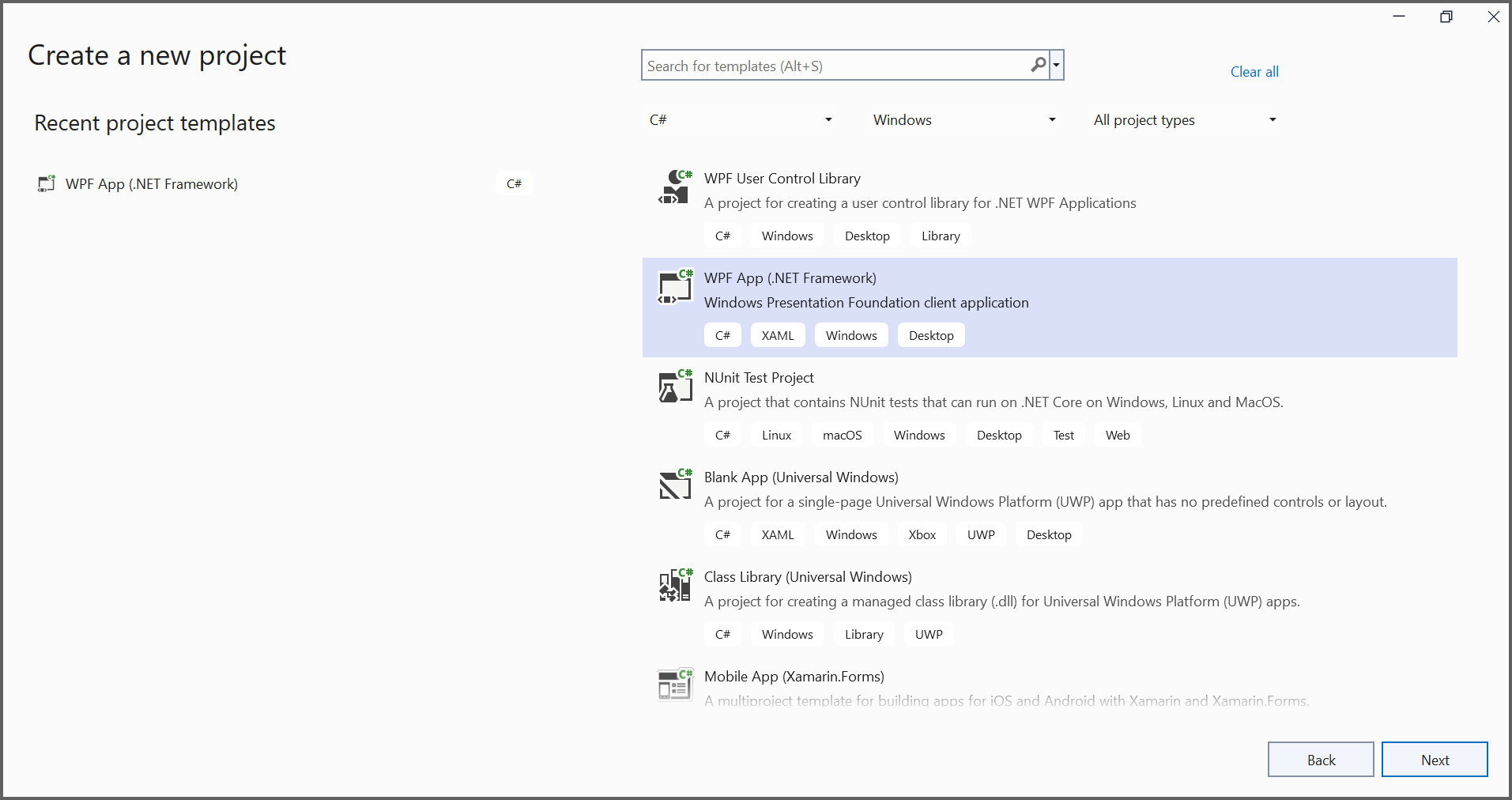
Step 1: Create a new WPF application project.
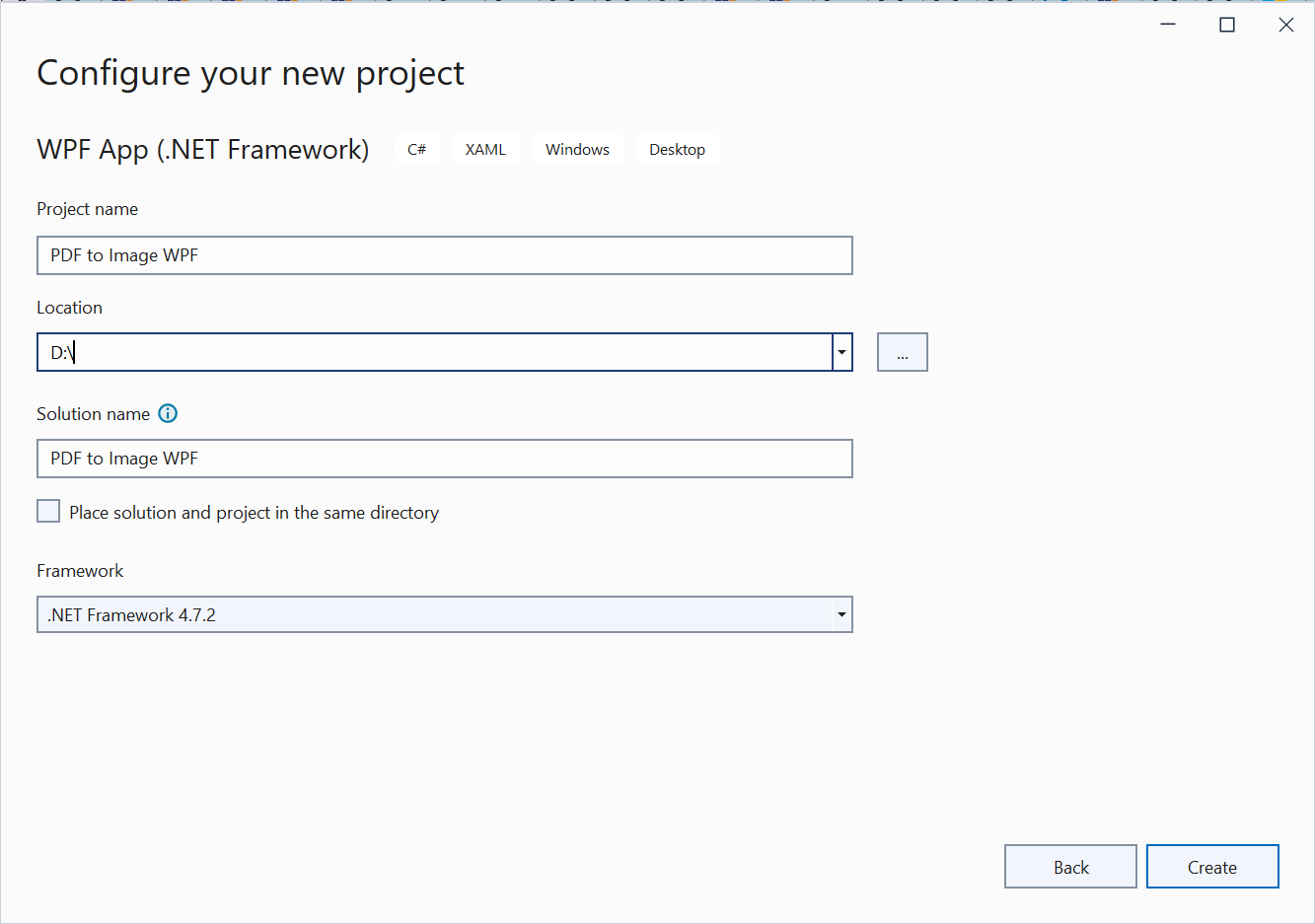
In the project configuration window, name your project and select Create.
Step 2: Install the Syncfusion.PdfToImageConverter.WPF NuGet package as a reference to your WPF application NuGet.org.
Step 3: Include the following namespaces in the MainWindow.xaml.cs file.
using Syncfusion.PdfToImageConverter;
using System.Drawing;
using System.IO;
using System.Windows;
Step 4: Add a new button in MainWindow.xaml to convert PDF document to Image file as follows.
<Grid HorizontalAlignment="Left" Margin="0,0,0,-0.333" Width="793">
<Button Content="Convert PDF to Image" HorizontalAlignment="Left" Margin="318,210,0,0" VerticalAlignment="Top" Width="166" Click="btnCreate_Click" Height="19"/>
<TextBlock HorizontalAlignment="Left" Margin="222,177,0,0" TextWrapping="Wrap" VerticalAlignment="Top" Height="17"/>
<TextBlock HorizontalAlignment="Left" Margin="291,175,0,0" TextWrapping="Wrap" Text="Click the button to convert PDF to Image." VerticalAlignment="Top"/>
</Grid>
Step 5: Add the following code in btnCreate_Click to convert PDF document to Image using Convert method in PdfToImageConverter class.
//Initialize PDF to Image converter.
PdfToImageConverter imageConverter = new PdfToImageConverter();
//Load the PDF document as a stream
FileStream inputStream = new FileStream("Input.pdf", FileMode.Open, FileAccess.ReadWrite);
imageConverter.Load(inputStream);
//Convert PDF to Image.
Stream outputStream = imageConverter.Convert(0, false, false);
Bitmap image = new Bitmap(outputStream);
image.Save("sample.png");
By executing the program, you will get the image as follows.