HTML to PDF conversion in Windows Server .NET PDF Library
13 Aug 20264 minutes to read
The HTML to PDF converter is a .NET library for converting webpages, SVG, MHTML, and HTML to PDF using C#. Using this library, you can convert HTML to PDF documents on a Windows Server using IIS Manager.
Prerequisites
Version Compatibility
The Syncfusion.HtmlToPdfConverter.Net.Windows NuGet package uses the Blink rendering engine for HTML to PDF conversion. This library is compatible with .NET 8.0 and later versions
Required Software
- .NET 8.0 or later
- Windows Server with IIS installed and configured
Supported Inputs
The HTML to PDF converter supports the following input types:
- HTML String: Direct HTML content.
- URL: Web pages and online HTML content.
- HTML Files: Local HTML files.
- MHTML Files: Web archive (.mhtml/.mht) content.
- Authenticated Web Pages: Pages that require cookies, form authentication, or HTTP authentication.
- HTTP GET/POST Requests: HTML content accessed through GET or POST methods
Register the license key
Starting with v16.2.0.x, if you reference Syncfusion® assemblies from trial setup or from the NuGet feed, you must add the “Syncfusion.Licensing” assembly reference and register a license key in your application. Please refer to this link for details on registering a Syncfusion® license key.
Include a license key in your HomeController.cs file before creating an HtmlToPdfConverter instance. Refer to the Syncfusion License documentation to learn about registering the Syncfusion license key in your application.
using Syncfusion.Licensing;

public class HomeController
{
    // Register the Syncfusion license
    SyncfusionLicenseProvider.RegisterLicense("YOUR LICENSE KEY");
}
Steps to convert HTML to PDF on Windows Server using IIS Manager
Step 1: Create a new C# ASP.NET Web Application (.NET Framework) project in Visual Studio.
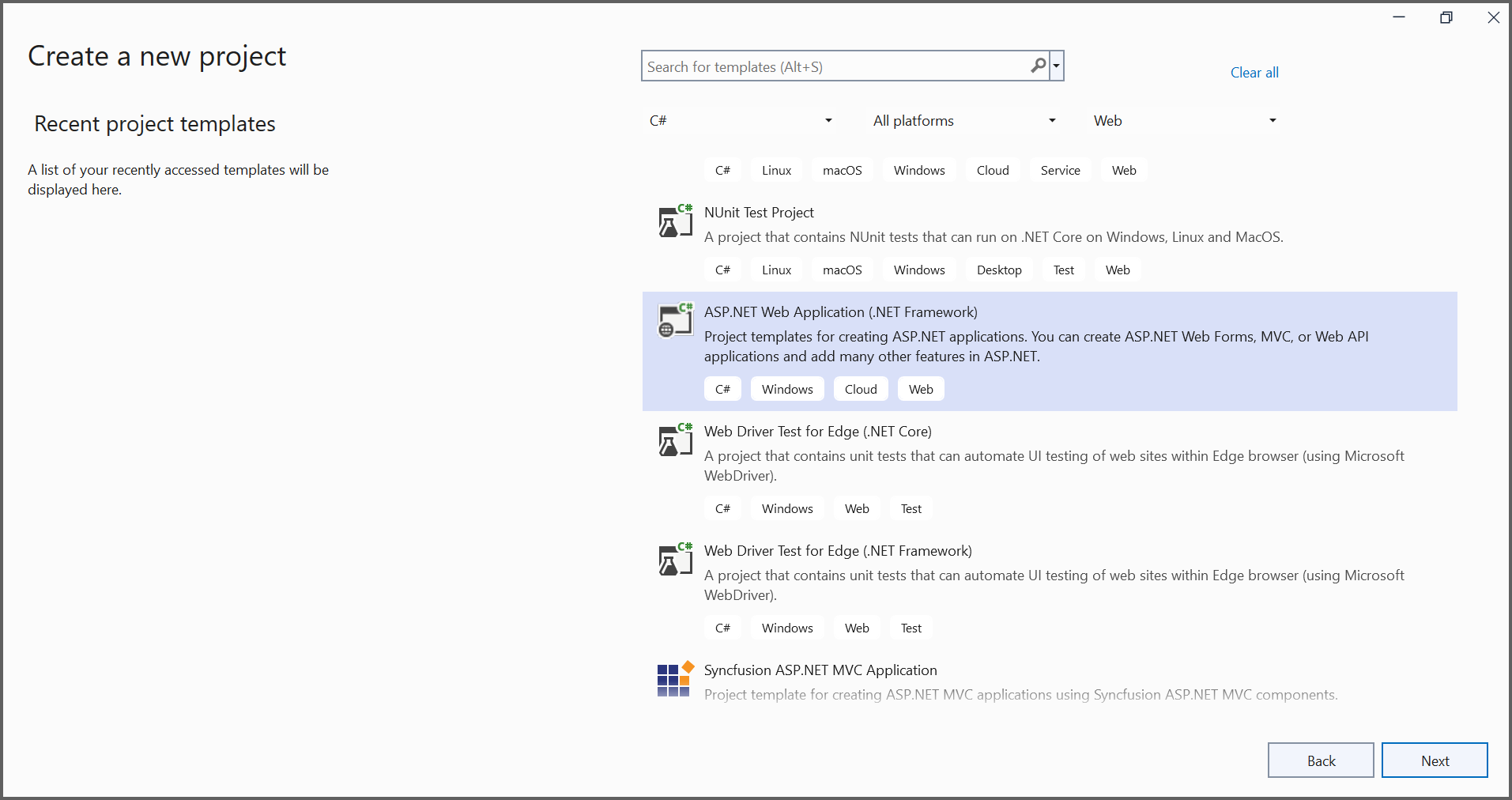
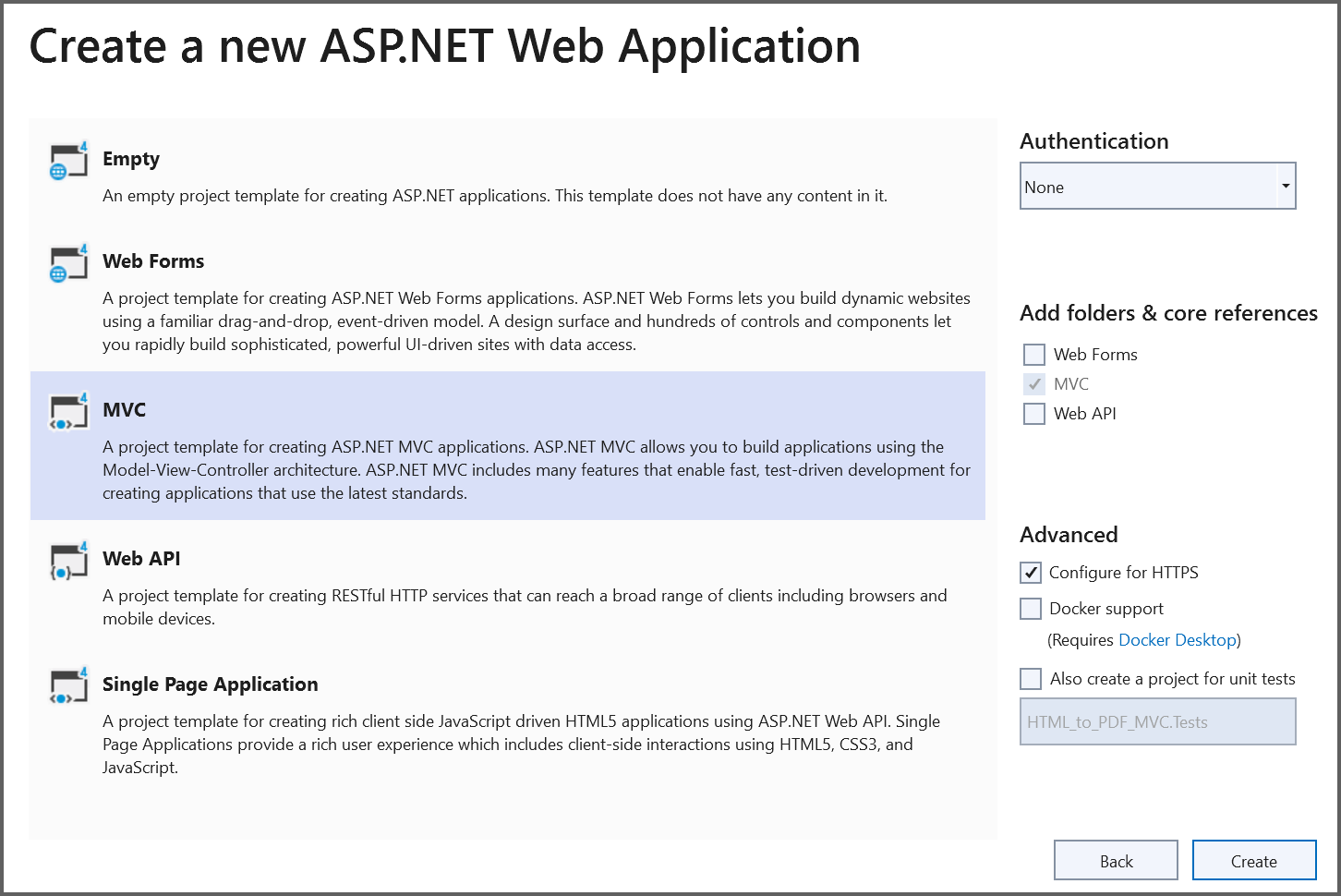
Step 2: In the Create a new ASP.NET Web Application dialog, choose the MVC template and click Next to proceed.
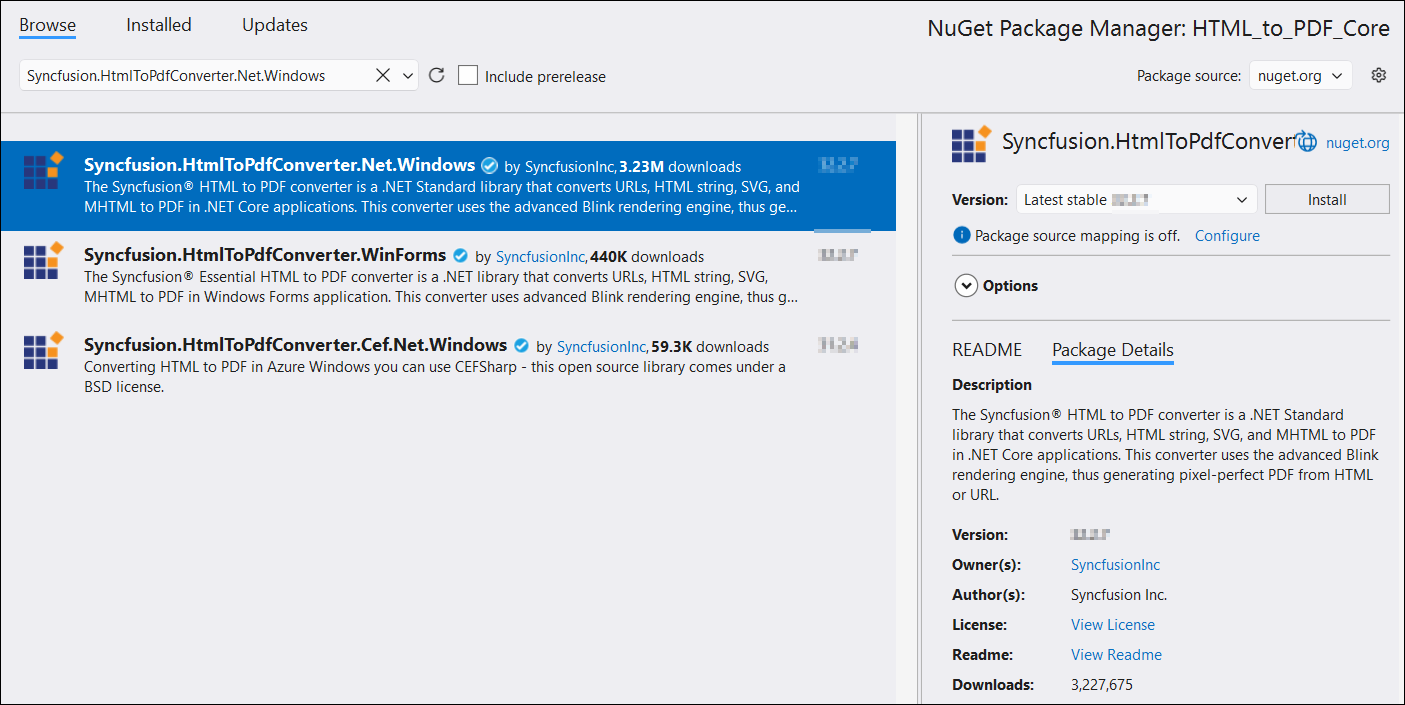
Step 3: Install the Syncfusion.HtmlToPdfConverter.Net.Windows NuGet package as a reference to your .NET application from NuGet.org.
Step 4: Add the following namespaces to the HomeController.cs file:
using Syncfusion.Pdf;
using Syncfusion.HtmlConverter;
Step 5: Add a new button in the Index.cshtml as shown below.
@{Html.BeginForm("ExportToPDF", "Home", FormMethod.Post);
    {
        <div>
            <input type="submit" value="Convert PDF" style="width:150px;height:27px" />
        </div>
    }
    Html.EndForm();
 }
Step 6: Add a new action method named ExportToPDF in HomeController.cs to convert HTML to PDF using the Convert method in the HtmlToPdfConverter class:
// Initialize HTML to PDF converter with Blink rendering engine
HtmlToPdfConverter htmlConverter = new HtmlToPdfConverter();
// Convert URL to PDF document
PdfDocument document = htmlConverter.Convert("https://www.syncfusion.com");
// Create memory stream to hold PDF binary data
MemoryStream stream = new MemoryStream();
// Save the PDF document to memory stream
document.Save(stream);
// Close the document and dispose resources
document.Close(true);
// Return PDF file as HTTP response with proper MIME type and file name
return File(stream.ToArray(), System.Net.Mime.MediaTypeNames.Application.Pdf, "HTML-to-PDF.pdf");
Step 7: Run the project and verify that HTML-to-PDF conversion works correctly in the local environment before publishing to the server.
Publish the project to Windows Server using IIS
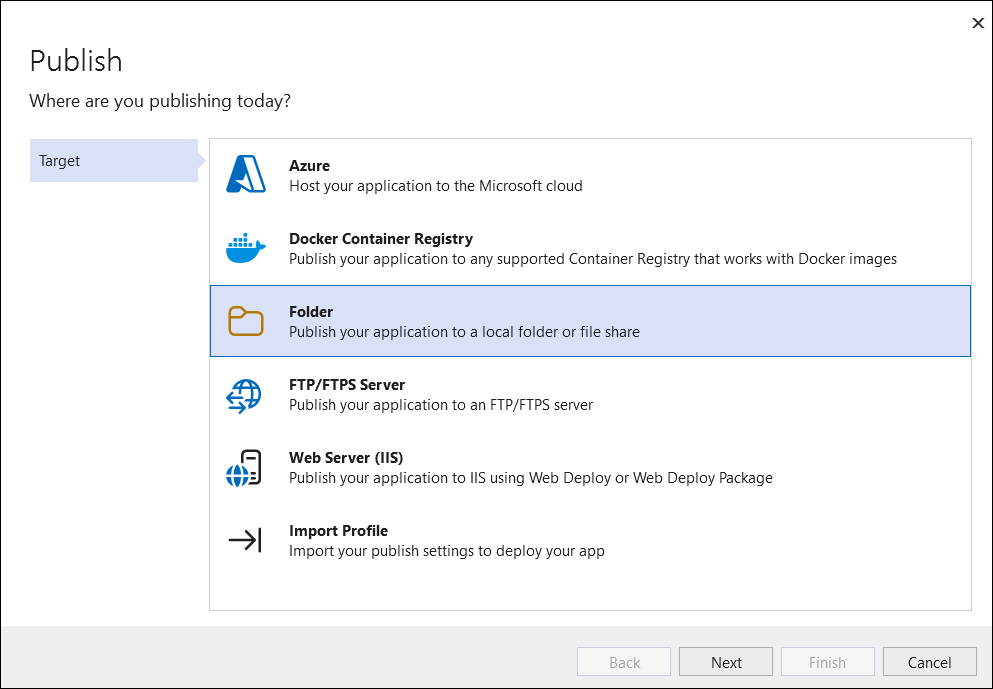
Step 1: Publish the project to a local folder by right-clicking the project, selecting Publish, choosing the Folder option, and clicking Next.
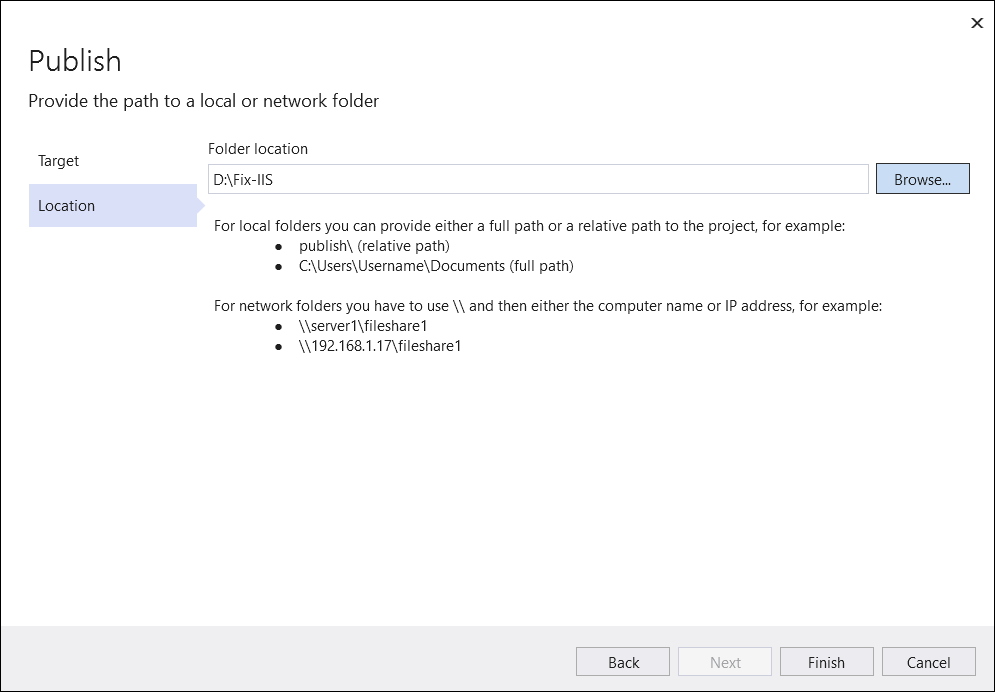
Step 2: Provide the folder path where the project should be published.
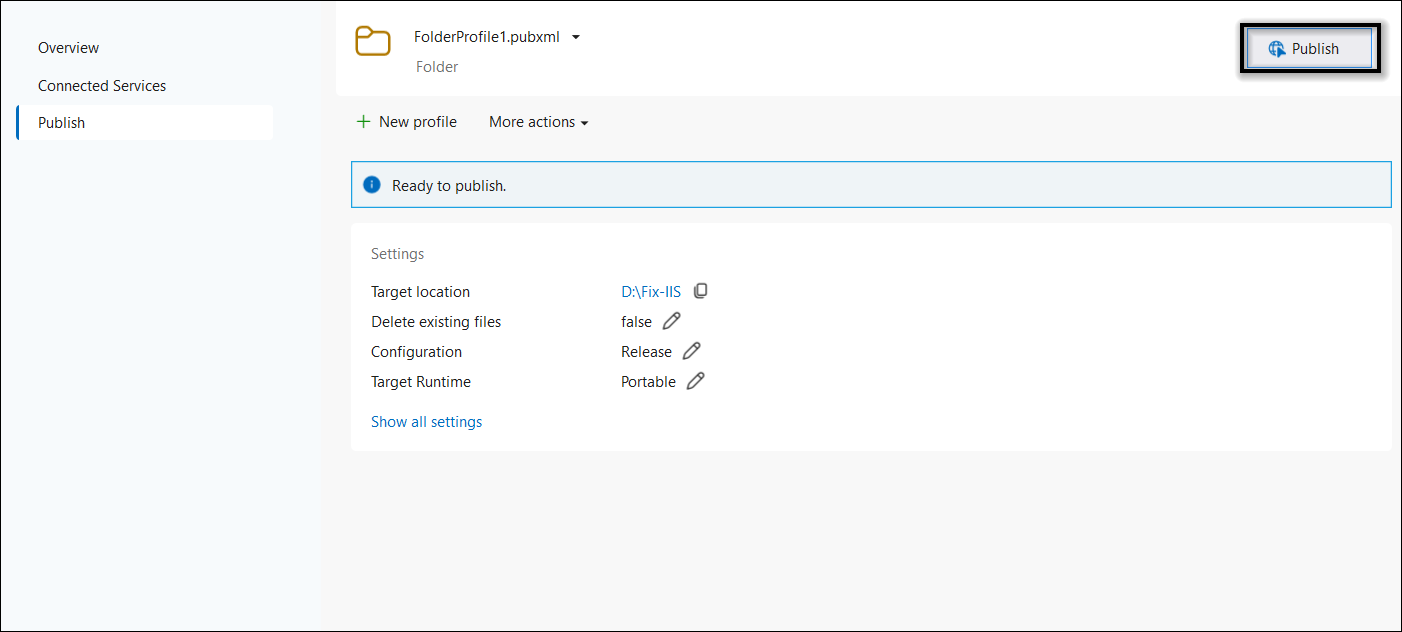
Step 3: After creating the publish profile, Visual Studio opens the Publish dashboard. Review the target location, configuration, and other settings, and adjust them if necessary. Once everything looks correct, click Publish to deploy the application to the selected destination.
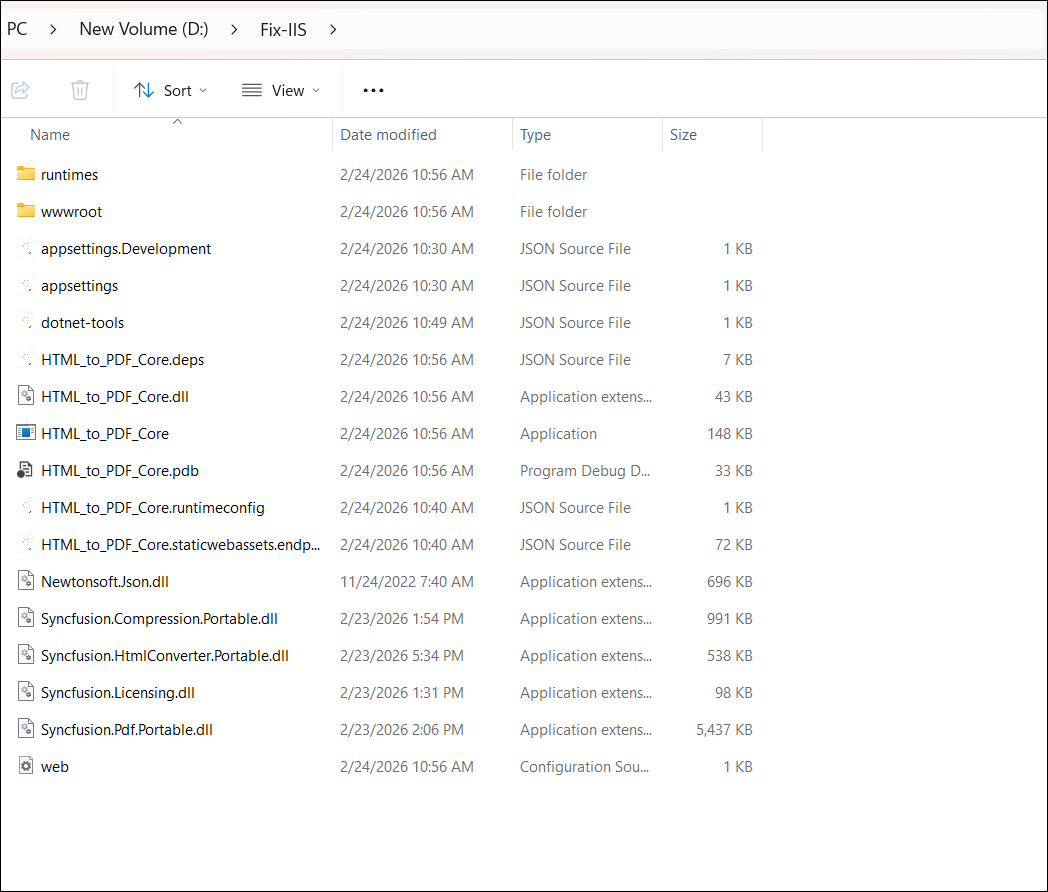
Step 4: Visual Studio generates and publishes all necessary files to the local publish directory.
Step 5: Copy the published output folder to the Windows Server and host the application in IIS using the following steps:
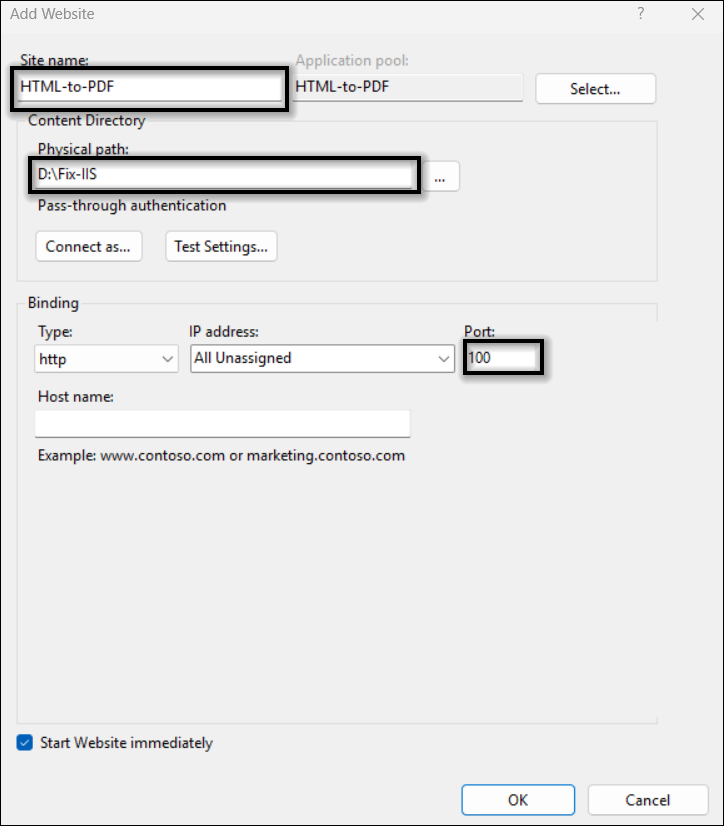
i. Open IIS Manager on the server and create a new website.
ii. Enter a site name and select the physical path that points to the published output folder on the server.
iii. Obtain the server’s IP address after adding the website to IIS.
iv. From your local computer, open a browser and navigate to the website using the server’s IP address and port number. Once the site loads successfully, click the Convert PDF button to export the webpage to PDF.
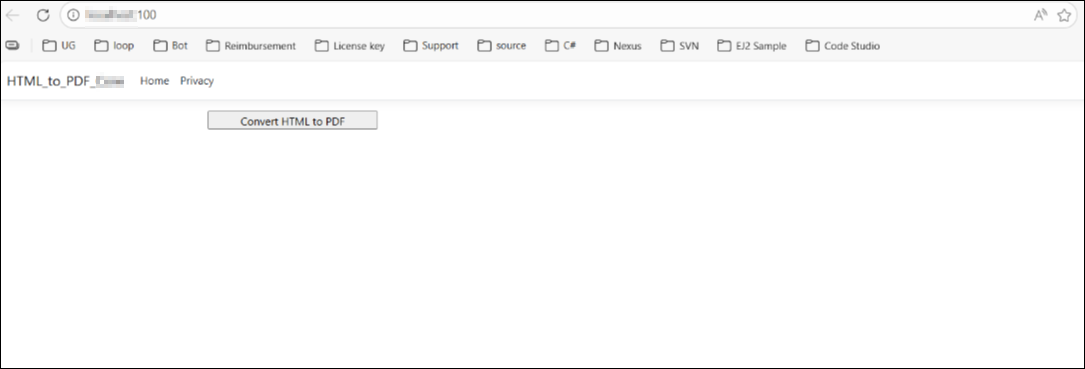
The HTML-to-PDF conversion will complete and return the generated PDF document:
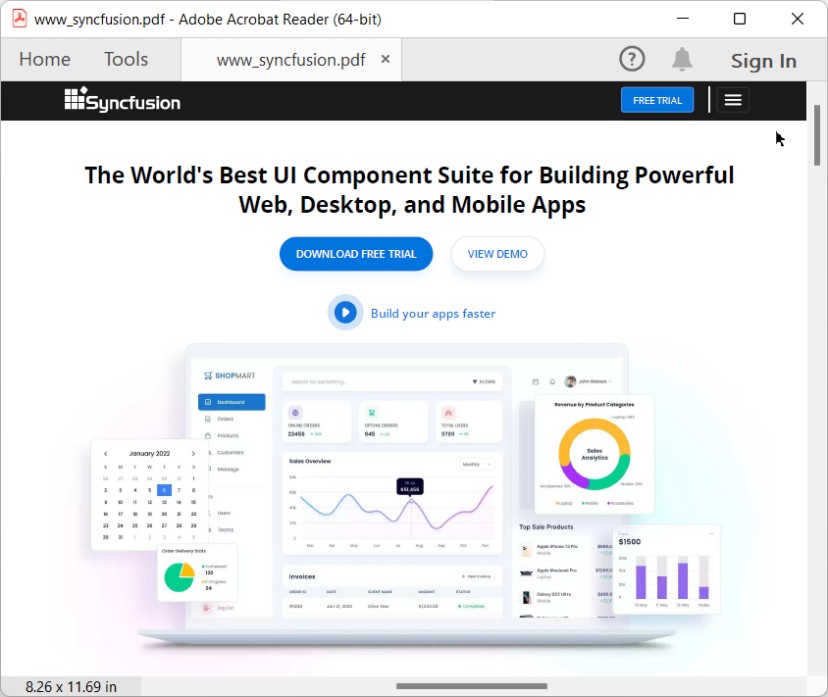
A complete working sample for converting HTML to PDF on Windows Server using IIS can be downloaded from GitHub.
Click here to explore the rich set of Syncfusion® HTML to PDF converter library features.
You can also view the online sample to convert HTML to PDF documents in ASP.NET Core.