HTML to PDF conversion in AWS Lambda .NET 6 Container .NET PDF Library
13 Aug 202613 minutes to read
The Syncfusion® HTML to PDF converter is a .NET library for converting webpages, SVG, MHTML, and HTML to PDF using C#. Using this library, you can convert HTML to PDF document in AWS Lambda with NET 6 container image.
Prerequisites
Version Compatibility
The Syncfusion.HtmlToPdfConverter.Net.Aws NuGet package uses the Blink rendering engine for HTML to PDF conversion. This library is compatible with .NET 8.0 and later versions.
Supported Inputs
The HTML to PDF converter supports the following input types:
- HTML String: Direct HTML content.
- URL: Web pages and online HTML content.
- HTML Files: Local HTML files.
- MHTML Files: Web archive (.mhtml/.mht) content.
- Authenticated Web Pages: Pages that require cookies, form authentication, or HTTP authentication.
- HTTP GET/POST Requests: HTML content accessed through GET or POST methods
Required Software
- .NET 8 SDK or later
- AWS Account: Active AWS account with Elastic Beanstalk access
- AWS Toolkit: AWS Toolkit for Visual Studio extension installed
Register the license key
Starting with v16.2.0.x, if you reference Syncfusion® assemblies from trial setup or from the NuGet feed, you must add the “Syncfusion.Licensing” assembly reference and register a license key in your application. Please refer to this link for details on registering a Syncfusion® license key.
Include a license key in your Function.cs file before creating an HtmlToPdfConverter instance. Refer to the Syncfusion License documentation to learn about registering the Syncfusion license key in your application.
using Syncfusion.Licensing;

public class Function
{
    public string FunctionHandler(string input, ILambdaContext context)
    {
        // Register the Syncfusion license
        SyncfusionLicenseProvider.RegisterLicense("YOUR LICENSE KEY");
    }
}
Starting from version 29.2.4, it is no longer necessary to manually add the following command-line arguments when using the Blink rendering engine:
settings.CommandLineArguments.Add("--no-sandbox");
settings.CommandLineArguments.Add("--disable-setuid-sandbox");
These arguments are only required when using older versions of the library that depend on Blink in sandbox-restricted environments.
Steps to convert HTML to PDF in AWS Lambda with NET 6 container image
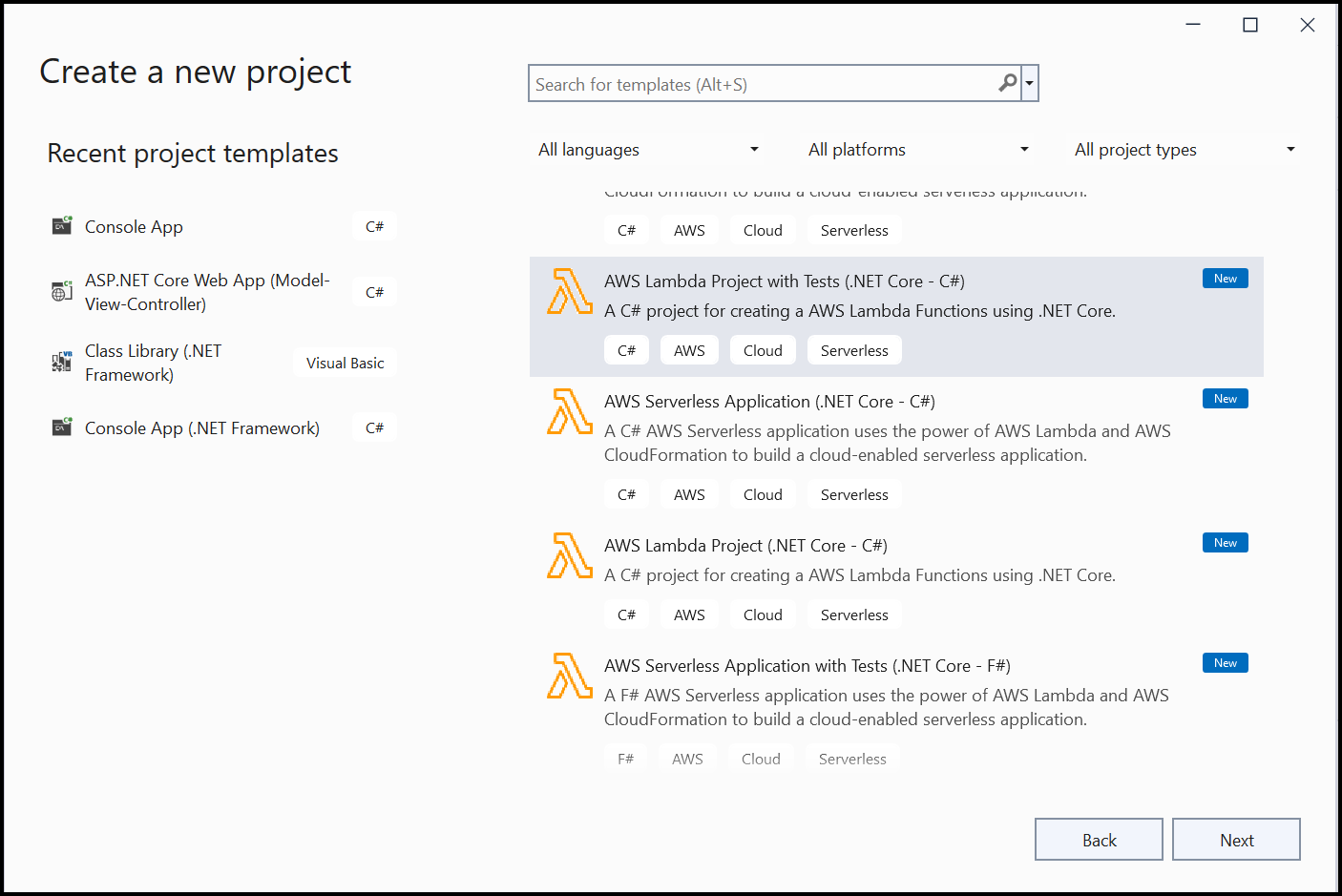
Step 1: Create a new AWS Lambda project with Tests as follows.
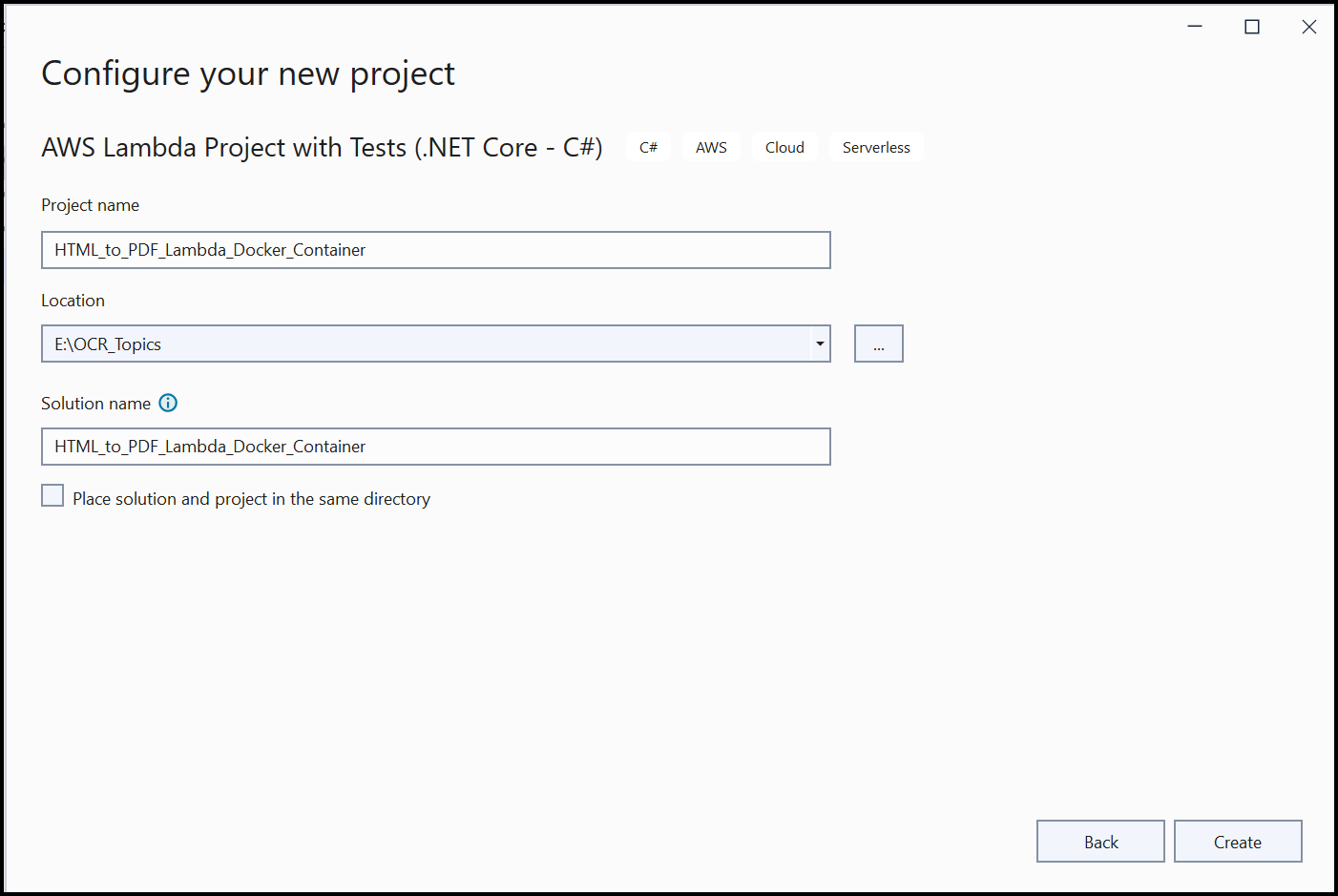
Step 2: In configuration window, name the project and select Create.
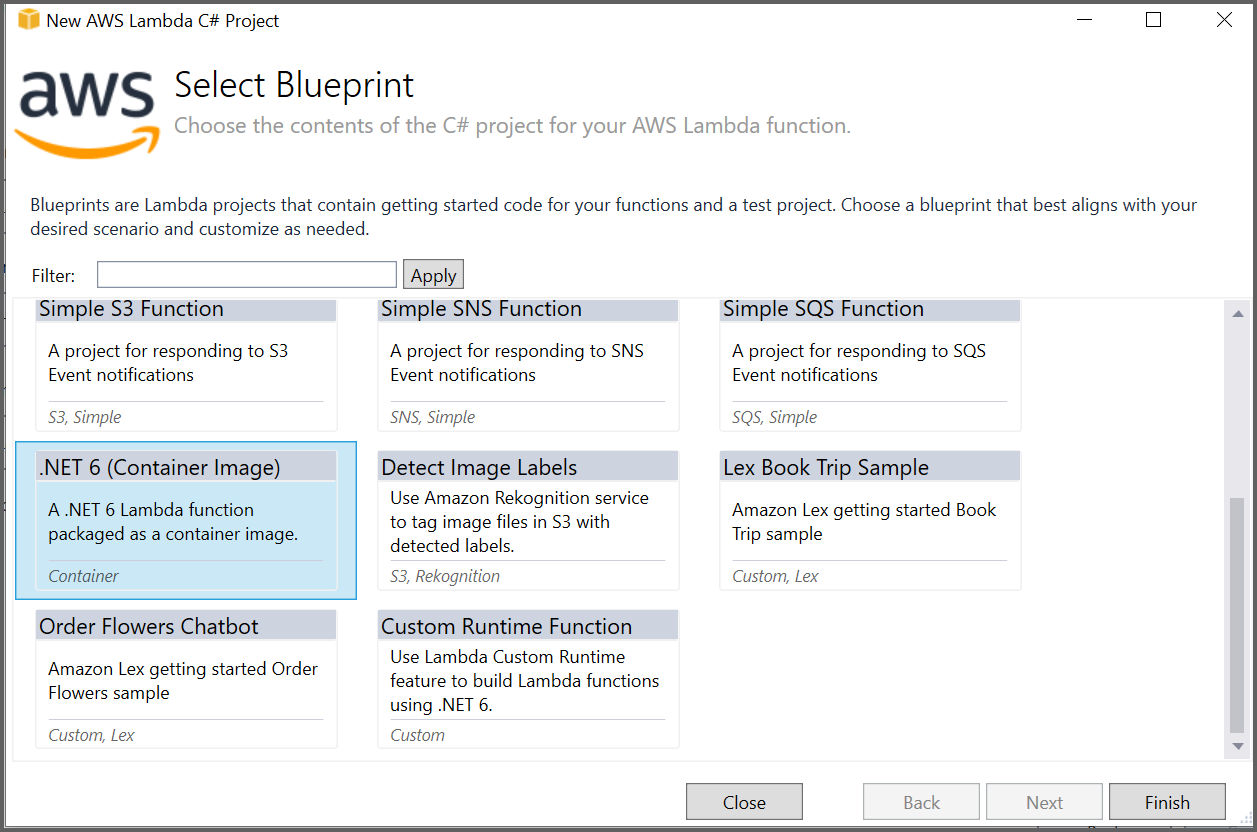
Step 3: Select Blueprint as .NET 6 (Container Image) Function and click Finish.
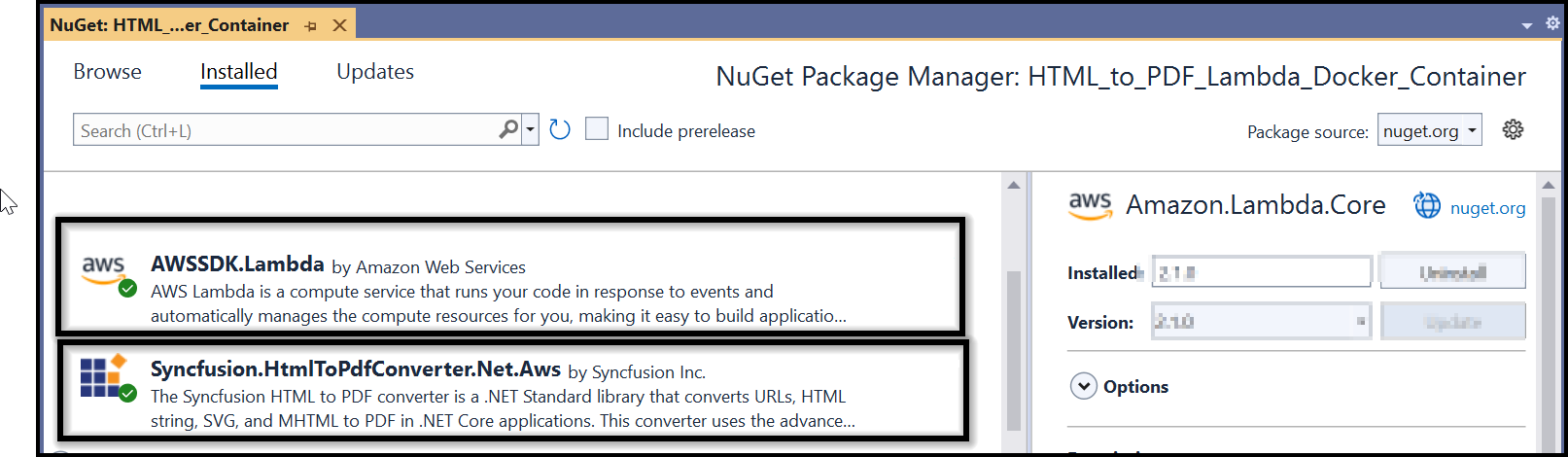
Step 4: Install the Syncfusion.HtmlToPdfConverter.Net.Aws and AWSSDK.Lambda NuGet packages as references to your AWS Lambda project from NuGet.org.
Step 5: Add the following namespaces in the Function.cs file:
using Syncfusion.HtmlConverter;
using Syncfusion.Pdf;
Step 6: Add the following code sample in the Function.cs to convert HTML to PDF document using the Convert method in the HtmlToPdfConverter class with BlinkConverterSettings:
public string FunctionHandler(string input, ILambdaContext context)
{
   // Initialize HTML to PDF converter with Blink rendering engine for high-quality PDF output
   HtmlToPdfConverter htmlConverter = new HtmlToPdfConverter(HtmlRenderingEngine.Blink);

   // Configure Blink converter settings for AWS Lambda environment
   BlinkConverterSettings blinkConverterSettings = new BlinkConverterSettings();
   // Specify path to Blink binaries packaged with the Lambda function
   blinkConverterSettings.BlinkPath = Path.GetFullPath("BlinkBinariesAws");
   // Add sandbox bypass arguments required for Lambda container execution
   blinkConverterSettings.CommandLineArguments.Add("--no-sandbox");
   blinkConverterSettings.CommandLineArguments.Add("--disable-setuid-sandbox");
   // Add additional delay for complex HTML rendering
   blinkConverterSettings.AdditionalDelay = 3000;
   // Apply configured settings to the converter
   htmlConverter.ConverterSettings = blinkConverterSettings;

   // Convert the HTML string input to PDF document
   PdfDocument document = htmlConverter.Convert(input, PathToFile());

   // Create memory stream to store the PDF document bytes
   MemoryStream memoryStream = new MemoryStream();
   // Save PDF document to memory stream and close the document
   document.Save(memoryStream);
   document.Close(true);
   // Convert PDF bytes to Base64 string for AWS Lambda response
   string base64 = Convert.ToBase64String(memoryStream.ToArray());
   // Close and dispose memory stream resources
   memoryStream.Close();
   memoryStream.Dispose();

   // Return Base64-encoded PDF string to Lambda invoker
   return base64;
}

public static string PathToFile()
{
   // Get the directory path of the currently executing assembly
   string? path = System.IO.Path.GetDirectoryName(System.Reflection.Assembly.GetExecutingAssembly().GetName().CodeBase);
   // If path is empty, use platform-specific root directory
   if (string.IsNullOrEmpty(path))
   {
      path = Environment.OSVersion.Platform == PlatformID.Unix ? @"/" : @"\";
   }
   // Return properly formatted path based on operating system (Linux in Lambda container)
   return Environment.OSVersion.Platform == PlatformID.Unix ? string.Concat(path.Substring(5), @"/") : string.Concat(path.Substring(6), @"\");
}
Step 7: Create a new folder named Helper and add a class file named AWSHelper.cs. Add the following namespaces and code samples in the AWSHelper class to invoke the published AWS Lambda function:
// Import AWS Lambda client namespace for Lambda function invocation
using Amazon.Lambda;
// Import AWS Lambda model classes for request/response handling
using Amazon.Lambda.Model;
// Import Newtonsoft.Json for JSON serialization
using Newtonsoft.Json;

public class AWSHelper
{
   public static async Task<byte[]> RunLambdaFunction(string html)
   {
        try
        {
            // AWS credentials for authentication (use IAM roles in production)
            var AwsAccessKeyId = "awsaccessKeyID";
            var AwsSecretAccessKey = "awsSecretAccessKey";

            // Create Lambda client with AWS credentials and region configuration
            AmazonLambdaClient client = new AmazonLambdaClient(AwsAccessKeyId, AwsSecretAccessKey, Amazon.RegionEndpoint.USEast1);
            // Prepare Lambda function invocation request with HTML payload
            InvokeRequest invoke = new InvokeRequest
            {
                FunctionName = "AWSLambdaDockerContainer",
                InvocationType = InvocationType.RequestResponse,
                // Serialize HTML string to JSON format for Lambda transmission
                Payload = Newtonsoft.Json.JsonConvert.SerializeObject(html)
            };
            // Invoke AWS Lambda function asynchronously and get response
            InvokeResponse response = await client.InvokeAsync(invoke);

            // Read and log Lambda function response for debugging
            Console.WriteLine($"Response: {response.LogResult}");
            Console.WriteLine($"Response: {response.StatusCode}");
            Console.WriteLine($"Response: {response.FunctionError}");
            // Read response payload stream containing Base64-encoded PDF
            var stream = new StreamReader(response.Payload);
            JsonReader reader = new JsonTextReader(stream);
            var serializer = new JsonSerializer();
            var responseText = serializer.Deserialize(reader);

            // Convert Base64 string response to PDF document bytes
            return Convert.FromBase64String(responseText.ToString());
        }
        catch (Exception ex)
        {
            // Log any exceptions that occur during Lambda invocation
            Console.WriteLine($"Exception Occurred in HTMLToPDFHelper: {ex}");
        }
    // Return empty Base64 string if conversion fails
    return Convert.FromBase64String("");
    }
}
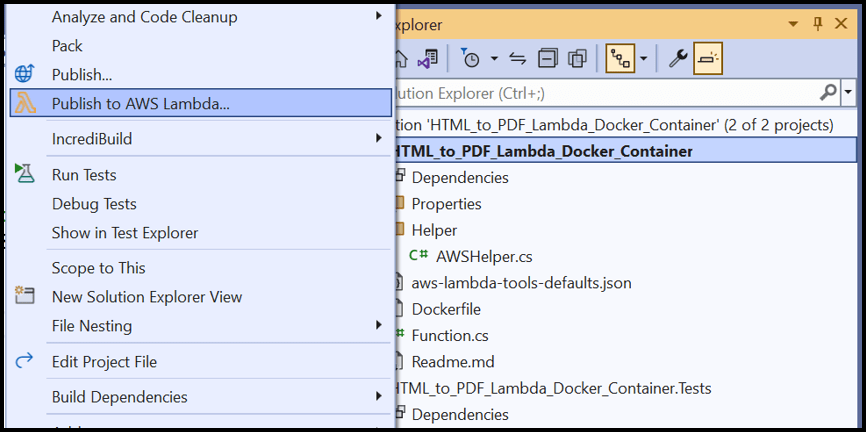
Step 8: Right-click the project and select Publish to AWS Lambda.
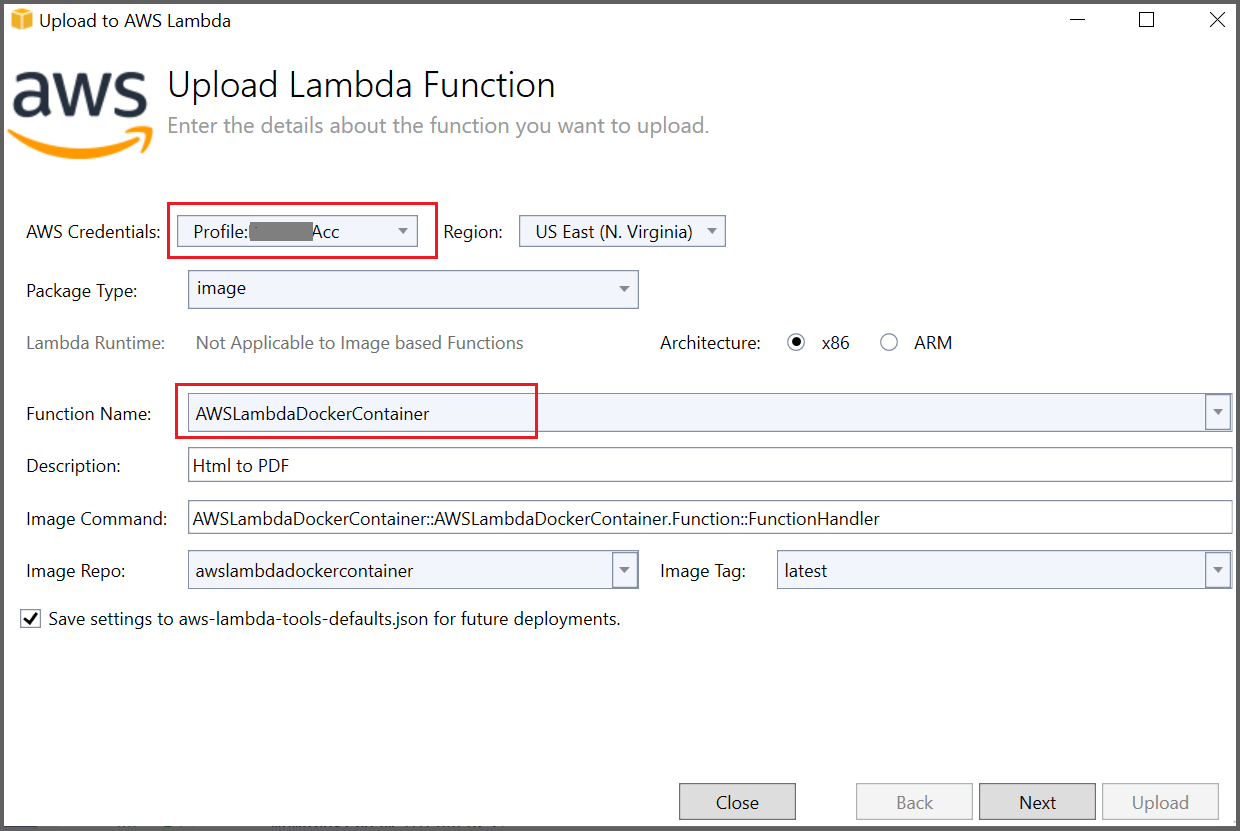
Step 9: Create a new AWS profile in the Upload Lambda Function Window. After creating the profile, add a name for the Lambda function to publish. Then, click Next.
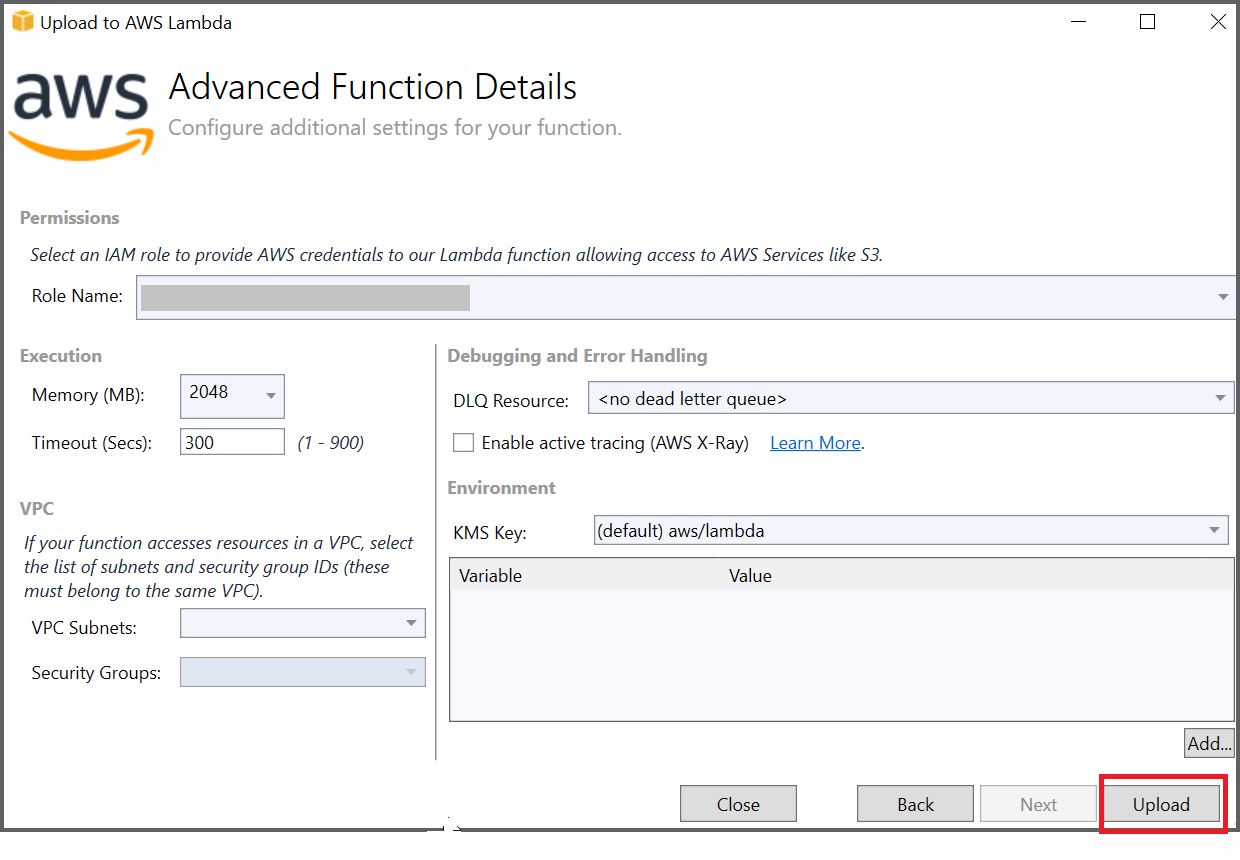
Step 10: In the Advanced Function Details window, specify the Role Name as based on AWS Managed policy. After selecting the role, click the Upload button to deploy your application.
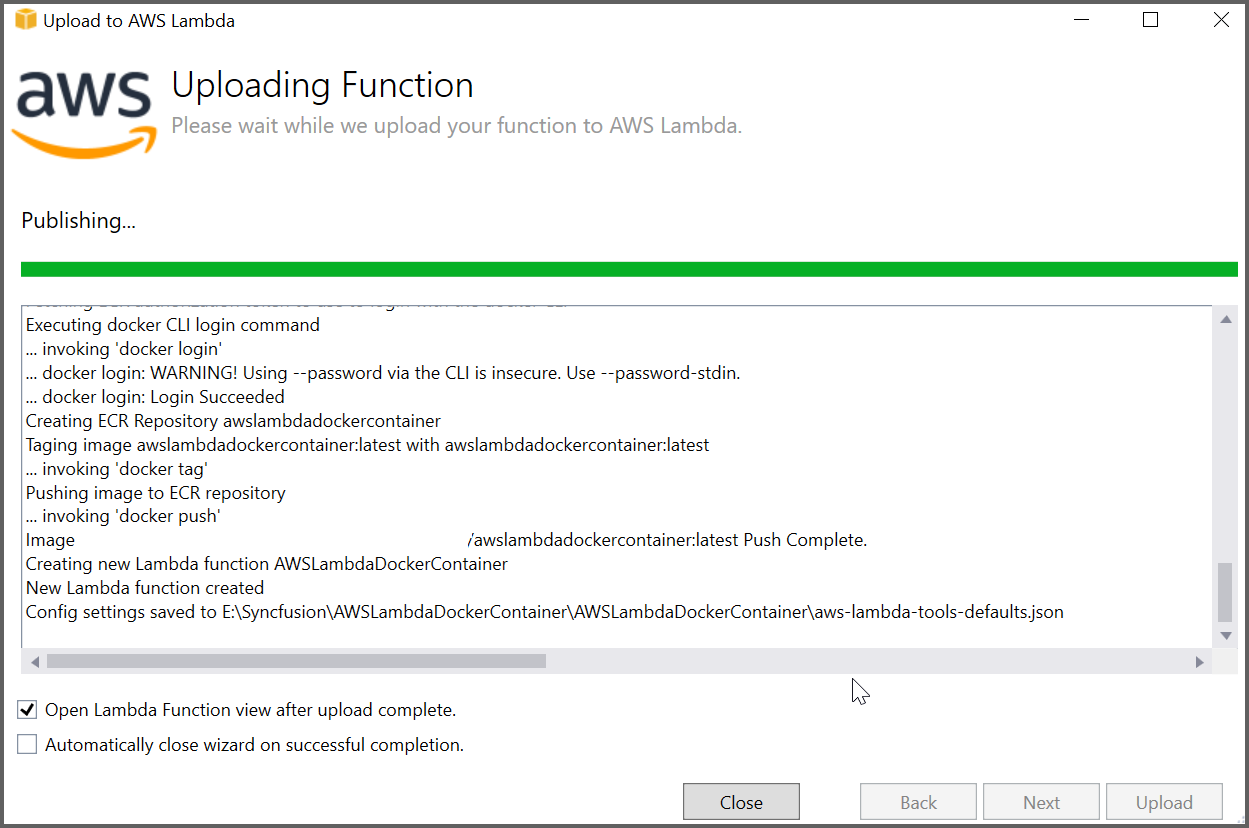
Step 11: After deploying the application, Sign in to your AWS account, and you can see the published Lambda function in the AWS console.
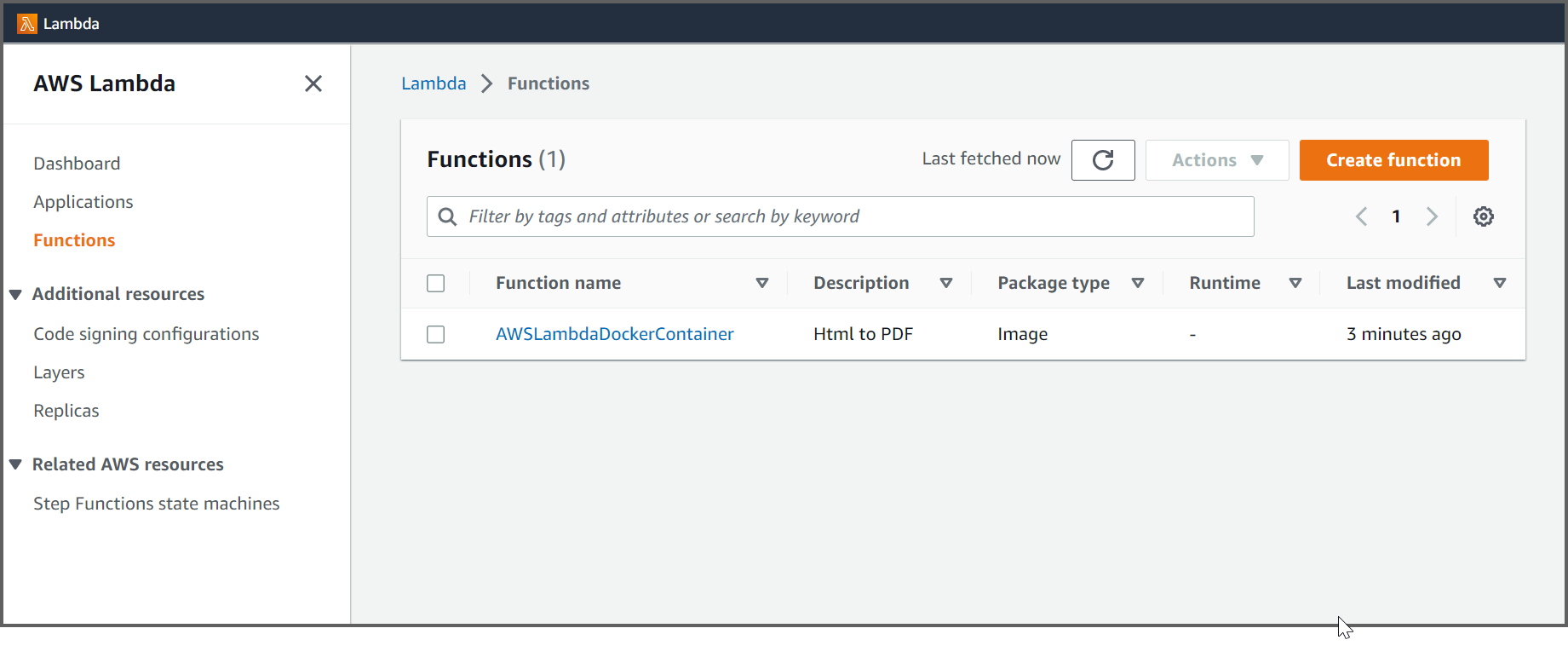
Steps to invoke the AWS Lambda function from the Test application
Step 12: Add the following code to invoke the AWS Lambda function with the HTML string from the FunctionTest class:
public class FunctionTest
{
    [Fact]
    public void HtmlToPDFFunction()
    {
        // Get the directory path of the test assembly
        string path = System.IO.Path.GetDirectoryName(System.Reflection.Assembly.GetExecutingAssembly().GetName().CodeBase);
        // Format path based on operating system (Unix or Windows)
        string filePath = Environment.OSVersion.Platform == PlatformID.Unix ? string.Concat(path.Substring(5), @"/") : string.Concat(path.Substring(6), @"\");

        // Read HTML sample file content for conversion
        var html = File.ReadAllText($"{filePath}/HtmlSample.html");
        // Initialize Base64 byte array for PDF output
        byte[] base64 = null;
        // Invoke AWS Lambda function asynchronously and get Base64-encoded PDF bytes
        base64 = AWSHelper.RunLambdaFunction(html).Result;

        // Create file stream to write PDF output with timestamp
        FileStream file = new FileStream($"{filePath}/file{DateTime.Now.Ticks}.pdf", FileMode.Create, FileAccess.Write);
        // Create memory stream from Base64 byte array
        var ms = new MemoryStream(base64);
        // Write memory stream content to PDF file
        ms.WriteTo(file);
        // Close file and memory streams to release resources
        file.Close();
        ms.Close();
    }
}
Step 13: Right click the test application and select Run Tests.
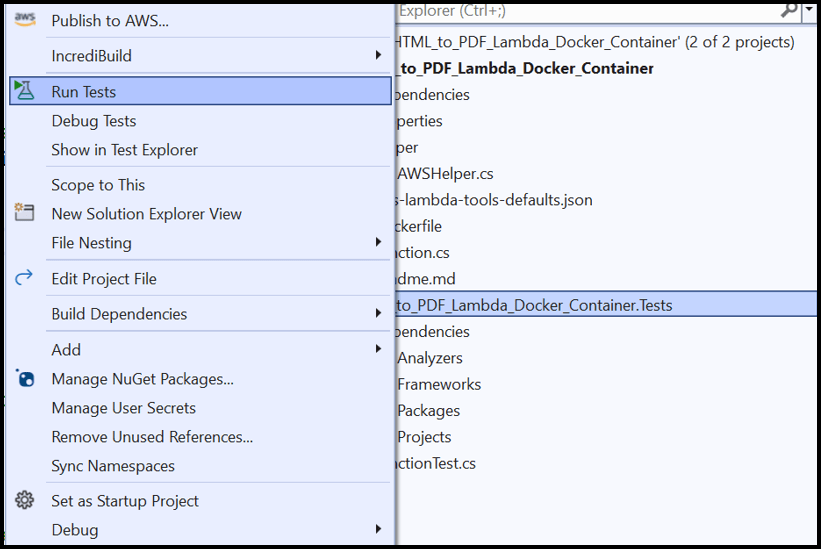
Step 14: By executing the program, you will obtain the following PDF document output:
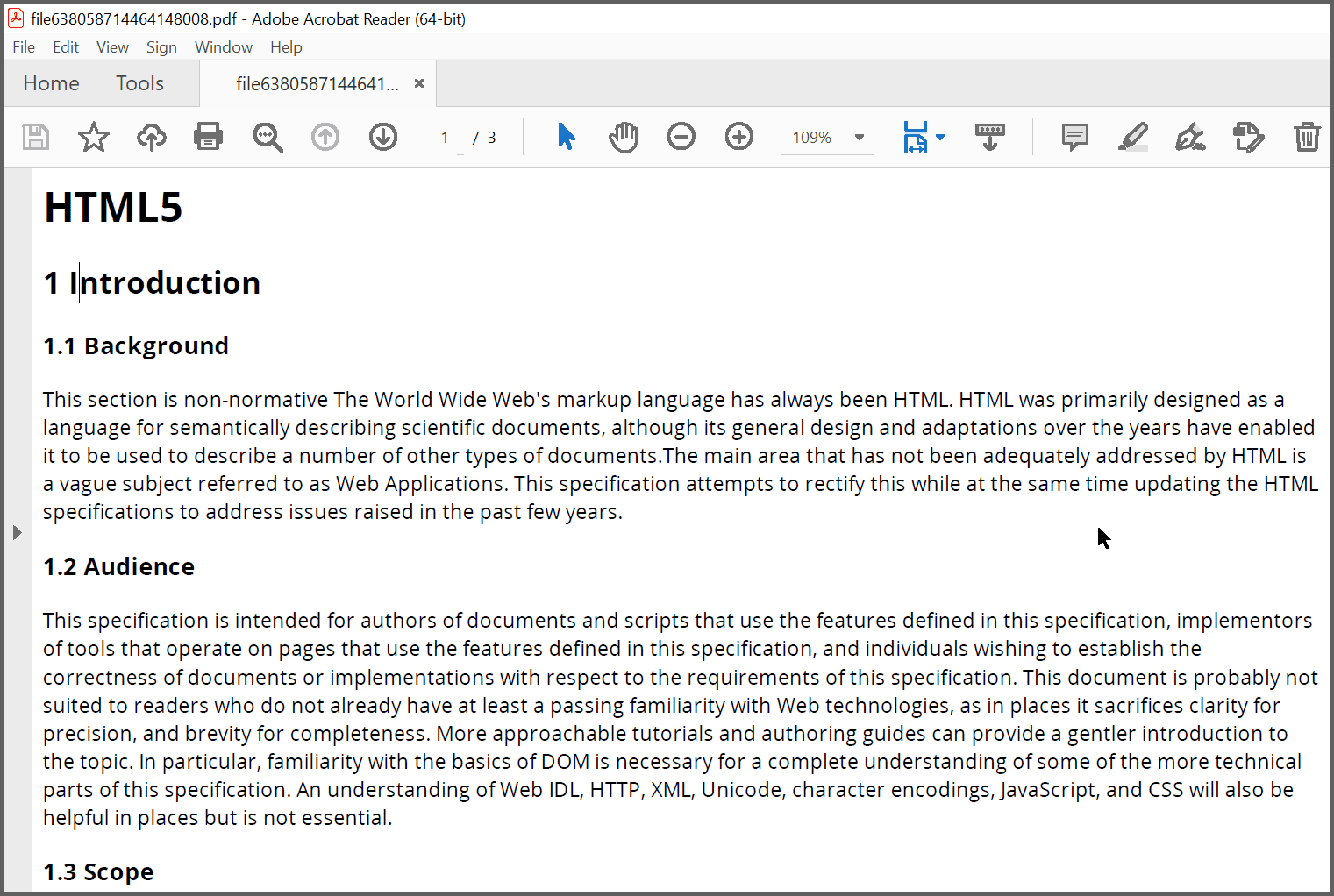
A complete working sample for converting HTML to PDF in AWS Lambda with .NET 6 container image can be downloaded from GitHub.
Click here to explore the rich set of Syncfusion® HTML to PDF converter library features.
You can also view the online sample to convert HTML to PDF documents in ASP.NET Core.