HTML to PDF conversion in Console App .NET PDF Library
13 Aug 20267 minutes to read
The HTML to PDF converter is a .NET library for converting webpages, SVG, MHTML, and HTML to PDF documents using C#. Using this library, HTML can be converted to PDF through a console application.
Prerequisites
Version Compatibility
The Syncfusion.HtmlToPdfConverter.Net.Windows NuGet package uses the Blink rendering engine for HTML to PDF conversion. This library is compatible with .NET 8.0 and later versions.
Supported Inputs
The HTML to PDF converter supports the following input types:
- HTML String: Direct HTML content.
- URL: Web pages and online HTML content.
- HTML Files: Local HTML files.
- MHTML Files: Web archive (.mhtml/.mht) content.
- Authenticated Web Pages: Pages that require cookies, form authentication, or HTTP authentication.
- HTTP GET/POST Requests: HTML content accessed through GET or POST methods
Required Software
- .NET 8 SDK or later
- Visual Studio, Visual Studio Code, or JetBrains Rider
Register the license key
Starting with v16.2.0.x, if you reference Syncfusion® assemblies from trial setup or from the NuGet feed, you must add the “Syncfusion.Licensing” assembly reference and register a license key in your application. Please refer to this link for details on registering a Syncfusion® license key.
Include a license key in your Program.cs file before creating an HtmlToPdfConverter instance. Refer to the Syncfusion License documentation to learn about registering the Syncfusion license key in your application.
using Syncfusion.Licensing;

class Program
{
    static void Main()
    {
        // Register the Syncfusion license
        SyncfusionLicenseProvider.RegisterLicense("YOUR LICENSE KEY");
    }
}
Steps to convert HTML to PDF using a Console App
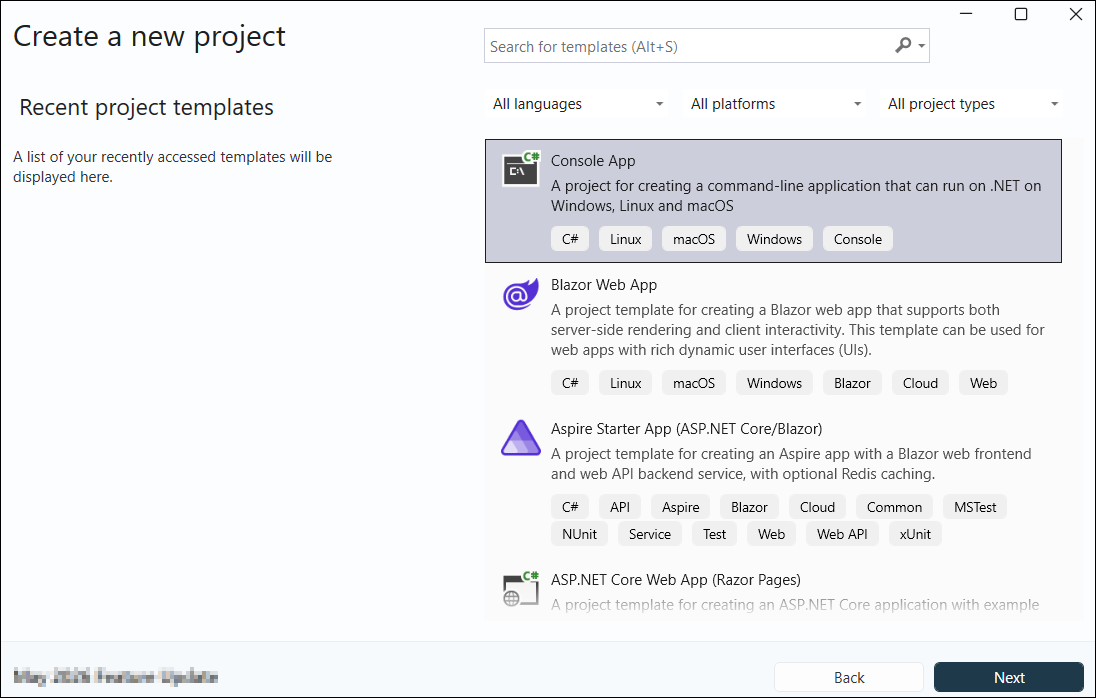
Step 1: Create a new .NET Core console application project:
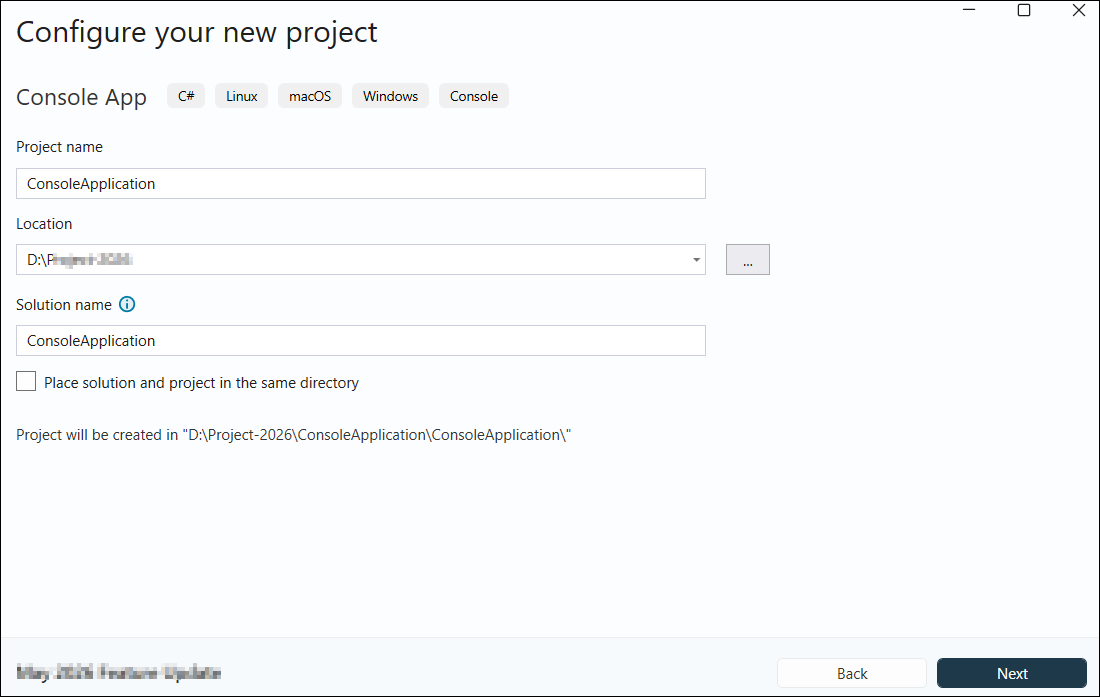
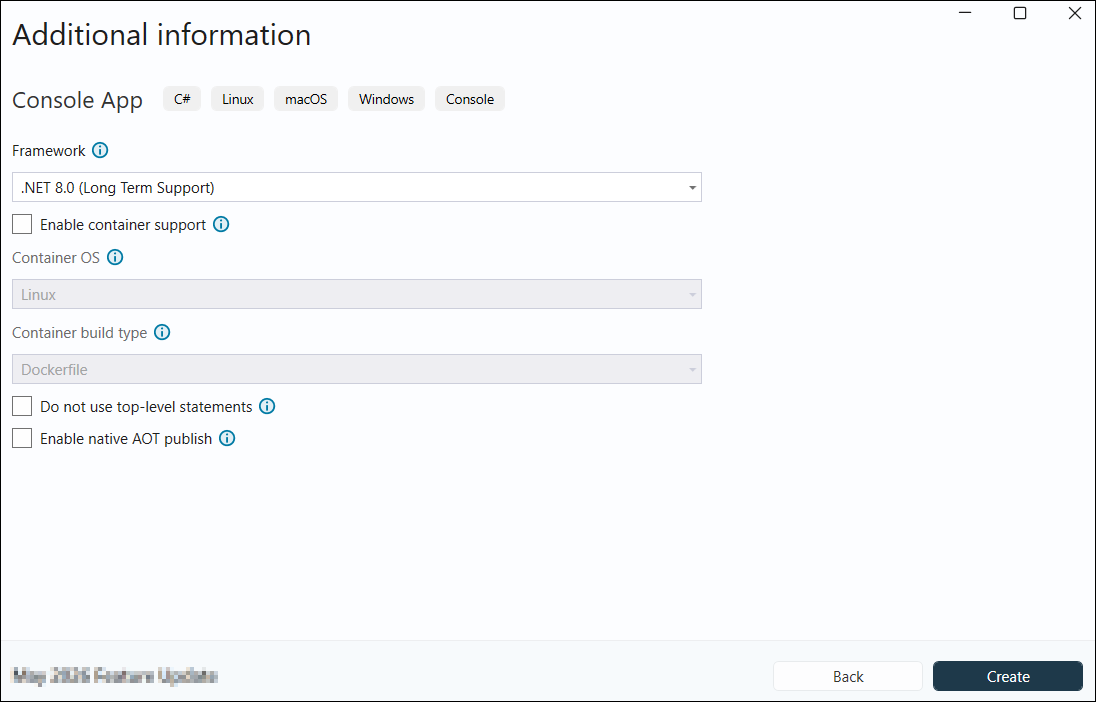
Step 2: In the configuration window, name your project and select Next:
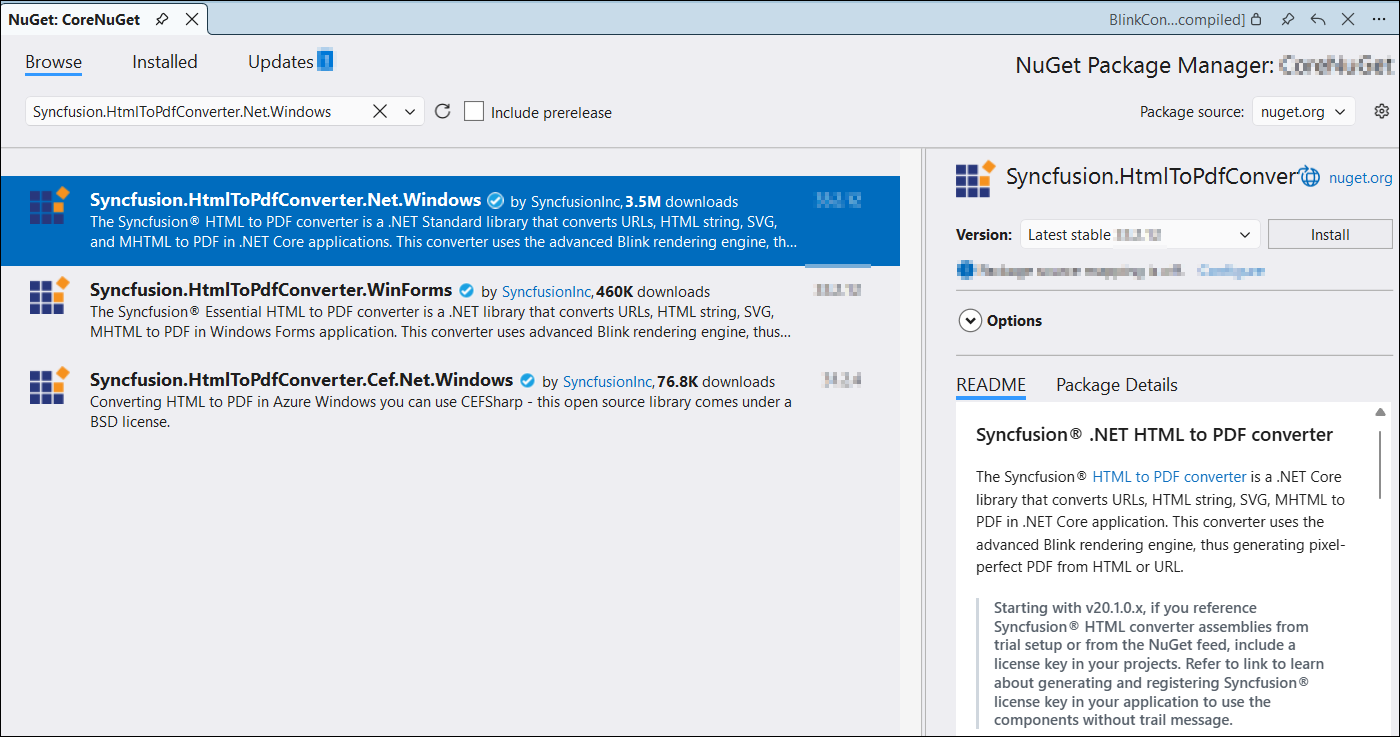
Step 3: Install the Syncfusion.HtmlToPdfConverter.Net.Windows NuGet package into your console application from NuGet.org:
Step 4: Include the following namespaces in the Program.cs file:
using Syncfusion.Pdf;
using Syncfusion.HtmlConverter;
Step 5: Add the following code sample to Program.cs to convert HTML to PDF document using the Convert method of the HtmlToPdfConverter class. The HTML content will be scaled based on the ViewPortSize property of the BlinkConverterSettings class:
// Initialize the HTML to PDF converter
HtmlToPdfConverter htmlConverter = new HtmlToPdfConverter();
// Create Blink converter settings
BlinkConverterSettings blinkConverterSettings = new BlinkConverterSettings();
// Set Blink viewport size for rendering
blinkConverterSettings.ViewPortSize = new Syncfusion.Drawing.Size(1280, 0);
// Assign Blink converter settings to the HTML converter
htmlConverter.ConverterSettings = blinkConverterSettings;
// Convert URL to PDF document
using(PdfDocument document = htmlConverter.Convert("https://www.syncfusion.com"))
{
    // Save the document to file
    document.Save("Output.pdf");
}
Step 6: Build the project.
Click the Build button in the toolbar or press Ctrl+Shift+B to build the project.
Step 7: Run the project.
Click the Run button in the toolbar or press F5 to run the application.
Step 1: Open the terminal (Ctrl+`) and run the following command to create a new Console Application project:
dotnet new console -n CreatePdfConsole
Step 2: Replace CreatePdfConsole with your desired project name.
Step 3: Navigate to the project directory using the following command:
cd CreatePdfConsole
Step 4: Use the following command in the terminal to add the Syncfusion.HtmlToPdfConverter.Net.Windows package to your project:
dotnet add package Syncfusion.HtmlToPdfConverter.Net.Windows
Step 5: Include the following namespaces in the Program.cs file:
using Syncfusion.Pdf;
using Syncfusion.HtmlConverter;
Step 6: Add the following code sample to Program.cs to convert HTML to PDF document using the Convert method of the HtmlToPdfConverter class. The HTML content will be scaled based on the ViewPortSize property of the BlinkConverterSettings class:
// Initialize the HTML to PDF converter
HtmlToPdfConverter htmlConverter = new HtmlToPdfConverter();
// Create Blink converter settings
BlinkConverterSettings blinkConverterSettings = new BlinkConverterSettings();
// Set Blink viewport size for rendering
blinkConverterSettings.ViewPortSize = new Syncfusion.Drawing.Size(1280, 0);
// Assign Blink converter settings to the HTML converter
htmlConverter.ConverterSettings = blinkConverterSettings;
// Convert URL to PDF document
using(PdfDocument document = htmlConverter.Convert("https://www.syncfusion.com"))
{
    // Save the document to file
    document.Save("Output.pdf");
}
Step 7: Build the project.
Run the following command in the terminal to build the project:
dotnet build
Step 8: Run the project.
Run the following command in the terminal to run the application:
dotnet run
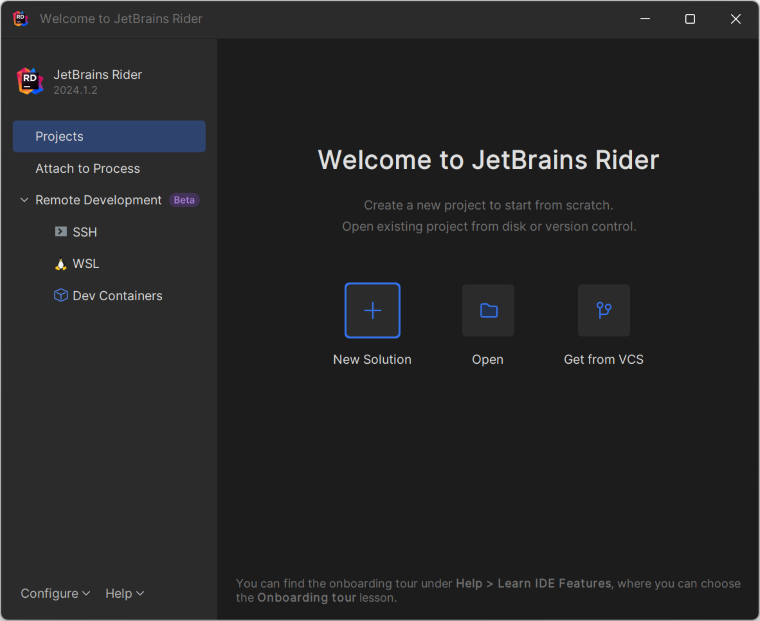
Step 1: Open JetBrains Rider and create a new .NET Core console application project:
- Launch JetBrains Rider.
- Click New Solution on the welcome screen:
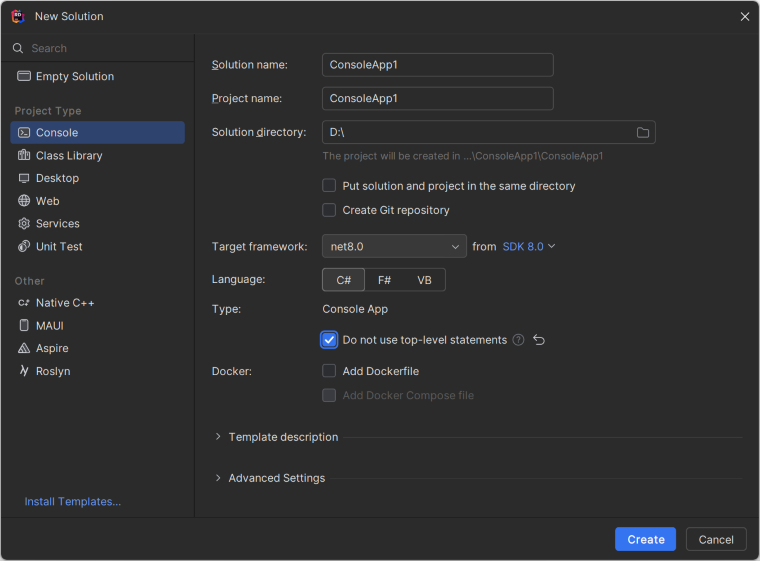
- In the New Solution dialog, select Project Type as Console.
- Enter a project name and specify the location.
- Select the target framework (e.g., .NET 8.0, .NET 9.0, or .NET 10.0).
- Click Create:
Step 2: Install the NuGet package from NuGet.org:
- Click the NuGet icon in the Rider toolbar and type Syncfusion.HtmlToPdfConverter.Net.Windows in the search bar.
- Ensure that nuget.org is selected as the package source.
- Select the latest Syncfusion.HtmlToPdfConverter.Net.Windows NuGet package from the list.
- Click the + (Add) button to add the package:

Step 3: Include the following namespaces in the Program.cs file:
using Syncfusion.Pdf;
using Syncfusion.HtmlConverter;
Step 4: Add the following code sample to Program.cs to convert HTML to PDF document using the Convert method of the HtmlToPdfConverter class. The HTML content will be scaled based on the ViewPortSize property of the BlinkConverterSettings class:
// Initialize the HTML to PDF converter
HtmlToPdfConverter htmlConverter = new HtmlToPdfConverter();
// Create Blink converter settings
BlinkConverterSettings blinkConverterSettings = new BlinkConverterSettings();
// Set Blink viewport size for rendering
blinkConverterSettings.ViewPortSize = new Syncfusion.Drawing.Size(1280, 0);
// Assign Blink converter settings to the HTML converter
htmlConverter.ConverterSettings = blinkConverterSettings;
// Convert URL to PDF document
using(PdfDocument document = htmlConverter.Convert("https://www.syncfusion.com"))
{
    // Save the document to file
    document.Save("Output.pdf");
}
Step 5: Build the project.
Click the Build button in the toolbar or press Ctrl+Shift+B to build the project.
Step 6: Run the project.
Click the Run button in the toolbar or press F5 to run the application.
By executing the program, you will obtain the PDF document as follows:
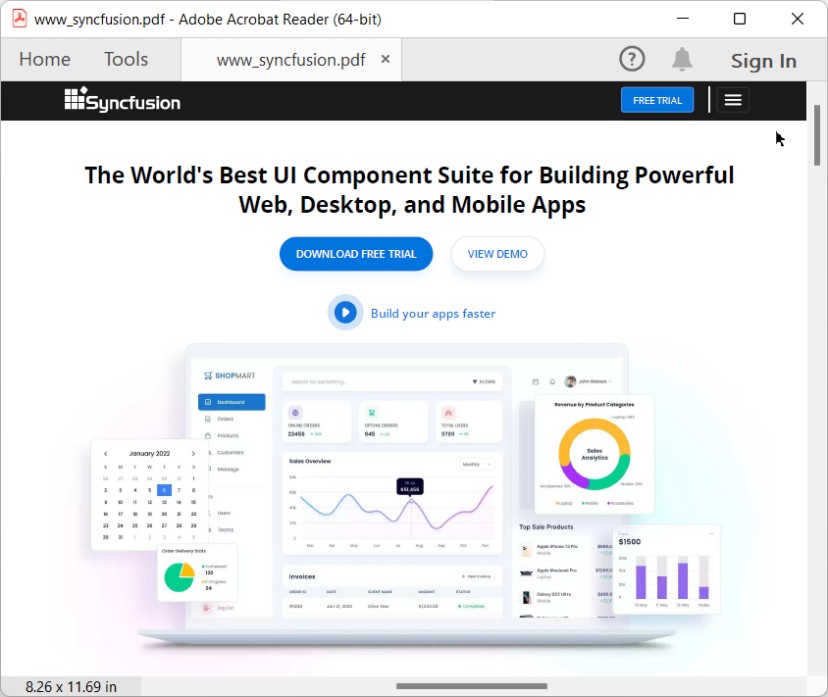
A complete working sample for converting HTML to PDF in a console application can be downloaded from GitHub.
Click here to explore the rich set of Syncfusion® HTML to PDF converter library features.
You can also view the online sample to convert HTML to PDF documents in ASP.NET Core.