Getting Started with .NET Markdown Library
18 Aug 20269 minutes to read
In this page, you can learn how to create a simple Markdown document programmatically using the Syncfusion Markdown API.
| Assembly |
Short description |
|---|---|
|
Syncfusion.Markdown
|
This assembly contains the core features required for creating, reading, and manipulating a Markdown document. |
- Syncfusion® components are available in nuget.org
- Starting with v34.x.x, if you reference Syncfusion® assemblies from trial setup or from the NuGet feed, you also have to add “Syncfusion.Licensing” assembly reference and include a license key in your projects. Please refer to this link to know about registering Syncfusion® license key in your application to use our components.
Include the following namespace in your .cs or .vb code as shown below.
Refer to the appropriate tabs in the code snippets section: C# for ASP.NET Core, Blazor, ASP.NET MVC, UWP, .NET MAUI, WinUI, WinForms and WPF; VB.NET for VB.NET applications.
using Syncfusion.Office.Markdown;Imports Syncfusion.Office.MarkdownCreating a new Markdown document from scratch with basic elements
An entire Markdown document is represented by an instance of the MarkdownDocument class, which acts as the root element of the Markdown library’s DOM.
The following code example demonstrates how to create an instance of the MarkdownDocument class.
// Creates a new instance of MarkdownDocument.
MarkdownDocument markdownDocument = new MarkdownDocument();
' Creates a new instance of MarkdownDocument.
Dim markdownDocument As New MarkdownDocument()A Markdown document can contain various block-level elements such as headings, paragraphs, lists, tables, and code blocks.
Adding a heading
The following code example demonstrates how to add a heading to a Markdown document.
// Adds a heading to the Markdown document.
MdParagraph mdHeadingParagraph = markdownDocument.AddParagraph();
// Applies the Heading 1 style to the paragraph.
mdHeadingParagraph.ApplyParagraphStyle("Heading 1");
MdTextRange mdHeadingTextRange = mdHeadingParagraph.AddTextRange();
mdHeadingTextRange.Text = "Adventure Works Cycles";
' Adds a heading to the Markdown document.
Dim mdHeadingParagraph As MdParagraph = markdownDocument.AddParagraph()
' Applies the Heading 1 style to the paragraph.
mdHeadingParagraph.ApplyParagraphStyle("Heading 1")
Dim mdHeadingTextRange As MdTextRange = mdHeadingParagraph.AddTextRange()
mdHeadingTextRange.Text = "Adventure Works Cycles"Adding a paragraph
The following code example demonstrates how to add a paragraph to a Markdown document.
// Adds a paragraph to the Markdown document.
 MdParagraph mdParagraph = markdownDocument.AddParagraph();
 MdTextRange mdTextRange = mdParagraph.AddTextRange();
 mdTextRange.Text = "Adventure Works Cycles, the fictitious company on which the AdventureWorks sample databases are based, is a large, multinational manufacturing company. The company manufactures and sells metal and composite bicycles to North American, European and Asian commercial markets. While its base operation is in Bothell, Washington with 290 employees, several regional sales teams are located throughout their market base.";
' Adds a paragraph to the Markdown document.
Dim mdParagraph As MdParagraph = markdownDocument.AddParagraph()
Dim mdTextRange As MdTextRange = mdParagraph.AddTextRange()
mdTextRange.Text = "Adventure Works Cycles, the fictitious company on which the AdventureWorks sample databases are based, is a large, multinational manufacturing company. The company manufactures and sells metal and composite bicycles to North American, European and Asian commercial markets. While its base operation is in Bothell, Washington with 290 employees, several regional sales teams are located throughout their market base."Adding a list
The Markdown library allows you to create both bulleted and numbered lists. The following code example demonstrates how to add a bulleted list to a Markdown document.
// Adds the first list item.
MdParagraph item1 = markdownDocument.AddParagraph();
item1.ListFormat = new MdListFormat();
item1.ListFormat.IsNumbered = false;
item1.ListFormat.ListLevel = 0;
item1.ListFormat.ListValue = "- ";
item1.AddTextRange().Text = "First item";
// Adds the second list item.
MdParagraph item2 = markdownDocument.AddParagraph();
item2.ListFormat = new MdListFormat();
item2.ListFormat.IsNumbered = false;
item2.ListFormat.ListLevel = 0;
item2.ListFormat.ListValue = "- ";
item2.AddTextRange().Text = "Second item";
// Adds the third list item.
MdParagraph item3 = markdownDocument.AddParagraph();
item3.ListFormat = new MdListFormat();
item3.ListFormat.IsNumbered = false;
item3.ListFormat.ListLevel = 0;
item3.ListFormat.ListValue = "- ";
item3.AddTextRange().Text = "Third item";
' Adds the first list item.
Dim item1 As MdParagraph = markdownDocument.AddParagraph()
item1.ListFormat = New MdListFormat()
item1.ListFormat.IsNumbered = False
item1.ListFormat.ListLevel = 0
item1.ListFormat.ListValue = "- "
item1.AddTextRange().Text = "First item"
' Adds the second list item.
Dim item2 As MdParagraph = markdownDocument.AddParagraph()
item2.ListFormat = New MdListFormat()
item2.ListFormat.IsNumbered = False
item2.ListFormat.ListLevel = 0
item2.ListFormat.ListValue = "- "
item2.AddTextRange().Text = "Second item"
' Adds the third list item.
Dim item3 As MdParagraph = markdownDocument.AddParagraph()
item3.ListFormat = New MdListFormat()
item3.ListFormat.IsNumbered = False
item3.ListFormat.ListLevel = 0
item3.ListFormat.ListValue = "- "
item3.AddTextRange().Text = "Third item"Adding a table
The following code example demonstrates how to add a table to a Markdown document.
// Adds a table to the Markdown document.
MdTable table = markdownDocument.AddTable();
table.ColumnAlignments.Add(MdColumnAlignment.Left);
table.ColumnAlignments.Add(MdColumnAlignment.Left);
// Adds the header row.
MdTableRow headerRow = table.AddTableRow();
MdTableCell header1 = headerRow.AddTableCell();
header1.Items.Add(new MdTextRange { Text = "Profile picture" });
MdTableCell header2 = headerRow.AddTableCell();
header2.Items.Add(new MdTextRange { Text = "Description" });

// Adds a data row.
MdTableRow dataRow = table.AddTableRow();
MdTableCell cell1 = dataRow.AddTableCell();
MdPicture picture = new MdPicture();
picture.Url = "Data\\photo.jpg";
picture.AltText = "Profile picture";
cell1.Items.Add(picture);
MdTableCell cell2 = dataRow.AddTableCell();
cell2.Items.Add(new MdTextRange { Text = "AdventureWorks Cycles, the fictitious company on which the AdventureWorks sample databases are based, is a large, multinational manufacturing company." });
' Adds a table to the Markdown document.
Dim table As MdTable = markdownDocument.AddTable()
table.ColumnAlignments.Add(MdColumnAlignment.Left)
table.ColumnAlignments.Add(MdColumnAlignment.Left)
' Adds the header row.
Dim headerRow As MdTableRow = table.AddTableRow()
Dim header1 As MdTableCell = headerRow.AddTableCell()
header1.Items.Add(New MdTextRange With {.Text = "Profile picture"})
Dim header2 As MdTableCell = headerRow.AddTableCell()
header2.Items.Add(New MdTextRange With {.Text = "Description"})
' Adds a data row.
Dim dataRow As MdTableRow = table.AddTableRow()
Dim cell1 As MdTableCell = dataRow.AddTableCell()
Dim picture As New MdPicture()
picture.Url = "Data\photo.jpg"
picture.AltText = "Profile picture"
cell1.Items.Add(picture)
Dim cell2 As MdTableCell = dataRow.AddTableCell()
cell2.Items.Add(New MdTextRange With {.Text = "AdventureWorks Cycles, the fictitious company on which the AdventureWorks sample databases are based, is a large, multinational manufacturing company."})Saving the Markdown document
After adding the required content, save the Markdown document to the file system.
// Saves the Markdown document to the file system
markdownDocument.Save("Output.md");
// Disposes the document
markdownDocument.Dispose();
' Saves the Markdown document to the file system
markdownDocument.Save("Output.md")
' Disposes the document
markdownDocument.Dispose()A complete working sample is available on GitHub.
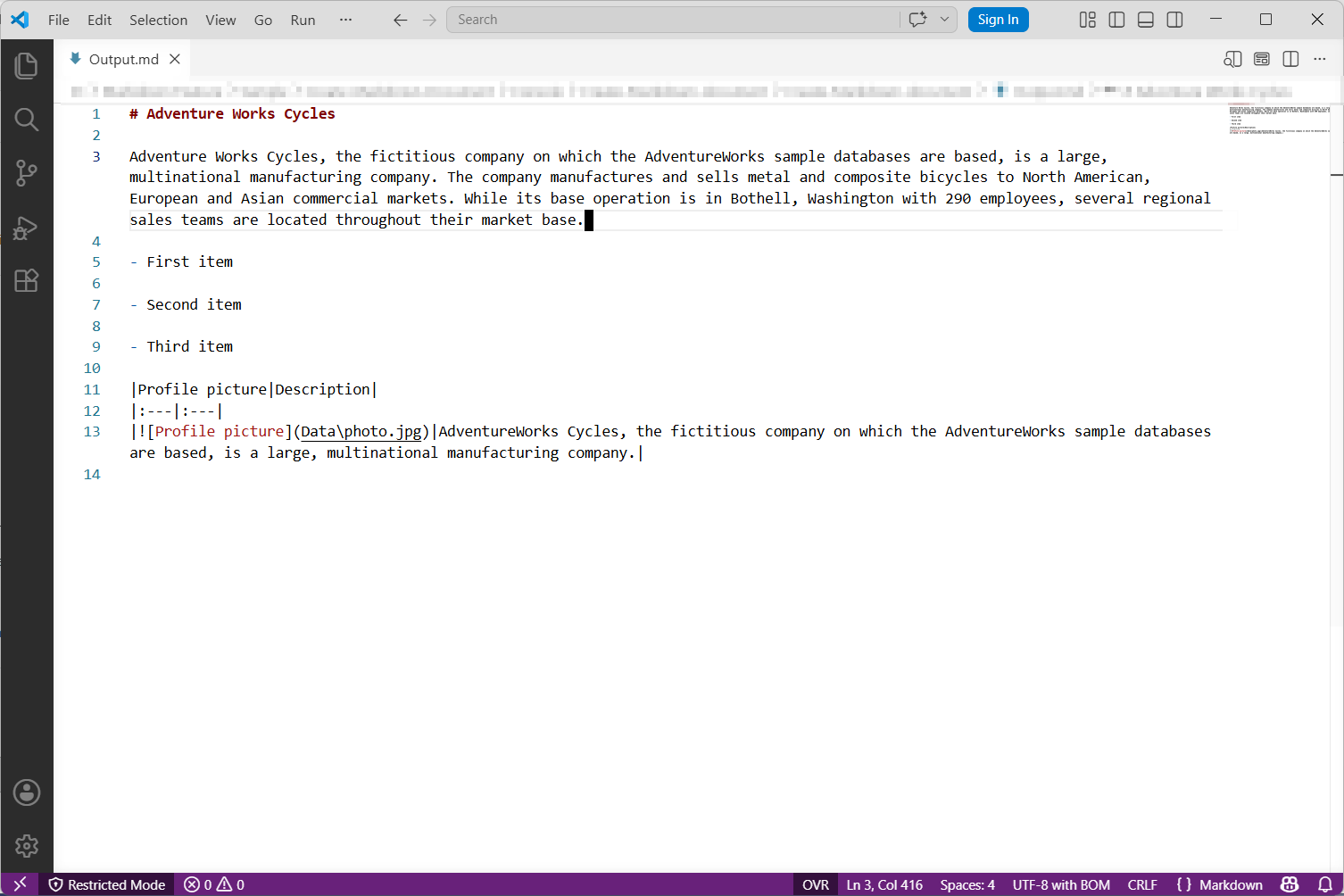
The resultant Markdown document looks as follows.
Looking for the full .NET Markdown Library overview, features, pricing, and documentation? Visit the .NET Markdown library page.