Create Markdown document on macOS
14 Aug 20265 minutes to read
Syncfusion® Essential® Markdown is a .NET Markdown library used to create, read, and edit Markdown documents programmatically without external dependencies. Using this library, you can create a Markdown document in a .NET Core application on macOS.
Steps to create Markdown document programmatically in .NET Core application on macOS
Prerequisites:
- Visual Studio 2022.
- Install .NET 8 SDK or later.
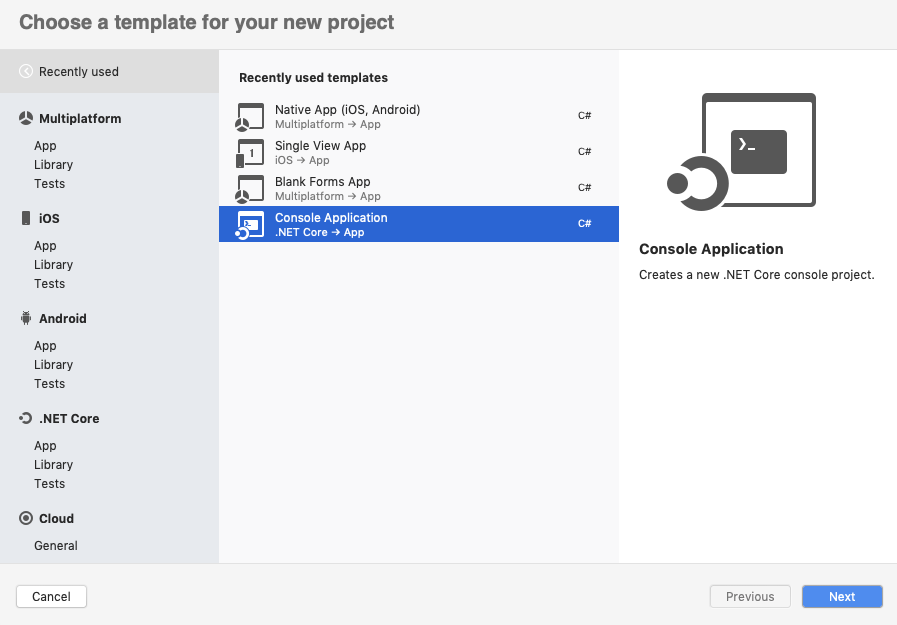
Step 1: Create a new .NET Core console application project.
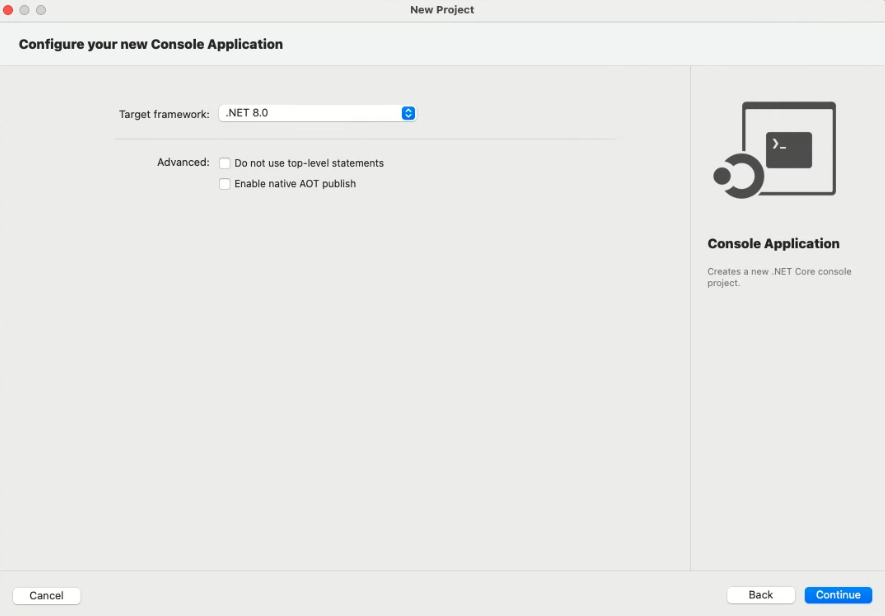
Step 2: Select the project version as .NET 8.0 or later.
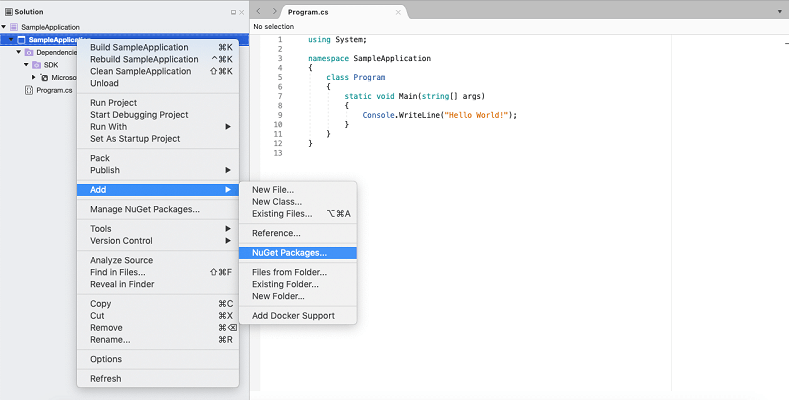
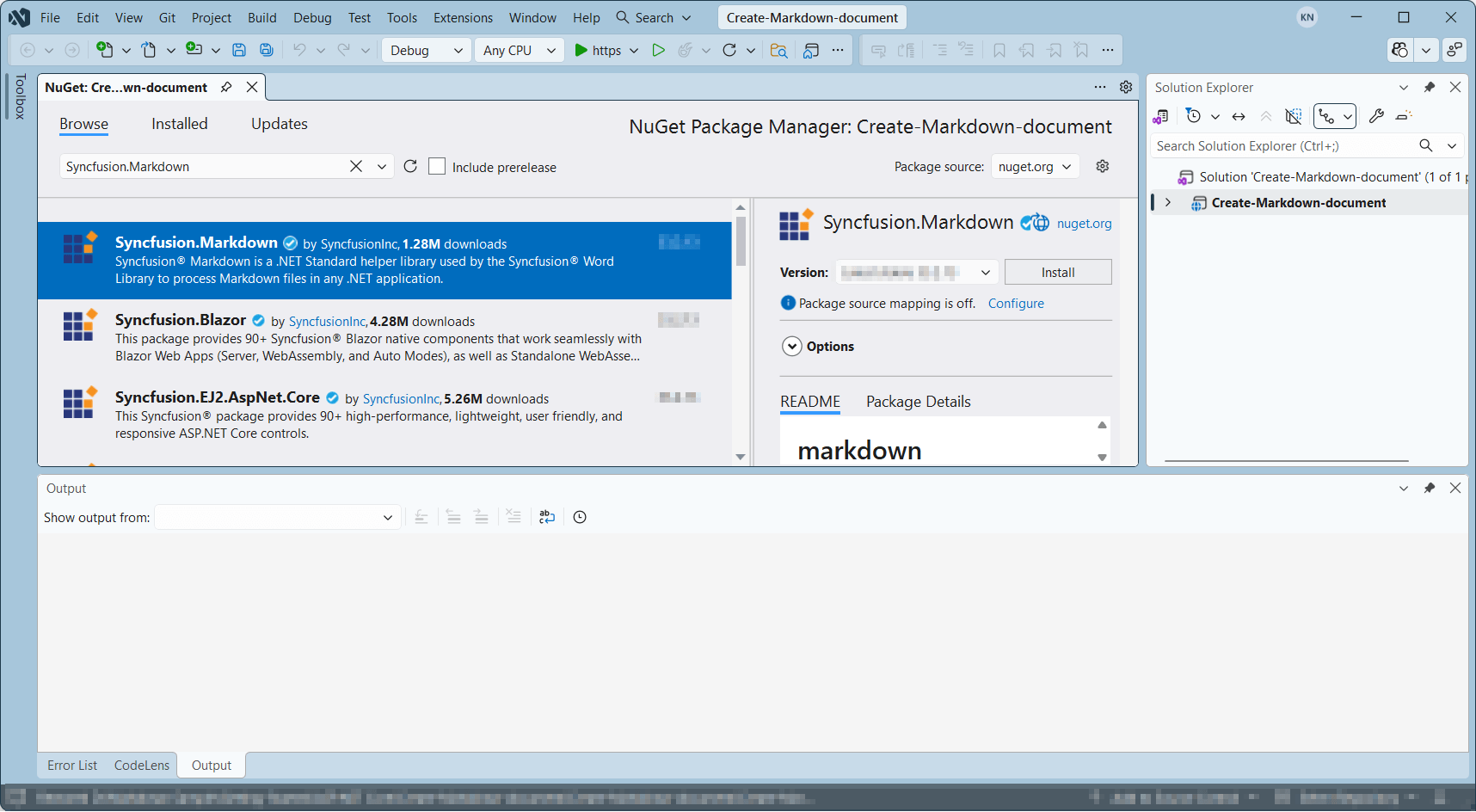
Step 3: Install the Syncfusion.Markdown and Syncfusion.Licensing NuGet packages as references to your project from NuGet.org.
Starting with v34.x.x, if you reference Syncfusion® assemblies from the trial setup or from the NuGet feed, you must add a reference to the Syncfusion.Licensing assembly and include a valid license key in your application.
Install the Syncfusion.Licensing NuGet package and register the license key during application startup.
Syncfusion.Licensing.SyncfusionLicenseProvider.RegisterLicense("YOUR_LICENSE_KEY");For more information about generating and registering a license key, refer to the Syncfusion® licensing documentation.
Step 4: Include the following namespaces in the Program.cs file.
using Syncfusion.Office.Markdown;
using System.IO;
Step 5: Add the following code snippet in the Program.cs file.
// Creates a new instance of MarkdownDocument.
MarkdownDocument markdownDocument = new MarkdownDocument();
// Adds a heading to the Markdown document.
MdParagraph mdHeadingParagraph = markdownDocument.AddParagraph();
// Applies the Heading 1 style to the paragraph.
mdHeadingParagraph.ApplyParagraphStyle("Heading 1");
MdTextRange mdHeadingTextRange = mdHeadingParagraph.AddTextRange();
mdHeadingTextRange.Text = "Adventure Works Cycles";
// Adds a paragraph to the Markdown document.
MdParagraph mdParagraph = markdownDocument.AddParagraph();
MdTextRange mdTextRange = mdParagraph.AddTextRange();
mdTextRange.Text = "Adventure Works Cycles, the fictitious company on which the AdventureWorks sample databases are based, is a large, multinational manufacturing company. The company manufactures and sells metal and composite bicycles to North American, European and Asian commercial markets. While its base operation is in Bothell, Washington with 290 employees, several regional sales teams are located throughout their market base.";
// Adds the first list item.
MdParagraph item1 = markdownDocument.AddParagraph();
item1.ListFormat = new MdListFormat();
item1.ListFormat.IsNumbered = false;
item1.ListFormat.ListLevel = 0;
item1.ListFormat.ListValue = "- ";
item1.AddTextRange().Text = "First item";
// Adds the second list item.
MdParagraph item2 = markdownDocument.AddParagraph();
item2.ListFormat = new MdListFormat();
item2.ListFormat.IsNumbered = false;
item2.ListFormat.ListLevel = 0;
item2.ListFormat.ListValue = "- ";
item2.AddTextRange().Text = "Second item";
// Adds the third list item.
MdParagraph item3 = markdownDocument.AddParagraph();
item3.ListFormat = new MdListFormat();
item3.ListFormat.IsNumbered = false;
item3.ListFormat.ListLevel = 0;
item3.ListFormat.ListValue = "- ";
item3.AddTextRange().Text = "Third item";
// Adds a table to the Markdown document.
MdTable table = markdownDocument.AddTable();
table.ColumnAlignments.Add(MdColumnAlignment.Left);
table.ColumnAlignments.Add(MdColumnAlignment.Left);
// Adds the header row.
MdTableRow headerRow = table.AddTableRow();
MdTableCell header1 = headerRow.AddTableCell();
header1.Items.Add(new MdTextRange { Text = "Profile picture" });
MdTableCell header2 = headerRow.AddTableCell();
header2.Items.Add(new MdTextRange { Text = "Description" });

// Adds a data row.
MdTableRow dataRow = table.AddTableRow();
MdTableCell cell1 = dataRow.AddTableCell();
MdPicture picture = new MdPicture();
picture.Url = "Data\\photo.jpg";
picture.AltText = "Profile picture";
cell1.Items.Add(picture);
MdTableCell cell2 = dataRow.AddTableCell();
cell2.Items.Add(new MdTextRange { Text = "AdventureWorks Cycles, the fictitious company on which the AdventureWorks sample databases are based, is a large, multinational manufacturing company." });

//Create FileStream to save the MD file.
FileStream outputStream = new FileStream("Result.md", FileMode.Create, FileAccess.ReadWrite, FileShare.ReadWrite);
//Saves the MD file.
markdownDocument.Save(outputStream);
markdownDocument.Dispose();
outputStream.Flush();
outputStream.Dispose();
Step 6: Build the project.
Click on Build → Build Solution or press Ctrl+Shift+B to build the project.
Step 7: Run the project.
Click the Start button (green arrow) or press F5 to run the application.
The code sample references image files (photo.jpg). Download these assets from the GitHub sample Data folder and ensure they are present in the project’s output directory (e.g.,
bin/Debug/net8.0/). If the images are missing, aFileNotFoundExceptionwill be thrown at runtime. You can copy the images to the output directory by setting their Build Action to Content and Copy to Output Directory to Copy if newer in the file properties.
You can download a complete working sample from GitHub.
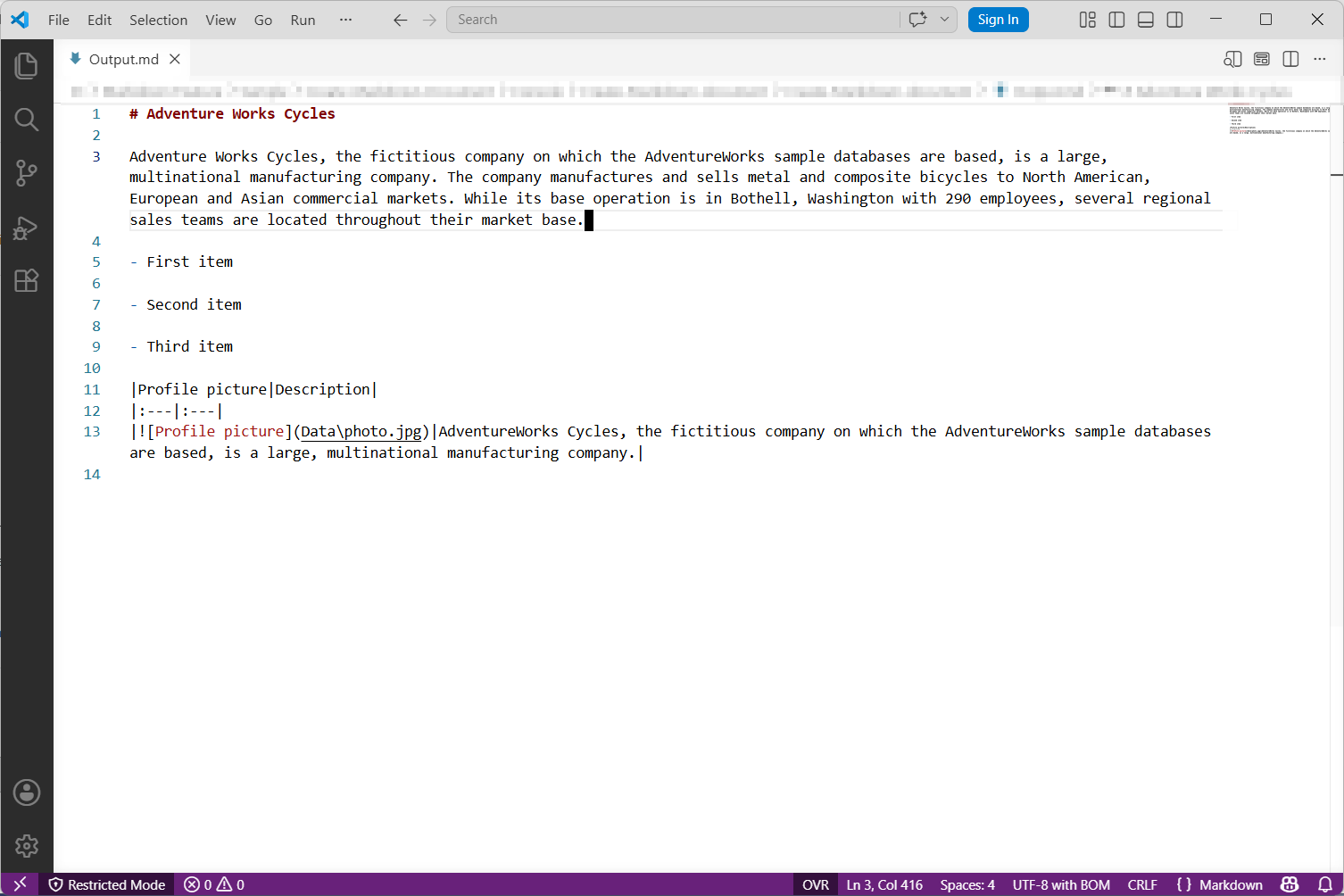
By executing the program, you will get the Markdown document as follows. The output (Result.md) will be saved in the project’s output directory (e.g., bin/Debug/net8.0/).
Looking for the full .NET Markdown Library overview, features, pricing, and documentation? Visit the .NET Markdown Library page.
An online sample link to create a Markdown document in ASP.NET Core.