Workbook Operations in Windows Forms Spreadsheet
14 Aug 20262 minutes to read
This section explains how to manage Excel workbooks in the Spreadsheet control, including creating a new workbook, opening existing workbooks from various sources, and saving changes efficiently.
Creating a new Excel Workbook
A new workbook can be created by using the Create method with specified number of worksheets. By default, a workbook will be created with a single worksheet.
....
public Form1()
{
    InitializeComponent();
    spreadsheet.Create(2);
}
....
Opening an existing Excel Workbook
The Excel workbook can be opened in the Spreadsheet control using the Open method in various ways:
....
public Form1()
{
    InitializeComponent();

    // Using Stream
    spreadsheet.Open(Stream file);

    // Using string (file path)
    spreadsheet.Open(string file);

    // Using Workbook
    spreadsheet.Open(IWorkbook workbook);

    // Example: Open from file path
    spreadsheet.Open(@"..\..\Data\Outline.xlsx");
}
....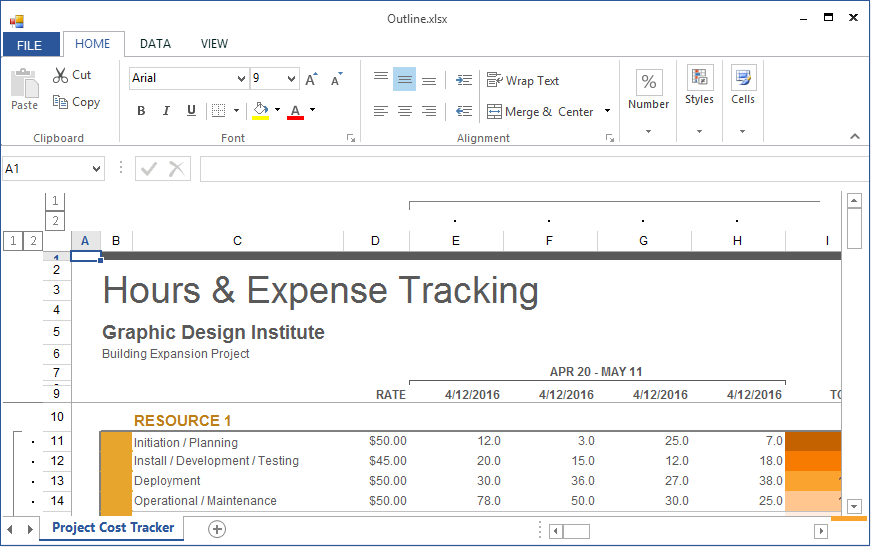
Opening an Excel file in the Spreadsheet control
Saving the Excel Workbook
The Excel workbook can be saved in the Spreadsheet control using the Save method. If the workbook already exists on the system drive, it will be saved in the same location; otherwise, the Save dialog box opens to save the workbook in a user-specified location.
....
public Form1()
{
    InitializeComponent();

    .....
    spreadsheet.Save();
    .....
}
....
You can also use the SaveAs method directly to save the existing Excel file with modifications.
The SaveAs method in the Spreadsheet control can be used in various ways:
....
public Form1()
{
    InitializeComponent();

    .....

    // Using Stream
    spreadsheet.SaveAs(Stream file);

    // Using string (file path)
    spreadsheet.SaveAs(string file);

    // Using dialog box
    spreadsheet.SaveAs();

    .....
}
....