Deploy Spreadsheet Docker to Azure App Service using CLI
14 Aug 20261 minute to read
Prerequisites
-
Dockerinstalled on your machine (Windows, macOS, or Linux). -
Azure CLIinstalled based on your operating system. Download Azure CLI - An active
Azure subscriptionwith App Services access. - The
Spreadsheet Server Docker imageavailable.
Deploy to Azure App Service using Azure CLI
Step 1: Log in to Azure
Open your terminal and sign in to Azure using the command below. This authenticates your CLI with Azure.
az loginStep 2: Create a resource group
Create a resource group with the following command in your preferred location.
az group create --name < your-app-name> --location <your-selected-region>Step 3: Create an app service plan
Create a resource group with the following command in your preferred location.
az appservice plan create --name --resource-group < your-resource-group> --sku S1 --is-linuxThis creates an App Service plan in the standard pricing tier (S1) and ensures it runs on Linux containers with the –is-linux flag.
Step 4: Create the docker-compose.yml file
Define your container configuration in a docker-compose.yml file. This file specifies the container name, image, and environment variables for the Spreadsheet Server:
version: '3.4'

services:
  spreadsheet-server:
    image: syncfusion/spreadsheet-server
    environment:

      # Provide your license key for activation
      SYNCFUSION_LICENSE_KEY: YOUR_LICENSE_KEY
    ports:
      - "6002:8080"
Note: Replace YOUR_LICENSE_KEY with your valid Syncfusion license key.
Step 5: Create a Docker compose app
Deploy the containerized app to Azure App Service using the following command.
az webapp create --resource-group <your-resource-group> --plan < your-app-service-plan> --name <your-app-name> --multicontainer-config-type compose --multicontainer-config-file docker-compose.ymlThis command creates a web app that runs your Spreadsheet Server Docker container using the configuration defined in the docker-compose.yml file.
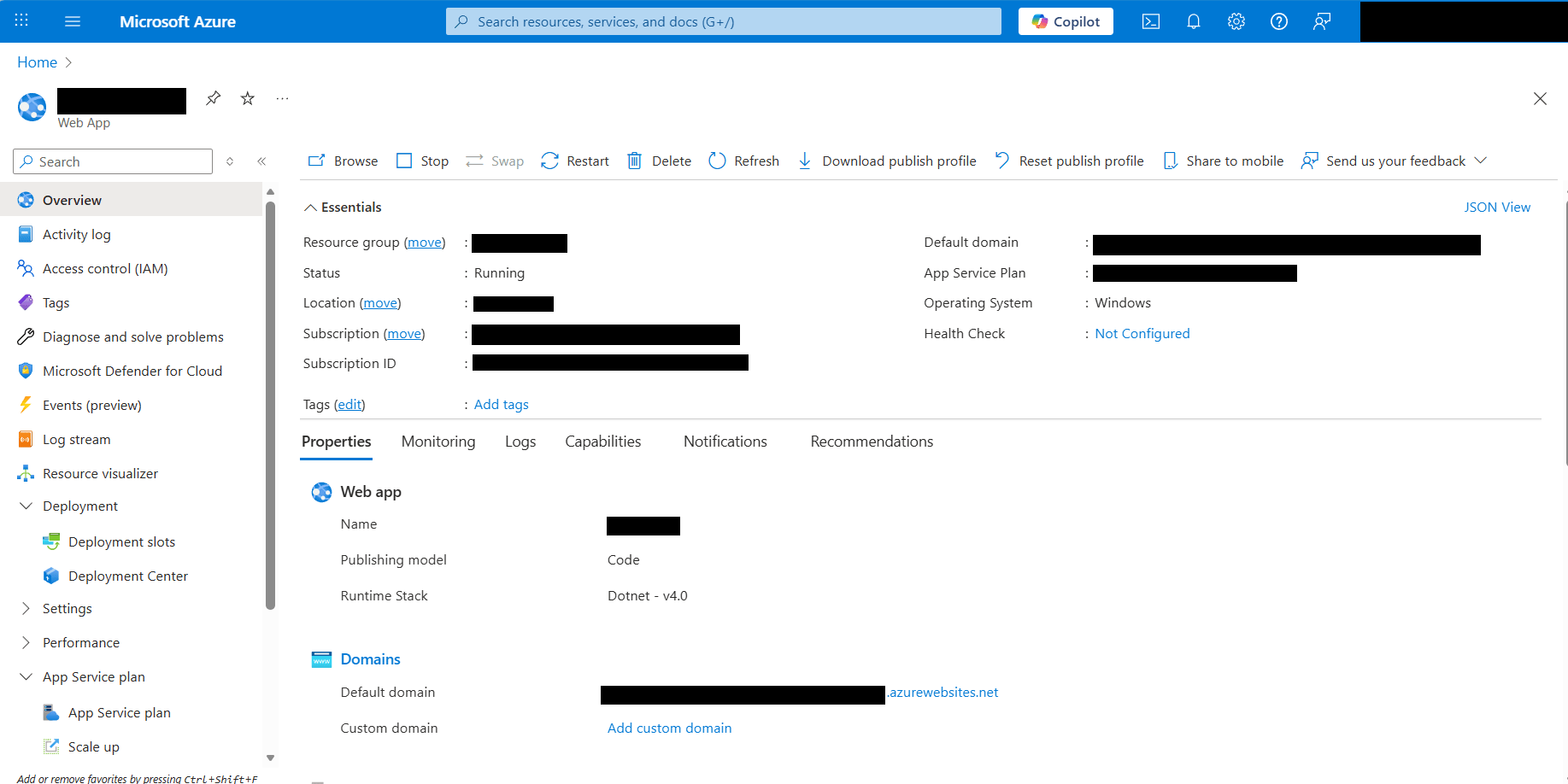
Step 6: Browse your app
Once deployed, your app will be live at https://XXXXXXXXXX.azurewebsites.net.
Step 7: With your server running, verify that it supports import and export operations by testing the following endpoints:
openUrl="https://XXXXXXXXXX.azurewebsites.net/api/spreadsheet/open"
saveUrl="https://XXXXXXXXXX.azurewebsites.net/api/spreadsheet/save
Append the App Service running URL to the service URL in the client‑side Spreadsheet Editor component. For more information about how to get started with the Spreadsheet Editor component, refer to this getting started page
For more information about the app container service, please look deeper into the Microsoft Azure App Service for a production-ready setup.