About Syncfusion ASP.NET MVC Spreadsheet Control
28 Sep 20263 minutes to read
The ASP.NET MVC Spreadsheet is a user-interactive component for organizing and analyzing data in a tabular format. It provides various configuration options for customization. The Spreadsheet can load data by importing Excel and CSV files or by binding local and remote data sources, such as JSON, RESTful services, and OData services. The populated data can be exported in XLSX, XLS, CSV, and PDF formats.
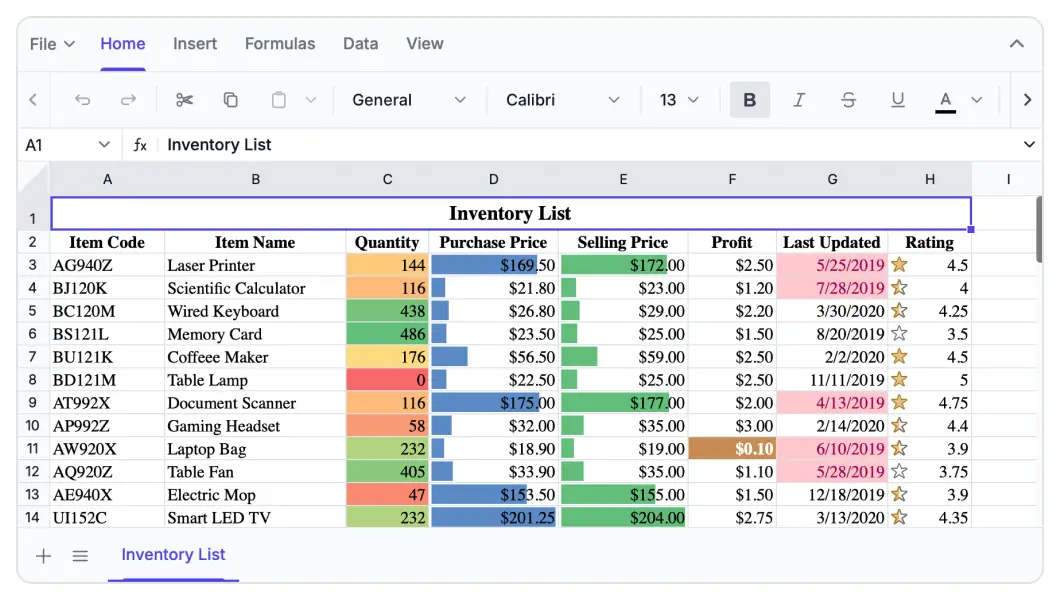
Key features
-
Data sources: Bind the Spreadsheet control with an array of objects or data from a web service using
DataManager. - Virtualization: Allows large amounts of data to significant performance degradation.
- Selection: Provides the option to select a cell or range of cells.
- Editing: Provides the option to dynamically edit a cell.
- Formulas: Provides built-in calculation library with pre-defined formulas and named range support.
- Clipboard: Provides the option to perform clipboard operations.
- Cell formatting: Provides the option to customize the appearance of cells.
- Number formatting: Provides the option to format the cell value.
- Open: Provides the option to open Excel and CSV files in Spreadsheet.
- Save: Provides the option to save Spreadsheet data as Excel, CSV, and PDF documents.
- Sorting: Allows you to arrange data in a particular order within a selected range of cells.
- Filtering: Helps you to view specific rows in the Spreadsheet by hiding the other rows.
- Undo Redo: Allows users to undo and redo actions in the Spreadsheet.
- Hyperlink: Allows users to navigate to a web link, a cell reference within the current worksheet, or a cell in another worksheet.
- Resize: Allows you to change row heights and column widths and autofit rows and columns based on their content.
- Wrap text: Displays large content on multiple lines within a single cell.
- Data validation: Provides the option to validate edited values based on data validation rules defined for a cell or range of cells.
- Find and replace: Provides the option to find the data and replace it across all sheets in Spreadsheet.
- Protect sheet: Provides the option to restrict user actions like cell editing, row and column insertion, deletion, and resizing.
- Borders: Allows you to customize cell borders, including their color and style.
- Show/hide: Provides the option to show/hide rows, columns and sheets.
- Insert/delete: Provides the option to insert/delete rows, columns and sheets.
- Merge cells: Provides the option to combine two or more cells located in the same row or column into a single cell.
- Conditional formatting: Provides the option to format a cell or range of cells based on conditions applied.
- Autofill: Provides the option to fill or copy a series or pattern of values and formats into adjacent cells in any direction.
- Clear: Provides the option to clear the content, formats, and hyperlinks applied to a cell or range of cells in a Spreadsheet.
- Aggregates: Provides the option to check the sum, average, count, and more for the selected cells or range in the sheet.
- Picture: Allows you to insert, view, resize, and reposition images in the Spreadsheet.
- Chart: Transforms your Spreadsheet data to an intuitive overview for better understanding and to make smart business decisions.
- Freeze panes: Allows you to keep the specified rows and columns always visible at the top and left side of the sheet while scrolling through the sheet.
- Password protection: Allows you to protect the workbook with a password.
- Multi-line editing: Allows you to insert a line break between paragraphs of the text within a cell in a Spreadsheet.
- Calculate range selection: Helps you to select a range or multiple ranges when editing a formula in a cell.
- Collaborative editing: Allows multiple users to edit the same workbook and view synchronized and selections in real time.
- Right-to-left (RTL): Aligns content in the Spreadsheet control from right to left.
- Templates: Templates can be used to create custom user experiences in the Spreadsheet.
- Globalization: Personalize the Spreadsheet control with different languages, as well as culture-specific number, date, and time formatting.
- Accessibility: Provides built-in accessibility support that allows users to access Spreadsheet features using the readers, and other assistive technologies.