Comments in ASP.NET MVC Spreadsheet
14 Aug 202624 minutes to read
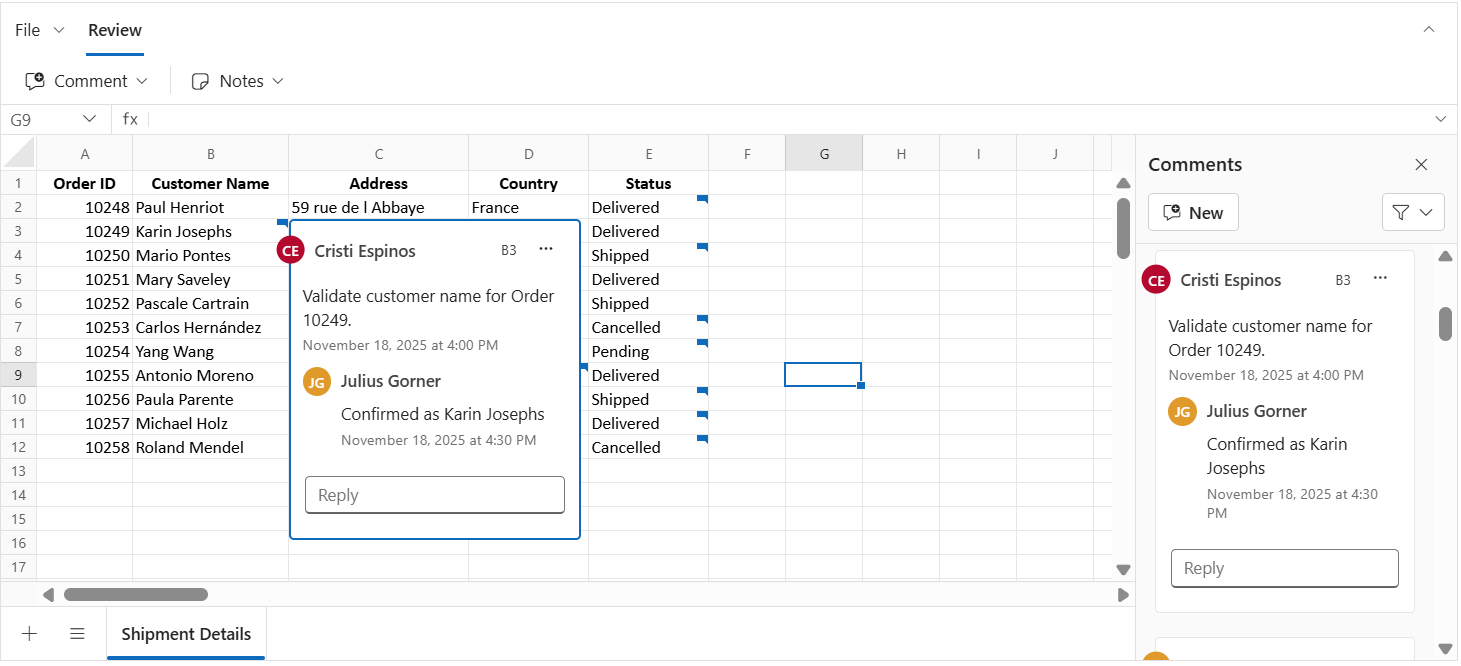
The Comment feature allows users to add feedback to cells without changing their values and supports contextual discussions through threaded replies. Unlike Notes, Comments include advanced review tools such as Resolve and Reopen for tracking the status of discussions. The optional Comments review pane can be used to browse and manage comment threads.
Cells containing comments display a small comment indicator. Hover over the indicator to preview the comment.
Author identity
The Syncfusion Spreadsheet does not automatically track user identity. To tag new comments and replies with an author name, set the author property when initializing the Spreadsheet.
    @(Html.EJ2().Spreadsheet("spreadsheet")
        .Author("Place the Author Name Here")
        .Render()
    )
If the
authorproperty is not set, “Guest User” is displayed as the default author for comments and replies.
Adding a comment
You can add a comment to a cell in several ways:
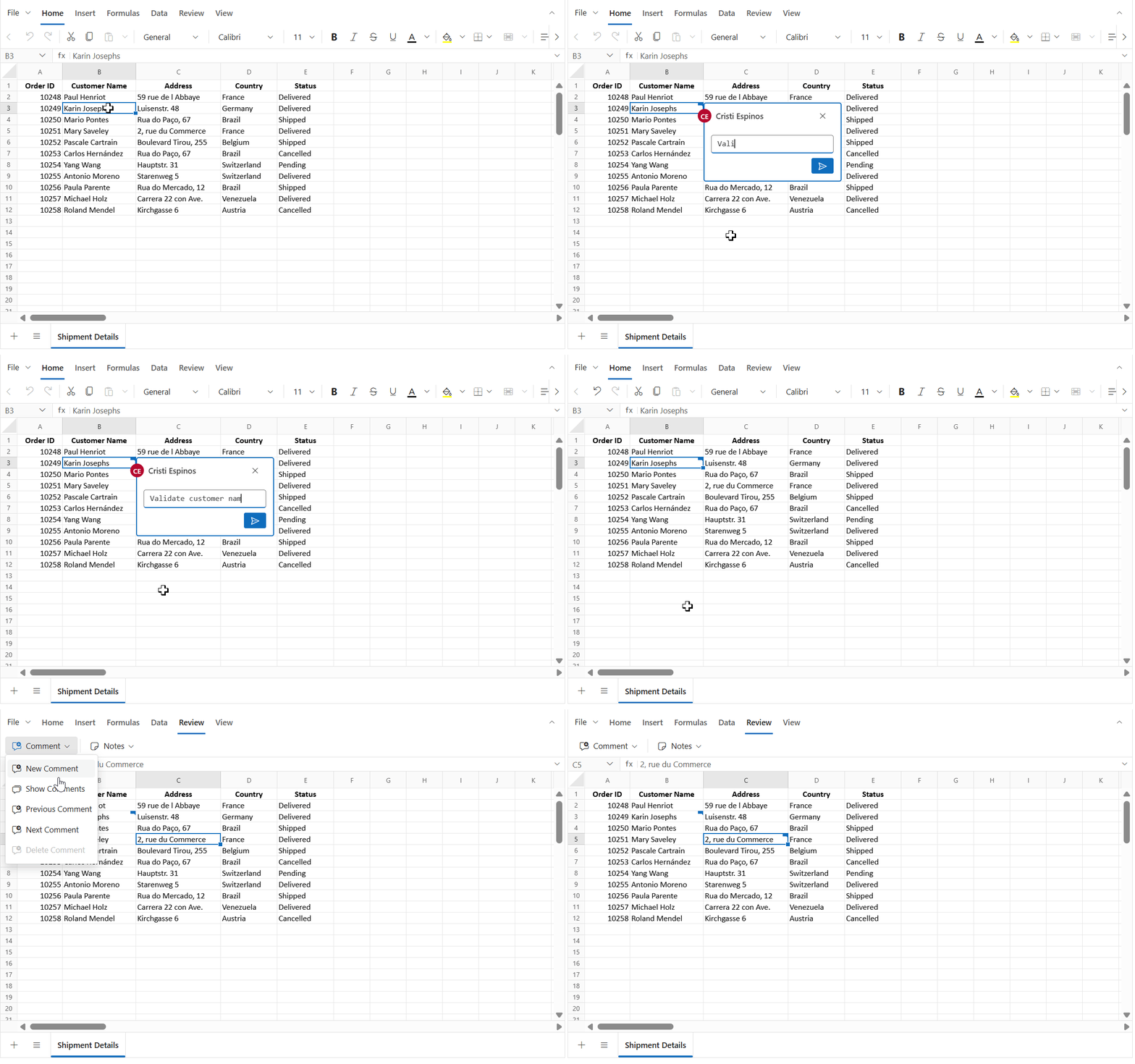
- Context menu: Right-click the target cell and select “New Comment”.
- Ribbon: Go to Review > Comment > New Comment.
- Keyboard shortcut: Press Ctrl + Shift + F2 to open the comment editor for the active cell.
-
Programmatically:
- Use the
updateCellmethod with the comment model to add a comment to a specific cell. - Bind comments via code-behind during initial load by associating the comment model with the cell model.
- Use the
For an example that adds a comment programmatically using the updateCell method, see the #resolve-and-reopen section.
The image below shows that once a comment is posted, the cell displays an indicator, and the comment can be previewed on hover.
Adding a reply
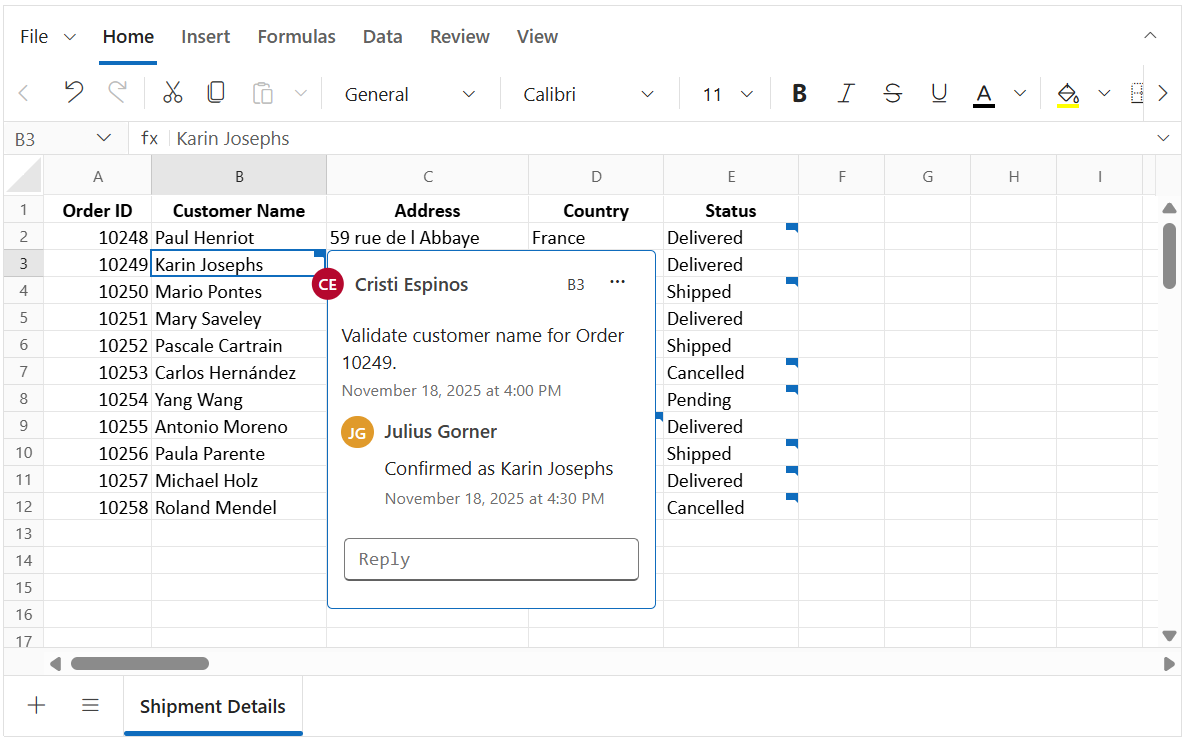
You can add one or more replies to an existing comment to provide additional details or answers:
- Context menu: Right-click the cell that already has a comment, select Comment > New Reply, enter your reply, and click Post.
- Ribbon: Go to Review > Comment > New Comment on a cell that contains a comment. This opens the comment editor in reply mode.
- Comment editor: Open the comment editor by hovering over the comment indicator, type your reply, and click Post.
- Keyboard shortcut: Press Ctrl + Shift + F2 on a cell that contains a comment to open the comment editor in reply mode.
After posting, the replies appear under the first comment in the comment editor.
Editing a comment
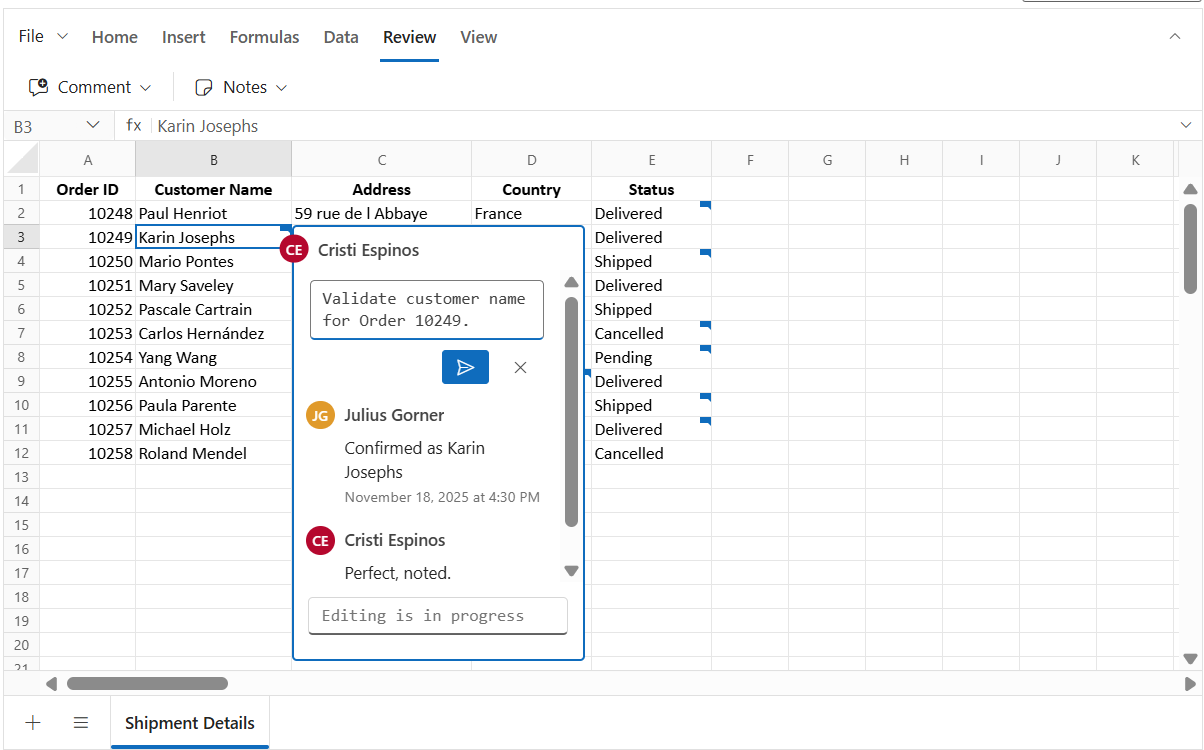
You can edit the content of a comment or its replies directly within the comment editor.
- Edit the first comment: In the comment editor, click the “⋯” (More thread actions) menu in the header, select Edit Comment, modify the text, and click Post.
- Edit a reply: In the comment editor, hover over the reply, click the “⋯” (More actions) menu, select Edit Comment, modify the text, and click Post.
Resolve and Reopen
The Resolve thread option marks a comment thread as completed when the discussion or issue is addressed. When a thread is resolved, its background color changes to indicate the resolved state, and the reply input box and reply menu actions are hidden. Use Reopen to restore the comment if further discussion is needed.
Resolve a comment
- In the comment editor, click the “⋯” (More thread actions) menu in the header and select Resolve Thread.
Reopen a comment
- In the comment editor, click the Reopen button in the header to make the thread active again.
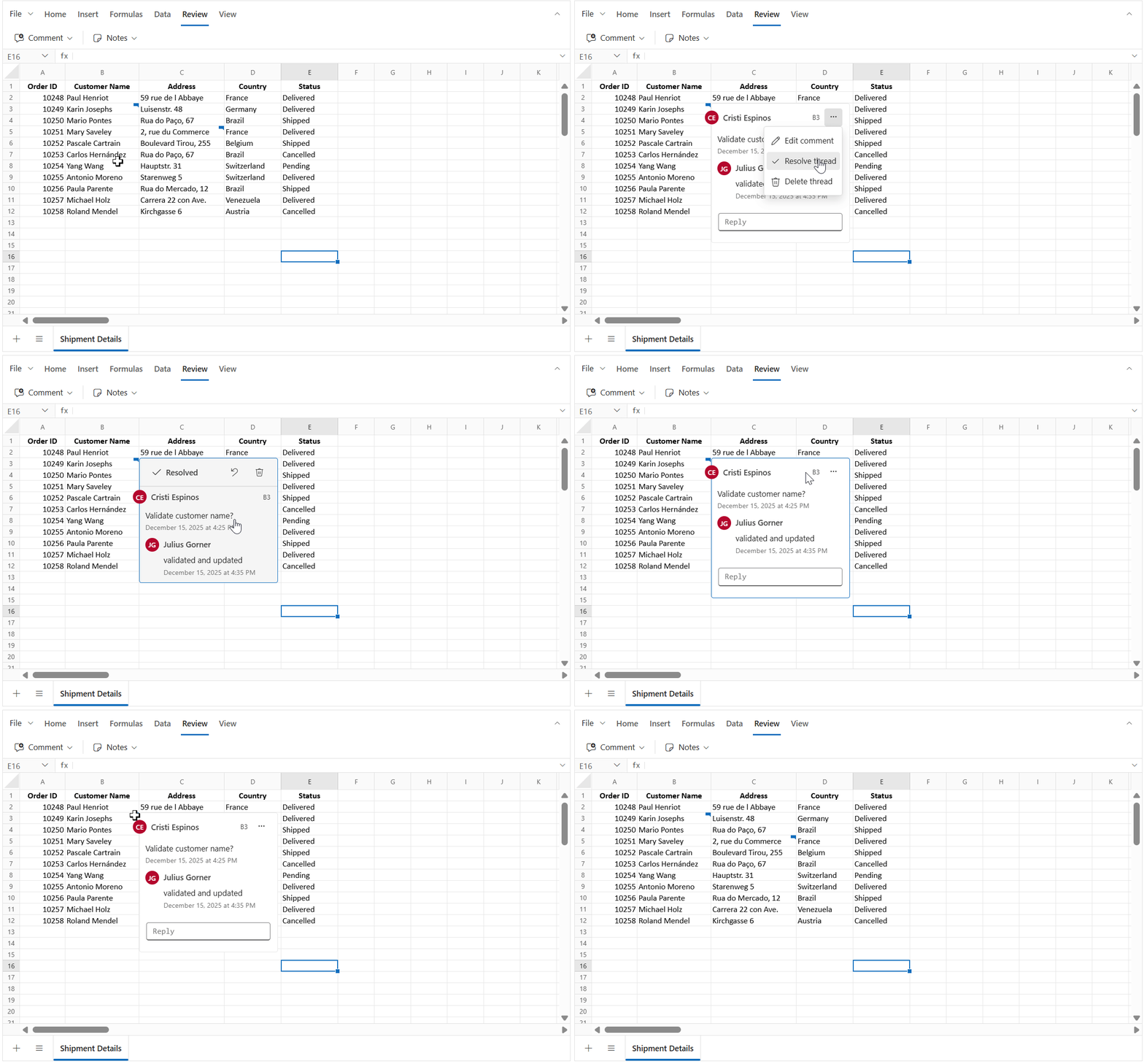
You can also use the isResolved property in the comment model when initializing or updating comments programmatically.
Example: Using isResolved property in the comment model with the updateCell method
// Update a cell with a comment using the updateCell method
    spreadsheet.updateCell({
        comment: {
            author: 'Christopher', text: 'Have you completed the report?',
            createdTime: 'January 03, 2026 at 5:00 PM',
            // Set to true to mark the thread as resolved; false keeps it active
            isResolved: false,
            replies: [{ author: 'John', text: 'Yes, completed',
            createdTime: 'January 03, 2026 at 7:00 PM' }]
        }
    }, 'Sheet1!D5');
Deleting a comment or reply
You can delete either a specific reply or an entire comment thread (including all replies) using the following options:
Deleting a comment thread
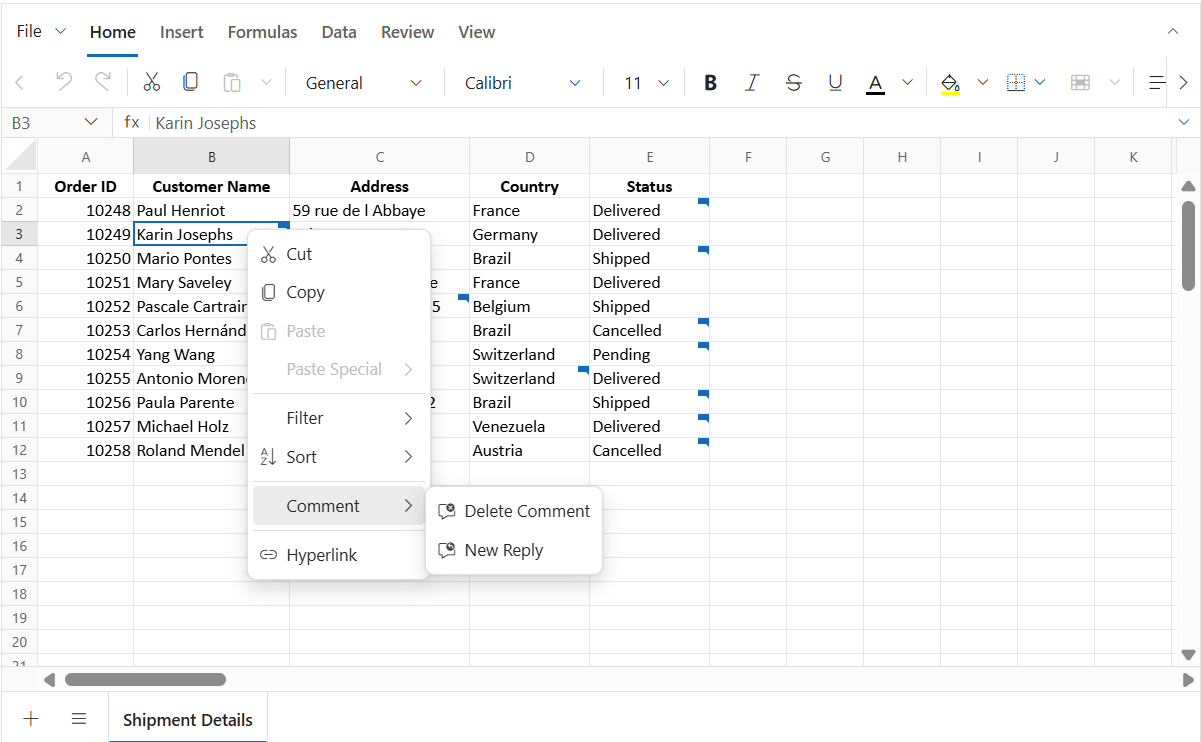
- Context menu: Right-click the cell that contains the comment and select Comment > Delete Comment.
- Ribbon: Go to Review > Comment > Delete Comment on a cell that contains the comment.
- Comment editor: In the comment editor, click the “⋯” (More thread actions) menu in the header and select Delete Thread for an active comment or use the Delete Thread button in header for a resolved comment.
Deleting a thread removes the comment and all its replies from the cell.
Delete a reply
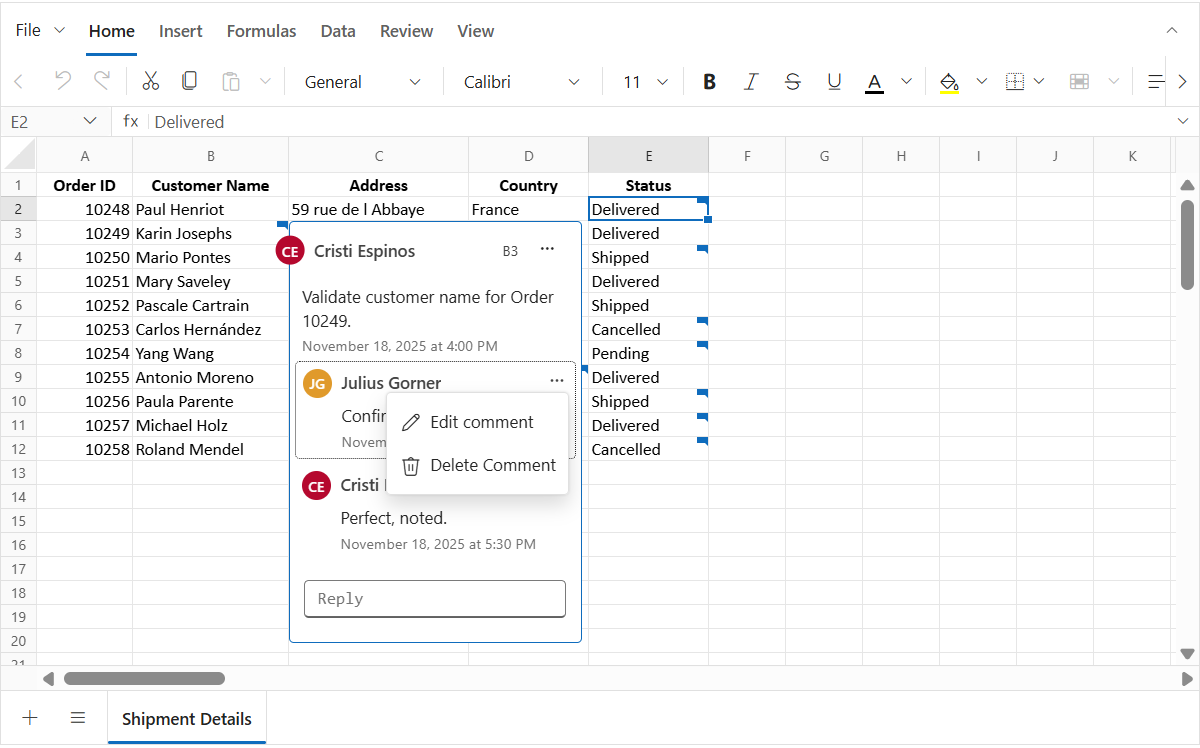
In the comment editor, hover over the reply and click the “⋯” (More actions) menu then select Delete Comment.
Next and Previous Comment
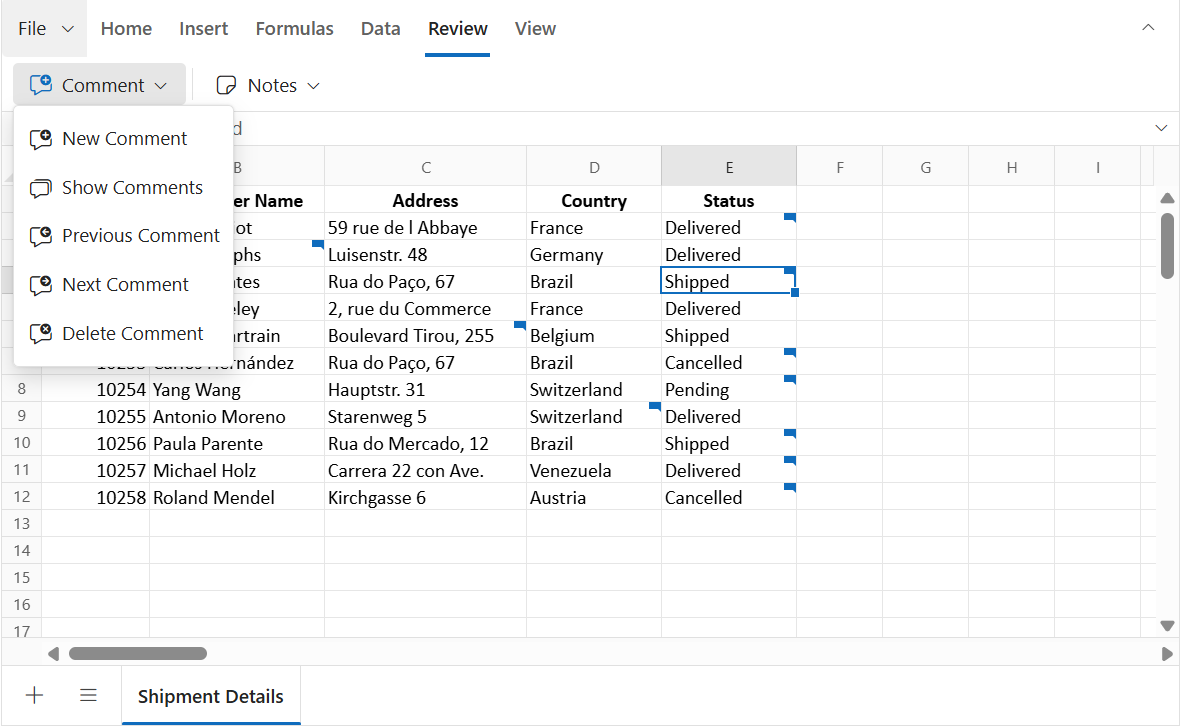
The Review > Comment > Next Comment and Previous Comment options in the ribbon allow you to quickly navigate between cells that contain comments:
- Next Comment: Moves to the next cell with a comment.
- Previous Comment: Moves to the previous cell with a comment.
Navigation starts within the active sheet. When all comments in the active sheet have been visited (end or start reached), the navigation automatically continues to the next or previous sheet that contains comments. This ensures you can review all comments across the workbook without manually switching sheets.
Comments review pane
The “Comments” review pane provides a centralized view of all comments in the active sheet, making it easier to manage discussions without switching between individual cells. It offers filtering, inline actions, and navigation, ensuring an efficient review workflow across the workbook.
You can show or hide the “Comments” review pane using:
- Ribbon: Go to Review > Comment > Show Comments.
-
Property: Set the
showCommentsPaneproperty to true when initializing the Spreadsheet. By default, this property is false.
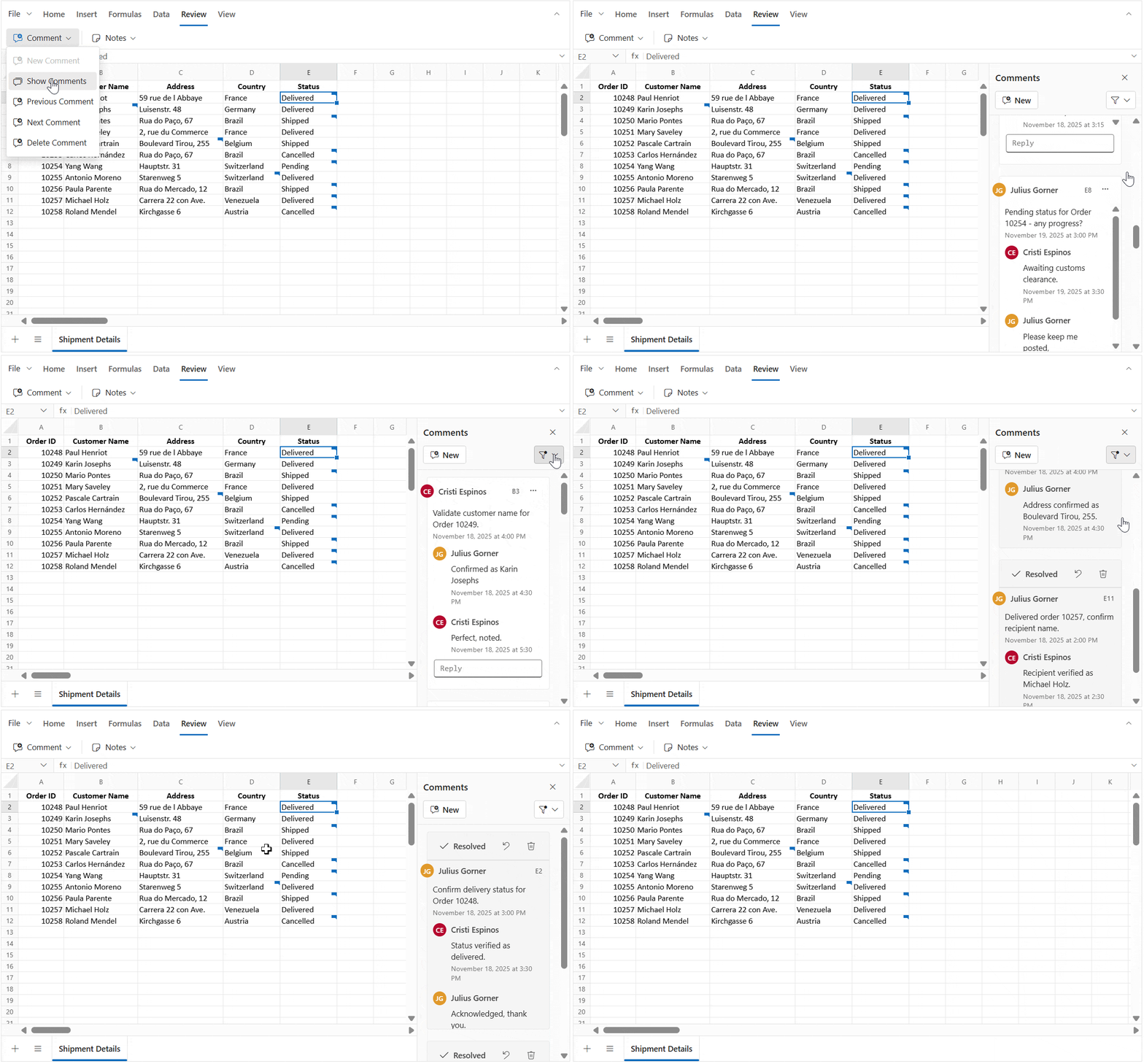
Features of the comments review pane
The Comments review pane provides a centralized view of all comments. Use it to filter, navigate, and manage comment threads without opening each cell’s comment editor.
The “Comments” review pane allows you to:
- Add new comment using the New button.
- Filter comments by All, Active, or Resolved to view specific comment threads.
- Navigate between comments and synchronize selection with the corresponding cells.
- Perform actions such as:
- Reply – Add replies directly from the review pane.
- Edit – Modify the text of a comment or reply.
- Delete – Remove a reply or an entire thread.
- Resolve/Reopen – Change the status of a comment.
When the review pane is open, all actions performed in the review pane or in the cell’s comment editor are synchronized:
- Selecting a comment in the review pane highlights the corresponding cell in the sheet.
- Selecting a cell with a comment focuses the respective comment thread in the review pane.
- Actions such as Reply, Edit, Delete, and Resolve/Reopen update both the pane and the cell comment editor instantly, ensuring consistency across the UI.
- The review pane dynamically updates when comments are added, deleted, or resolved, so you always see the latest state without refreshing.
A comment object supports the following properties:
-
author: Specifies the author of the comment. -
text: Specifies the comment text. -
createdTime: Specifies when the comment was created. -
isResolved: Specifies whether the comment thread is resolved. -
replies: Contains the replies associated with the comment thread.
Each reply supports the author, text, and createdTime properties.
Saving a Workbook with Comments
You can save spreadsheet data along with comments using File > Save As > Microsoft Excel(.xlsx).
- MS Excel (.xlsx) - Preserves all threaded comments (modern comments).
Comments are not included when exporting to .xls, .csv, and .pdf.
Why comments are not saved in .xls
The .xls format is based on the older Excel binary structure (BIFF8), which does not support modern features like threaded comments.
Threaded comments introduced in newer Excel versions require the Open XML structure used by .xlsx.
To retain threaded comments, always save the workbook in .xlsx format.
Bind Comments via code-behind
You can bind comment thread to cells at initial load by providing a comment object in the cell model. Each cell supports per comment thread, which can include:
-
Comment:
author,text,createdTime,isResolved -
Replies: A collection of replies. Each reply is an object containing its
author,text, andcreatedTime(no nested replies-of-replies).
In the following example, a comment thread is assigned to a cell during the initial data binding. Additional comments are added using the updateCell method in the created event. The showCommentsPane property is enabled to display the comments review pane when the Spreadsheet is rendered.
@Html.EJS().Spreadsheet("spreadsheet").ShowCommentsPane(true).OpenUrl("Home/Open").AllowOpen(true).SaveUrl("Home/Save").AllowSave(true).Created("created").Sheets(sheet =>
{
    sheet.Name("Shipment Details").Ranges(ranges =>
    {
        ranges.DataSource((IEnumerable<object>)ViewBag.DefaultData).Add();
    }).Rows(row =>
    {
        row.Index(1).Cells(cell =>
        {
            cell.Index(4).Comment(new SpreadsheetComment()
            {
                Author = "Julius Gorner",
                Text = "Confirm delivery status for Order 10248.",
                CreatedTime = "November 18, 2025 at 3:00 PM",
                IsResolved = true,
                Replies = new List<SpreadsheetCommentReply>
                {
                    new SpreadsheetCommentReply { Author = "Cristi Espinos", Text = "Status verified as delivered.", CreatedTime = "November 18, 2025 at 3:30 PM" },
                    new SpreadsheetCommentReply { Author = "Julius Gorner", Text = "Acknowledged, thank you.", CreatedTime = "November 18, 2025 at 3:45 PM" }
                }
            }).Add();
        }).Add();
        row.Index(3).Cells(cell =>
        {
            cell.Index(4).Comment(new SpreadsheetComment()
            {
                Author = "Julius Gorner",
                Text = "Order 10250 is marked as Shipped, any update on current status?",
                CreatedTime = "November 16, 2025 at 9:00 PM",
                IsResolved = false,
                Replies = new List<SpreadsheetCommentReply>
                {
                    new SpreadsheetCommentReply { Author = "Cristi Espinos", Text = "Shipment is in transit.", CreatedTime = "November 17, 2025 at 3:30 PM" },
                    new SpreadsheetCommentReply { Author = "Julius Gorner", Text = "Thanks for the update.", CreatedTime = "November 17, 2025 at 3:45 PM" }
                }
            }).Add();
        }).Add();
        row.Index(6).Cells(cell =>
        {
            cell.Index(4).Comment(new SpreadsheetComment()
            {
                Author = "Julius Gorner",
                Text = "Reason for cancellation of Order 10253?",
                CreatedTime = "November 18, 2025 at 1:00 PM",
                IsResolved = false,
                Replies = new List<SpreadsheetCommentReply>
                {
                    new SpreadsheetCommentReply { Author = "Cristi Espinos", Text = "Customer requested cancellation.", CreatedTime = "November 18, 2025 at 1:30 PM" },
                    new SpreadsheetCommentReply { Author = "Julius Gorner", Text = "Understood, thanks.", CreatedTime = "November 18, 2025 at 3:15 PM" }
                }
            }).Add();
        }).Add();
        row.Index(7).Cells(cell =>
        {
            cell.Index(4).Comment(new SpreadsheetComment()
            {
                Author = "Julius Gorner",
                Text = "Pending status for Order 10254 - any progress?",
                CreatedTime = "November 19, 2025 at 3:00 PM",
                IsResolved = false,
                Replies = new List<SpreadsheetCommentReply>
                {
                    new SpreadsheetCommentReply { Author = "Cristi Espinos", Text = "Awaiting customs clearance.", CreatedTime = "November 19, 2025 at 3:30 PM" },
                    new SpreadsheetCommentReply { Author = "Julius Gorner", Text = "Please keep me posted,", CreatedTime = "November 19, 2025 at 3:45 PM" }
                }
            }).Add();
        }).Add();
        row.Index(9).Cells(cell =>
        {
            cell.Index(4).Comment(new SpreadsheetComment()
            {
                Author = "Julius Gorner",
                Text = "Order 10256 shipped, tracking details shared?",
                CreatedTime = "November 18, 2025 at 3:00 AM",
                IsResolved = false,
                Replies = new List<SpreadsheetCommentReply>
                {
                    new SpreadsheetCommentReply { Author = "Cristi Espinos", Text = "Tracking sent via email,", CreatedTime = "November 18, 2025 at 3:30 AM" },
                    new SpreadsheetCommentReply { Author = "Julius Gorner", Text = "Received, thank you,", CreatedTime = "November 18, 2025 at 3:45 AM" }
                }
            }).Add();
        }).Add();
        row.Index(10).Cells(cell =>
        {
            cell.Index(4).Comment(new SpreadsheetComment()
            {
                Author = "Julius Gorner",
                Text = "Delivered order 10257, confirm recipient name.",
                CreatedTime = "November 18, 2025 at 2:00 PM",
                IsResolved = true,
                Replies = new List<SpreadsheetCommentReply>
                {
                    new SpreadsheetCommentReply { Author = "Cristi Espinos", Text = "Recipient verified as Michael Holz.", CreatedTime = "November 18, 2025 at 2:30 PM" },
                    new SpreadsheetCommentReply { Author = "Julius Gorner", Text = "Great, noted.", CreatedTime = "November 18, 2025 at 2:45 PM" }
                }
            }).Add();
        }).Add();
        row.Index(11).Cells(cell =>
        {
            cell.Index(4).Comment(new SpreadsheetComment()
            {
                Author = "Julius Gorner",
                Text = "Order 10258 cancelled, reason documented?",
                CreatedTime = "November 18, 2025 at 12:00 PM",
                IsResolved = false,
                Replies = new List<SpreadsheetCommentReply>
                {
                    new SpreadsheetCommentReply { Author = "Cristi Espinos", Text = "Customer changed requirements", CreatedTime = "November 18, 2025 at 12:30 PM" },
                    new SpreadsheetCommentReply { Author = "Julius Gorner", Text = "Understood, thanks.", CreatedTime = "November 18, 2025 at 12:45 PM" }
                }
            }).Add();
        }).Add();
    }).Columns(column =>
    {
        column.Width(80).Add();
        column.Width(130).Add();
        column.Width(150).Add();
        column.Width(100).Add();
        column.Width(100).Add();
    }).Add();
}).Render()

<script>
    function created() {
        this.cellFormat({ fontWeight: 'bold', textAlign: 'center' }, 'Shipment Details!A1:F1');
        // Add comment using updateCell.
        this.updateCell({
            comment: {
                author: 'Cristi Espinos',
                text: 'Validate customer name for Order 10249.',
                createdTime: 'November 18, 2025 at 4:00 PM',
                isResolved: false,
                replies: [
                    { author: 'Julius Gorner', text: 'Confirmed as Karin Josephs', createdTime: 'November 18, 2025 at 4:30 PM' },
                    { author: 'Cristi Espinos', text: 'Perfect, noted.', createdTime: 'November 18, 2025 at 5:30 PM' }
                ]
            }
        }, 'Shipment Details!B3');
        this.updateCell({
            comment: {
                author: 'Cristi Espinos',
                text: 'Verify address details for delivery.',
                createdTime: 'November 18, 2025 at 4:00 PM',
                isResolved: true,
                replies: [
                    { author: 'Julius Gorner', text: 'Address confirmed as Boulevard Tirou, 255.', createdTime: 'November 18, 2025 at 4:30 PM' }
                ]
            }
        }, 'Shipment Details!C6');
        this.updateCell({
            comment: {
                author: 'Cristi Espinos',
                text: 'Confirm country for Order 10255 delivery.',
                createdTime: 'November 18, 2025 at 4:00 PM',
                isResolved: false,
                replies: [
                    { author: 'Julius Gorner', text: 'Country verified as Switzerland.', createdTime: 'November 18, 2025 at 4:30 PM' },
                    { author: 'Cristi Espinos', text: 'Acknowledged.', createdTime: 'November 18, 2025 at 5:30 PM' }
                ]
            }
        }, 'Shipment Details!D9');
    }
</script>
public ActionResult Open(OpenRequest openRequest)
{
return Content(Workbook.Open(openRequest));
}
public void Save(SaveSettings saveSettings)
{
Workbook.Save(saveSettings);
}
public ActionResult Index()
{
List<object> data = new List<object>()
{
new { OrderID = 10248, CustomerName = "Paul Henriot", Address = "59 rue de l Abbaye", Country = "France", Status = "Delivered" },
new { OrderID = 10249, CustomerName = "Karin Josephs", Address = "Luisenstr. 48", Country = "Germany", Status = "Delivered" },
new { OrderID = 10250, CustomerName = "Mario Pontes", Address = "Rua do Paço, 67", Country = "Brazil", Status = "Shipped" },
new { OrderID = 10251, CustomerName = "Mary Saveley", Address = "2, rue du Commerce", Country = "France", Status = "Delivered" },
new { OrderID = 10252, CustomerName = "Pascale Cartrain", Address = "Boulevard Tirou, 255", Country = "Belgium", Status = "Shipped" },
new { OrderID = 10253, CustomerName = "Carlos Hernández", Address = "Rua do Paço, 67", Country = "Brazil", Status = "Cancelled" },
new { OrderID = 10254, CustomerName = "Yang Wang", Address = "Hauptstr. 31", Country = "Switzerland", Status = "Pending" },
new { OrderID = 10255, CustomerName = "Antonio Moreno", Address = "Starenweg 5", Country = "Switzerland", Status = "Delivered" },
new { OrderID = 10256, CustomerName = "Paula Parente", Address = "Rua do Mercado, 12", Country = "Brazil", Status = "Shipped" },
new { OrderID = 10257, CustomerName = "Michael Holz", Address = "Carrera 22 con Ave.", Country = "Venezuela", Status = "Delivered" },
new { OrderID = 10258, CustomerName = "Roland Mendel", Address = "Kirchgasse 6", Country = "Austria", Status = "Cancelled" }
};
ViewBag.DefaultData = data;
return View();
}After running the sample, verify that the comment indicator appears in the configured cell and that the corresponding comment thread is displayed in the comments review pane.
Important Notes
-
One thread per cell: Attach a single
commentobject per cell. New remarks should be added as replies inside the existing thread. - Author Identity: The author name for each comment and reply is static once set. When exporting, the author information is preserved for all comments, even if multiple authors exist in the workbook.
- New comment: When the “Comments” review pane is enabled, adding a new comment renders the drafted comment editor directly in the “Comments” review pane.
Limitations
- Un-posted comments are not stored: If you type in the comment editor and close it without clicking Post, the entered text is not saved and will not appear when you reopen the editor. Only posted content is persisted in the comment model.
- Comments and Notes cannot coexist: When a cell contains a comment, a note cannot be added. Similarly, when a cell contains a note, a comment cannot be added.
- Comments in Print: Comments are not included in print output.
- Non-collaborative: Real-time multi-user synchronization is not supported. However, when exporting and re-importing the workbook, the author information for each comment and reply is preserved.