Working with Excel Data
14 Aug 202617 minutes to read
Importing Data to Worksheets
Flutter XlsIO provides the ability to import data into a worksheet from collections, including List<Object> and List<T>. The available approaches are:
- Import Data from List
- [Import Data from List
](#import-data-from-list-t)
Before you begin, complete the Getting Started with Flutter XlsIO steps, then import the package and required helpers in your Dart file:
import 'dart:convert'; // for base64.decode (image samples)
import 'dart:io'; // for File
import 'package:syncfusion_flutter_xlsio/xlsio.dart';
In production code, use
await workbook.save()and wrap workbook usage in atry/finallyblock to guaranteeworkbook.dispose(). The samples below usesaveSync()for brevity.
Import Data from List
Use the importList method to import a list of data with different data types (for example, String, int, double, number, bool, and DateTime) into a worksheet.
The importList method accepts the following parameters:
-
list– TheList<Object>to import. Each element becomes a cell. -
firstRow– The 1-based row index where the import starts. -
firstColumn– The 1-based column index where the import starts. -
isVertical– Whentrue, values are written top-to-bottom; whenfalse, left-to-right.
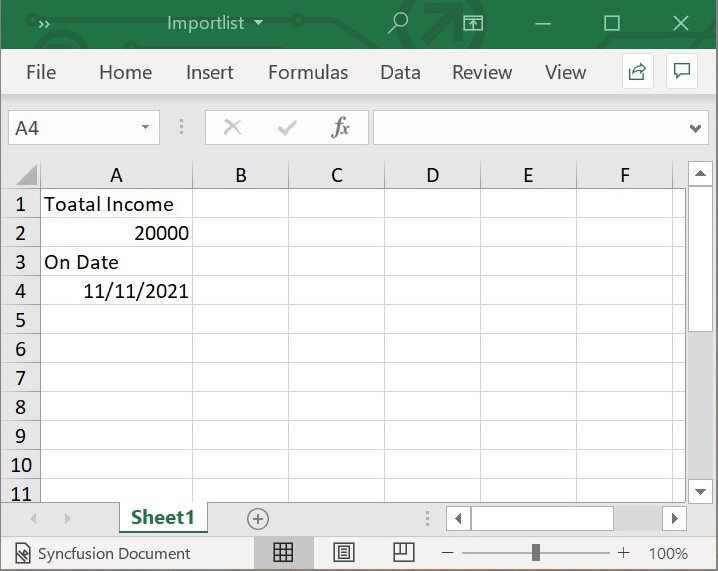
The following code snippet shows how to import a list of data vertically into the worksheet using the importList method.
// Create a new Excel document.
final Workbook workbook = Workbook();

// Accessing the first sheet via index.
final Worksheet sheet = workbook.worksheets[0];

// Initialize the List<Object>.
final List<Object> list = [
  'Total Income',
  20000,
  'On Date',
  DateTime(2021, 11, 11)
];

// Starting row (1-based).
final int firstRow = 1;

// Starting column (1-based).
final int firstColumn = 1;

// Import the data vertically.
final bool isVertical = true;

// Import the list into the sheet.
sheet.importList(list, firstRow, firstColumn, isVertical);

sheet.autoFitColumn(1);

// Save and dispose the workbook.
final List<int> bytes = workbook.saveSync();
File('Importlist.xlsx').writeAsBytes(bytes);
workbook.dispose();
The following screenshot represents the Excel file generated by vertically importing data from the list into the Excel worksheet using Flutter XlsIO.
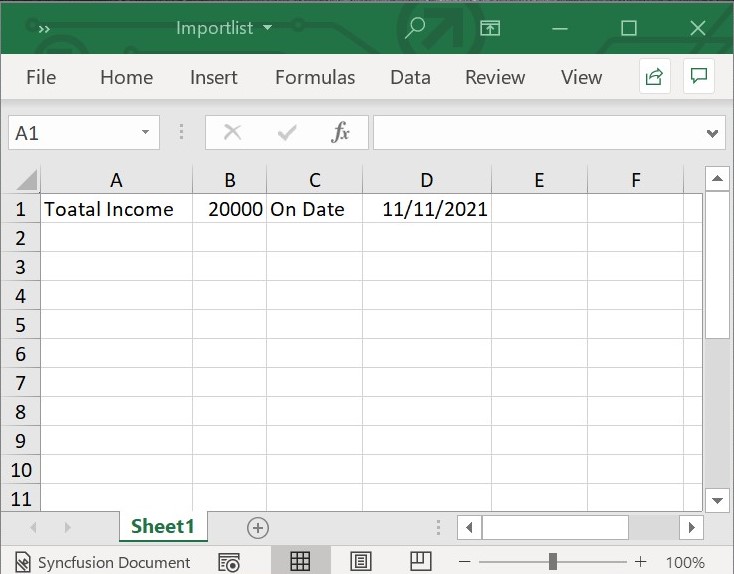
The following code snippet shows how to import a list of data horizontally into the worksheet using the importList method. This differs from the previous sample only in the isVertical value and the post-import autoFitColumns call.
// Create a new Excel document.
final Workbook workbook = Workbook();

// Accessing the first sheet via index.
final Worksheet sheet = workbook.worksheets[0];

// Initialize the List<Object>.
final List<Object> list = [
  'Total Income',
  20000,
  'On Date',
  DateTime(2021, 11, 11)
];

// Starting row (1-based).
final int firstRow = 1;

// Starting column (1-based).
final int firstColumn = 1;

// Import the data horizontally.
final bool isVertical = false;

// Import the list into the sheet.
sheet.importList(list, firstRow, firstColumn, isVertical);

sheet.getRangeByIndex(1, 1, 1, 4).autoFitColumns();

// Save and dispose the workbook.
final List<int> bytes = workbook.saveSync();
File('Importlist.xlsx').writeAsBytes(bytes);
workbook.dispose();
The following screenshot represents the Excel file generated by horizontally importing data from the list into the Excel worksheet using Flutter XlsIO.
Import Data from List
Flutter XlsIO allows you to import data directly from List<T> using the importData method and the ExcelDataRow class. The importData method takes the data rows, the 1-based starting row, the 1-based starting column, and an optional bool indicating whether the first row of each ExcelDataRow should be treated as a column header. Each ExcelDataCell has a value (the cell data) and an optional columnHeader (the text used for the header row when one is rendered).
// Create a new Excel document.
final Workbook workbook = Workbook();

// Accessing the first sheet via index.
final Worksheet sheet = workbook.worksheets[0];

// Create data rows for importing.
final List<ExcelDataRow> dataRows = _buildReportDataRows();

// Import the data rows into the worksheet.
sheet.importData(dataRows, 1, 1);

// Save and dispose the workbook.
final List<int> bytes = workbook.saveSync();
File('Importlist.xlsx').writeAsBytes(bytes);
workbook.dispose();
The following code snippet provides the supporting class for the code above.
// Create data rows from a List of Report objects.
List<ExcelDataRow> _buildReportDataRows() {
  List<ExcelDataRow> excelDataRows = <ExcelDataRow>[];
  final List<_Report> reports = _getSalesReports();

  excelDataRows = reports.map<ExcelDataRow>((_Report dataRow) {
    return ExcelDataRow(cells: <ExcelDataCell>[
      ExcelDataCell(columnHeader: 'Sales Person', value: dataRow.salesPerson),
      ExcelDataCell(
          columnHeader: 'Sales Jan to June', value: dataRow.salesJanJune),
      ExcelDataCell(
          columnHeader: 'Sales July to Dec', value: dataRow.salesJulyDec),
    ]);
  }).toList();

  return excelDataRows;
}

// Create a List of Report objects.
List<_Report> _getSalesReports() {
  final List<_Report> reports = <_Report>[];
  reports.add(_Report('Andy Bernard', 45000, 58000));
  reports.add(_Report('Jim Halpert', 34000, 65000));
  reports.add(_Report('Karen Fillippelli', 75000, 64000));
  reports.add(_Report('Phyllis Lapin', 56500, 33600));
  reports.add(_Report('Stanley Hudson', 46500, 52000));
  return reports;
}

// Custom Report class.
class _Report {
  _Report(this.salesPerson, this.salesJanJune, this.salesJulyDec);
  late String salesPerson;
  late int salesJanJune;
  late int salesJulyDec;
}
Import Data from List with hyperlink and image
Flutter XlsIO allows you to import images, URLs, and email addresses as hyperlinks from data sources bound in List<T>. The Hyperlink.add method creates a hyperlink from a URL, display text, tooltip, and HyperlinkType (for example, HyperlinkType.url); the Picture class accepts the raw bytes of a PNG, JPEG, or BMP image.
// Create a new Excel document.
final Workbook workbook = Workbook();

// Accessing the first sheet via index.
final Worksheet sheet = workbook.worksheets[0];

// Create data rows for importing.
final List<ExcelDataRow> dataRows = _buildCustomersDataRows();

// Import the data rows into the worksheet.
sheet.importData(dataRows, 1, 1);

// Save and dispose the workbook.
final List<int> bytes = workbook.saveSync();
File('ImportDataHyperlinkAndImage.xlsx').writeAsBytes(bytes);
workbook.dispose();
The following code snippet provides the supporting class for the code above. The base64 string constants (_man1jpg, _man2png, …) are placeholders for sample image assets bundled with the sample; replace them with the bytes of your own images (or load them with File('image.png').readAsBytesSync()).
// Create data rows from a List of Customers objects.
List<ExcelDataRow> _buildCustomersDataRows() {
  List<ExcelDataRow> excelDataRows = <ExcelDataRow>[];
  final List<_Customers> reports = _getCustomersHyperlink();

  excelDataRows = reports.map<ExcelDataRow>((_Customers dataRow) {
    return ExcelDataRow(cells: <ExcelDataCell>[
      ExcelDataCell(columnHeader: 'Sales Person', value: dataRow.salesPerson),
      ExcelDataCell(
          columnHeader: 'Sales Jan to June', value: dataRow.salesJanJune),
      ExcelDataCell(
          columnHeader: 'Sales July to Dec', value: dataRow.salesJulyDec),
      ExcelDataCell(columnHeader: 'Change', value: dataRow.change),
      ExcelDataCell(columnHeader: 'Hyperlinks', value: dataRow.hyperlink),
      ExcelDataCell(columnHeader: 'Images', value: dataRow.image)
    ]);
  }).toList();

  return excelDataRows;
}

// Create a List of Customers objects.
List<_Customers> _getCustomersHyperlink() {
  final List<_Customers> reports = <_Customers>[];
  _Customers customer = _Customers('Andy Bernard', 45000, 58000, 29);
  final Hyperlink link = Hyperlink.add(
      'https://www.google.com', 'Hyperlink', 'Google', HyperlinkType.url);
  Picture pic = Picture(base64.decode(_man1jpg));
  pic.width = 200;
  pic.height = 200;
  customer.image = pic;
  customer.hyperlink = link;
  reports.add(customer);

  customer = _Customers('Jim Halpert', 34000, 65000, 91);
  pic = Picture(base64.decode(_man2png));
  pic.width = 200;
  pic.height = 200;
  customer.image = pic;
  customer.hyperlink = link;
  reports.add(customer);

  customer = _Customers('Karen Fillippelli', 75000, 64000, -15);
  pic = Picture(base64.decode(_man3jpg));
  pic.width = 200;
  pic.height = 200;
  customer.image = pic;
  customer.hyperlink = link;
  reports.add(customer);

  customer = _Customers('Phyllis Lapin', 56500, 33600, -40);
  pic = Picture(base64.decode(_man4png));
  pic.width = 200;
  pic.height = 200;
  customer.image = pic;
  customer.hyperlink = link;
  reports.add(customer);

  customer = _Customers('Stanley Hudson', 46500, 52000, 12);
  pic = Picture(base64.decode(_man5jpg));
  pic.width = 200;
  pic.height = 200;
  customer.image = pic;
  customer.hyperlink = link;
  reports.add(customer);

  return reports;
}

// Custom Customers class.
class _Customers {
  _Customers(
      this.salesPerson, this.salesJanJune, this.salesJulyDec, this.change);
  late String salesPerson;
  late int salesJanJune;
  late int salesJulyDec;
  late int change;
  Hyperlink? hyperlink;
  Picture? image;
}
Import Data from List with hyperlink on image
Use the following code snippet to import data from List<T> with a hyperlink placed on the image itself (rather than on a separate cell). The supporting class is the same _Customers class used above.
// Create a new Excel document.
final Workbook workbook = Workbook();

// Accessing the first sheet via index.
final Worksheet sheet = workbook.worksheets[0];

// Create data rows for importing.
final List<ExcelDataRow> dataRows = _buildCustomersDataRowsIH();

// Import the data rows into the worksheet.
sheet.importData(dataRows, 1, 1);

// Save and dispose the workbook.
final List<int> bytes = workbook.saveSync();
File('ImportDataImageHyperlink.xlsx').writeAsBytes(bytes);
workbook.dispose();
The following code snippet provides the supporting class for the code above.
// Create data rows from a List of Customers objects.
List<ExcelDataRow> _buildCustomersDataRowsIH() {
  List<ExcelDataRow> excelDataRows = <ExcelDataRow>[];
  final List<_Customers> reports = _getCustomersImageHyperlink();

  excelDataRows = reports.map<ExcelDataRow>((_Customers dataRow) {
    return ExcelDataRow(cells: <ExcelDataCell>[
      ExcelDataCell(columnHeader: 'Sales Person', value: dataRow.salesPerson),
      ExcelDataCell(
          columnHeader: 'Sales Jan to June', value: dataRow.salesJanJune),
      ExcelDataCell(
          columnHeader: 'Sales July to Dec', value: dataRow.salesJulyDec),
      ExcelDataCell(columnHeader: 'Change', value: dataRow.change),
      ExcelDataCell(columnHeader: 'Hyperlink', value: dataRow.hyperlink),
      ExcelDataCell(columnHeader: 'Images Hyperlinks', value: dataRow.image)
    ]);
  }).toList();

  return excelDataRows;
}

// Create a List of Customers objects.
List<_Customers> _getCustomersImageHyperlink() {
  final List<_Customers> reports = <_Customers>[];

  final Hyperlink link = Hyperlink.add('https://www.syncfusion.com',
      'Hyperlink', 'Syncfusion', HyperlinkType.url);

  Picture pic = Picture(base64.decode(_man6png));
  pic.width = 200;
  pic.height = 200;
  pic.hyperlink = link;
  _Customers customer = _Customers('BernardShah', 45000, 58000, 29);
  customer.hyperlink = link;
  customer.image = pic;
  reports.add(customer);

  pic = Picture(base64.decode(_man7jpg));
  pic.width = 200;
  pic.height = 200;
  pic.hyperlink = link;
  customer = _Customers('Patricia McKenna', 34000, 65000, 91);
  customer.hyperlink = link;
  customer.image = pic;
  reports.add(customer);

  pic = Picture(base64.decode(_man8png));
  pic.width = 200;
  pic.height = 200;
  pic.hyperlink = link;
  customer = _Customers('Antonio Moreno Taquería', 75000, 64000, -15);
  customer.hyperlink = link;
  customer.image = pic;
  reports.add(customer);

  pic = Picture(base64.decode(_man9jpg));
  pic.width = 200;
  pic.height = 200;
  pic.hyperlink = link;
  customer = _Customers('Thomas Hardy', 56500, 33600, -40);
  customer.hyperlink = link;
  customer.image = pic;
  reports.add(customer);

  pic = Picture(base64.decode(_man10png));
  pic.width = 200;
  pic.height = 200;
  pic.hyperlink = link;
  customer = _Customers('Christina Berglund', 46500, 52000, 12);
  customer.hyperlink = link;
  customer.image = pic;
  reports.add(customer);

  return reports;
}

// Custom Customers class.
class _Customers {
  _Customers(
      this.salesPerson, this.salesJanJune, this.salesJulyDec, this.change);
  late String salesPerson;
  late int salesJanJune;
  late int salesJulyDec;
  late int change;
  Hyperlink? hyperlink;
  Picture? image;
}