Excel to PDF Conversion in Linux using Excel Library
14 Aug 20265 minutes to read
Syncfusion® XlsIO is a .NET Core Excel library used to create, read, edit, and convert Excel documents programmatically, without Microsoft Excel or interop dependencies.
Steps to convert an Excel document to PDF on Linux
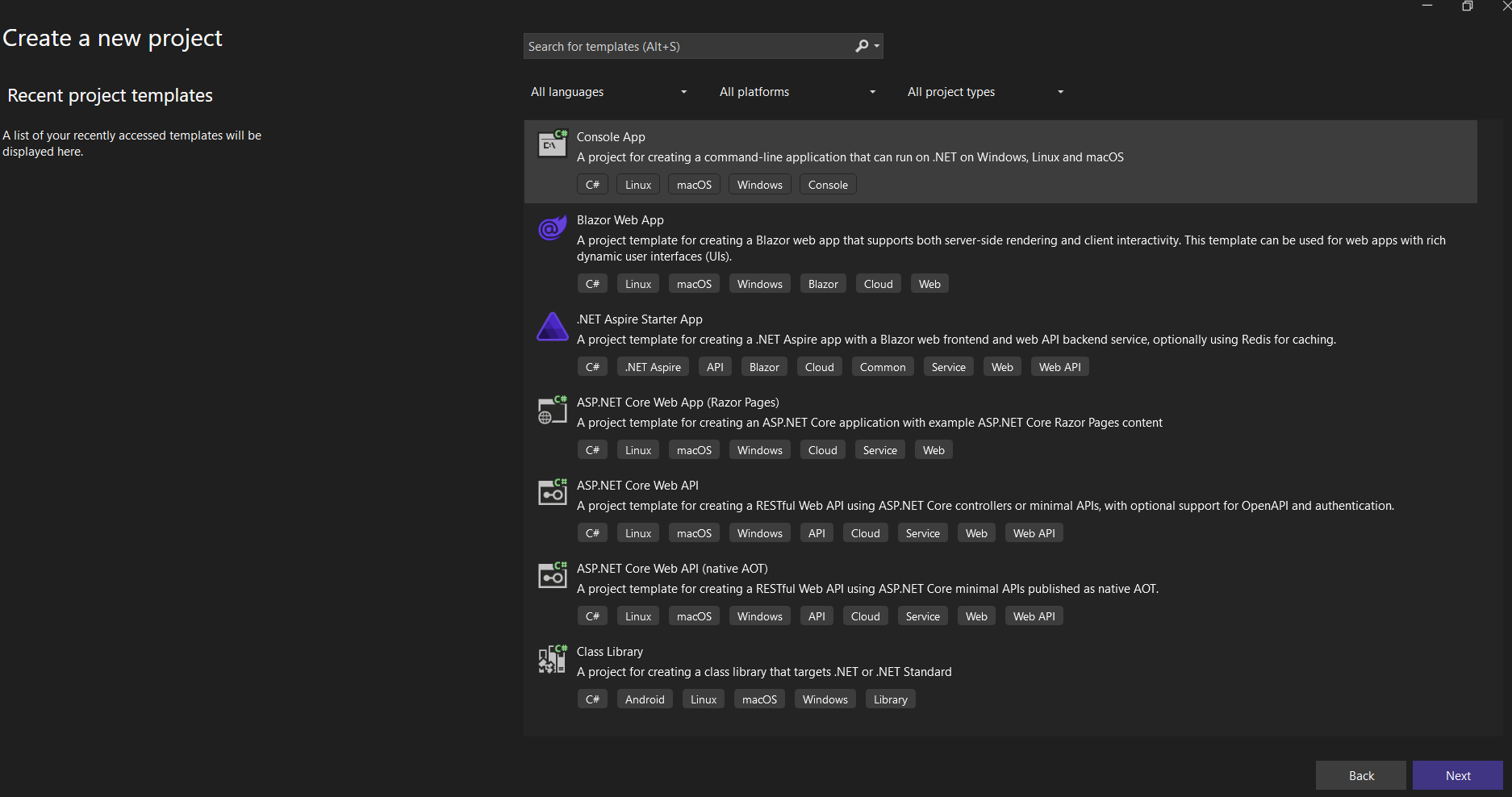
Step 1: Create a new C# .NET Core console application.
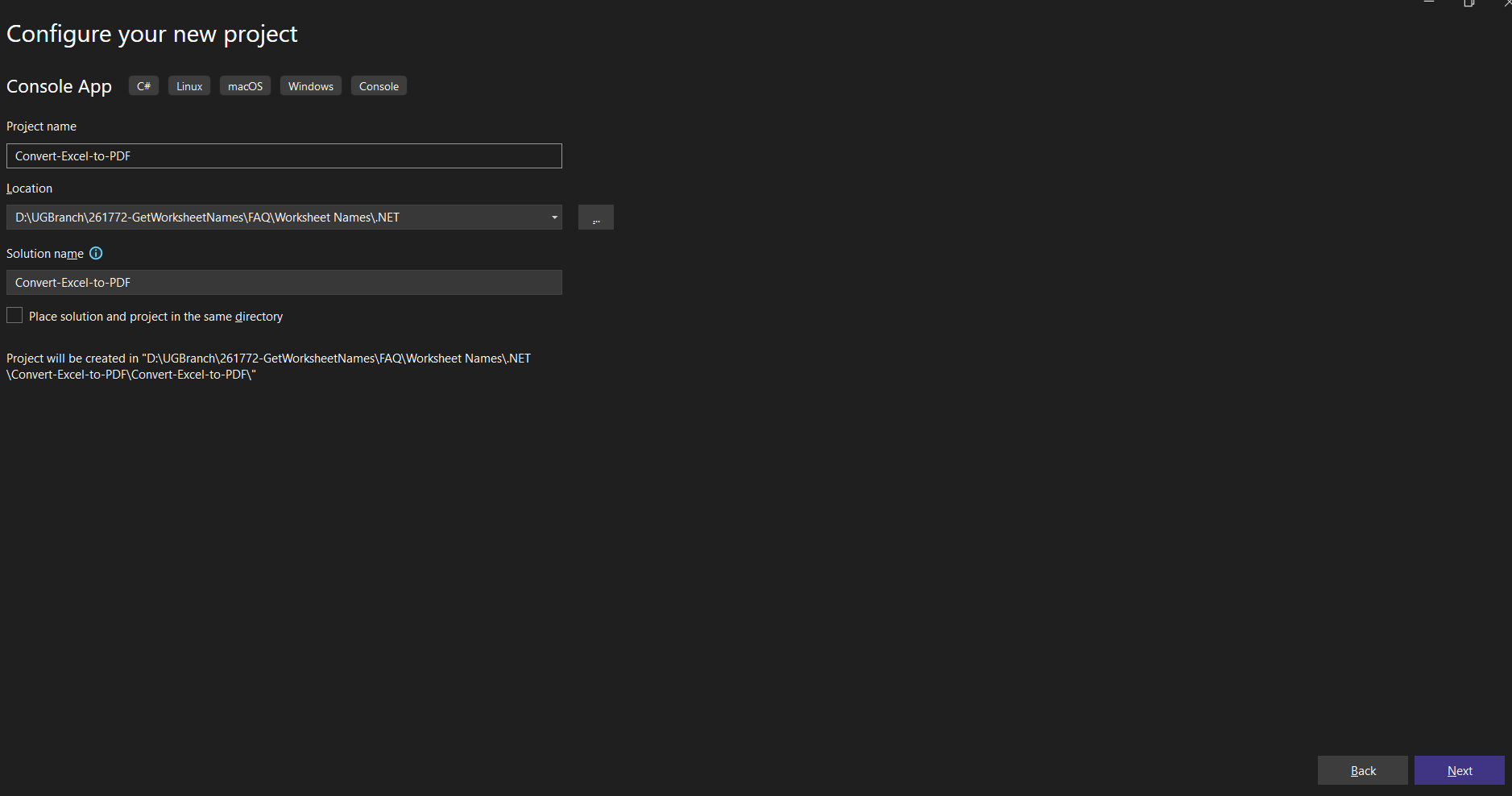
Step 2: Name the project.
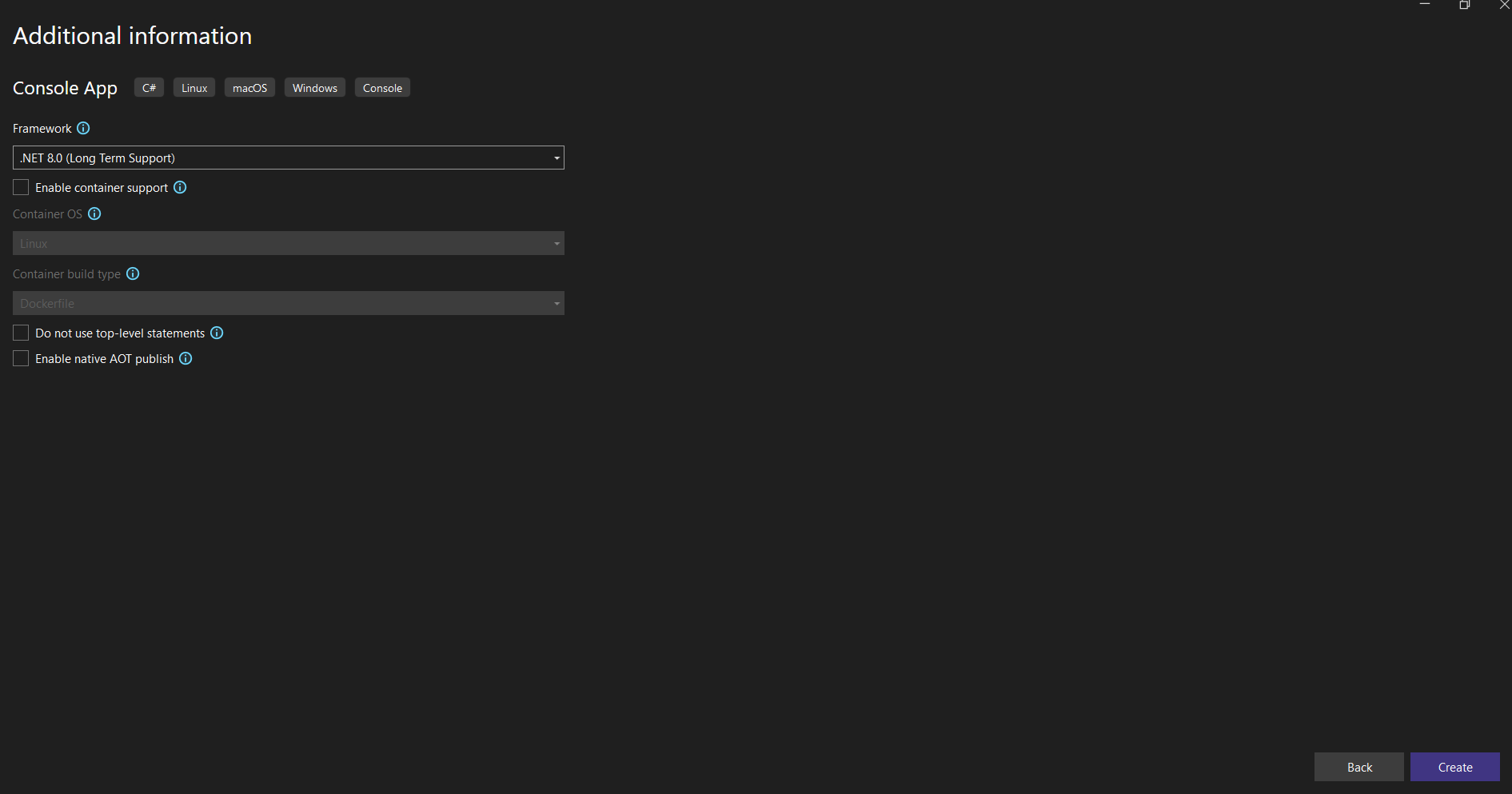
Step 3: Select the framework and click Create.
Step 4: Install the following NuGet packages in your application from NuGet.org by running the following commands. The version numbers below are examples; use the latest stable versions in production.
dotnet add package Syncfusion.XlsIORenderer.Net.Core -v 29.1.41 -s https://www.nuget.org/
dotnet add package SkiaSharp.NativeAssets.Linux -v 3.119.1 -s https://www.nuget.org/
dotnet add package HarfBuzzSharp.NativeAssets.Linux -v 8.3.1.1 -s https://www.nuget.org/
Starting with v16.2.0.x, if you reference Syncfusion® assemblies from the trial setup or from the NuGet feed, you must also add the
Syncfusion.Licensingreference and register a license key. Refer to this link to learn how to register the Syncfusion® license key. The simplest approach is to add the following call at the top of Program.cs before constructing theExcelEngine:Syncfusion.Licensing.SyncfusionLicenseProvider.RegisterLicense("YOUR_LICENSE_KEY");
Step 5: Add the following namespaces in Program.cs.
using Syncfusion.XlsIO;
using Syncfusion.XlsIORenderer;
using Syncfusion.Pdf;
Step 6: Add the following code snippet in Program.cs file.
using (ExcelEngine excelEngine = new ExcelEngine())
{
    IApplication application = excelEngine.Excel;
    application.DefaultVersion = ExcelVersion.Xlsx;

    // Load the existing Excel file.
    IWorkbook workbook = application.Workbooks.Open(Path.GetFullPath("Data/Sample.xlsx"));

    // Convert the Excel document to a PDF document.
    XlsIORenderer renderer = new XlsIORenderer();
    PdfDocument pdfDocument = renderer.ConvertToPDF(workbook);

    #region Save
    //Saving the workbook
    pdfDocument.Save(Path.GetFullPath("Output/Sample.pdf"));
    #endregion
}
Step 1: Create a new Console App project.
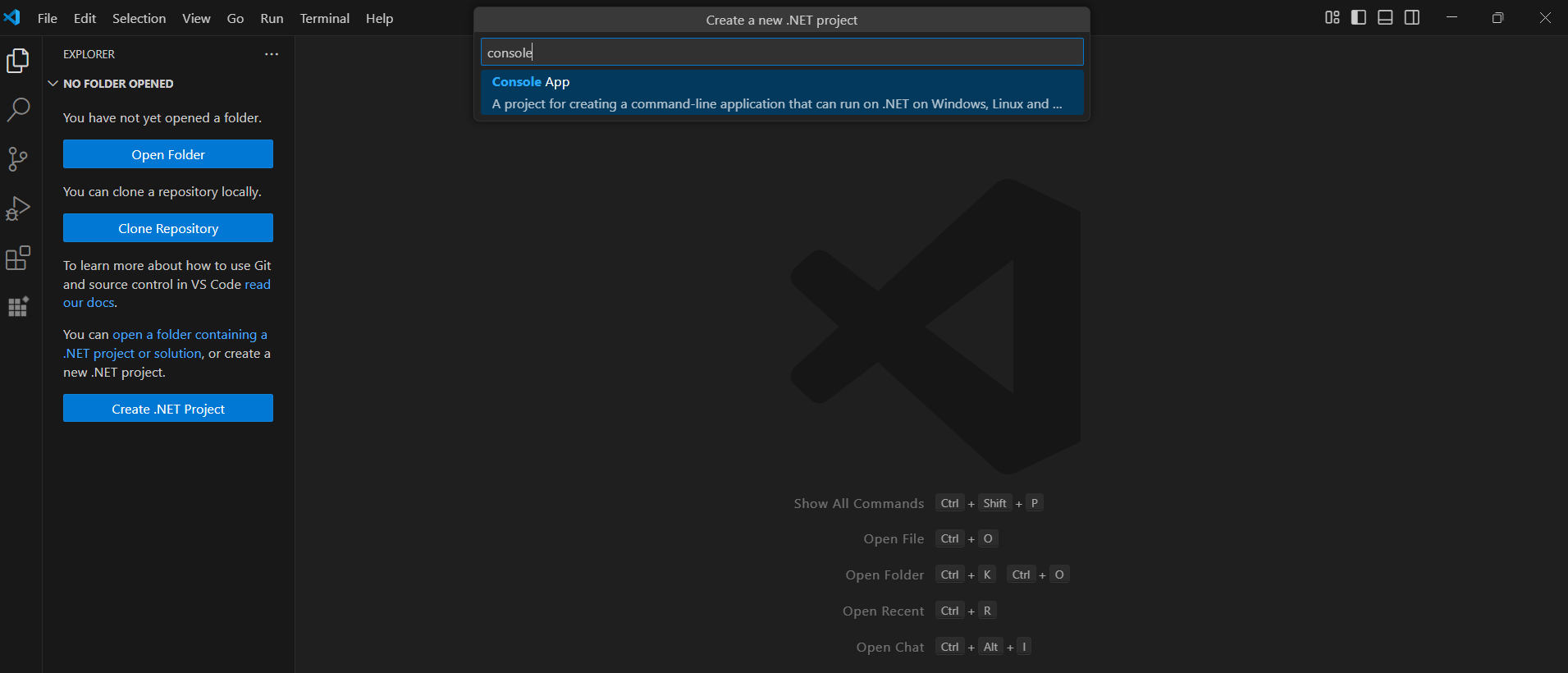
Step 2: Name the project and create the project.
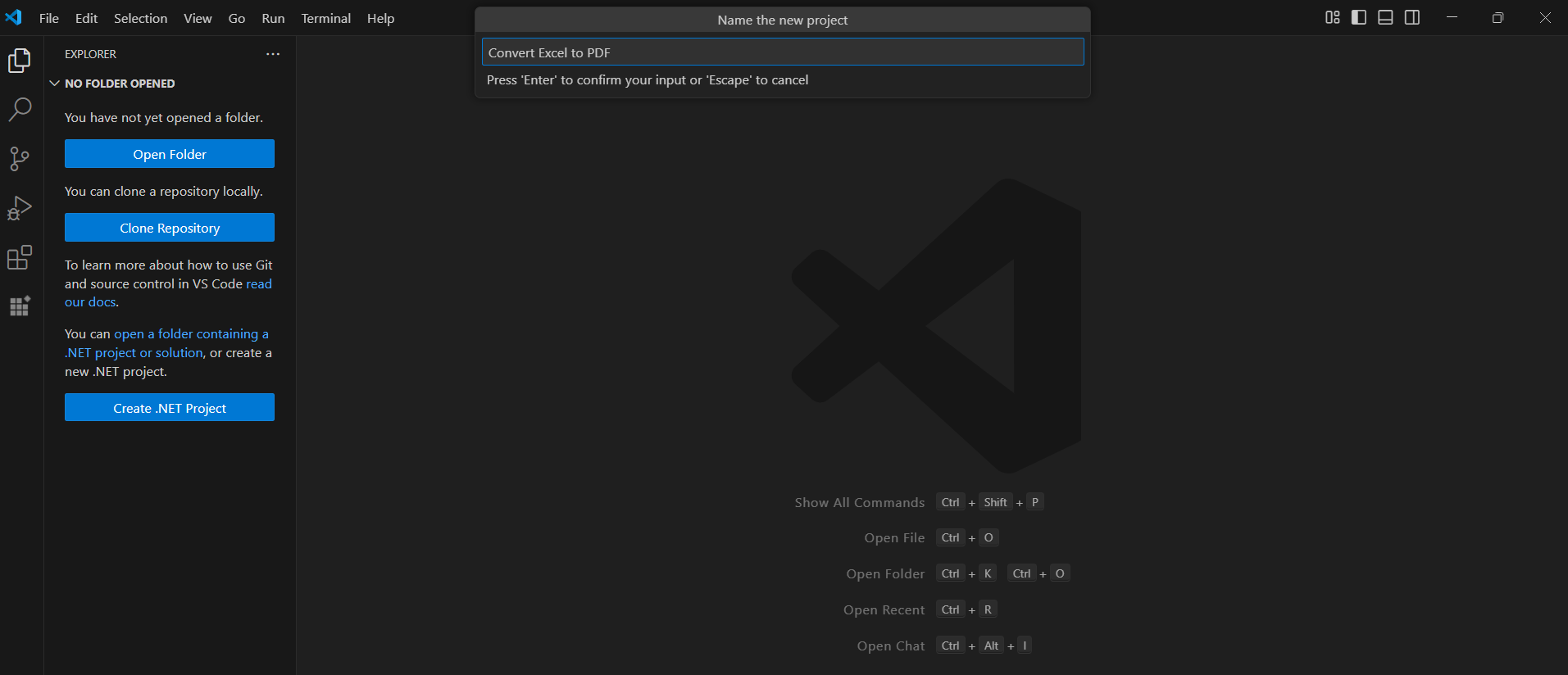
Alternatively, create a .NET console application using the following command in the terminal (Ctrl+`).
dotnet new console -o Convert-Excel-to-PDF
cd Convert-Excel-to-PDF
Step 3: Install the following NuGet packages in your application from NuGet.org by running the following commands. The version numbers below are examples; use the latest stable versions in production.
dotnet add package Syncfusion.XlsIORenderer.Net.Core -v 29.1.41 -s https://www.nuget.org/
dotnet add package SkiaSharp.NativeAssets.Linux -v 3.119.1 -s https://www.nuget.org/
dotnet add package HarfBuzzSharp.NativeAssets.Linux -v 8.3.1.1 -s https://www.nuget.org/
Starting with v16.2.0.x, if you reference Syncfusion® assemblies from the trial setup or from the NuGet feed, you must also add the
Syncfusion.Licensingreference and register a license key. Refer to this link to learn how to register the Syncfusion® license key. The simplest approach is to add the following call at the top of Program.cs before constructing theExcelEngine:Syncfusion.Licensing.SyncfusionLicenseProvider.RegisterLicense("YOUR_LICENSE_KEY");
Step 4: Add the following namespaces in Program.cs.
using Syncfusion.XlsIO;
using Syncfusion.XlsIORenderer;
using Syncfusion.Pdf;
Step 5: Add the following code snippet in Program.cs file.
A complete working example of how to convert an Excel document to PDF on Linux is present on this GitHub page.
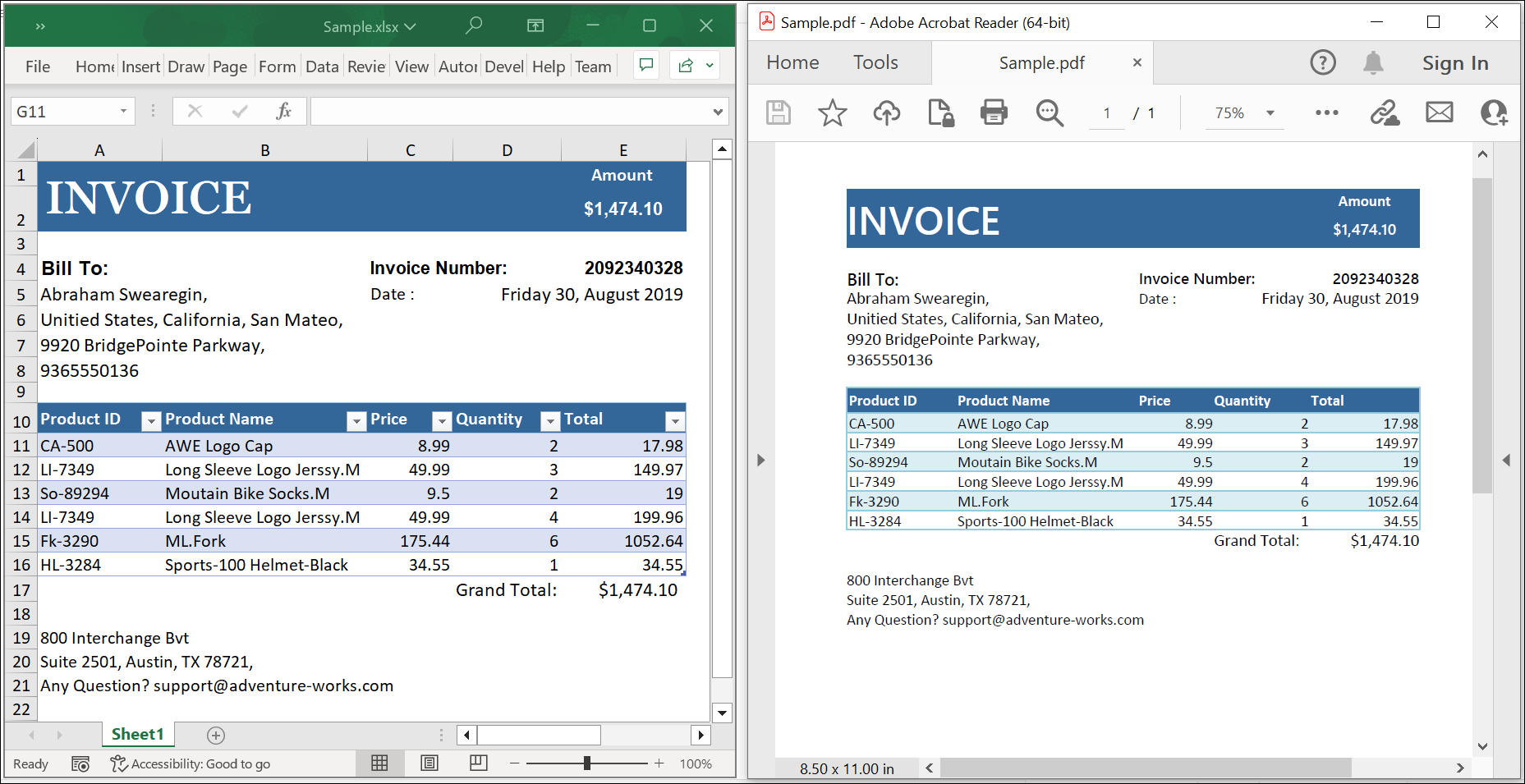
By executing the program, you will get the PDF document as shown below.
Click here to explore the rich set of Syncfusion® Excel library (XlsIO) features.
An online sample link to convert an Excel document to PDF in ASP.NET Core.