Excel to Image Conversion in .NET MAUI using Excel Library
14 Aug 202614 minutes to read
Syncfusion® XlsIO is a .NET MAUI Excel library used to create, read, edit, and convert Excel documents programmatically without Microsoft Excel or interop dependencies. Using this library, you can convert an Excel document to an image in .NET MAUI.
Prerequisites
To create .NET Multi-platform App UI (.NET MAUI) apps, you need the latest versions of Visual Studio 2022 and .NET 8 or later. For more details, refer here.
To create .NET Multi-platform App UI (.NET MAUI) apps using Visual Studio Code, you need the latest versions of the .NET 8 SDK, the MAUI workload (dotnet workload install maui), and additional tools configured for .NET MAUI development. For more details, refer here.
Steps to convert Excel document to Image in .NET MAUI
Step 1: Create a new C# .NET MAUI application project.
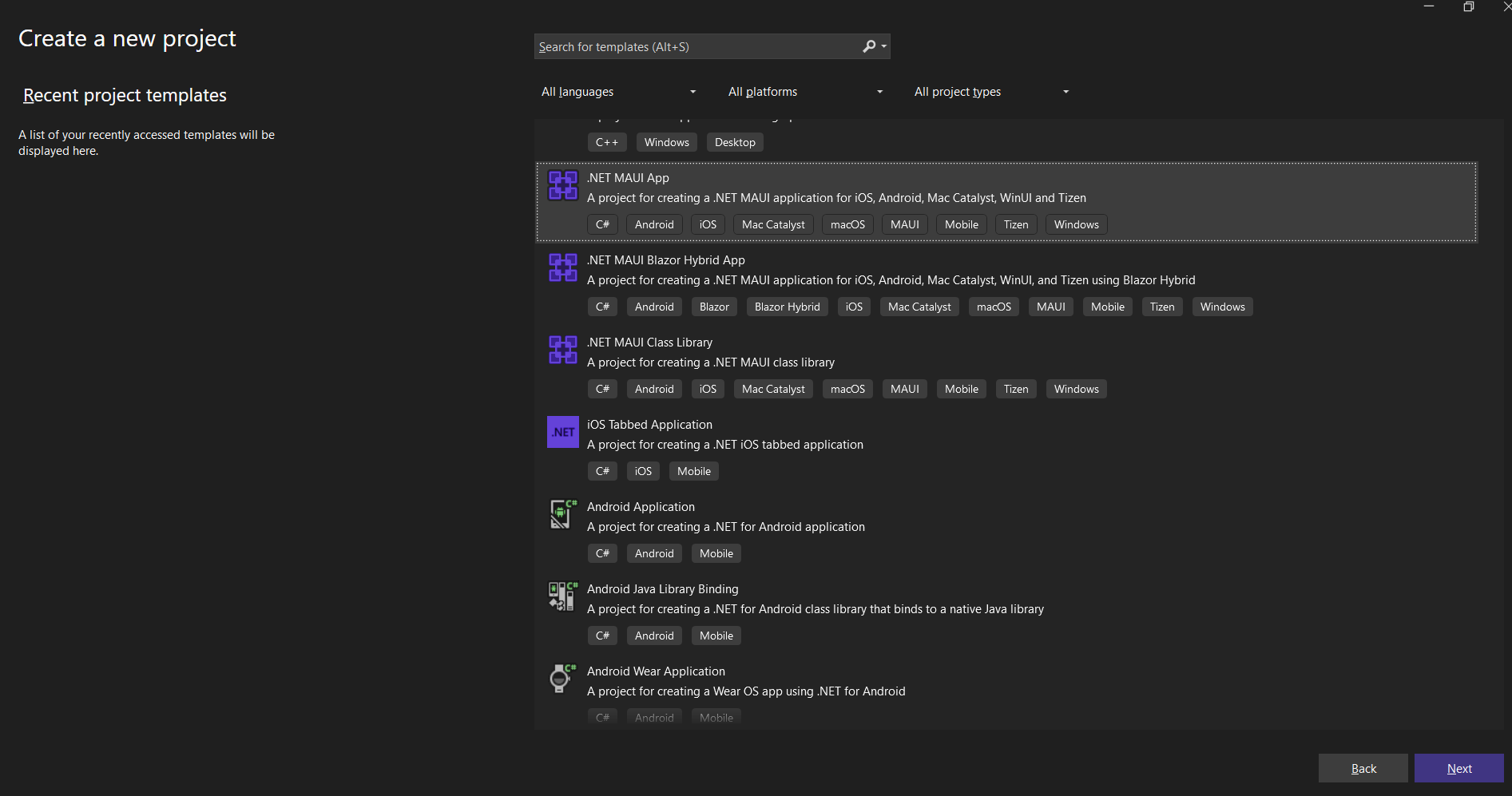
Step 2: Name the project and click Next button.

Step 3: Install the Syncfusion.XlsIORenderer.Net NuGet package as a reference to your project from NuGet.org.
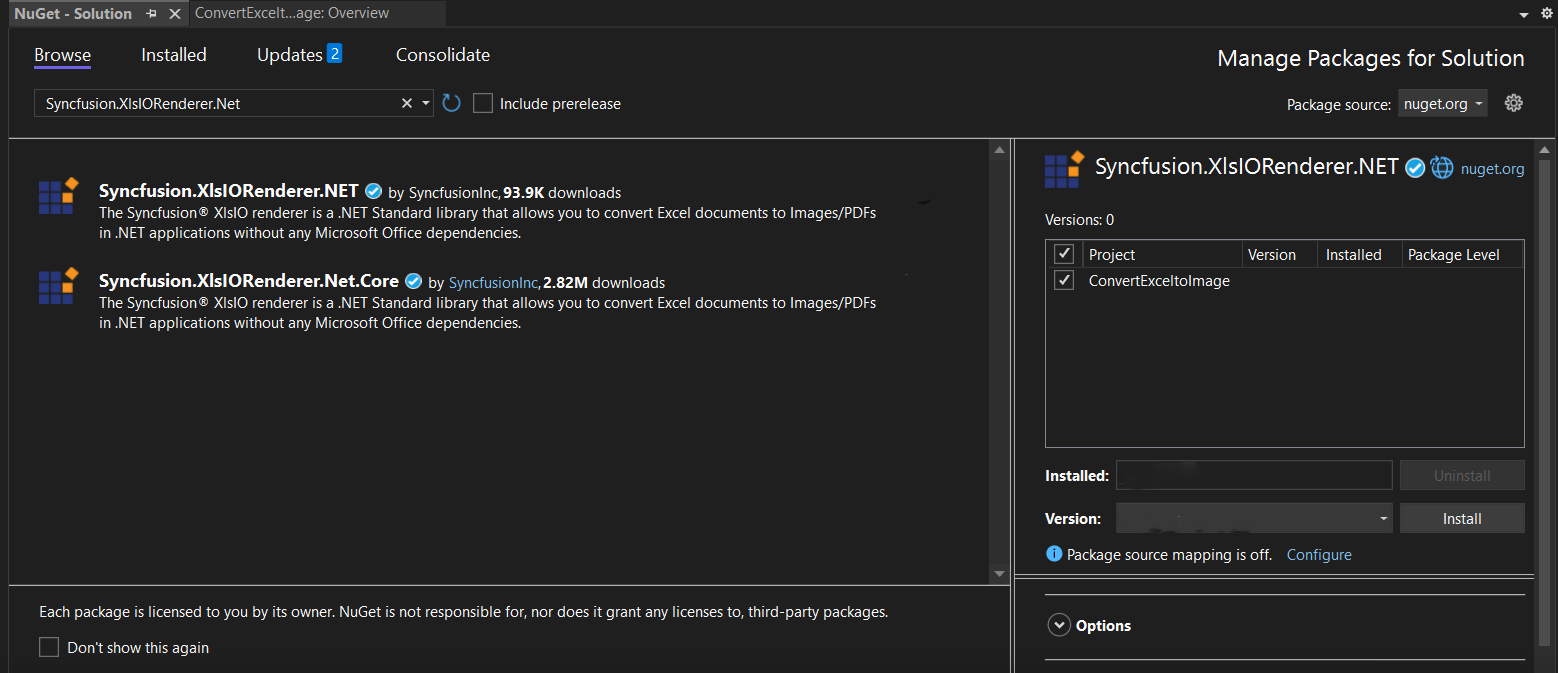
Starting with v16.2.0.x, if you reference Syncfusion® assemblies from trial setup or from the NuGet feed, you also have to add “Syncfusion.Licensing” assembly reference and include a license key in your projects. Please refer to this link to know about registering a Syncfusion® license key in your application to use our components.
Step 4: Add a new button to the MainPage.xaml as shown below.
<?xml version="1.0" encoding="utf-8" ?>
<ContentPage xmlns="http://schemas.microsoft.com/dotnet/2021/maui"
xmlns:x="http://schemas.microsoft.com/winfx/2009/xaml"
x:Class="ConvertExcelToImage.MainPage">
<ScrollView>
<VerticalStackLayout
Padding="30,0"
Spacing="25">
<Image
Source="dotnet_bot.png"
HeightRequest="185"
Aspect="AspectFit"
SemanticProperties.Description="dot net bot in a race car number eight" />
<Label
Text="Hello, World!"
Style="{StaticResource Headline}"
SemanticProperties.HeadingLevel="Level1" />
<Label
Text="Welcome to .NET Multi-platform App UI"
Style="{StaticResource SubHeadline}"
SemanticProperties.HeadingLevel="Level2"
SemanticProperties.Description="Welcome to dot net Multi platform App U I" />
<Button
x:Name="CounterBtn"
Text="Convert Excel to Image"
SemanticProperties.Hint="Counts the number of times you click"
Clicked="convertExceltoImage_Click"
HorizontalOptions="Fill" />
</VerticalStackLayout>
</ScrollView>
</ContentPage>Step 5: Include the following namespaces in the MainPage.xaml.cs file.
using Syncfusion.XlsIO;
using Syncfusion.XlsIORenderer;
The
worksheet.ConvertToImage(IRange, Stream)overload used below requires theXlsIORendererto be assigned toapplication.XlsIORenderer(already shown in the code) and writes the image in PNG format to the suppliedMemoryStream. Ensure a valid Syncfusion license key is registered before running, or an exception is thrown at runtime.
Step 5a: Add a sample Excel file named InputTemplate.xlsx to the project’s Resources/Raw folder, set its Build Action to Embedded Resource, and verify the resource name matches the namespace used in GetManifestResourceStream (e.g., ConvertExcelToImage.InputTemplate.xlsx).
Step 6: Add a new action method convertExceltoImage_Click in MainPage.xaml.cs and include the below code snippet to convert an Excel document to Image.
using (ExcelEngine excelEngine = new ExcelEngine())
{
    Syncfusion.XlsIO.IApplication application = excelEngine.Excel;

    Assembly executingAssembly = typeof(App).GetTypeInfo().Assembly;
    using (Stream inputStream = executingAssembly.GetManifestResourceStream("ConvertExcelToImage.InputTemplate.xlsx"))
    {
        IWorkbook workbook = application.Workbooks.Open(inputStream);
        IWorksheet worksheet = workbook.Worksheets[0];

        //Initialize XlsIO renderer.
        application.XlsIORenderer = new XlsIORenderer();

        //Create the MemoryStream to save the image.
        MemoryStream imageStream = new MemoryStream();

        //Save the converted image to MemoryStream.
        worksheet.ConvertToImage(worksheet.UsedRange, imageStream);
        imageStream.Position = 0;

        //save and Launch the Image
        SaveService saveService = new();
        saveService.SaveAndView("ExcelToImage.Jpeg", "application/jpeg", imageStream);
    }
}
Step 1: Create a new C# .NET MAUI application project using Create .NET Project option.

Step 2: Name the project and create the project.

Alternatively, create a .NET MAUI application using the following command in the terminal (Ctrl+`):
dotnet new maui -o ConvertExcelToImage
cd ConvertExcelToImage
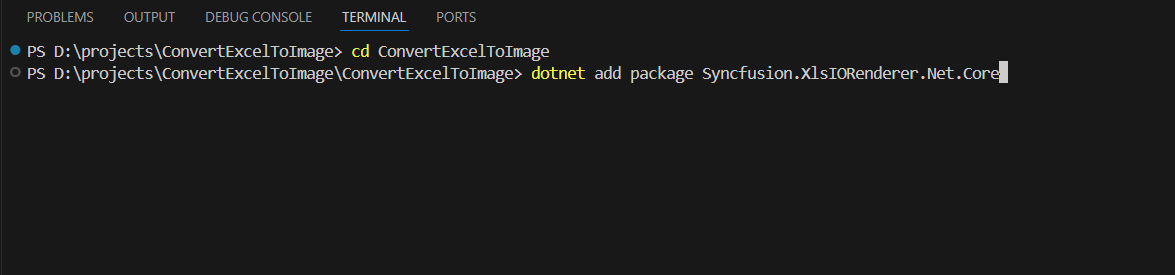
Step 3: To convert an Excel document to an image in a .NET MAUI app, run the following command to install the Syncfusion.XlsIORenderer.NET.Core NuGet package.
dotnet add package Syncfusion.XlsIORenderer.Net.Core
Starting with v16.2.0.x, if you reference Syncfusion® assemblies from trial setup or from the NuGet feed, you also have to add “Syncfusion.Licensing” assembly reference and include a license key in your projects. Please refer to this link to know about registering a Syncfusion® license key in your application to use our components.
Step 4: Add a new button to the MainPage.xaml as shown below.
<?xml version="1.0" encoding="utf-8" ?>
<ContentPage xmlns="http://schemas.microsoft.com/dotnet/2021/maui"
xmlns:x="http://schemas.microsoft.com/winfx/2009/xaml"
x:Class="ConvertExcelToImage.MainPage">
<ScrollView>
<VerticalStackLayout
Padding="30,0"
Spacing="25">
<Image
Source="dotnet_bot.png"
HeightRequest="185"
Aspect="AspectFit"
SemanticProperties.Description="dot net bot in a race car number eight" />
<Label
Text="Hello, World!"
Style="{StaticResource Headline}"
SemanticProperties.HeadingLevel="Level1" />
<Label
Text="Welcome to .NET Multi-platform App UI"
Style="{StaticResource SubHeadline}"
SemanticProperties.HeadingLevel="Level2"
SemanticProperties.Description="Welcome to dot net Multi platform App U I" />
<Button
x:Name="CounterBtn"
Text="Convert Excel to Image"
SemanticProperties.Hint="Counts the number of times you click"
Clicked="convertExceltoImage_Click"
HorizontalOptions="Fill" />
</VerticalStackLayout>
</ScrollView>
</ContentPage>Step 5: Include the following namespaces in the MainPage.xaml.cs file.
using Syncfusion.XlsIO;
using Syncfusion.XlsIORenderer;
The
worksheet.ConvertToImage(IRange, Stream)overload used below requires theXlsIORendererto be assigned toapplication.XlsIORenderer(already shown in the code) and writes the image in PNG format to the suppliedMemoryStream. Ensure a valid Syncfusion license key is registered before running, or an exception is thrown at runtime.
Step 5a: Add a sample Excel file named InputTemplate.xlsx to the project’s Resources/Raw folder, set its Build Action to Embedded Resource, and verify the resource name matches the namespace used in GetManifestResourceStream (e.g., ConvertExcelToImage.InputTemplate.xlsx).
Step 6: Add a new action method convertExceltoImage_Click in MainPage.xaml.cs and include the below code snippet to convert an Excel document to Image.
using (ExcelEngine excelEngine = new ExcelEngine())
{
    Syncfusion.XlsIO.IApplication application = excelEngine.Excel;

    Assembly executingAssembly = typeof(App).GetTypeInfo().Assembly;
    using (Stream inputStream = executingAssembly.GetManifestResourceStream("ConvertExcelToImage.InputTemplate.xlsx"))
    {
        IWorkbook workbook = application.Workbooks.Open(inputStream);
        IWorksheet worksheet = workbook.Worksheets[0];

        //Initialize XlsIO renderer.
        application.XlsIORenderer = new XlsIORenderer();

        //Create the MemoryStream to save the image.
        MemoryStream imageStream = new MemoryStream();

        //Save the converted image to MemoryStream.
        worksheet.ConvertToImage(worksheet.UsedRange, imageStream);
        imageStream.Position = 0;

        //save and Launch the Image
        SaveService saveService = new();
        saveService.SaveAndView("ExcelToImage.Jpeg", "application/jpeg", imageStream);
    }
}
Helper files for .NET MAUI
Refer the below helper files and add them into the mentioned project. These helper files allow you to save the stream as a physical file and open the file for viewing.
| Folder Name | File Name | Summary |
| .NET MAUI Project | SaveService.cs | Represents the base class for save operation. |
| Windows | SaveWindows.cs | Save implementation for Windows. |
| Android | SaveAndroid.cs | Save implementation for Android device. |
| Mac Catalyst | SaveMac.cs | Save implementation for Mac Catalyst device. |
| iOS | SaveIOS.cs | Save implementation for the iOS device. |
|
PreviewControllerDS.cs QLPreviewItemFileSystem.cs |
Helper classes for viewing the Excel document on the iOS device. |
A complete working example of how to convert an Excel document to Image in .NET MAUI is present on this GitHub page.
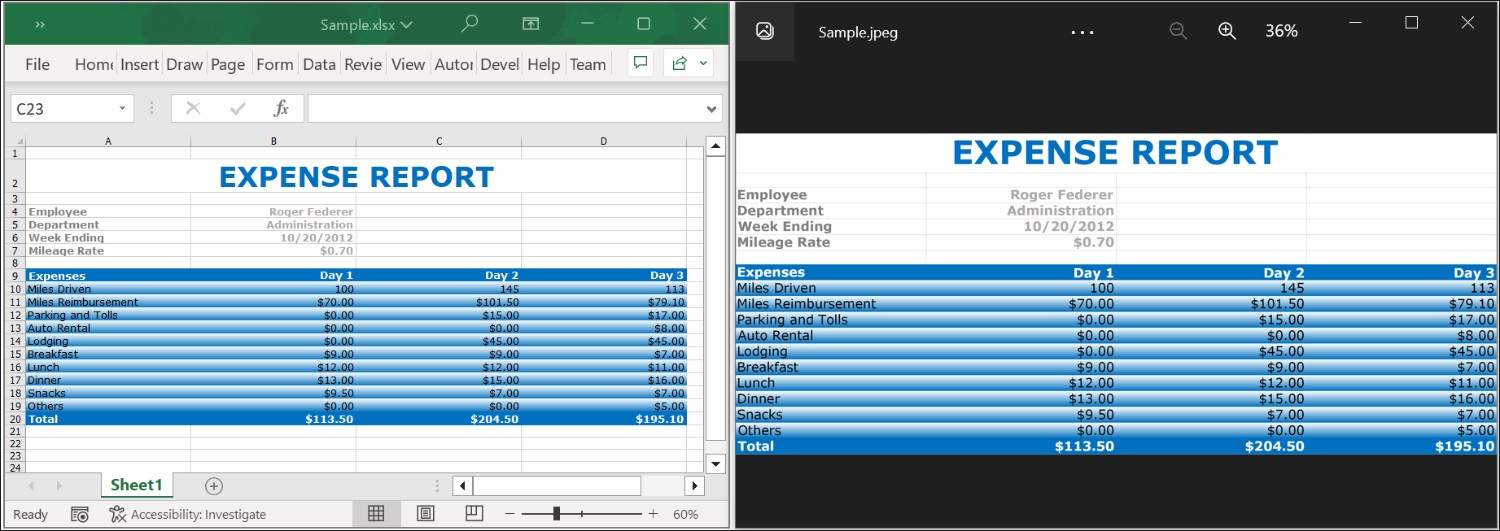
By executing the program, you will get the Image as follows.
Click here to explore the rich set of Syncfusion® Excel library (XlsIO) features.
An online sample link to convert an Excel document to Image in ASP.NET Core.