Excel to Image Conversion in Mac using Excel Library
14 Aug 20266 minutes to read
Syncfusion® XlsIO is a .NET Core Excel library used to create, read, edit, and convert Excel documents programmatically without Microsoft Excel or interop dependencies. Using this library, you can convert an Excel document to an image on Mac.
Prerequisites
Install the following before proceeding:
-
.NET SDK 6.0 or later (verify with
dotnet --version). - Supported macOS versions: macOS 11 (Big Sur) or later, on both Intel and Apple Silicon (M1/M2/M3) Macs.
- A valid Syncfusion license key registered in the project (see the licensing note after Step 4 / Step 3).
Steps to convert an Excel document to Image on Mac
Step 1: Create a new C# .NET Core console application.
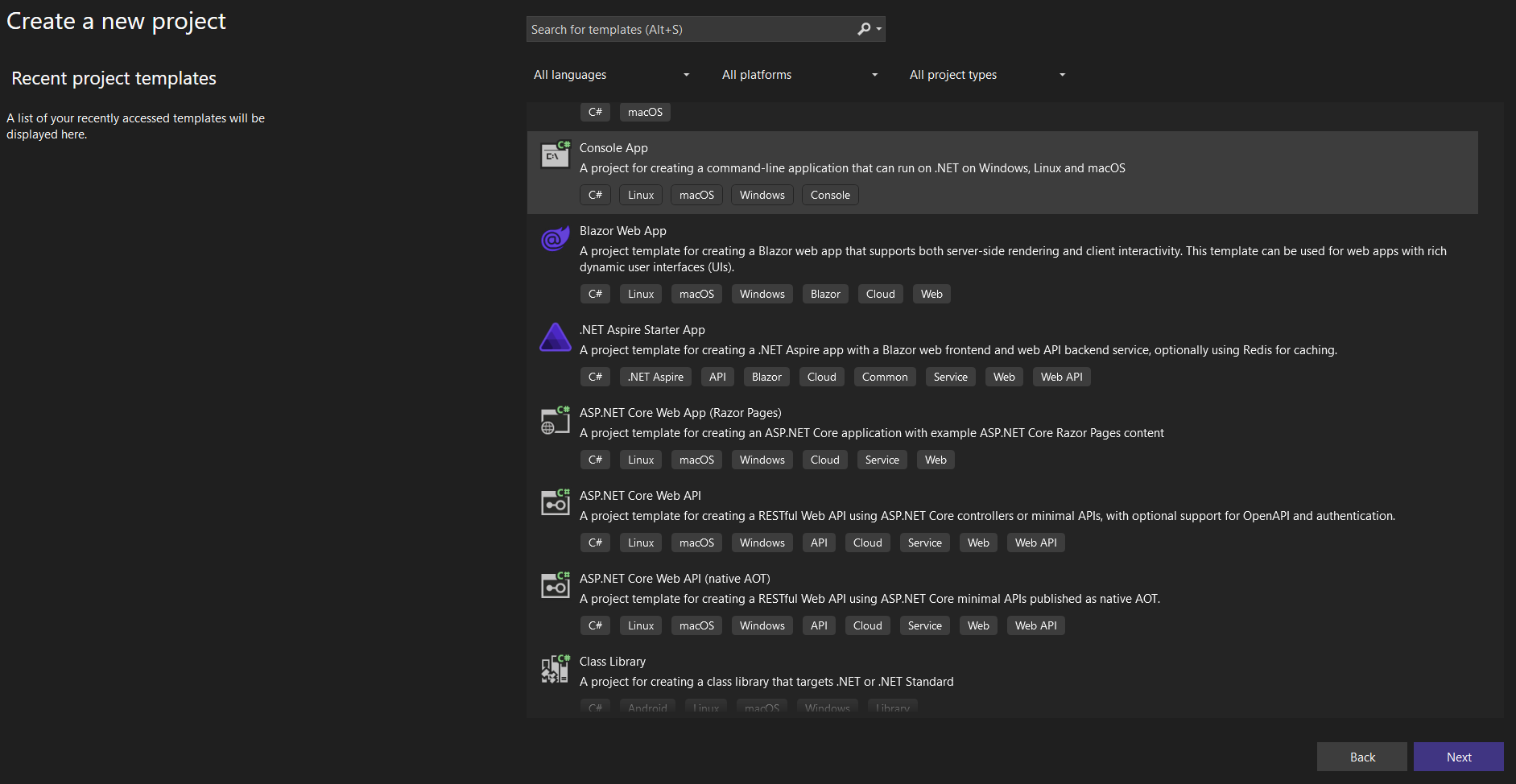
Step 2: Name the project.

Step 3: Select the framework and click Create button.

Step 4: Install the Syncfusion.XlsIORenderer.Net.Core NuGet package as a reference to your project from NuGet.org.
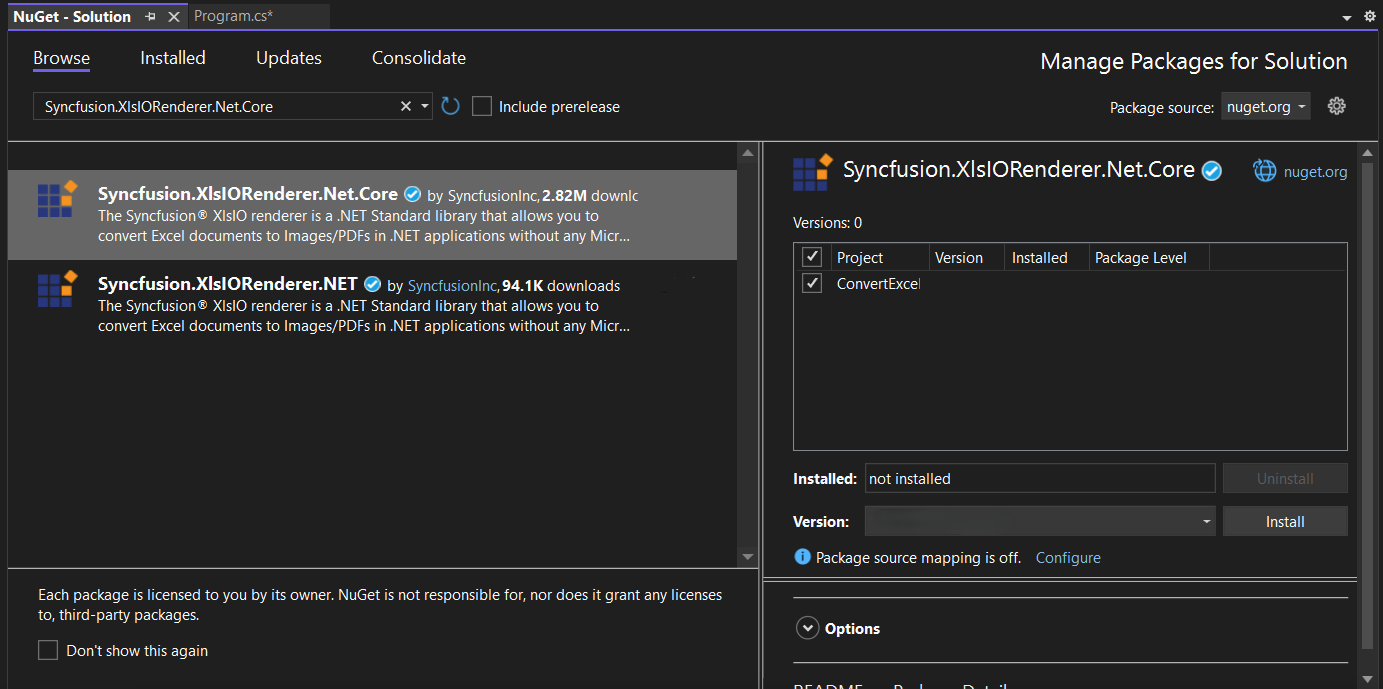
Starting with v16.2.0.x, if you reference Syncfusion® assemblies from trial setup or from the NuGet feed, you also have to add “Syncfusion.Licensing” assembly reference and include a license key in your projects. Please refer to this link to know about registering Syncfusion® license key in your applications to use our components.
Step 5: Include the following Namespaces in the Program.cs file.
using Syncfusion.XlsIO;
using Syncfusion.XlsIORenderer;
Step 6: Add the following code snippet in Program.cs file.
The
worksheet.ConvertToImage(IRange, Stream)overload used below requires theXlsIORendererto be assigned toapplication.XlsIORenderer(already shown in the code) and writes the image to the suppliedMemoryStreamin PNG format. The file is saved with a.jpegextension for compatibility; if you need a true JPEG, convert the PNG bytes or use theIImageOrPrintOptionsoverload. Ensure that a valid Syncfusion license key is registered before running.
using (ExcelEngine excelEngine = new ExcelEngine())
{
    IApplication application = excelEngine.Excel;
    application.DefaultVersion = ExcelVersion.Xlsx;
    IWorkbook workbook = application.Workbooks.Open("Sample.xlsx");
    IWorksheet worksheet = workbook.Worksheets[0];

    //Initialize XlsIORenderer (required by ConvertToImage(IRange, Stream))
    application.XlsIORenderer = new XlsIORenderer();

    //Create the MemoryStream to save the image
    MemoryStream imageStream = new MemoryStream();

    //Save the converted image to MemoryStream
    worksheet.ConvertToImage(worksheet.UsedRange, imageStream);
    imageStream.Position = 0;

    #region Save
    FileStream outputStream = new FileStream(Path.GetFullPath("Output/Sample.jpeg"), FileMode.Create, FileAccess.Write);
    imageStream.CopyTo(outputStream);
    #endregion

    //Dispose streams
    outputStream.Dispose();
}
Step 1: Create a new C# .NET Core console application.
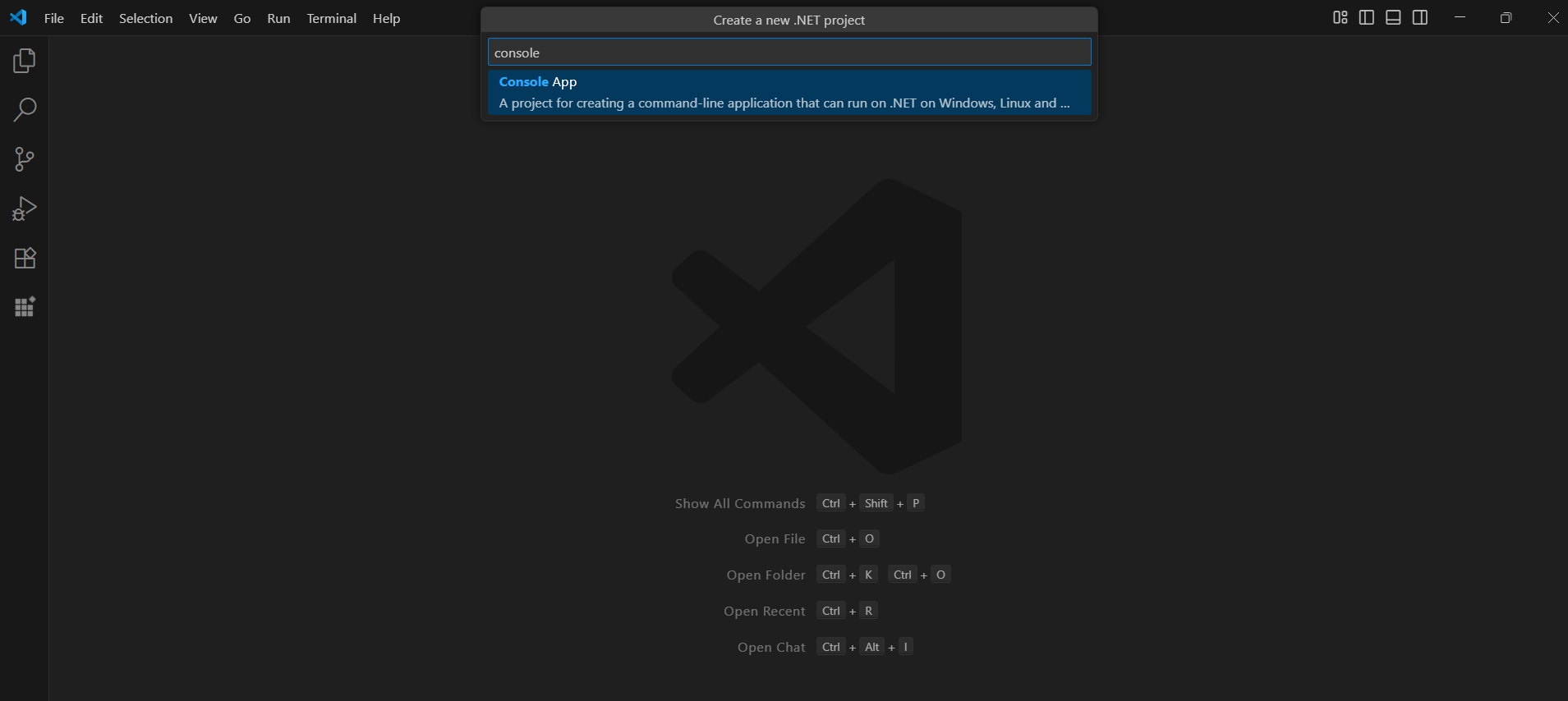
Step 2: Name the project and create the project.
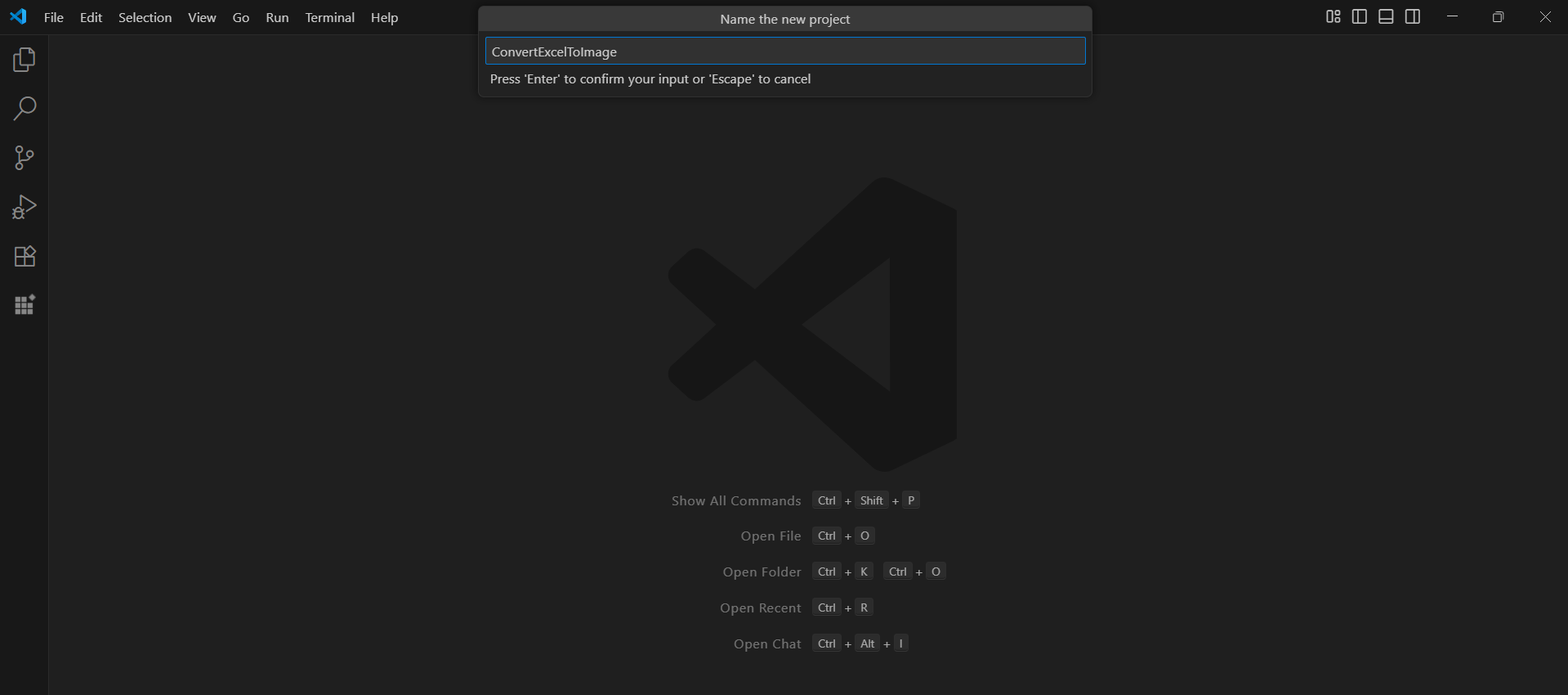
Alternatively, create a .NET Core console application using the following command in the terminal (Ctrl+`).
dotnet new console -o ConvertExcelToImage
cd ConvertExcelToImage
Step 3: To convert an Excel document to an image in a .NET Core app, run the following command to install the Syncfusion.XlsIORenderer.NET.Core NuGet package.
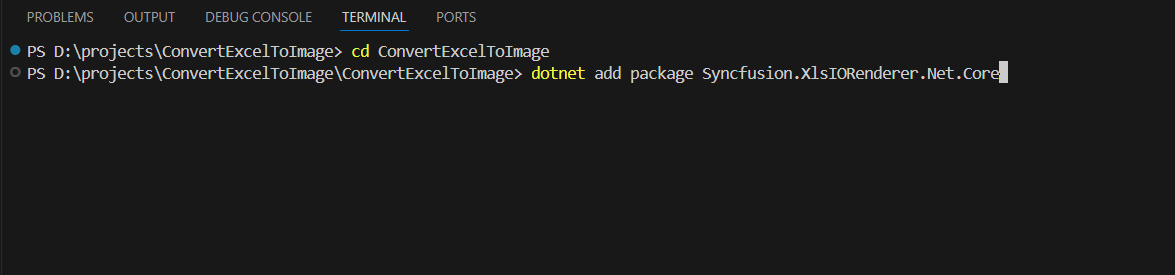
dotnet add package Syncfusion.XlsIORenderer.Net.Core
Starting with v16.2.0.x, if you reference Syncfusion® assemblies from trial setup or from the NuGet feed, you also have to add “Syncfusion.Licensing” assembly reference and include a license key in your projects. Please refer to this link to know about registering Syncfusion® license key in your applications to use our components.
Step 4: Include the following Namespaces in the Program.cs file.
using Syncfusion.XlsIO;
using Syncfusion.XlsIORenderer;
Step 5: Add the following code snippet in Program.cs file.
The
worksheet.ConvertToImage(IRange, Stream)overload used below requires theXlsIORendererto be assigned toapplication.XlsIORenderer(already shown in the code) and writes the image to the suppliedMemoryStreamin PNG format. The file is saved with a.jpegextension for compatibility; if you need a true JPEG, convert the PNG bytes or use theIImageOrPrintOptionsoverload. Ensure that a valid Syncfusion license key is registered before running.
using (ExcelEngine excelEngine = new ExcelEngine())
{
    IApplication application = excelEngine.Excel;
    application.DefaultVersion = ExcelVersion.Xlsx;
    IWorkbook workbook = application.Workbooks.Open("Sample.xlsx");
    IWorksheet worksheet = workbook.Worksheets[0];

    //Initialize XlsIORenderer (required by ConvertToImage(IRange, Stream))
    application.XlsIORenderer = new XlsIORenderer();

    //Create the MemoryStream to save the image
    MemoryStream imageStream = new MemoryStream();

    //Save the converted image to MemoryStream
    worksheet.ConvertToImage(worksheet.UsedRange, imageStream);
    imageStream.Position = 0;

    #region Save
    FileStream outputStream = new FileStream(Path.GetFullPath("Output/Sample.jpeg"), FileMode.Create, FileAccess.Write);
    imageStream.CopyTo(outputStream);
    #endregion

    //Dispose streams
    outputStream.Dispose();
}
You can download a complete working sample from this GitHub page.
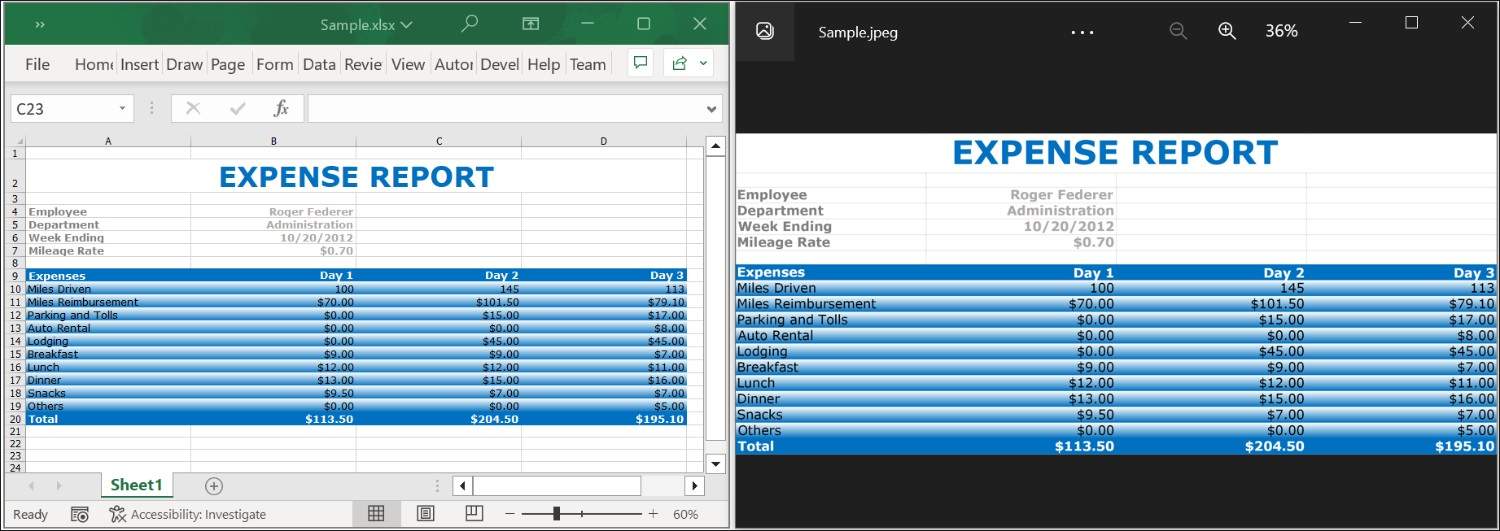
By executing the program, you will get the Image as follows.
Click here to explore the rich set of Syncfusion® Excel library (XlsIO) features.
An online sample link to convert an Excel document to Image in ASP.NET Core.