Getting Started with Linux OCR Processor
14 Aug 20263 minutes to read
The .NET OCR library is used to extract text from scanned PDFs and images in .NET console applications on Linux with the help of Google’s Tesseract Optical Character Recognition engine.
Prerequisites
Version Compatibility
- Syncfusion.PDF.OCR.Net.Core supports .NET 8.0 and later versions.
Supported Inputs
The OCR processor supports the following input formats:
- Single-page and multi-page PDF documents
- Scanned images in common formats (JPEG, PNG, TIFF)
- Recommended DPI: 200 DPI or higher for optimal OCR accuracy
Required Software
- .NET 8.0 or later version
- Linux x86_64 architecture
Register the License Key
Starting with v16.2.0.x, if you reference Syncfusion® assemblies from trial setup or from the NuGet feed, you must add the Syncfusion.Licensing assembly reference and register a license key in your application. For more information, see the licensing documentation.
Include the following code in the Program.cs file to register the license key:
using Syncfusion.Licensing;

// Register Syncfusion license at application startup
SyncfusionLicenseProvider.RegisterLicense("YOUR LICENSE KEY");
- Beginning from version 21.1.x, the TesseractBinaries and Tesseract language data folders are now included by default; you no longer have to set these paths explicitly.
- The current NuGet package includes Tesseract 5.0, which provides support for 100+ languages.
Linux Dependencies
The following Linux system dependencies should be installed where the OCR processing takes place:
sudo apt-get update
sudo apt-get install libgdiplus
sudo apt-get install libc6-dev
sudo apt-get install libleptonica-dev libjpeg62
ln -s /usr/lib/x86_64-linux-gnu/libtiff.so.6 /usr/lib/x86_64-linux-gnu/libtiff.so.5
ln -s /lib/x86_64-linux-gnu/libdl.so.2 /usr/lib/x86_64-linux-gnu/libdl.so
Steps to perform OCR on an entire PDF document on Linux
Step 1: Execute the following command in the Linux terminal to create a new .NET Core Console application:
dotnet new console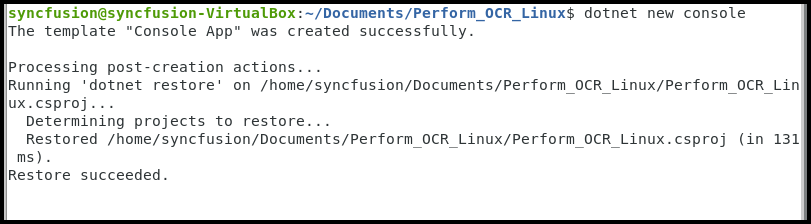
Step 2: Install the Syncfusion.PDF.OCR.Net.Core NuGet package into your .NET Core application from NuGet.org:
dotnet add package Syncfusion.PDF.OCR.Net.Core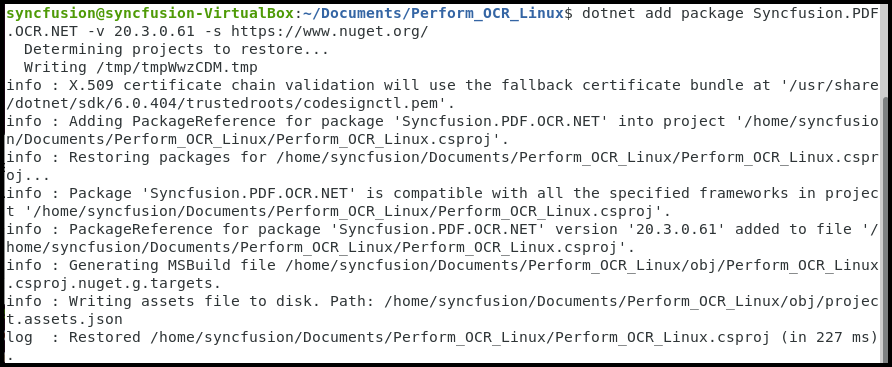
Step 3: Include the following namespaces in Program.cs file.
using Syncfusion.OCRProcessor;
using Syncfusion.Pdf;
using Syncfusion.Pdf.Parsing;
Step 4: Add the following code sample to perform OCR on an entire PDF document using the PerformOCR method of the OCRProcessor class.
string docPath = "Input.pdf";

//Initialize the OCR processor
using (OCRProcessor processor = new OCRProcessor())
{
    //Load the PDF document
    FileStream stream = new FileStream(docPath, FileMode.Open, FileAccess.Read);
    PdfLoadedDocument lDoc = new PdfLoadedDocument(stream);
    //Set the Tesseract version.
    processor.Settings.TesseractVersion = TesseractVersion.Version5_0;
    //Set OCR language to process.
    processor.Settings.Language = Languages.English;
    //Process OCR by providing the PDF document.
    processor.PerformOCR(lDoc);
    //Save the OCR processed PDF document to disk.
    lDoc.Save("Output.pdf");
    lDoc.Close(true);
    stream.Dispose();
    Console.WriteLine("OCR processing completed successfully!");
}
Step 5: Execute the following command to build the application:
dotnet build
Step 6: Execute the following command in the terminal to run the application:
dotnet run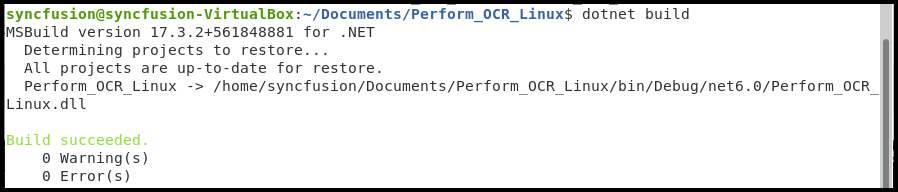
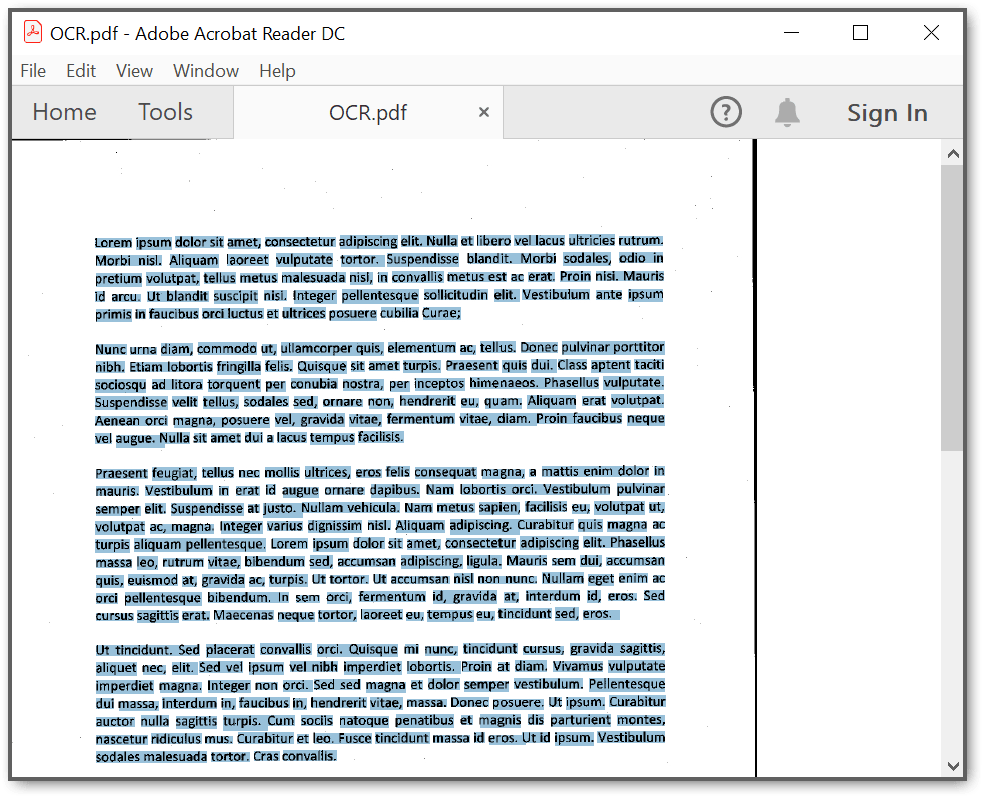
By executing the program, you will get a PDF document with extracted text. The output will be saved in the same directory as the executable:
A complete working sample can be downloaded from Github.