Getting Started with AWS Textract OCR Processor
14 Aug 202610 minutes to read
The .NET OCR library supports external OCR engines such as AWS Textract to process OCR on images and PDF documents.
Prerequisites
Version Compatibility
- Syncfusion.PDF.OCR.Net.Core supports .NET 8.0 and later versions.
Supported Inputs
The OCR processor supports the following input formats:
- Single-page and multi-page PDF documents
- Scanned images in common formats (JPEG, PNG, TIFF)
- Recommended DPI: 200 DPI or higher for optimal OCR accuracy
Required Software
- .NET 8 SDK or later
- AWS subscription with Textract API access
Register the License Key
Starting with v16.2.0.x, if you reference Syncfusion® assemblies from trial setup or from the NuGet feed, you must add the Syncfusion.Licensing assembly reference and register a license key in your application. For more information, see the licensing documentation.
Include the following code in the Program.cs file to register the license key:
using Syncfusion.Licensing;

// Register Syncfusion license at application startup
SyncfusionLicenseProvider.RegisterLicense("YOUR LICENSE KEY");
- Beginning from version 21.1.x, the TesseractBinaries and Tesseract language data folders are now included by default; you no longer have to set these paths explicitly.
- The current NuGet package includes Tesseract 5.0, which provides support for 100+ languages.
Steps to perform OCR with AWS Textract
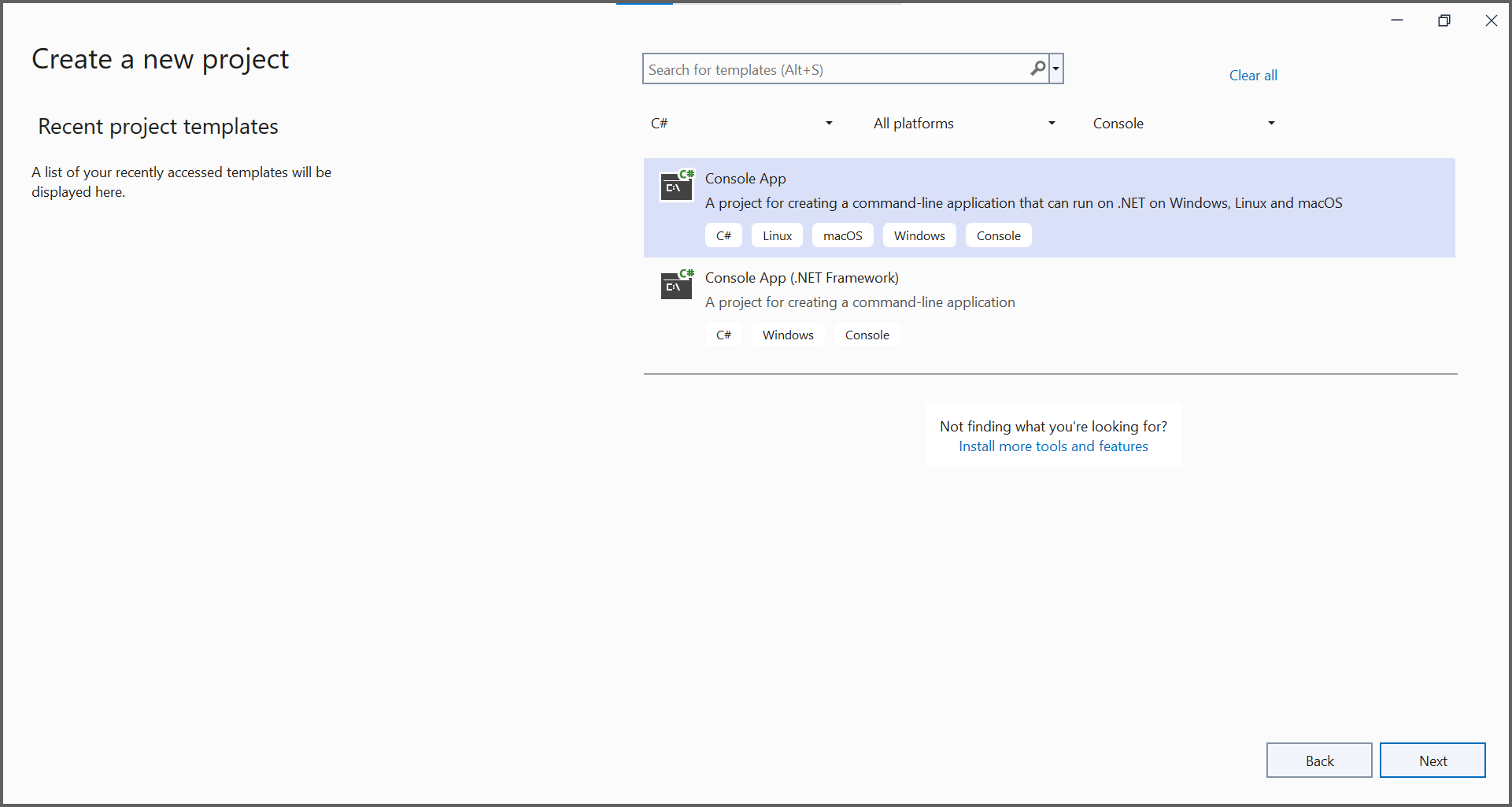
Step 1: Create a new .NET Console application project targeting .NET Framework 4.6.2 or .NET 8 or later:
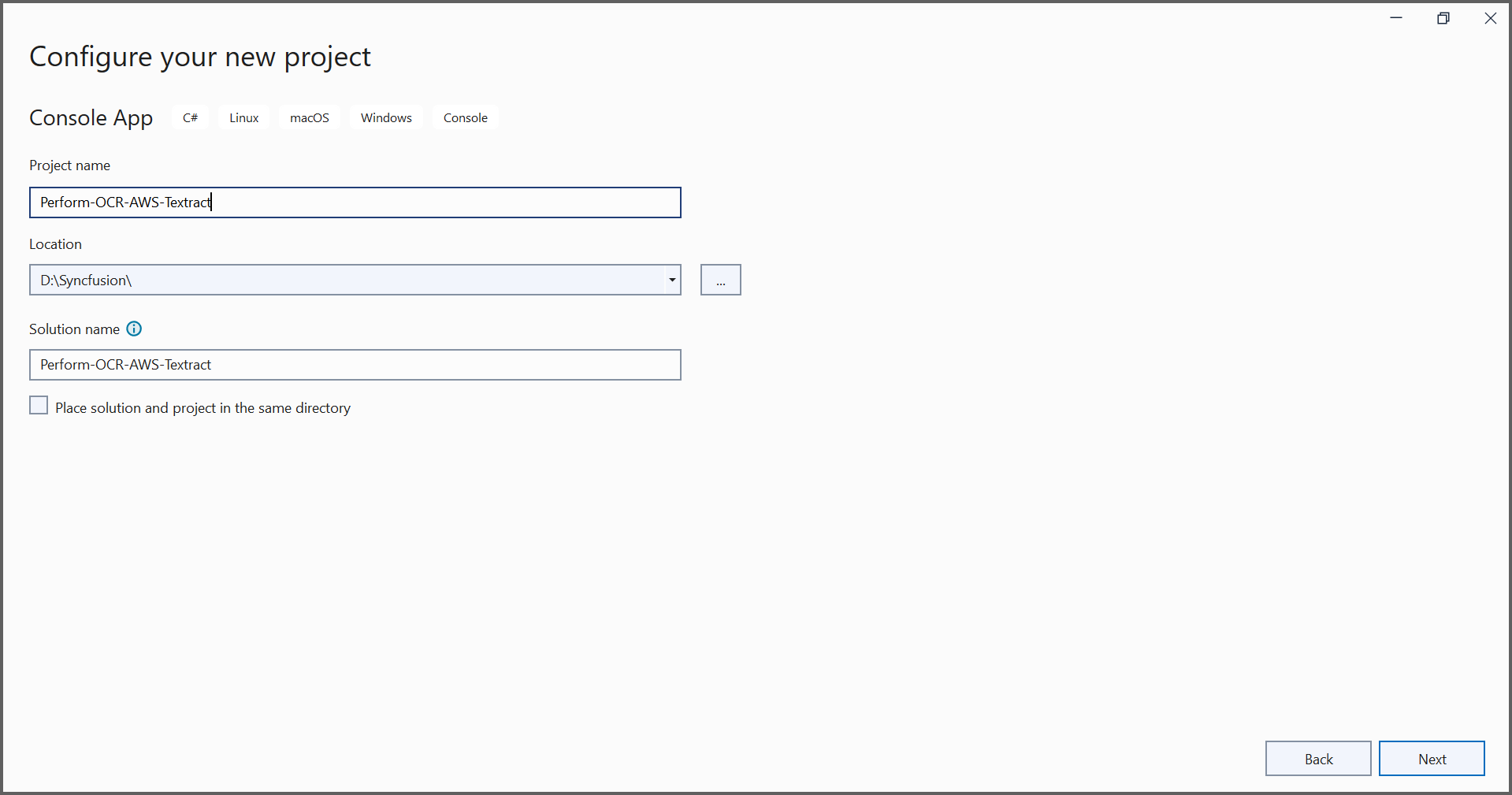
Step 2: In the project configuration window, name your project and select Next:
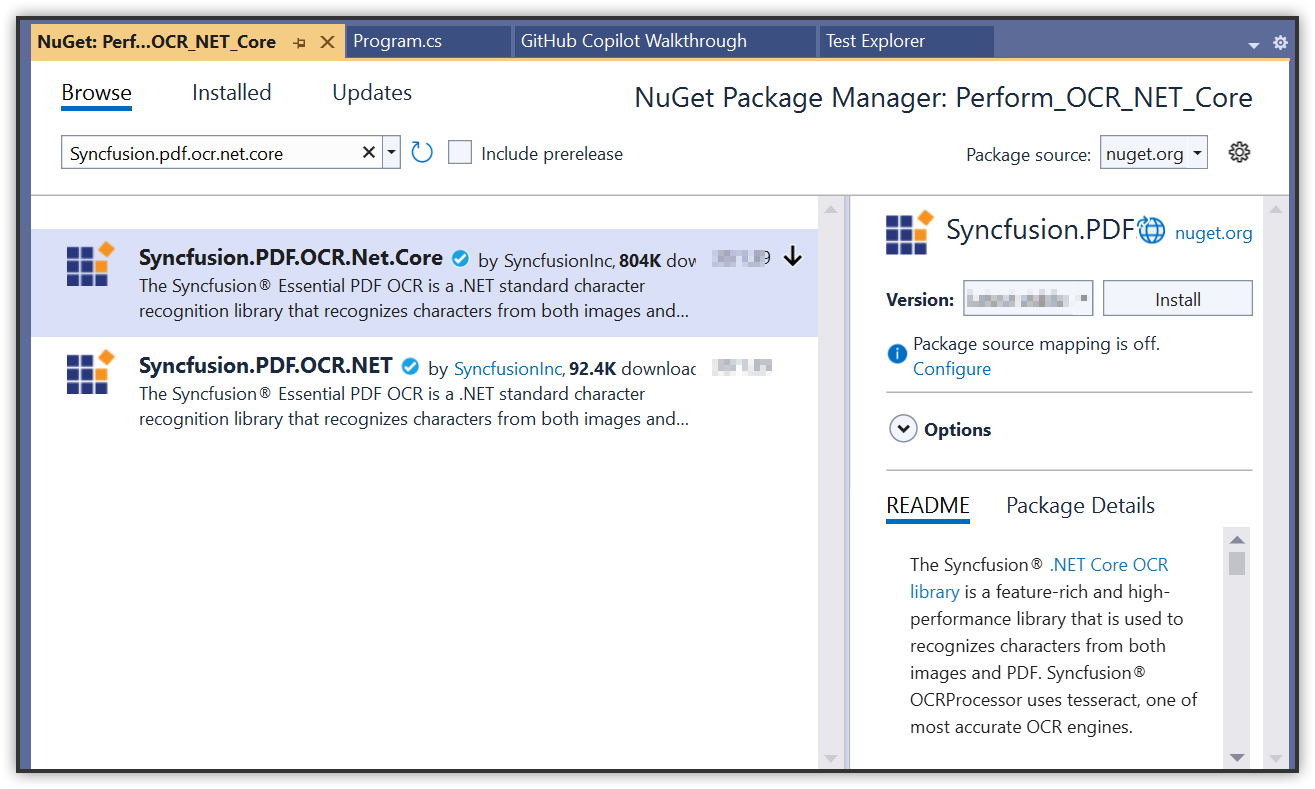
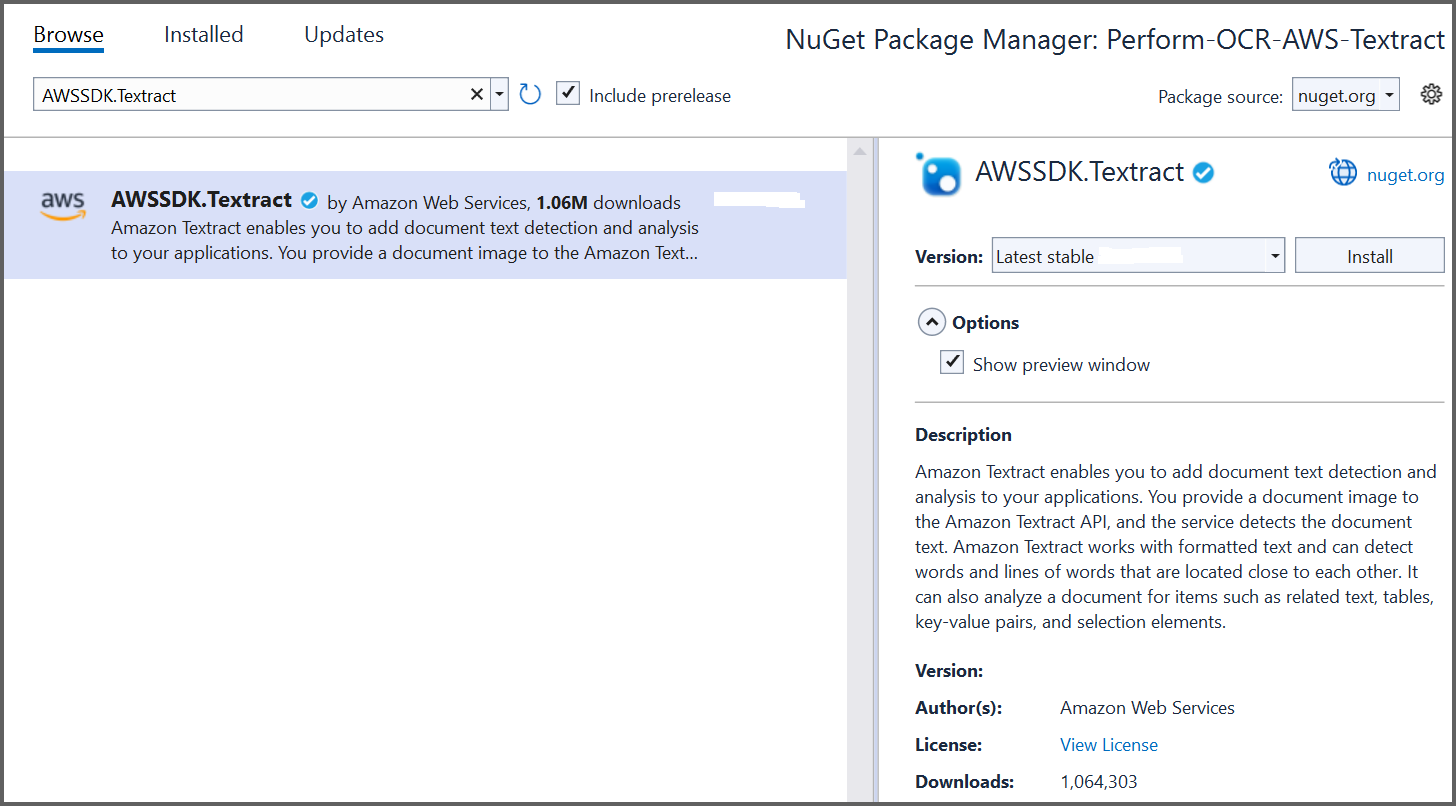
Step 3: Install the Syncfusion.PDF.OCR.Net.Core and AWSSDK.Textract NuGet packages into your .NET application from nuget.org:
Step 4: Include the following namespaces in Program.cs:
using Syncfusion.OCRProcessor;
using Syncfusion.Pdf.Parsing;
Step 5: Use the following code sample to perform OCR on a PDF document using the PerformOCR method of the OCRProcessor class with AWS Textract:
// Initialize the OCR processor
using (OCRProcessor processor = new OCRProcessor())
{
    // Load an existing PDF document
    FileStream stream = new FileStream("Region.pdf", FileMode.Open);
    PdfLoadedDocument lDoc = new PdfLoadedDocument(stream);
    // Set the OCR language
    processor.Settings.Language = Languages.English;
    // Initialize the AWS Textract external OCR engine
    IOcrEngine awsOcrEngine = new AWSExternalOcrEngine();
    processor.ExternalEngine = awsOcrEngine;
    // Perform OCR on the document
    string text = processor.PerformOCR(lDoc);
    // Create file stream for output
    FileStream fileStream = new FileStream("Output.pdf", FileMode.CreateNew);
    // Save the processed document
    lDoc.Save(fileStream);
    // Close the document and dispose streams
    lDoc.Close();
    stream.Dispose();
    fileStream.Dispose();
}
Step 6: Create a new class named AWSExternalOcrEngine that implements the IOcrEngine interface. Get the image stream from the PerformOCR method and process it with AWS Textract. This will return the OCRLayoutResult for the image:
Provide valid AWS Access Key ID and Secret Access Key to work with AWS Textract.
class AWSExternalOcrEngine : IOcrEngine
{
    private string awsAccessKeyId = "AccessKey";
    private string awsSecretAccessKey = "SecretAccessKey";
    private float imageHeight;
    private float imageWidth;

    public OCRLayoutResult PerformOCR(Stream stream)
    {
        // Authenticate with AWS Textract API
        AmazonTextractClient clientText = Authenticate();
        // Get OCR results from AWS Textract
        DetectDocumentTextResponse textResponse = GetAWSTextractResult(clientText, stream).Result;
        // Convert AWS Textract result to OCRLayoutResult format
        OCRLayoutResult oCRLayoutResult = ConvertAWSTextractResultToOcrLayoutResult(textResponse);
        return oCRLayoutResult;
    }

    public AmazonTextractClient Authenticate()
    {
        // Create AWS Textract client with credentials
        AmazonTextractClient client = new AmazonTextractClient(awsAccessKeyId, awsSecretAccessKey, RegionEndpoint.USEast1);
        return client;
    }

    public async Task<DetectDocumentTextResponse> GetAWSTextractResult(AmazonTextractClient client, Stream stream)
    {
        stream.Position = 0;
        MemoryStream memoryStream = new MemoryStream();
        // Copy stream to memory stream
        stream.CopyTo(memoryStream);
        // Get image dimensions
        PdfTiffImage bitmap = new PdfTiffImage(memoryStream);
        imageHeight = bitmap.Height;
        imageWidth = bitmap.Width;

        // Call AWS Textract API to detect text
        DetectDocumentTextResponse response = await client.DetectDocumentTextAsync(new DetectDocumentTextRequest
        {
            Document = new Document
            {
                Bytes = memoryStream
            }
        });
        return response;
    }

    public OCRLayoutResult ConvertAWSTextractResultToOcrLayoutResult(DetectDocumentTextResponse textResponse)
    {
        OCRLayoutResult layoutResult = new OCRLayoutResult();
        Syncfusion.OCRProcessor.Page ocrPage = new Page();
        Syncfusion.OCRProcessor.Line ocrLine;
        Syncfusion.OCRProcessor.Word ocrWord;
        layoutResult.ImageHeight = imageHeight;
        layoutResult.ImageWidth = imageWidth;
        // Process each block from AWS Textract response
        foreach (var page in textResponse.Blocks)
        {
            ocrLine = new Line();
            // Process only WORD blocks
            if (page.BlockType == "WORD")
            {
                ocrWord = new Word();
                ocrWord.Text = page.Text;

                // Get bounding box coordinates from AWS Textract
                float left = page.Geometry.BoundingBox.Left;
                float top = page.Geometry.BoundingBox.Top;
                float width = page.Geometry.BoundingBox.Width;
                float height = page.Geometry.BoundingBox.Height;
                // Convert to rectangle bounds
                Rectangle rect = GetBoundingBox(left, top, width, height);
                ocrWord.Rectangle = rect;
                ocrLine.Add(ocrWord);
                ocrPage.Add(ocrLine);
            }
        }
        layoutResult.Add(ocrPage);
        return layoutResult;
    }

    public Rectangle GetBoundingBox(float left, float top, float width, float height)
    {
        // Convert relative coordinates to absolute pixel coordinates
        int x = Convert.ToInt32(left * imageWidth);
        int y = Convert.ToInt32(top * imageHeight);
        int bboxWidth = Convert.ToInt32((width * imageWidth) + x);
        int bboxHeight = Convert.ToInt32((height * imageHeight) + y);
        Rectangle rect = new Rectangle(x, y, bboxWidth, bboxHeight);
        return rect;
    }
}
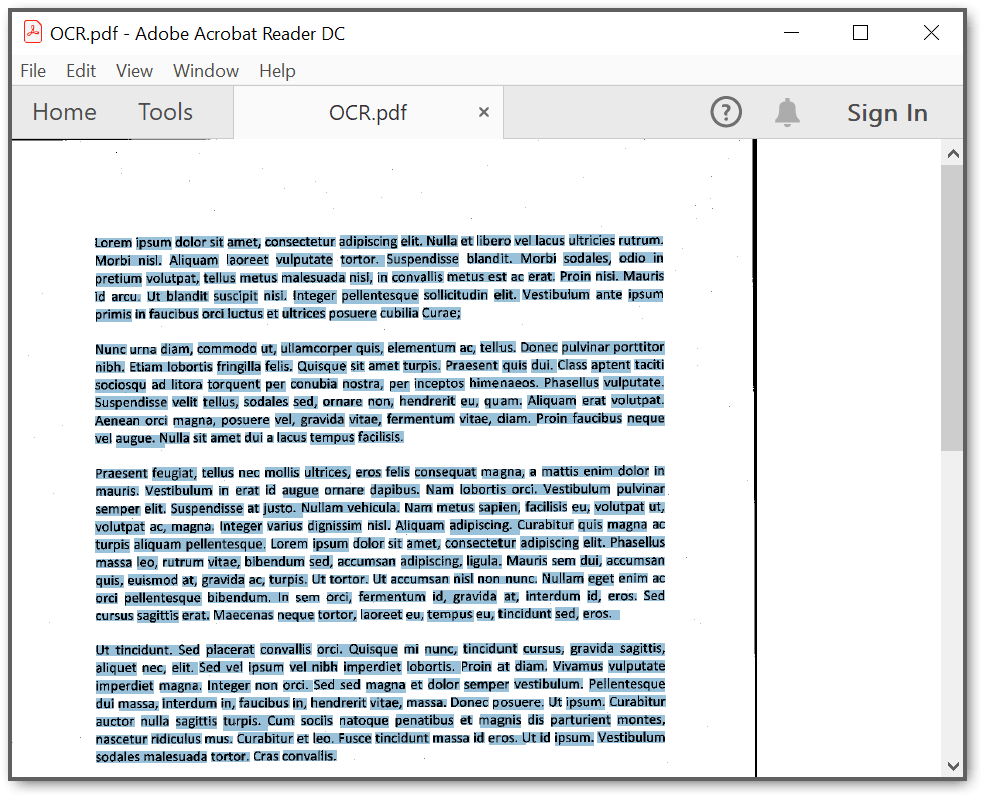
By executing the program, you will obtain a PDF document with extracted text as follows:
A complete working sample can be downloaded from GitHub.