Getting Started with Windows Forms Smart Data Extractor
14 Aug 20263 minutes to read
The Syncfusion® Smart Data Extractor is a .NET library used to extract structured data and document elements from PDFs and images in Windows Forms applications.
Steps to Extract Data in Windows Forms
Prerequisites:
- Visual Studio 2022.
- Install .NET desktop development workload with necessary .NET Framework SDK.
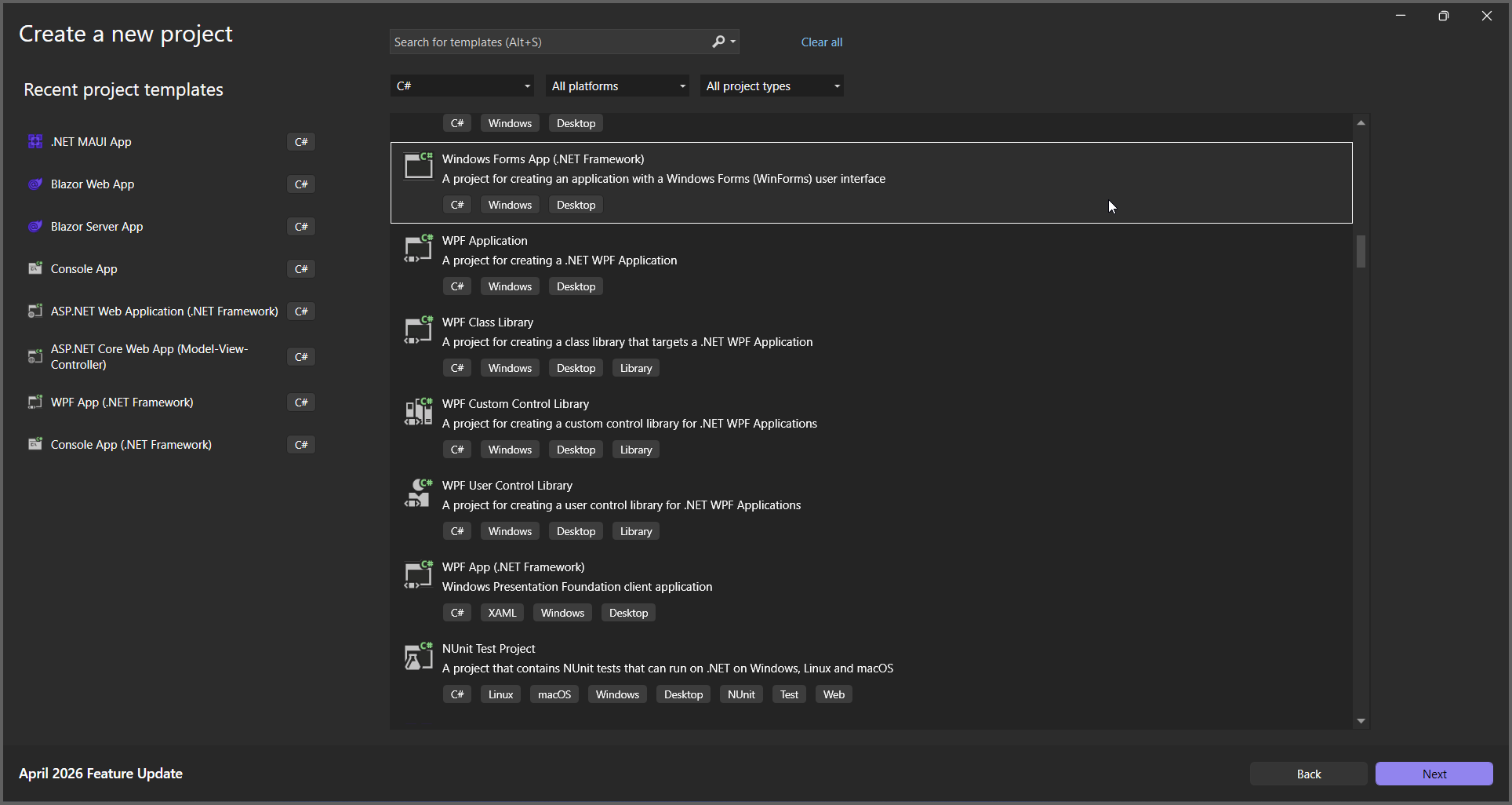
Step 1: Create a new Windows Forms application project.
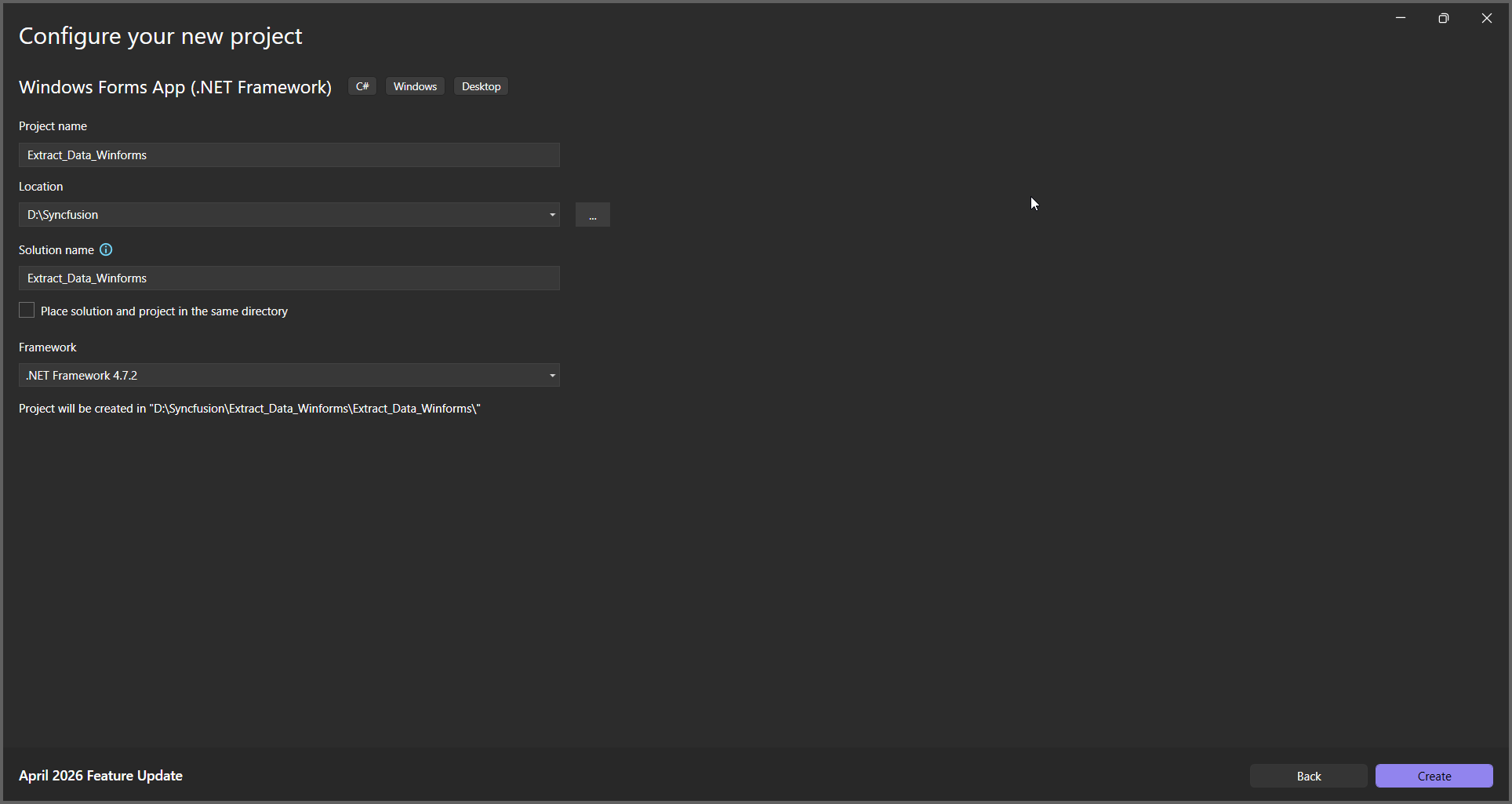
Step 2: Name the project.
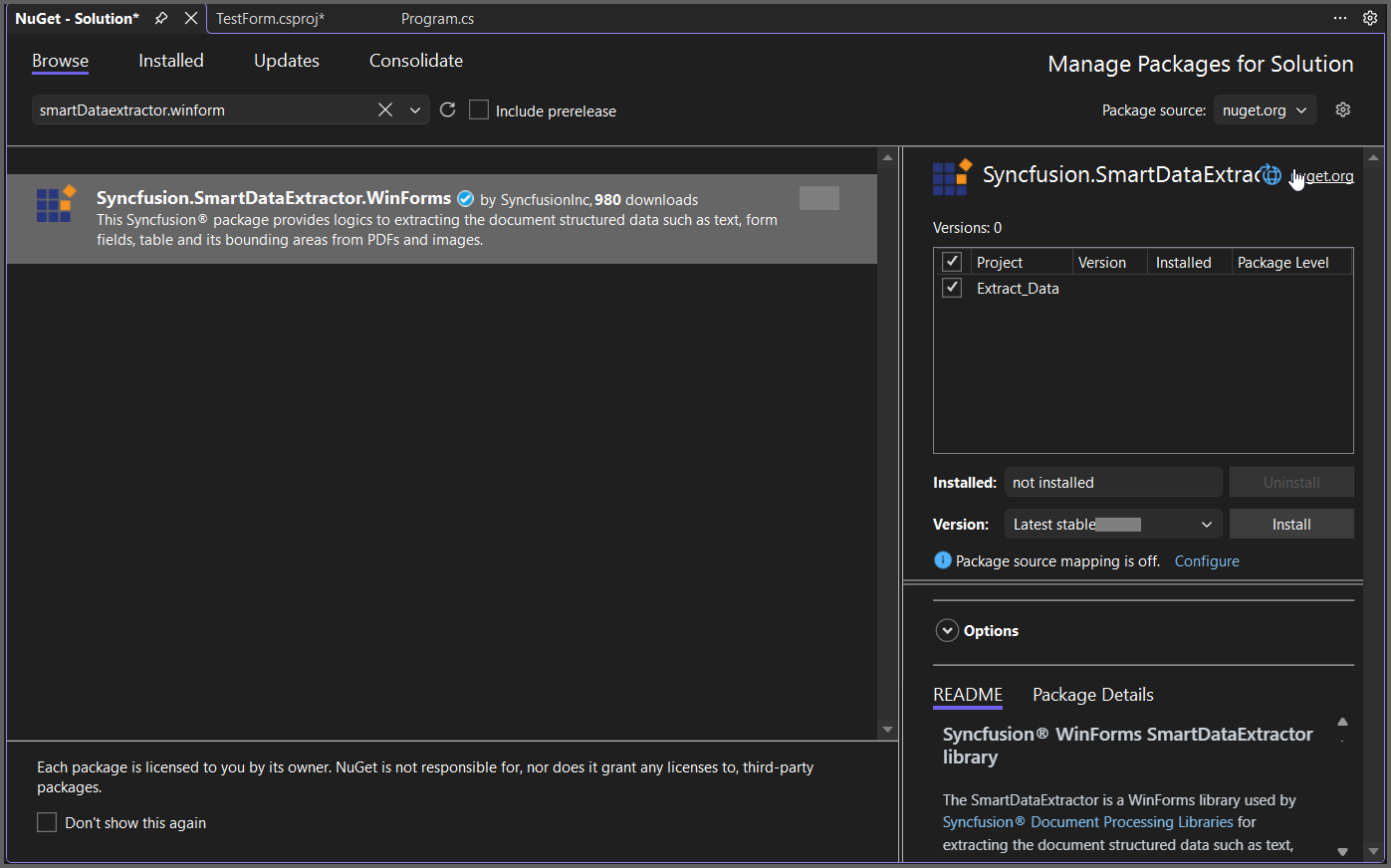
Step 3: Install Syncfusion.SmartDataExtractor.WinForms NuGet package as a reference to your Windows Forms application from the NuGet.org.
Add the input PDF file named Input.pdf to the Data folder before running the sample.
Step 4: Include the following namespaces in the Form1.cs file.
using System;
using System.IO;
using System.Text;
using System.Windows.Forms;
using Syncfusion.SmartDataExtractor;
Step 5: Add a new button in Form1.Designer.cs to extract data from PDF as follows.
private Button btnExtract;
private Label label;

private void InitializeComponent()
{
label = new Label();
btnExtract = new Button();

// Label
label.Location = new System.Drawing.Point(0, 40);
label.Size = new System.Drawing.Size(426, 35);
label.Text = "Click the button to extract data from PDF using Smart Data Extractor.";
label.TextAlign = System.Drawing.ContentAlignment.MiddleCenter;

// Button
btnExtract.Location = new System.Drawing.Point(160, 110);
btnExtract.Size = new System.Drawing.Size(120, 36);
btnExtract.Text = "Extract Data from PDF";
btnExtract.Click += new EventHandler(btnExtract_Click);

// Form
ClientSize = new System.Drawing.Size(450, 150);
Controls.Add(label);
Controls.Add(btnExtract);
Text = "Extract Data from PDF";
}
Step 6: Add the following code in btnExtract_Click to extract data from PDF.
// Load the existing PDF document
using (FileStream stream = new FileStream(Path.GetFullPath(@"../../Data/Input.pdf"), FileMode.Open, FileAccess.Read))
{
    // Initialize the Data Extractor
    DataExtractor extractor = new DataExtractor();
    // Extract data as JSON string
    string data = extractor.ExtractDataAsJson(stream);
    // Save the extracted JSON data into an output file
    File.WriteAllText(Path.GetFullPath(@"../../Output.json"), data, Encoding.UTF8);
}
Step 7: Build the project.
Click on Build → Build Solution or press Ctrl+Shift+B to build the project.
Step 8: Run the project.
Click the Start button (green arrow) or press F5 to run the app.
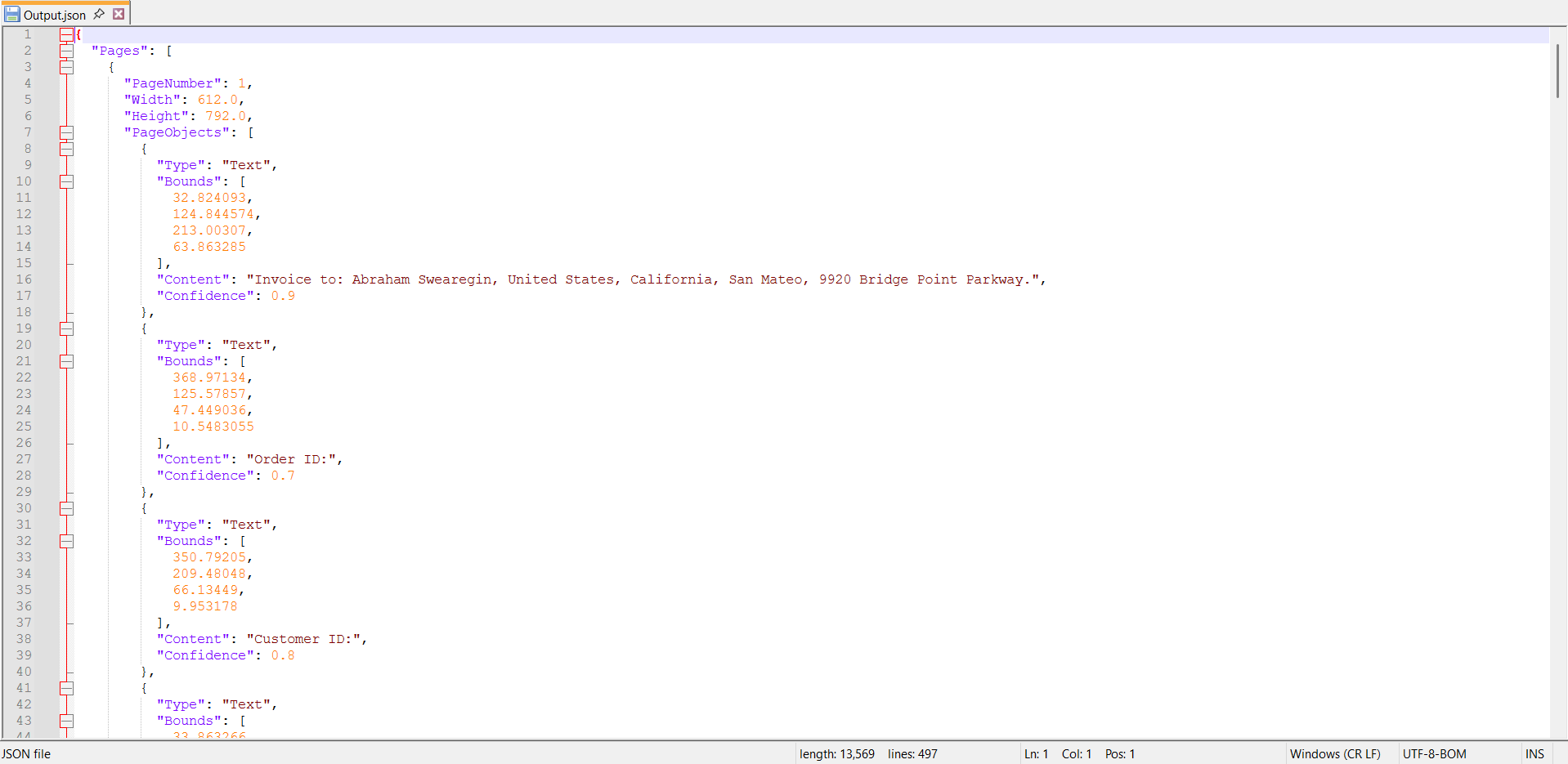
By executing the program, you will get the JSON file as follows.