Getting Started with Console Smart Data Extractor
14 Aug 20265 minutes to read
The Syncfusion® Smart Data Extractor is a .NET library used to extract structured data and document elements from PDFs and images in Console applications.
Steps to Extract Data from PDF in Console App
Prerequisites:
- Install .NET SDK: Ensure that you have the .NET SDK installed on your system. You can download it from the .NET Downloads page.
- Install Visual Studio: Download and install Visual Studio from the official website.
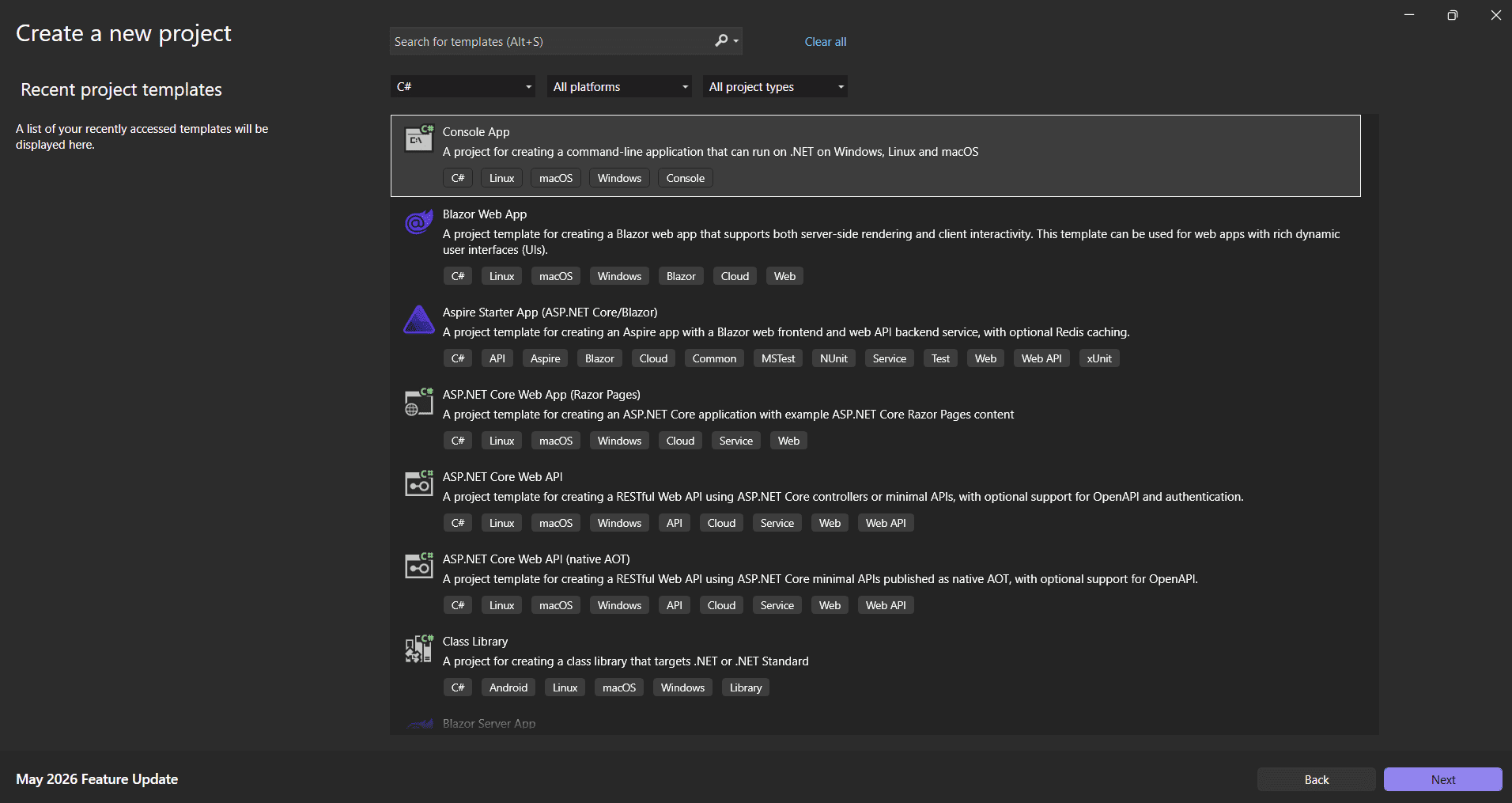
Step 1: Create a new C# Console Application project.
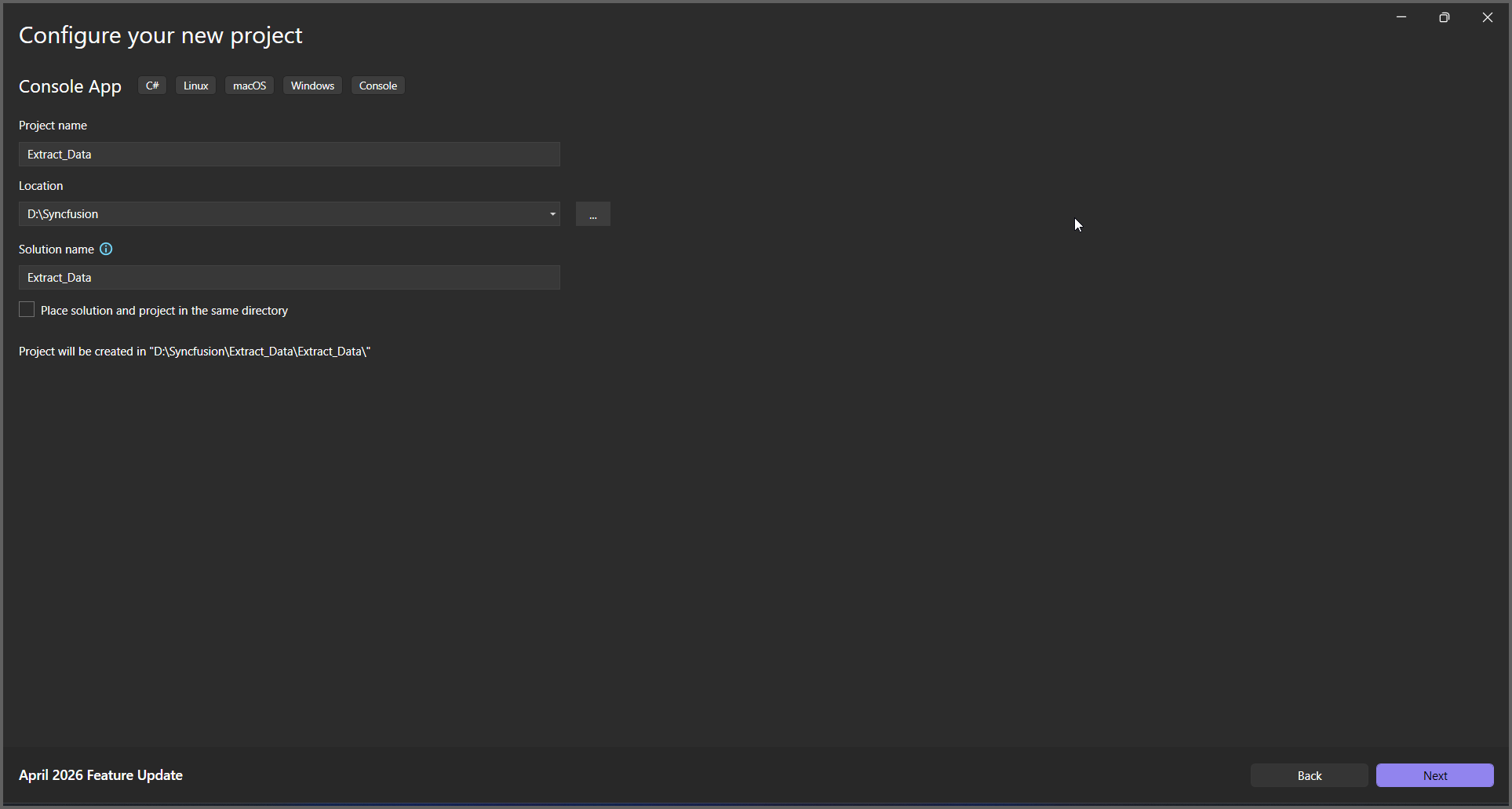
Step 2: Name the project.
Step 3: Install the Syncfusion.SmartDataExtractor.Net.Core NuGet package as a reference for your console application from NuGet.org.
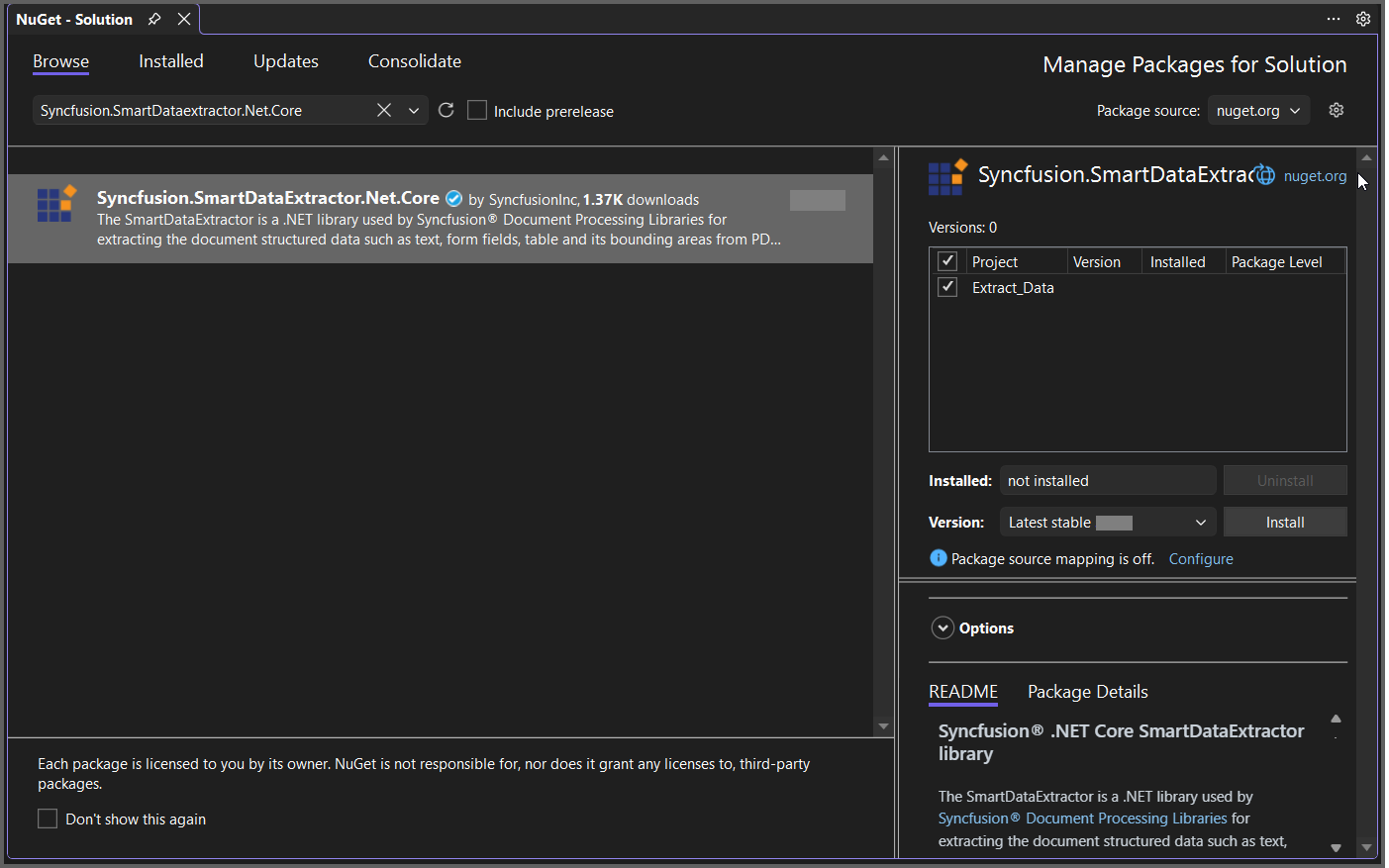
Add the input PDF file named Input.pdf to the project root directory before running the sample.
Step 4: Include the following namespaces in the Program.cs file.
using System.Text;
using System.IO;
using Syncfusion.Pdf.Parsing;
using Syncfusion.SmartDataExtractor;
Step 5: Include the following code snippet in Program.cs to extract data from a PDF file.
//Open the input PDF file as a stream.
using (FileStream stream = new FileStream("Input.pdf", FileMode.Open, FileAccess.Read))
{
    //Initialize the Data Extractor.
    DataExtractor extractor = new DataExtractor();
    //Extract data as JSON.
    string data = extractor.ExtractDataAsJson(stream);
    //Save the extracted JSON data into an output file.
    File.WriteAllText("Output.json", data, Encoding.UTF8);
}
Step 6: Build the project.
Click on Build > Build Solution or press Ctrl + Shift + B to build the project.
Step 7: Run the project.
Click the Start button (green arrow) or press F5 to run the app.
Prerequisites:
- Install .NET SDK: Ensure that you have the .NET SDK installed on your system. You can download it from the .NET Downloads page.
- Install Visual Studio Code: Download and install Visual Studio Code from the official website.
- Install C# Extension for VS Code: Open Visual Studio Code, go to the Extensions view (Ctrl+Shift+X), and search for ‘C#’. Install the official C# extension provided by Microsoft.
Step 1: Open the terminal (Ctrl+` ) and run the following command to create a new .NET Core console application project.
dotnet new console -n ExtractDataConsoleApp
Step 2: Replace ExtractDataConsoleApp with your desired project name.
Step 3: Navigate to the project directory using the following command
cd ExtractDataConsoleApp
Step 4: Use the following command in the terminal to add the Syncfusion.SmartDataExtractor.Net.Core package to your project.
dotnet add package Syncfusion.SmartDataExtractor.Net.Core
Step 5: Include the following namespaces in the Program.cs file.
using System.IO;
using Syncfusion.Pdf.Parsing;
using Syncfusion.SmartDataExtractor;
Step 6: Include the following code snippet in Program.cs to Extract data from an PDF file.
//Open the input PDF file as a stream.
using (FileStream stream = new FileStream("Input.pdf", FileMode.Open, FileAccess.Read))
{
    //Initialize the Data Extractor.
    DataExtractor extractor = new DataExtractor();
    //Extract data as JSON.
    string data = extractor.ExtractDataAsJson(stream);
    //Save the extracted JSON data into an output file.
    File.WriteAllText("Output.json", data, Encoding.UTF8);
}
Step 7: Build the project.
Run the following command in terminal to build the project.
dotnet build
Step 8: Run the project.
Run the following command in terminal to run the project.
dotnet run
You can download a complete working sample from GitHub.
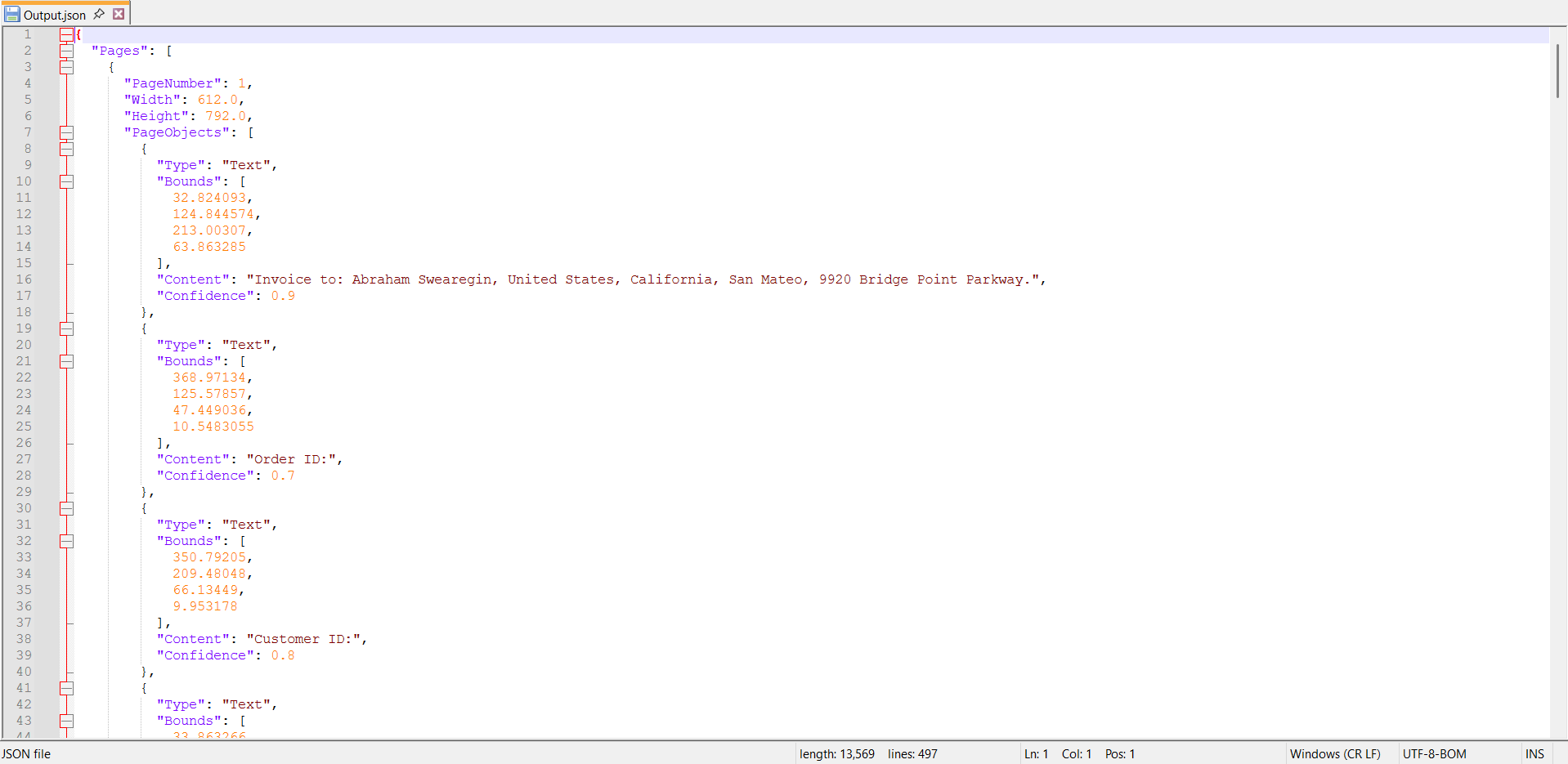
By executing the program, you will get the JSON file as follows.
Extract Data from PDF using .NET Framework
The following steps illustrates Extracting Data from PDF document in console application using .NET Framework.
Prerequisites:
- Install .NET SDK: Ensure that you have the .NET SDK installed on your system. You can download it from the .NET Downloads page.
- Install Visual Studio: Download and install Visual Studio from the official website.
Steps to Extract Data from PDF using .NET Framework
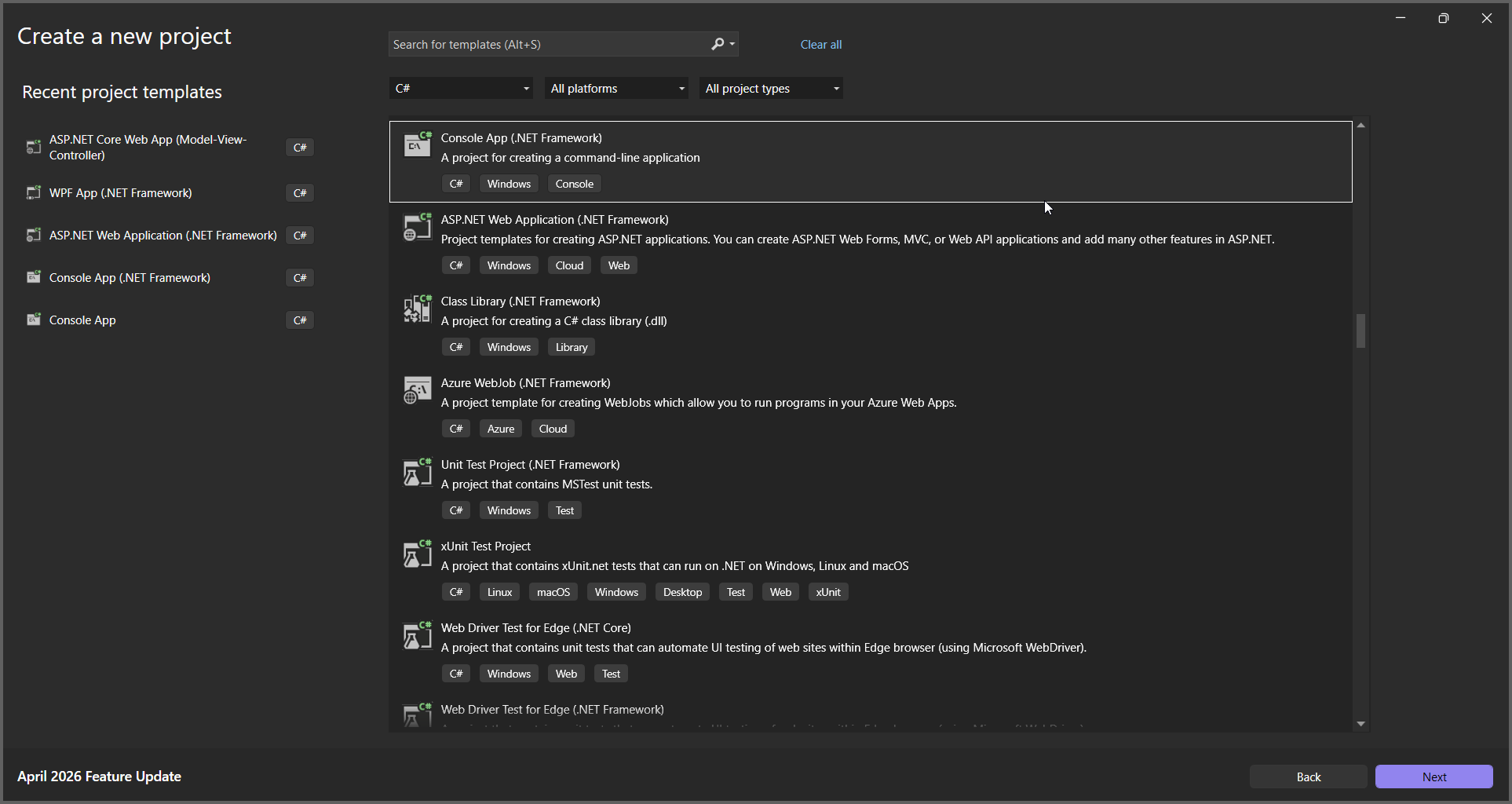
Step 1: Create a new C# Console Application (.NET Framework) project.
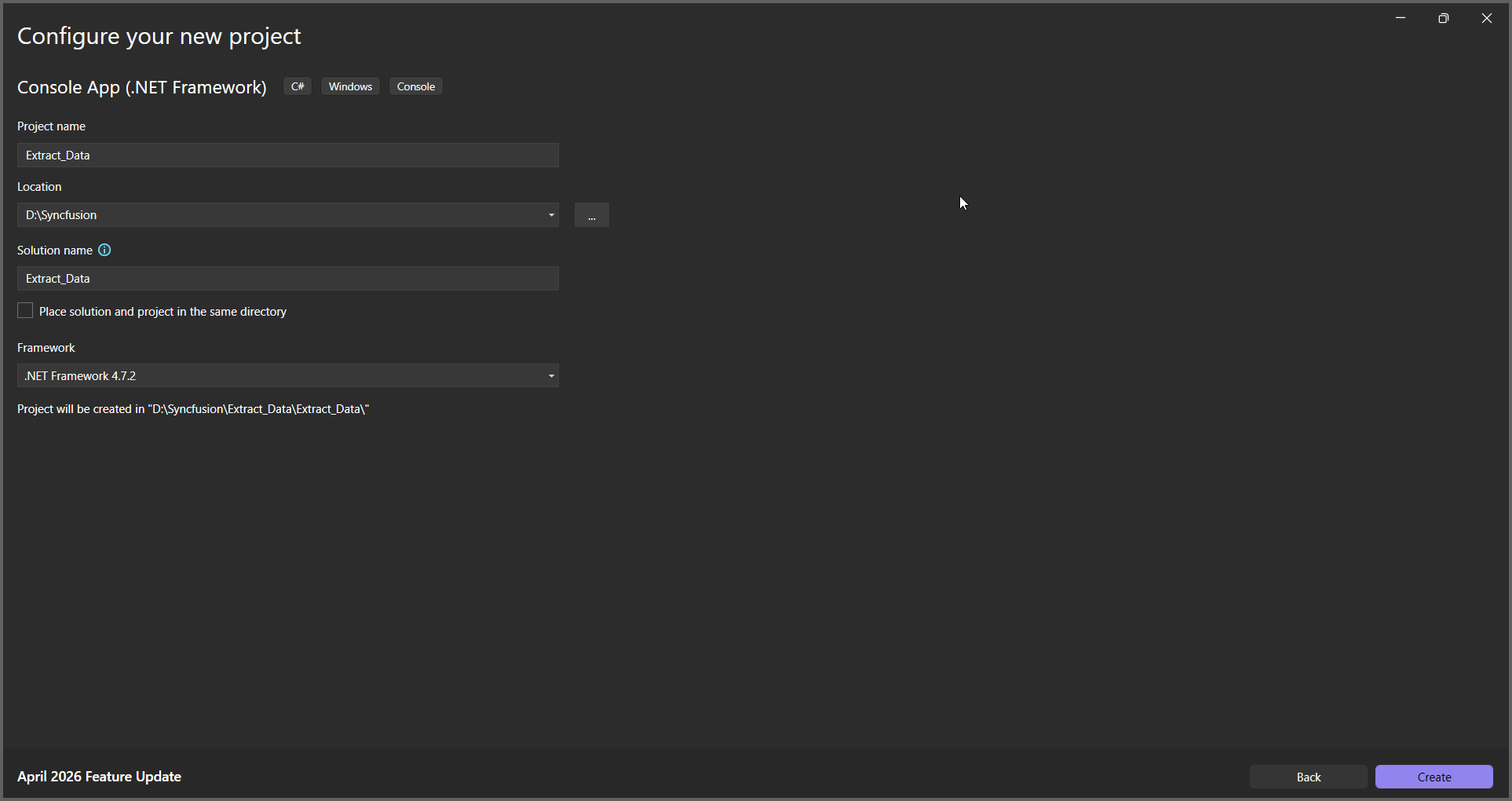
Step 2: Name the project.
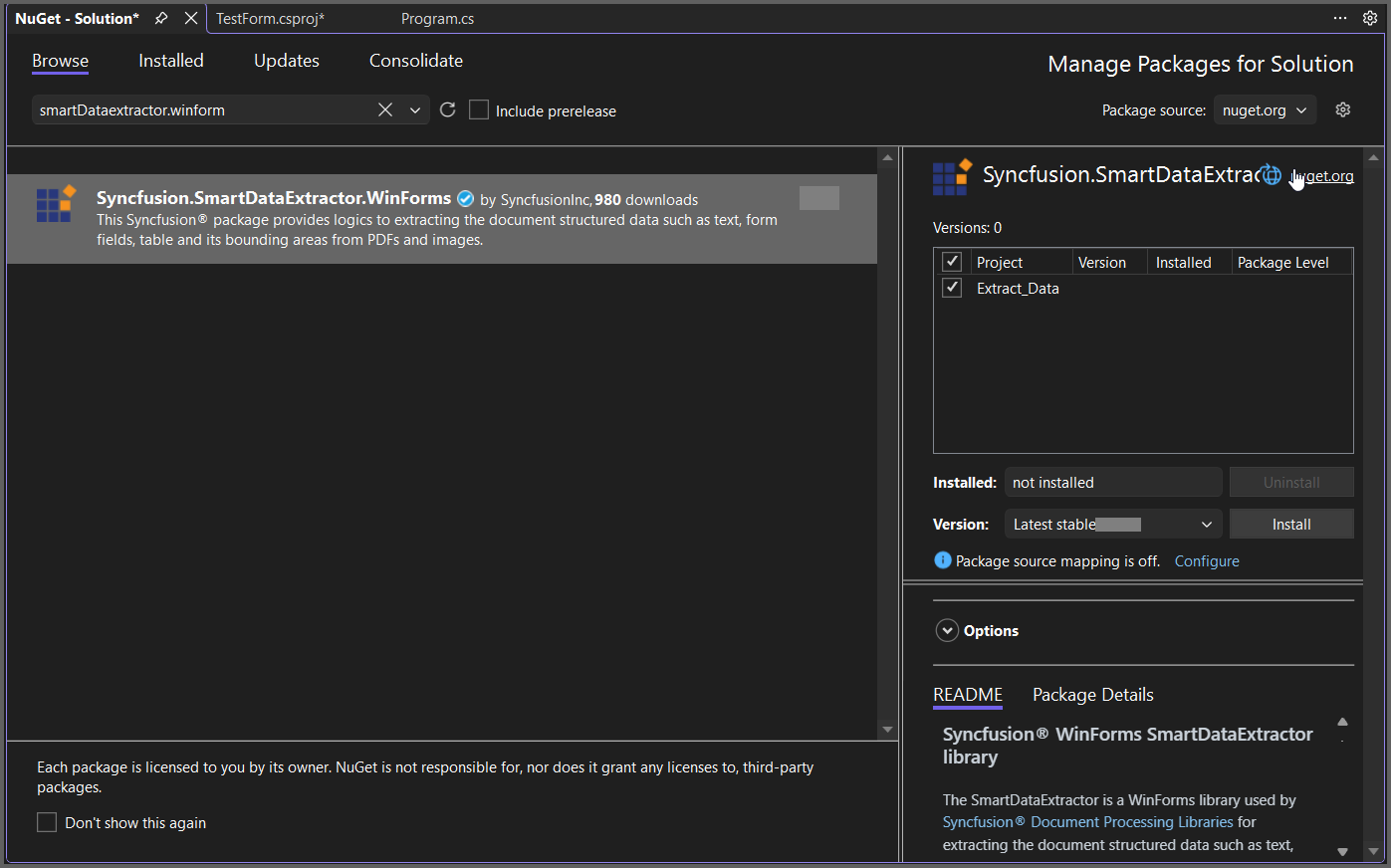
Step 3: Install the Syncfusion.SmartDataExtractor.WinForms NuGet package as a reference for your .NET Framework console application from NuGet.org.
Add the input PDF file named Input.pdf to the project root directory before running the sample.
Step 4: Include the following namespaces in the Program.cs.
using System.Text;
using System.IO;
using Syncfusion.Pdf.Parsing;
using Syncfusion.SmartDataExtractor;
Step 5: Include the following code sample in Program.cs to Extract data from an PDF file.
//Open the input PDF file as a stream.
using (FileStream stream = new FileStream("Input.pdf", FileMode.Open, FileAccess.Read))
{
    //Initialize the Data Extractor.
    DataExtractor extractor = new DataExtractor();
    //Extract data as JSON.
    string data = extractor.ExtractDataAsJson(stream);
    //Save the extracted JSON data into an output file.
    File.WriteAllText("Output.json", data, Encoding.UTF8);
}
Step 6: Build the project.
Click on Build > Build Solution or press Ctrl + Shift + B to build the project.
Step 7: Run the project.
Click the Start button (green arrow) or press F5 to run the app.
You can download a complete working sample from GitHub.
By executing the program, you will get the JSON file as follows.