Getting Started with WPF Smart Data Extractor
14 Aug 20262 minutes to read
The Syncfusion® Smart Data Extractor is a .NET library used to extract structured data and document elements from PDFs and images in WPF applications.
Steps to Extract Data from PDF document in WPF
Step 1: Create a new WPF application project.
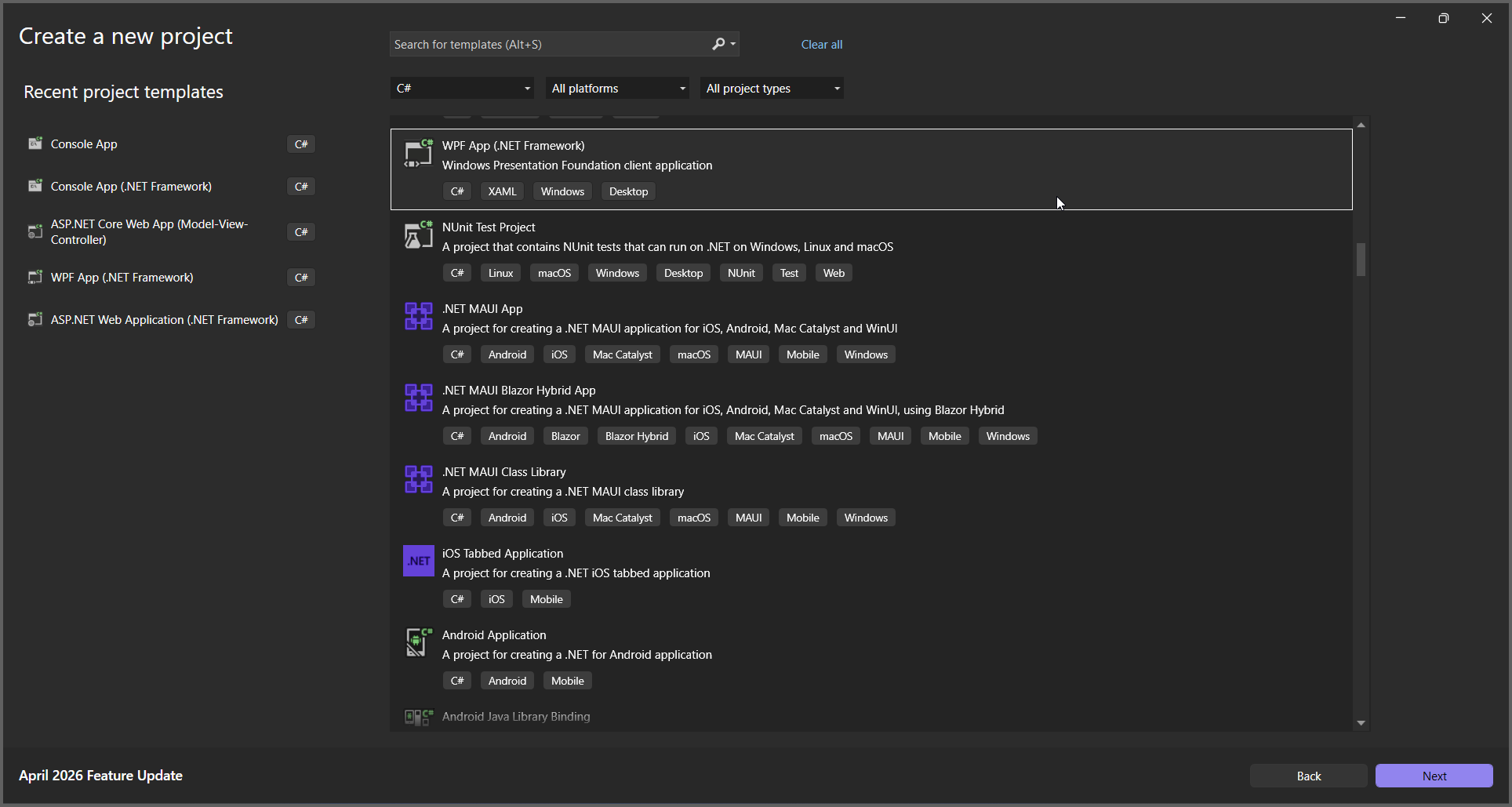
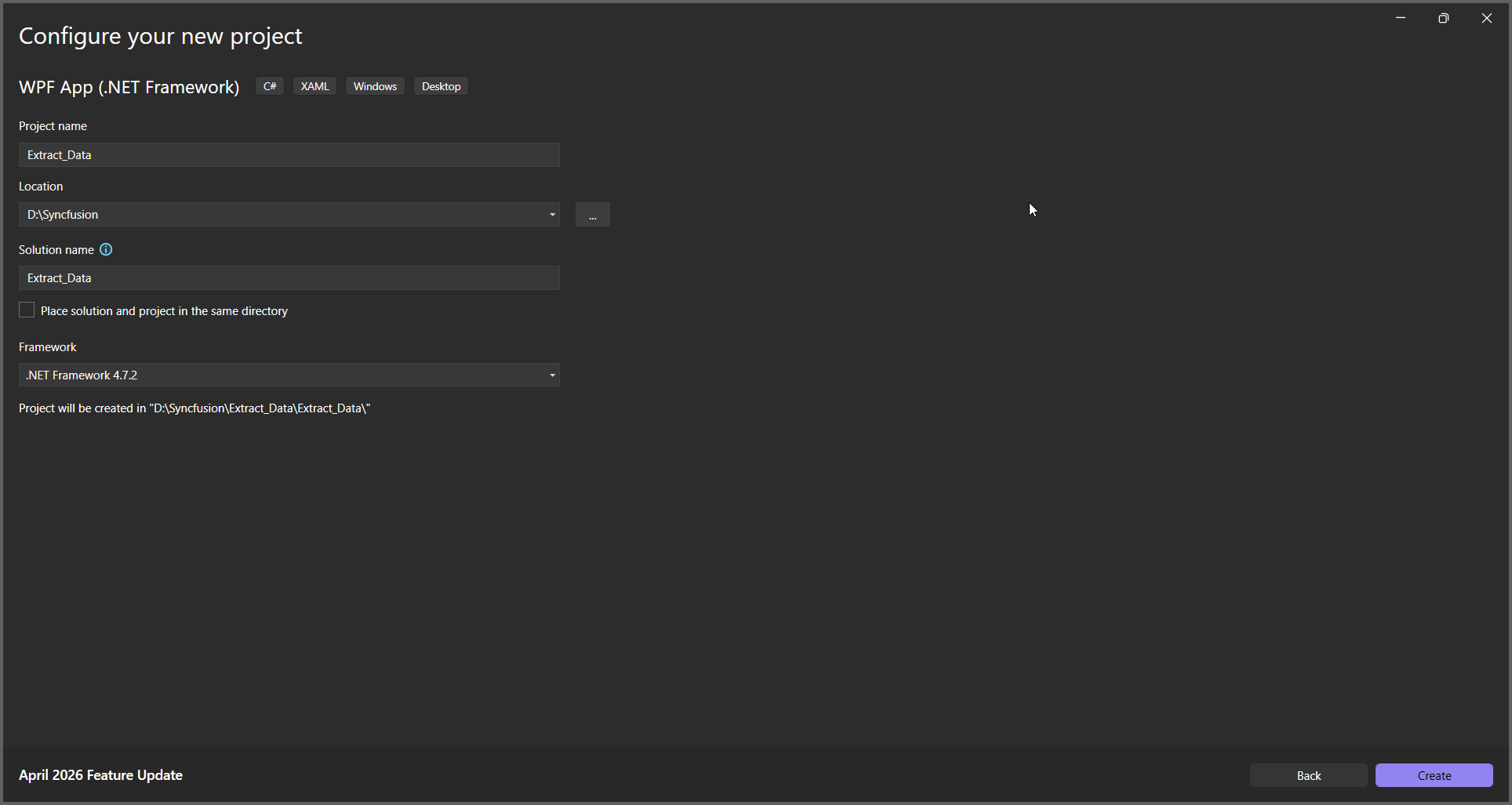
In the project configuration window, name your project and select Create.
Step 2: Install the Syncfusion.SmartDataExtractor.WPF NuGet package as a reference to your WPF application NuGet.org.
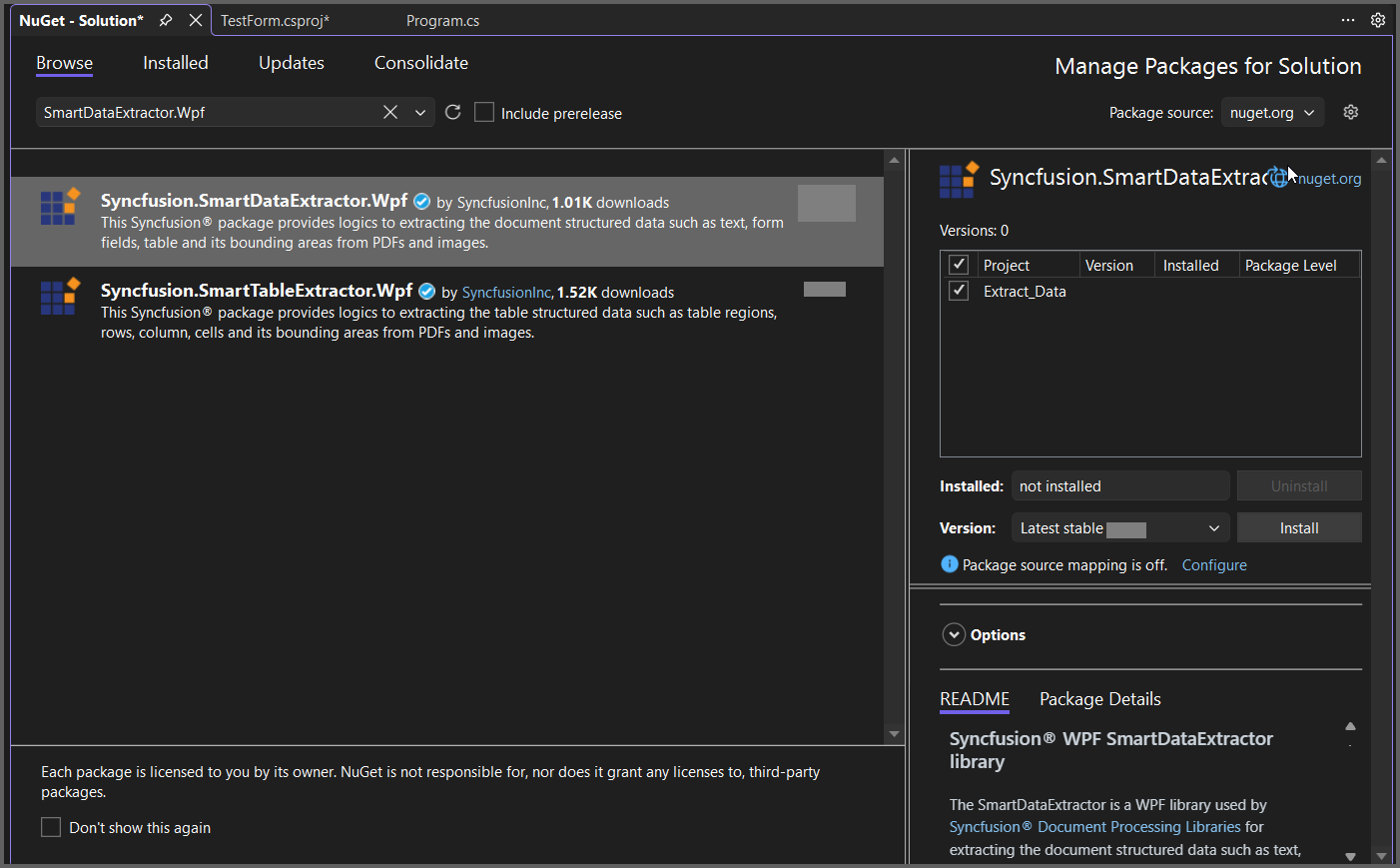
Add the input PDF file named Input.pdf to the project folder before running the sample.
Step 3: Include the following namespaces in the MainWindow.xaml.cs file.
using System;
using System.IO;
using System.Text;
using System.Windows;
using Syncfusion.SmartDataExtractor;
Step 4: Add a new button in MainWindow.xaml to extract data from a PDF document as follows.
<Grid>
    <Button Content="Extract Data"
            Width="150" Height="40"
            HorizontalAlignment="Center"
            VerticalAlignment="Center"
            Click="ExtractButton_Click"/>
</Grid>
Step 5: Add the following code in ExtractButton_Click to extract data from a PDF document using the ExtractDataAsJson method in the DataExtractor class. The extracted content will be saved as a JSON file.
// Open the input PDF file as a stream.
using (FileStream stream = new FileStream("Input.pdf", FileMode.Open, FileAccess.Read))
{
    // Initialize the Data Extractor.
    DataExtractor extractor = new DataExtractor();
    // Extract form data as JSON.
    string data = extractor.ExtractDataAsJson(stream);
    // Save the extracted JSON data into an output file (inline path).
    File.WriteAllText("Output.json", data, Encoding.UTF8);
}
A complete working sample can be downloaded from GitHub.
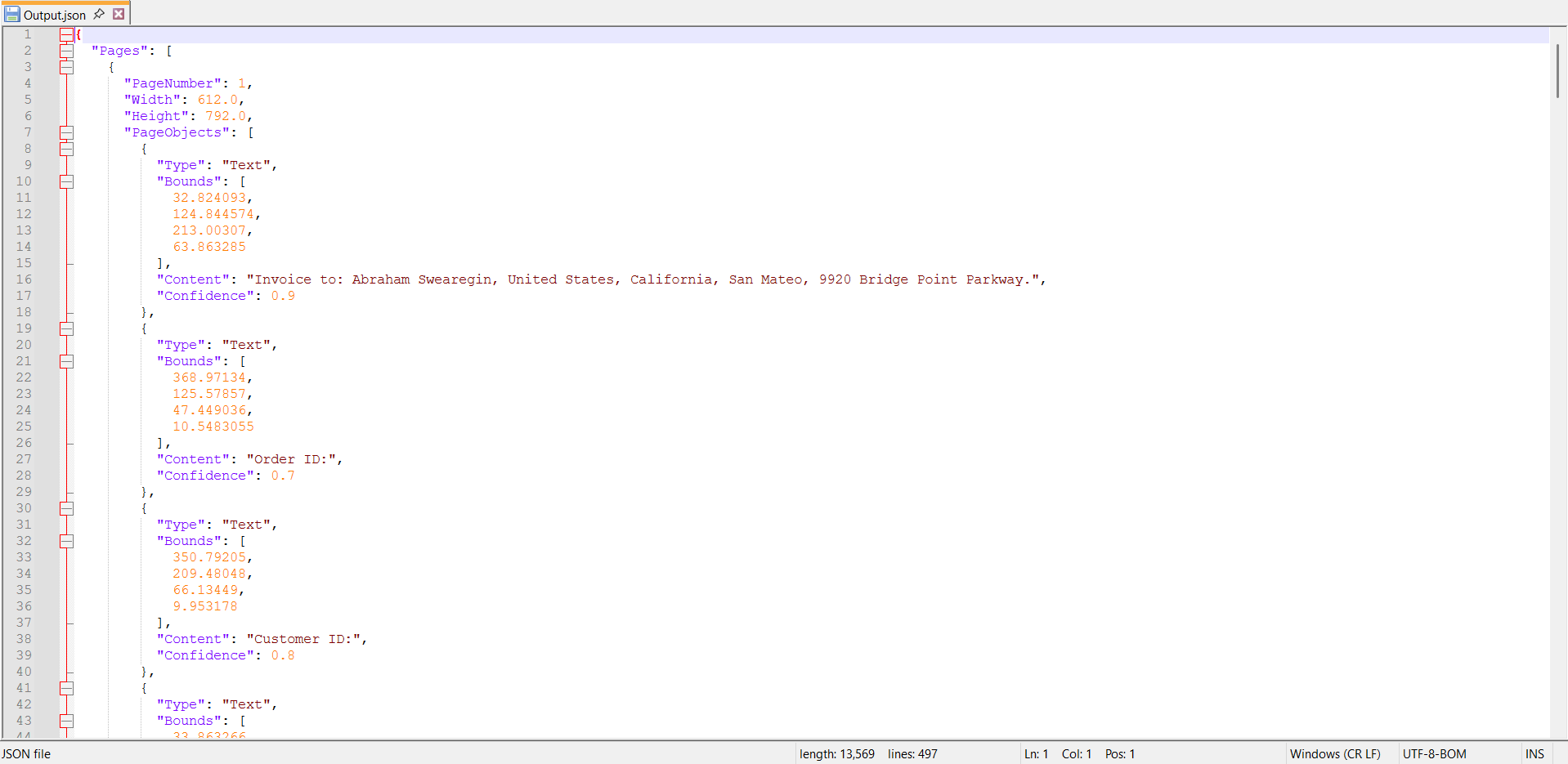
By executing the program, you will get the JSON file as follows.
Click here to explore the rich set of Syncfusion® Data Extraction library features.