Getting Started with .NET MAUI Smart Data Extractor
14 Aug 20267 minutes to read
The Syncfusion® Smart Data Extractor is a .NET library used to extract structured data and document elements from PDFs and images in .NET MAUI applications.
Steps to Extract Data from PDF in .NET MAUI
Prerequisites:
- Visual Studio 2022.
- Install .NET 8 SDK or later.
- For more details about installation, refer here.
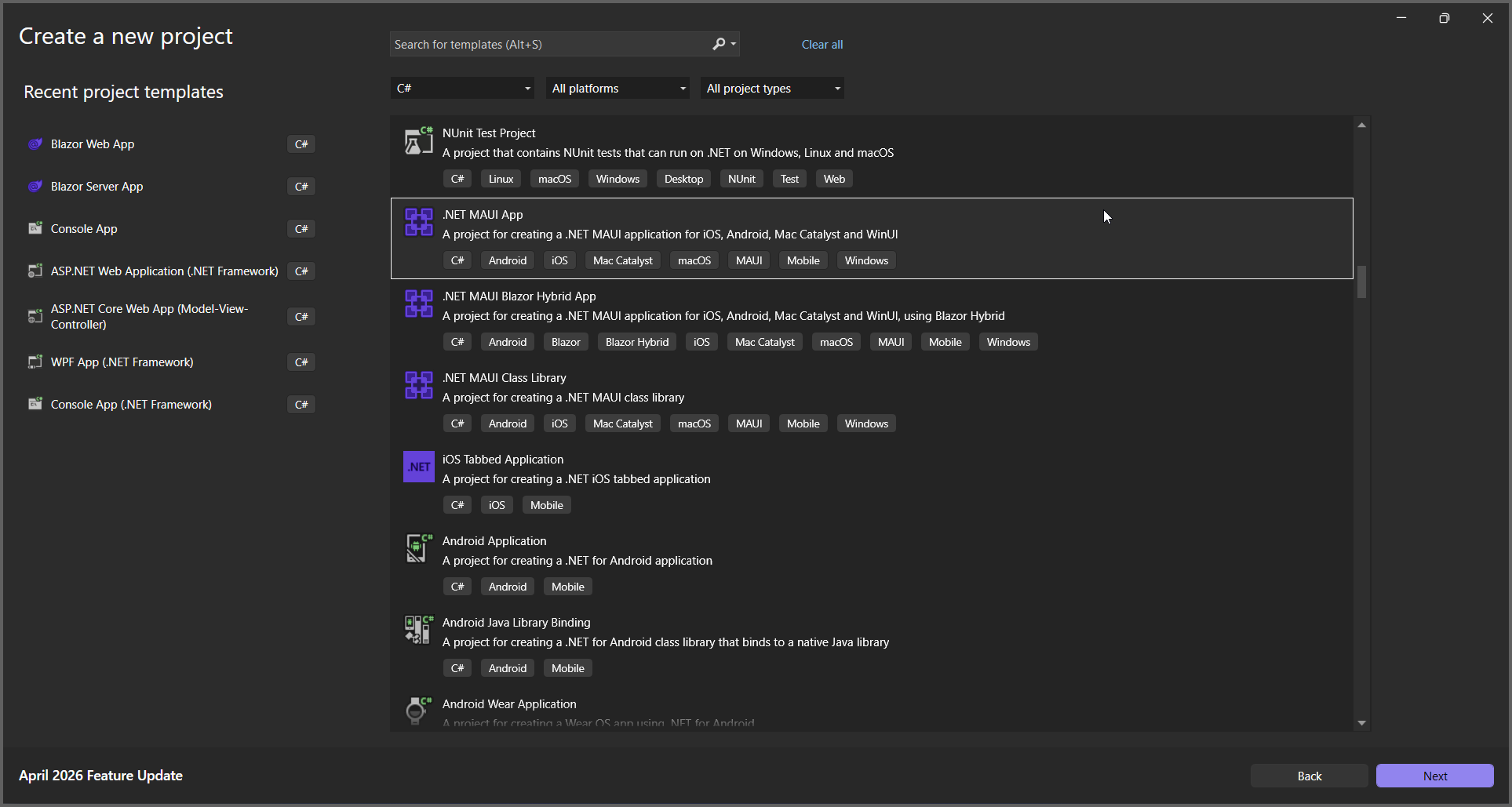
Step 1: Create a new C# .NET MAUI app. Select .NET MAUI App from the template and click the Next button.
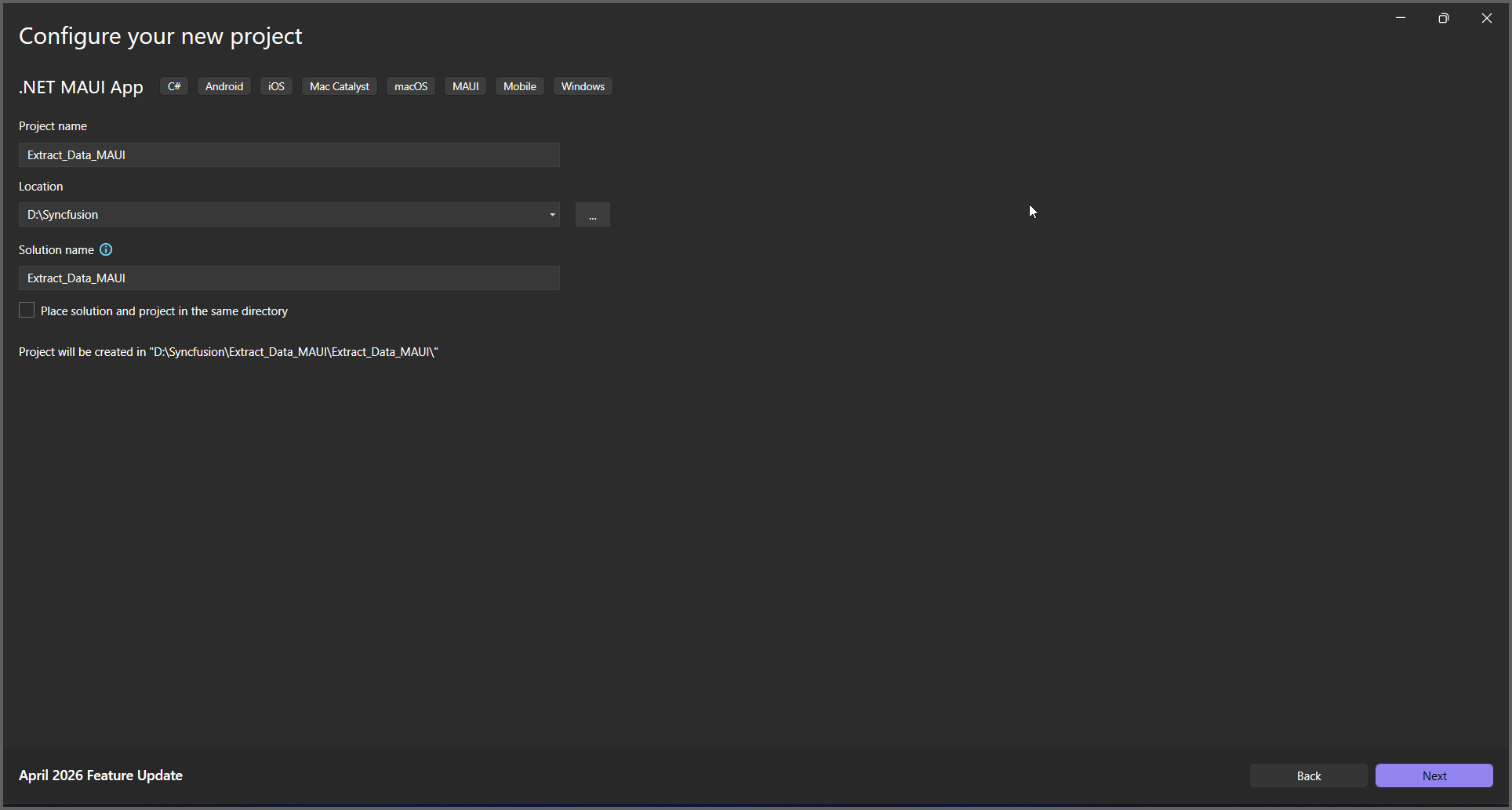
Step 2: Enter the project name and click Create.
Step 3: Install the Syncfusion.SmartDataExtractor.NET NuGet package as a reference to your project from NuGet.org.
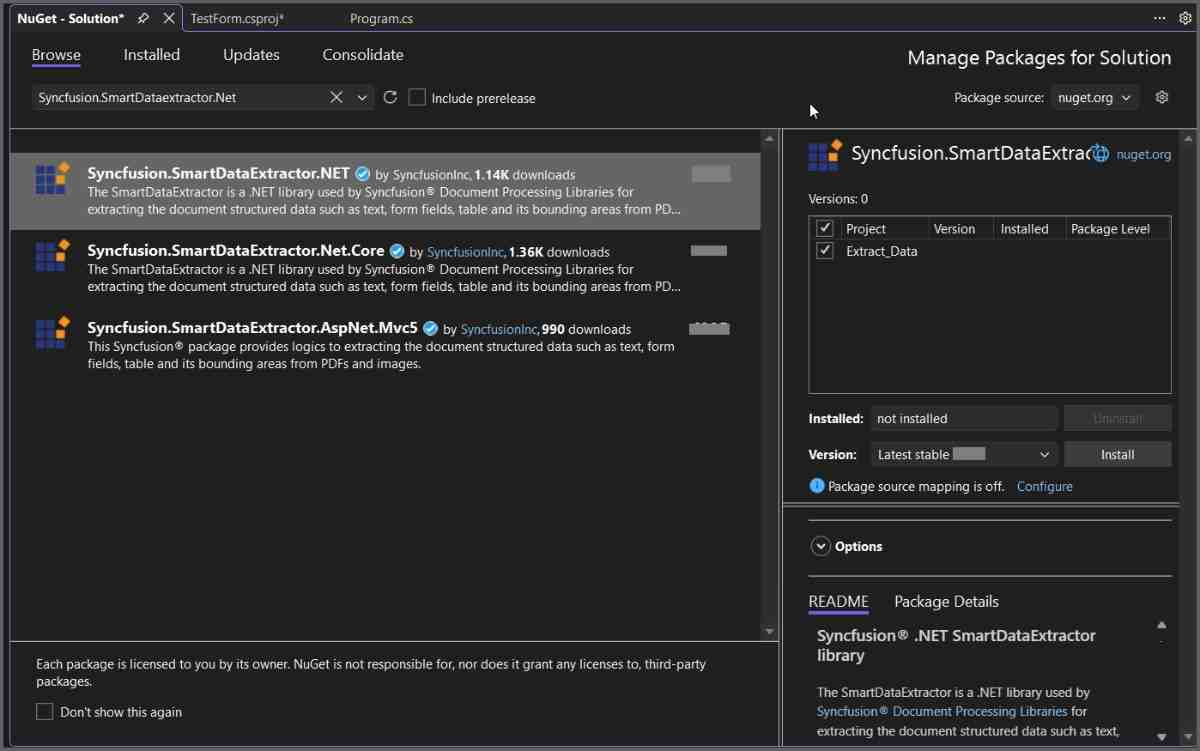
Add the input PDF file named Input.pdf to the project as a MauiAsset before running the sample.
Step 4: Add a new button to the MainPage.xaml as shown below.
<ContentPage xmlns="http://schemas.microsoft.com/dotnet/2021/maui"
             xmlns:x="http://schemas.microsoft.com/winfx/2009/xaml"
             x:Class="Extract_Data_MAUI.MainPage">

    <ScrollView>
        <VerticalStackLayout
            Padding="30,0"
            Spacing="25">

            <Label
                Text="Smart Data Extractor Demo"
                Style="{StaticResource Headline}"
                SemanticProperties.HeadingLevel="Level1" />

            <Button
                Text="Extract Data from PDF"
                SemanticProperties.Hint="Extract structured data from PDF"
                Clicked="OnExtractDataClicked"
                HorizontalOptions="Fill" />

        </VerticalStackLayout>
    </ScrollView>
</ContentPage>
Step 5: Include the following namespaces in the MainPage.xaml.cs file.
using System.IO;
using System.Text;
using Syncfusion.SmartDataExtractor;
Step 6: Add a new action method OnExtractDataClicked in MainPage.xaml.cs and include the following code snippet to Extract Data from PDF.
// Load the input PDF from the app package (include it in the project as a MauiAsset)
using Stream inputStream = await FileSystem.OpenAppPackageFileAsync(Path.Combine("Data", "Input.pdf"));
// Initialize the Data Extractor
DataExtractor extractor = new DataExtractor();
// Extract data as JSON string
string data = extractor.ExtractDataAsJson(inputStream);
// Save the extracted JSON data into an output file inside the application directory
string outputDirectory = Path.Combine(FileSystem.AppDataDirectory, "Output");
Directory.CreateDirectory(outputDirectory);
string outputPath = Path.Combine(outputDirectory, "Output.json");
File.WriteAllText(outputPath, data, Encoding.UTF8);
// Show success message
await DisplayAlert("Success", $"Extracted data saved to {outputPath}", "OK");
Step 7: Run the Application.
- Select the target framework, device or emulator.
- Press F5 to run the application.
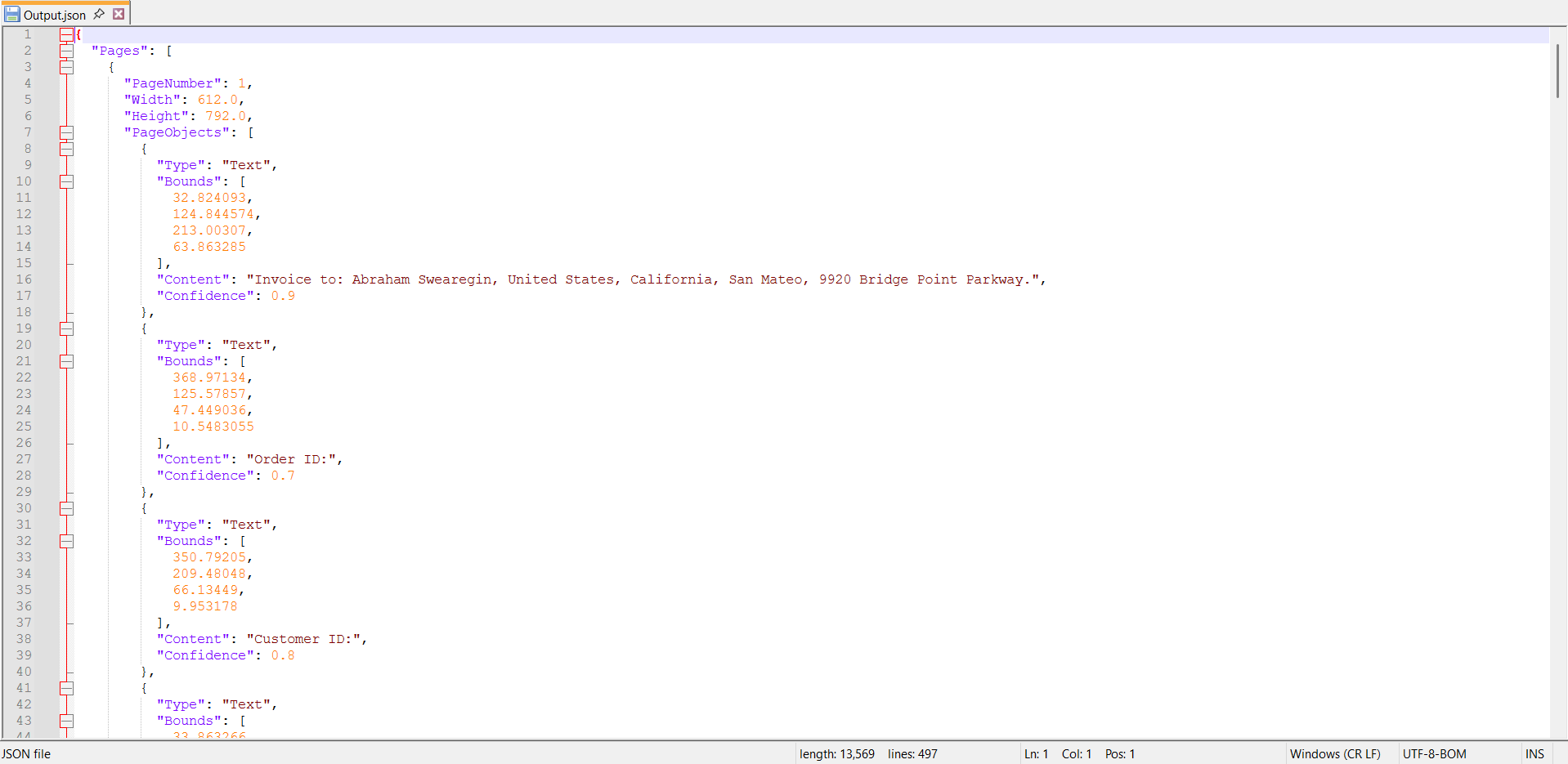
By executing the program, you will get the JSON file as follows.
Click here to explore the rich set of Syncfusion® Data Extraction library features.
Prerequisites:
- Install the latest .NET SDK and Visual Studio Code.
- Open Visual Studio Code and install the .NET MAUI for Visual Studio Code extension from the Extensions Marketplace.
- Follow the step-by-step setup guide:
Step 1: Create a new C# .NET MAUI app project.
- Open the command palette by pressing Ctrl+Shift+P and type .NET:New Project and enter.
- Choose the .NET MAUI App template.
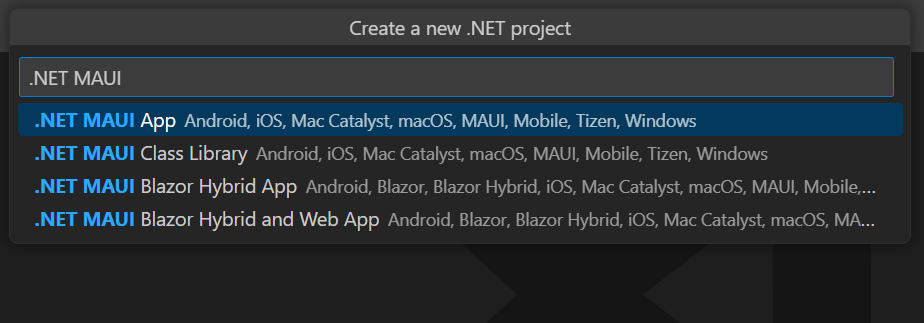
- Select the project location, type the project name and press enter.
- Then choose Create project.
Step 2: To Extract Data from PDF Document in .NET MAUI app, install Syncfusion.SmartDataExtractor.NET to the MAUI project.
- Press Ctrl + ` (backtick) to open the integrated terminal in Visual Studio Code.
- Ensure you’re in the project root directory where your .csproj file is located.
- Run the command
dotnet add package Syncfusion.SmartDataExtractor.NETto install the NuGet package.
dotnet add package Syncfusion.SmartDataExtractor.NET
Step 3: Add a new button to the MainPage.xaml as shown below.
<ContentPage xmlns="http://schemas.microsoft.com/dotnet/2021/maui"
             xmlns:x="http://schemas.microsoft.com/winfx/2009/xaml"
             x:Class="Extract_Data_MAUI.MainPage">

	<ScrollView>
		<VerticalStackLayout
            Padding="30,0"
            Spacing="25">

			<Label
                Text="Smart Data Extractor Demo"
                Style="{StaticResource Headline}"
                SemanticProperties.HeadingLevel="Level1" />

			<Button
                Text="Extract Data from PDF"
                SemanticProperties.Hint="Extract structured data from PDF"
                Clicked="OnExtractDataClicked"
                HorizontalOptions="Fill" />

		</VerticalStackLayout>
	</ScrollView>
</ContentPage>
Step 4: Include the following namespaces in the MainPage.xaml.cs file.
using System.IO;
using System.Text;
using Syncfusion.SmartDataExtractor;
Step 5: Add a new action method OnExtractDataClicked in MainPage.xaml.cs and include the following code snippet to Extract Data from PDF.
// Load the input PDF from the app package (include it in the project as a MauiAsset)
using Stream inputStream = await FileSystem.OpenAppPackageFileAsync(Path.Combine("Data", "Input.pdf"));
// Initialize the Data Extractor
DataExtractor extractor = new DataExtractor();
// Extract data as JSON string
string data = extractor.ExtractDataAsJson(inputStream);
// Save the extracted JSON data into an output file inside the application directory
string outputDirectory = Path.Combine(FileSystem.AppDataDirectory, "Output");
Directory.CreateDirectory(outputDirectory);
string outputPath = Path.Combine(outputDirectory, "Output.json");
File.WriteAllText(outputPath, data, Encoding.UTF8);
// Show success message
await DisplayAlert("Success", $"Extracted data saved to {outputPath}", "OK");
Step 6: Run the Application.
- Select the target framework, device or emulator.
- Press F5 to run the application.
By executing the program, you will get the JSON file as follows.