Fallback Policy Configuration
18 Mar 20261 minute to read
Fallback Policies in Code Studio ensure uninterrupted AI workflows by automatically rerouting requests to alternative models when the primary model fails. This feature improves reliability, success rates, and cost efficiency.
Prerequisites
- You must be an Admin
- Only admins are authorized to create and manage fallback policies.
1. How Fallback Works ?
- The request is first sent to the primary model.
- If the request fails (due to timeout, error, etc.), the system automatically retries using the next model in the fallback list.
- This process continues until a model successfully returns a result or the retry limit is reached.
Benefits:
- Prevents stalled workflows
- Increases success rates
- Reduces costs by only paying for successful responses
2. Configuring Fallback Policies
Steps:
-
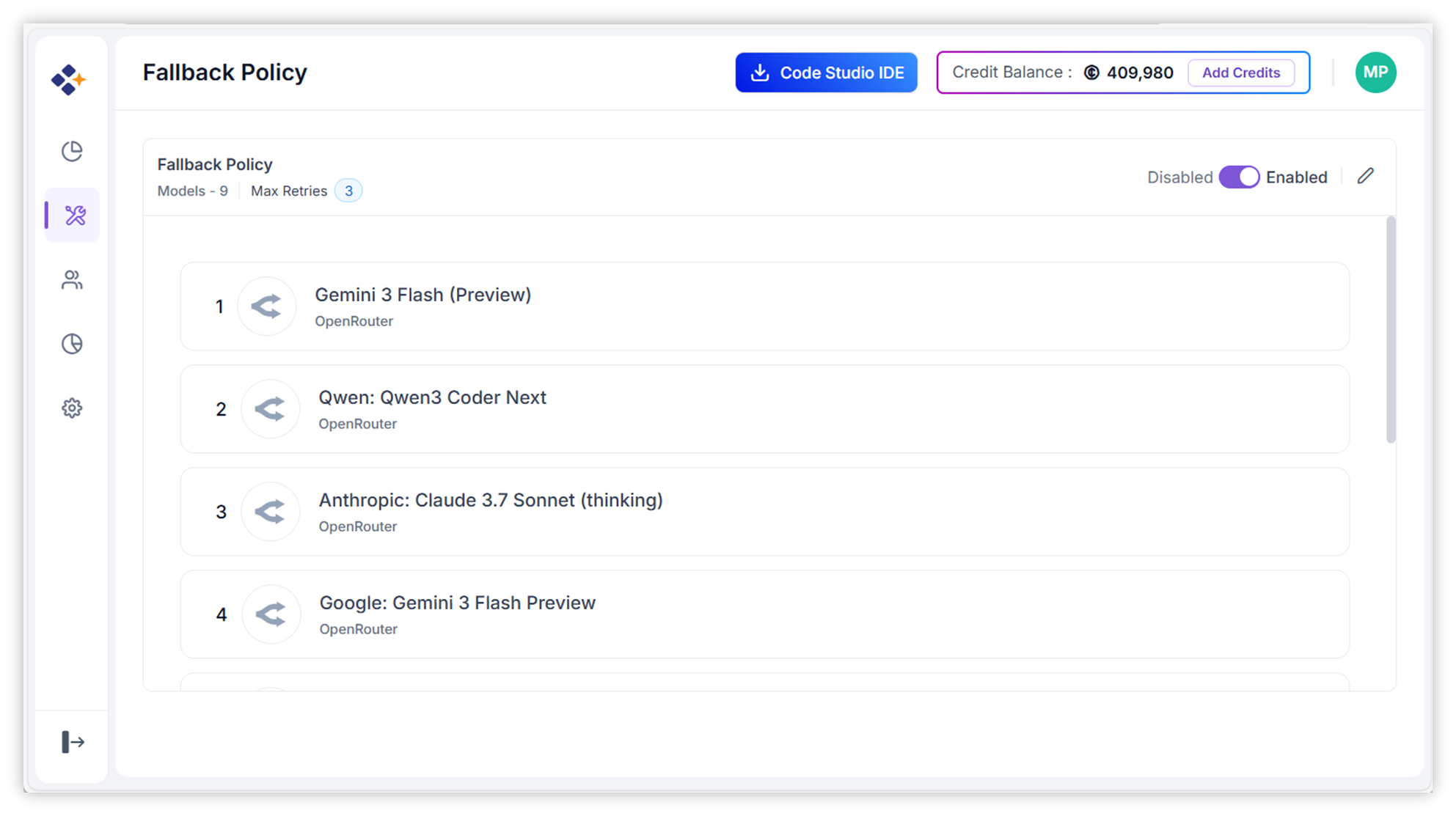
Navigate to the Fallback Policy page.
-
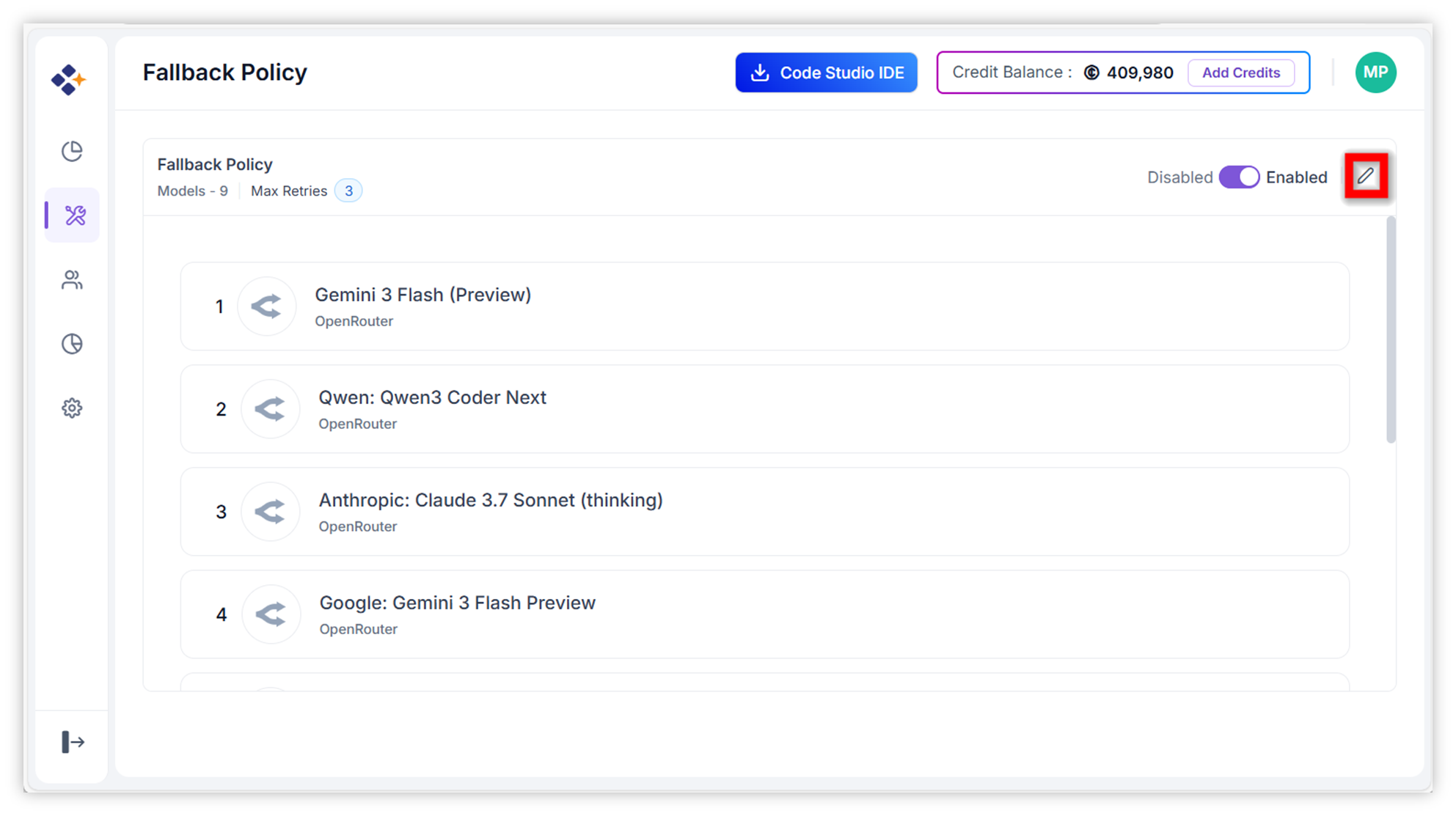
Click the pencil icon to edit your fallback options, including Max retries and the list of models.
-
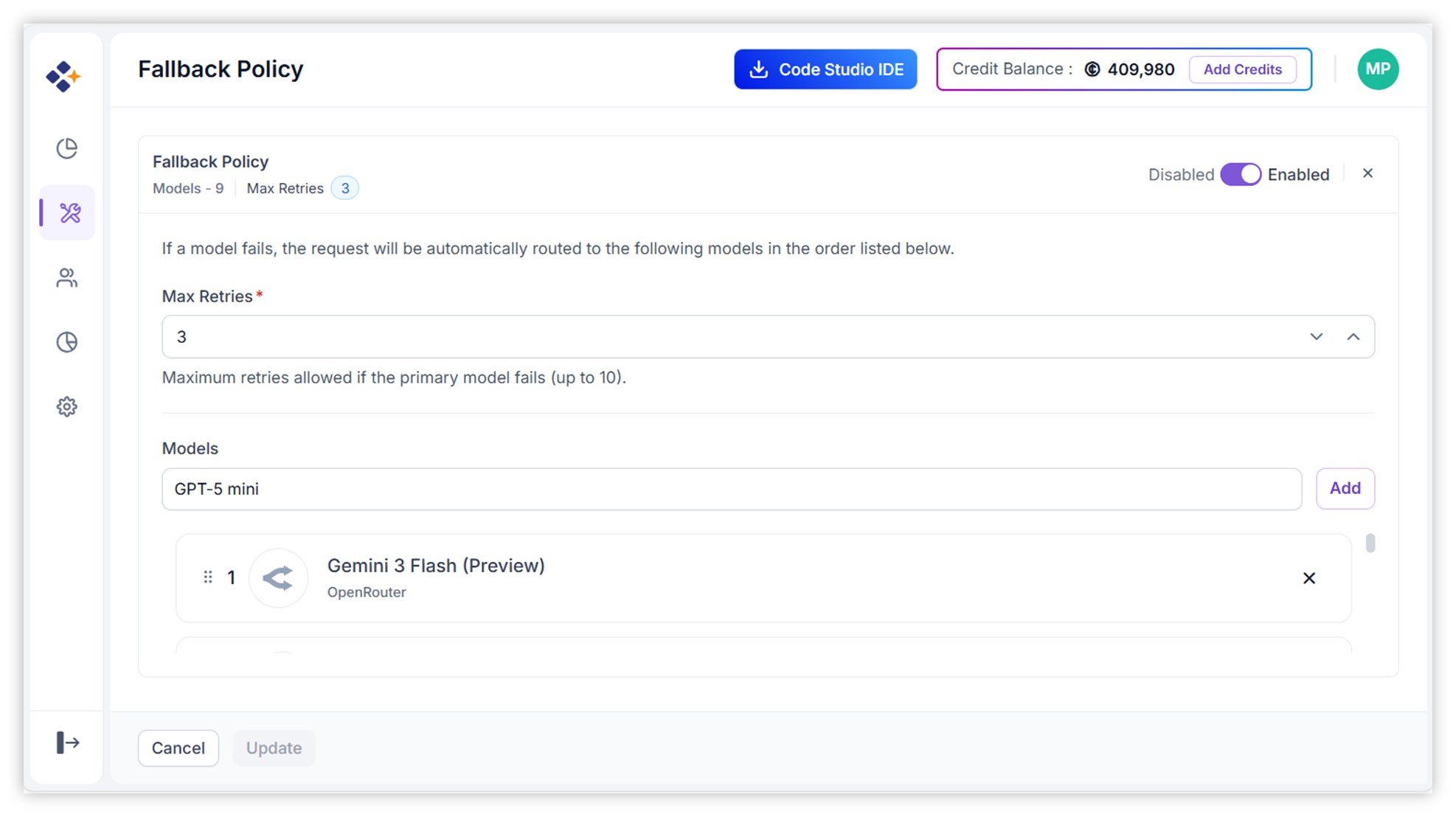
Add models in the desired Fallback Order:
- Select models from available providers.
- Arrange them in priority order.
-
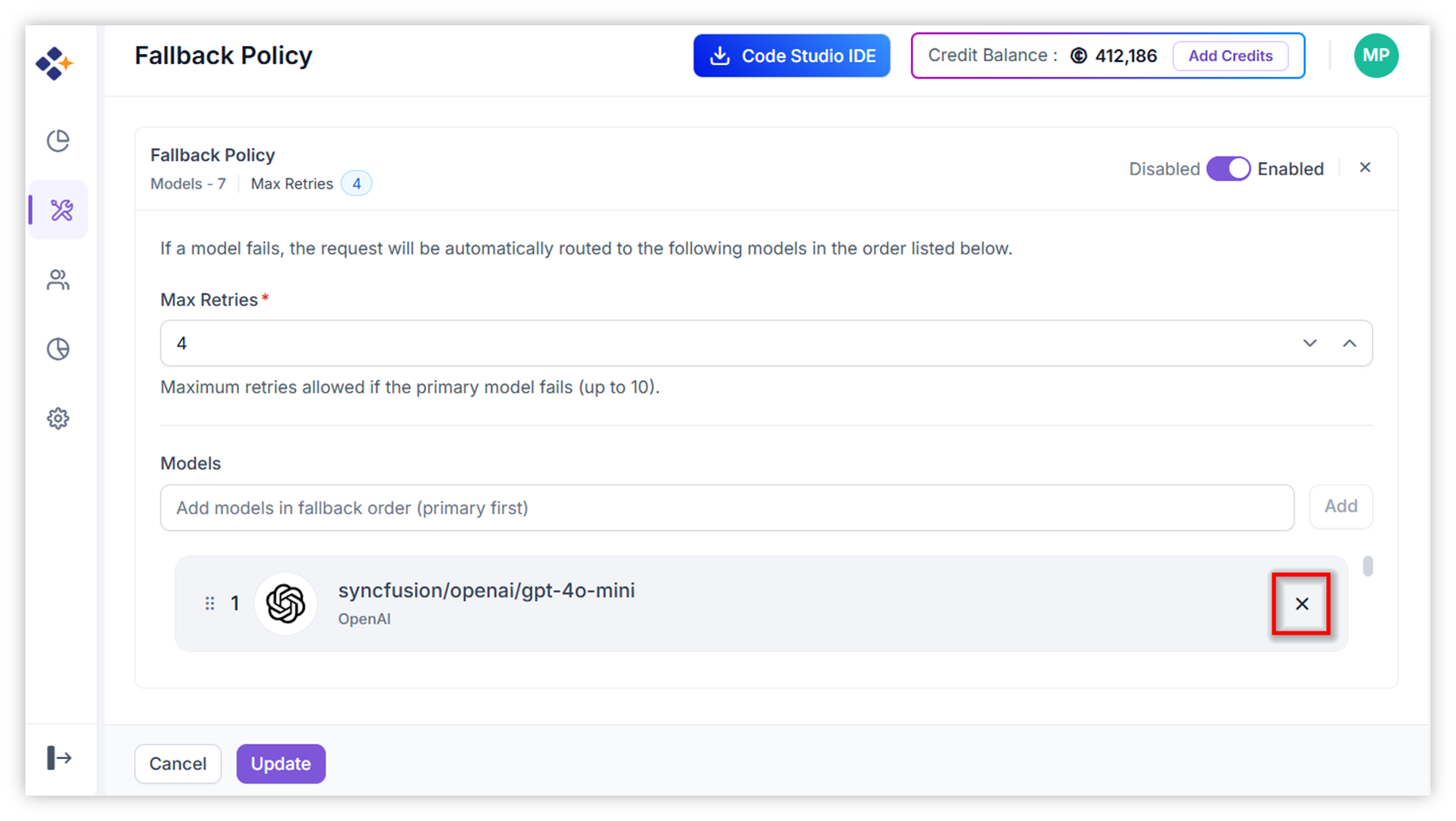
If you want to remove a model, just click the Close icon next to it.
-
Click Update to save the configuration.
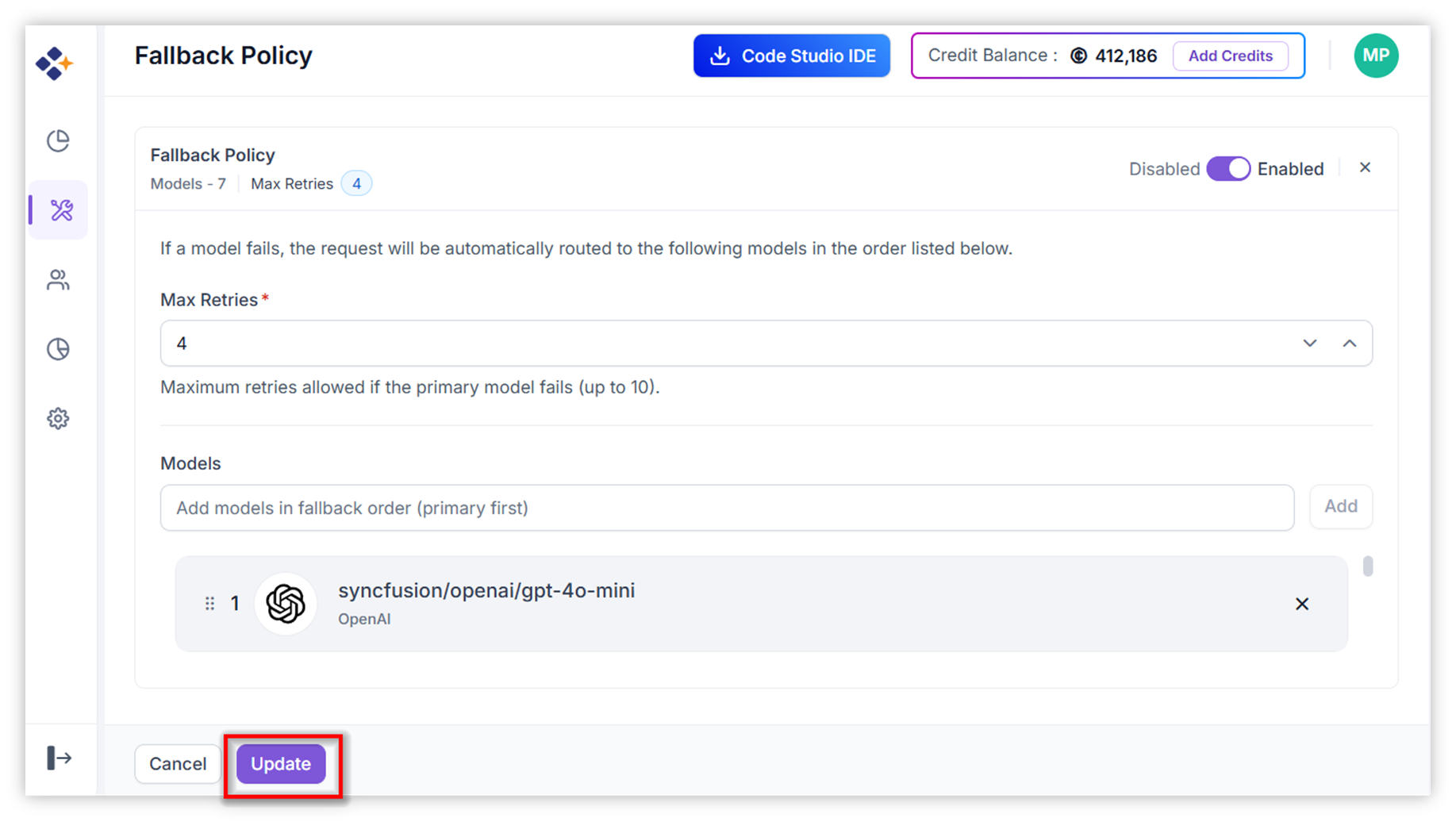
Note: You can edit the model list and reorder them anytime to optimize fallback behavior.
3. Best Practices
- Choose models with varied capabilities and reliability to ensure coverage.
- Limit retries to avoid unnecessary costs.
- Regularly review fallback performance and adjust model order accordingly.