---
layout: post
title: Getting Started | Blazor Chart Wizard Component | Syncfusion®
description: Check out and learn about getting started with Blazor Chart Wizard component in Blazor Server App using Visual Studio and more.
platform: chart-sdk
control: Chart Wizard
documentation: ug
keywords: chart wizard, blazor, chart
---
# Getting Started with Blazor Chart Wizard Component in Server App
This section briefly explains about how to include [Blazor Chart Wizard](https://www.syncfusion.com/blazor-components/blazor-chart-wizard) component in your Blazor Server App using [Visual Studio](https://visualstudio.microsoft.com/vs/), [Visual Studio Code](https://code.visualstudio.com/), and the [.NET CLI](https://learn.microsoft.com/en-us/dotnet/core/tools/).
> **Ready to streamline your Blazor development?** Discover the full potential of Blazor components with AI Coding Assistants. Effortlessly integrate, configure, and enhance your projects with intelligent, context-aware code suggestions, streamlined setups, and real-time insights—all seamlessly integrated into your preferred AI-powered IDEs like VS Code, Cursor, CodeStudio and more. [Explore AI Coding Assistants](https://blazor.syncfusion.com/documentation/ai-coding-assistant/overview)
{% tabcontents %}
{% tabcontent Visual Studio %}
## Prerequisites
* [System requirements for Blazor components](https://blazor.syncfusion.com/documentation/system-requirements)
## Create a new Blazor App in Visual Studio
Create a **Blazor Server App** by using the **Blazor Web App** template in Visual Studio via [Microsoft Templates](https://learn.microsoft.com/en-us/aspnet/core/blazor/tooling?view=aspnetcore-10.0&pivots=vs) or the [Syncfusion® Blazor Extension](https://blazor.syncfusion.com/documentation/visual-studio-integration/template-studio). For detailed instructions, refer to the [Blazor Server App Getting Started](https://blazor.syncfusion.com/documentation/getting-started/blazor-server-side-visual-studio) documentation.
{% endtabcontent %}
{% tabcontent Visual Studio Code %}
## Prerequisites
* [System requirements for Blazor components](https://blazor.syncfusion.com/documentation/system-requirements)
## Create a new Blazor App in Visual Studio Code
Create a **Blazor Server App** using Visual Studio Code via [Microsoft Templates](https://learn.microsoft.com/en-us/aspnet/core/blazor/tooling?view=aspnetcore-10.0&pivots=vsc) or the [Syncfusion® Blazor Extension](https://blazor.syncfusion.com/documentation/visual-studio-code-integration/create-project). For detailed instructions, refer to the [Blazor Server App Getting Started](https://blazor.syncfusion.com/documentation/getting-started/blazor-server-side-visual-studio?tabcontent=visual-studio-code) documentation.
Alternatively, create a Server application by using the following command in the integrated terminal (Ctrl+`).
{% tabs %}
{% highlight c# tabtitle="Blazor Server App" %}
dotnet new blazor -o BlazorApp -int Server
cd BlazorApp
{% endhighlight %}
{% endtabs %}
{% endtabcontent %}
{% tabcontent .NET CLI %}
## Prerequisites
Install the latest version of [.NET SDK](https://dotnet.microsoft.com/en-us/download). If the .NET SDK is already installed, determine the installed version by running the following command in a command prompt (Windows), terminal (macOS), or command shell (Linux).
{% tabs %}
{% highlight c# tabtitle=".NET CLI" %}
dotnet --version
{% endhighlight %}
{% endtabs %}
## Create a Blazor Server App using .NET CLI
Run the following command to create a new Blazor Server App in a command prompt (Windows) or terminal (macOS) or command shell (Linux). For detailed instructions, refer to the [Blazor Server App Getting Started](https://blazor.syncfusion.com/documentation/getting-started/blazor-server-side-visual-studio?tabcontent=.net-cli) documentation.
{% tabs %}
{% highlight c# tabtitle=".NET CLI" %}
dotnet new blazor -o BlazorApp -int Server
cd BlazorApp
{% endhighlight %}
{% endtabs %}
{% endtabcontent %}
{% endtabcontents %}
N> Configure the appropriate [Interactive render mode](https://learn.microsoft.com/en-us/aspnet/core/blazor/components/render-modes?view=aspnetcore-10.0#render-modes) and [Interactivity location](https://learn.microsoft.com/en-us/aspnet/core/blazor/tooling?view=aspnetcore-10.0&pivots=vs) while creating a Blazor Server App. For detailed information, refer to the [interactive render mode documentation](https://blazor.syncfusion.com/documentation/common/interactive-render-mode).
## Install required Blazor packages
Install [Syncfusion.Blazor.ChartWizard](https://www.nuget.org/packages/Syncfusion.Blazor.ChartWizard/) NuGet package in your project using the NuGet Package Manager in Visual Studio (*Tools → NuGet Package Manager → Manage NuGet Packages for Solution*), or the integrated terminal in Visual Studio Code (`dotnet add package`), or the .NET CLI.
Alternatively, run the following command in the Package Manager Console to achieve the same.
{% tabs %}
{% highlight C# tabtitle="Package Manager" %}
Install-Package Syncfusion.Blazor.ChartWizard -Version {{ site.releaseversion }}
{% endhighlight %}
{% endtabs %}
N> All Syncfusion Blazor packages are available on [nuget.org](https://www.nuget.org/packages?q=syncfusion.blazor). See the [NuGet packages](https://blazor.syncfusion.com/documentation/nuget-packages) topic for details.
## Add import namespaces
After the package is installed, open the **~/_Imports.razor** file and import the `Syncfusion.Blazor` and `Syncfusion.Blazor.ChartWizard` namespaces.
{% tabs %}
{% highlight razor tabtitle="~/_Imports.razor" %}
@using Syncfusion.Blazor
@using Syncfusion.Blazor.ChartWizard
{% endhighlight %}
{% endtabs %}
## Register Blazor service
Register the Blazor service in the **Program.cs** file of your Blazor Server App.
{% tabs %}
{% highlight C# tabtitle="Program.cs" %}
....
using Syncfusion.Blazor;
....
builder.Services.AddSyncfusionBlazor();
....
{% endhighlight %}
{% endtabs %}
## Add script resources
The script can be accessed from NuGet through [Static Web Assets](https://blazor.syncfusion.com/documentation/appearance/themes#static-web-assets). Include script reference in the **App.razor** file.
```html
```
N> Check out the [Adding Script Reference](https://blazor.syncfusion.com/documentation/common/adding-script-references) topic to learn different approaches for adding script references in the Blazor application.
## Add Blazor Chart Wizard component
Add the Blazor Chart Wizard component in the **~/Components/Pages/Home.razor** file. If the interactivity location is set to `Per page/component`, define a render mode at the top of the `~Pages/Home.razor` file.
N> If the Interactivity Location is set to `Global`, the render mode is automatically configured in the `App.razor` file by default.
{% tabs %}
{% highlight razor %}
@* desired render mode define here *@
@rendermode InteractiveServer
{% endhighlight %}
{% endtabs %}
{% tabs %}
{% highlight razor tabtitle="Home.razor" %}
{% endhighlight %}
{% endtabs %}
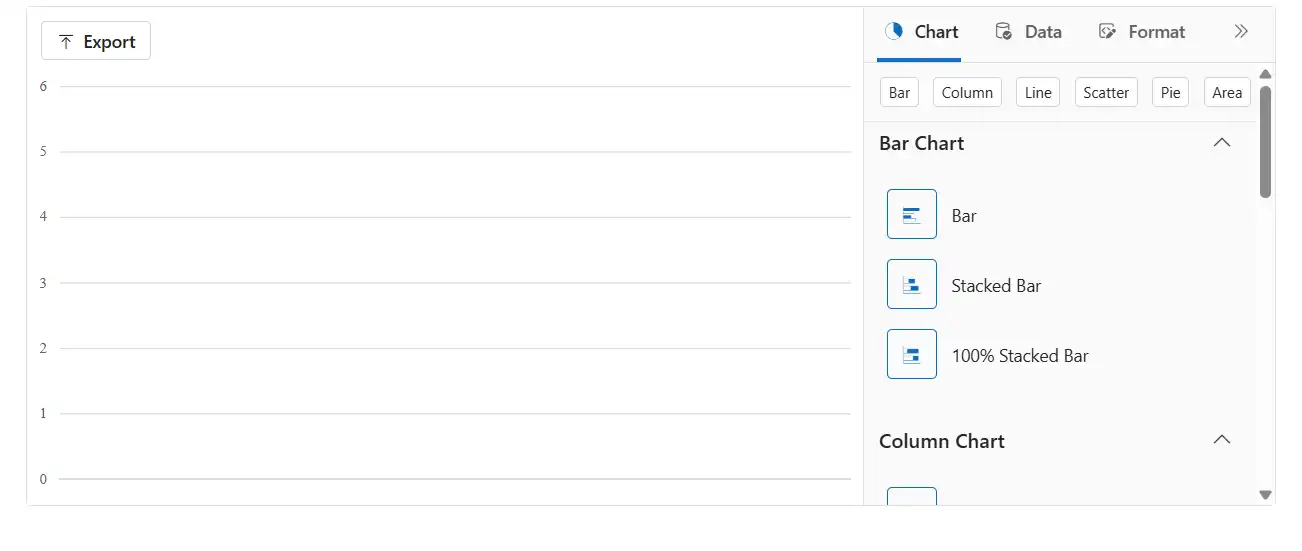
* Press Ctrl+F5 (Windows) or ⌘+F5 (macOS) to launch the application. This will render the Blazor Chart Wizard component in the default web browser.
## Populate Blazor Chart Wizard data
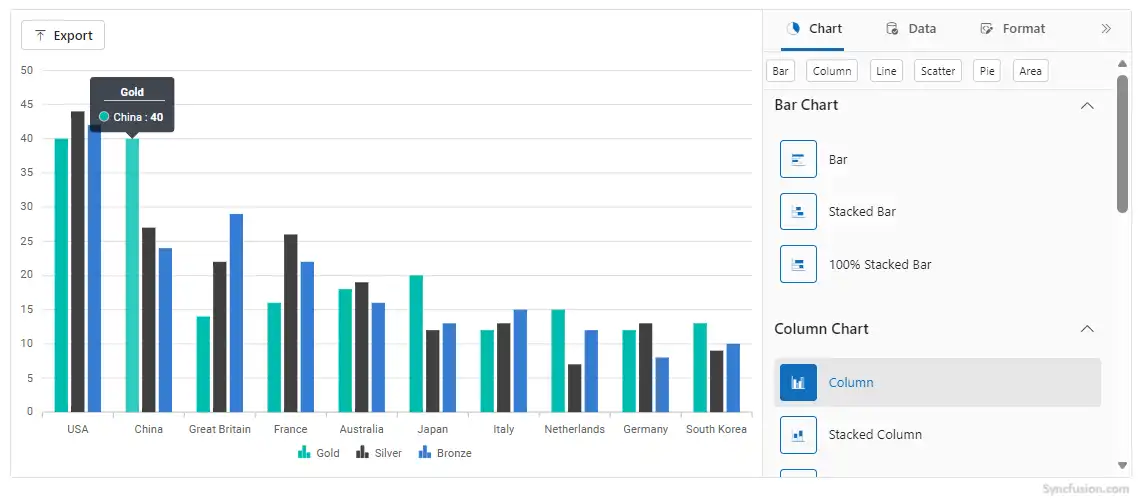
To bind data for the chart wizard component, you can assign a IEnumerable object to the `DataSource` property.
{% tabs %}
{% highlight razor tabtitle="Home.razor" %}
public class OlympicsData
{
public string? Country { get; set; }
public string? CountryCode { get; set; }
public int Gold { get; set; }
public int Silver { get; set; }
public int Bronze { get; set; }
}
private readonly List OlympicsDataSource = new()
{
new OlympicsData { Country = "USA", CountryCode = "USA", Gold = 40, Silver = 44, Bronze = 42 },
new OlympicsData { Country = "China", CountryCode = "CHN", Gold = 40, Silver = 27, Bronze = 24 },
new OlympicsData { Country = "Great Britain", CountryCode = "GBR", Gold = 14, Silver = 22, Bronze = 29 },
new OlympicsData { Country = "France", CountryCode = "FRA", Gold = 16, Silver = 26, Bronze = 22 },
new OlympicsData { Country = "Australia", CountryCode = "AUS", Gold = 18, Silver = 19, Bronze = 16 },
new OlympicsData { Country = "Japan", CountryCode = "JPN", Gold = 20, Silver = 12, Bronze = 13 },
new OlympicsData { Country = "Italy", CountryCode = "ITA", Gold = 12, Silver = 13, Bronze = 15 },
new OlympicsData { Country = "Netherlands", CountryCode = "NLD", Gold = 15, Silver = 7, Bronze = 12 },
new OlympicsData { Country = "Germany", CountryCode = "DEU", Gold = 12, Silver = 13, Bronze = 8 },
new OlympicsData { Country = "South Korea", CountryCode = "KOR", Gold = 13, Silver = 9, Bronze = 10 }
};
{% endhighlight %}
{% endtabs %}
Now, populate the categories and chartSeries collections with the appropriate data defining the chart’s categories and series. Then, assign these values to the `CategoryFields` and `SeriesFields` properties of the `ChartSettings`, respectively.
N>
The default series type is Line. Use the `SeriesType` property to change the series type.
{% tabs %}
{% highlight razor tabtitle="Home.razor" %}
@using Syncfusion.Blazor.ChartWizard
@code {
private readonly List chartSeries = new() { "Gold", "Silver", "Bronze" };
private readonly List categories = new() { "Country", "CountryCode" };
public class OlympicsData
{
public string? Country { get; set; }
public string? CountryCode { get; set; }
public int Gold { get; set; }
public int Silver { get; set; }
public int Bronze { get; set; }
}
private readonly List OlympicsDataSource = new()
{
new OlympicsData { Country = "USA", CountryCode = "USA", Gold = 40, Silver = 44, Bronze = 42 },
new OlympicsData { Country = "China", CountryCode = "CHN", Gold = 40, Silver = 27, Bronze = 24 },
new OlympicsData { Country = "Great Britain", CountryCode = "GBR", Gold = 14, Silver = 22, Bronze = 29 },
new OlympicsData { Country = "France", CountryCode = "FRA", Gold = 16, Silver = 26, Bronze = 22 },
new OlympicsData { Country = "Australia", CountryCode = "AUS", Gold = 18, Silver = 19, Bronze = 16 },
new OlympicsData { Country = "Japan", CountryCode = "JPN", Gold = 20, Silver = 12, Bronze = 13 },
new OlympicsData { Country = "Italy", CountryCode = "ITA", Gold = 12, Silver = 13, Bronze = 15 },
new OlympicsData { Country = "Netherlands", CountryCode = "NLD", Gold = 15, Silver = 7, Bronze = 12 },
new OlympicsData { Country = "Germany", CountryCode = "DEU", Gold = 12, Silver = 13, Bronze = 8 },
new OlympicsData { Country = "South Korea", CountryCode = "KOR", Gold = 13, Silver = 9, Bronze = 10 }
};
}
{% endhighlight %}
{% endtabs %}
## Theme
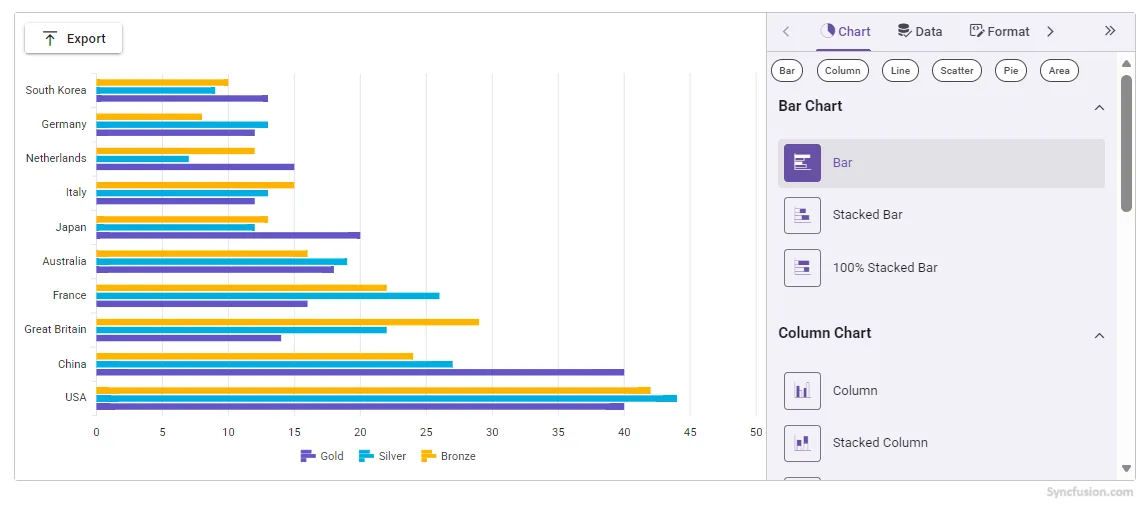
Blazor Chart Wizard has built-in themes that can be used to change the appearance of the chart.
### Prerequisites
In order to apply same theme update for the overall Chart Wizard UI, include the same theme stylesheet (this can be accessed from NuGet through Static Web Assets) in the tag in the App.razor file as shown below:
{% tabs %}
{% highlight razor tabtitle="Home.razor" %}
....
{% endhighlight %}
{% endtabs %}
The `Theme` property is used to specify the visual theme applied to the chart.
{% tabs %}
{% highlight razor tabtitle="Home.razor" %}
@using Syncfusion.Blazor.ChartWizard
@code {
private readonly List chartSeries = new() { "Gold", "Silver", "Bronze" };
private readonly List categories = new() { "Country", "CountryCode" };
public class OlympicsData
{
public string? Country { get; set; }
public string? CountryCode { get; set; }
public int Gold { get; set; }
public int Silver { get; set; }
public int Bronze { get; set; }
}
private readonly List OlympicsDataSource = new()
{
new OlympicsData { Country = "USA", CountryCode = "USA", Gold = 40, Silver = 44, Bronze = 42 },
new OlympicsData { Country = "China", CountryCode = "CHN", Gold = 40, Silver = 27, Bronze = 24 },
new OlympicsData { Country = "Great Britain", CountryCode = "GBR", Gold = 14, Silver = 22, Bronze = 29 },
new OlympicsData { Country = "France", CountryCode = "FRA", Gold = 16, Silver = 26, Bronze = 22 },
new OlympicsData { Country = "Australia", CountryCode = "AUS", Gold = 18, Silver = 19, Bronze = 16 },
new OlympicsData { Country = "Japan", CountryCode = "JPN", Gold = 20, Silver = 12, Bronze = 13 },
new OlympicsData { Country = "Italy", CountryCode = "ITA", Gold = 12, Silver = 13, Bronze = 15 },
new OlympicsData { Country = "Netherlands", CountryCode = "NLD", Gold = 15, Silver = 7, Bronze = 12 },
new OlympicsData { Country = "Germany", CountryCode = "DEU", Gold = 12, Silver = 13, Bronze = 8 },
new OlympicsData { Country = "South Korea", CountryCode = "KOR", Gold = 13, Silver = 9, Bronze = 10 }
};
}
{% endhighlight %}
{% endtabs %}
## See also
* [Getting Started with Blazor Web Assembly App in Visual Studio or .NET CLI](https://blazor.syncfusion.com/documentation/getting-started/blazor-webassembly-app)
* [Getting Started with Blazor Web App in Visual Studio or .NET CLI](https://blazor.syncfusion.com/documentation/getting-started/blazor-web-app)