Getting Started with Windows Forms Wizard Control
18 Nov 20189 minutes to read
This section explains how to get started with the Windows Forms WizardControl and its basic features.
Assembly Deployment
Refer to the Control Dependencies section for the list of assemblies and NuGet packages required to use the WizardControl.
Refer to NuGet Packages to learn how to install NuGet packages in a Windows Forms application.
To install the required NuGet package using the NuGet Package Manager Console, run the following command:
Install-Package Syncfusion.Tools.WindowsAdding WizardControl via Designer
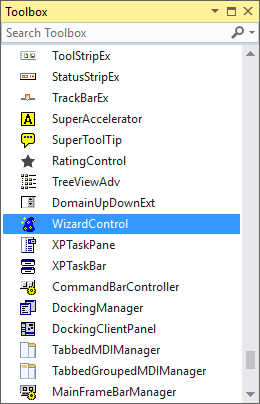
The WizardControl can be added to a form by dragging it from the Toolbox under the Syncfusion category and dropping it onto the Windows Form designer. The following required assembly references are added automatically:
- Syncfusion.Grid.Base.dll
- Syncfusion.Grid.Windows.dll
- Syncfusion.Shared.Base.dll
- Syncfusion.Shared.Windows.dll
- Syncfusion.Tools.Base.dll
- Syncfusion.Tools.Windows.dll
After adding the control to the form, set the Dock property to Fill (DockStyle.Fill) so that the control occupies the entire form.
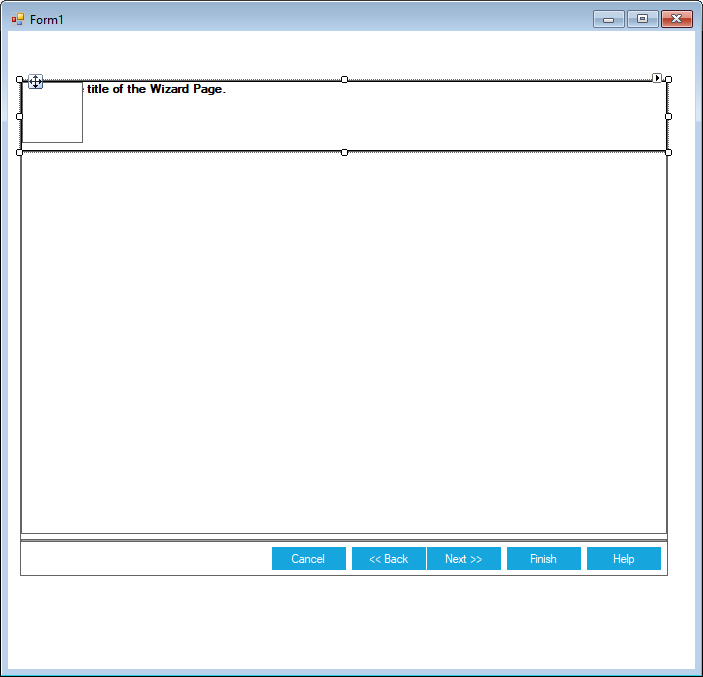
Note: In .NET Core and .NET 5+, the Collection Editor for the
WizardPagesproperty may display the title ControlProxy`1 Collection Editor instead of WizardControlPage Collection Editor. This is a known issue in the .NET Windows Forms Designer and does not affect functionality. For more information, see GitHub issue dotnet/winforms#14049.
Adding WizardControl via Code
To add the WizardControl programmatically, follow these steps:
- Add the following required assembly references to the project (this step is required only when adding references manually and is not required when using the
Syncfusion.Tools.WindowsNuGet package):
- Syncfusion.Grid.Base.dll
- Syncfusion.Grid.Windows.dll
- Syncfusion.Shared.Base.dll
- Syncfusion.Shared.Windows.dll
- Syncfusion.Tools.Base.dll
- Syncfusion.Tools.Windows.dll
-
Include the
Syncfusion.Windows.Forms.Toolsnamespace. Also include theSyncfusion.Windows.Formsnamespace, which contains theThemeenumeration used to set the control style (for example,Theme.MetroandTheme.Office2016Colorful).using Syncfusion.Windows.Forms.Tools; using Syncfusion.Windows.Forms;Imports Syncfusion.Windows.Forms.Tools Imports Syncfusion.Windows.Forms -
Create a WizardControl instance and add it to the form. Place the following code in the
Form1constructor or theForm1_Loadevent handler.
Declare the wizardControl1 field at the class level of Form1:
public partial class Form1 : Form
{
    private WizardControl wizardControl1;
    public Form1()
    {
        InitializeComponent();
    }
}Public Partial Class Form1
Inherits Form
Private wizardControl1 As WizardControl
Public Sub New()
InitializeComponent()
End Sub
End ClassThen, create an instance of the control and add it to the form:
this.wizardControl1 = new WizardControl();
   this.wizardControl1.Style = Theme.Metro;
   this.wizardControl1.Dock = DockStyle.Fill;
this.Controls.Add(this.wizardControl1);Me.wizardControl1 = New WizardControl()
Me.wizardControl1.Style = Theme.Metro
Me.wizardControl1.Dock = DockStyle.Fill
Me.Controls.Add(Me.wizardControl1)Adding Wizard Pages
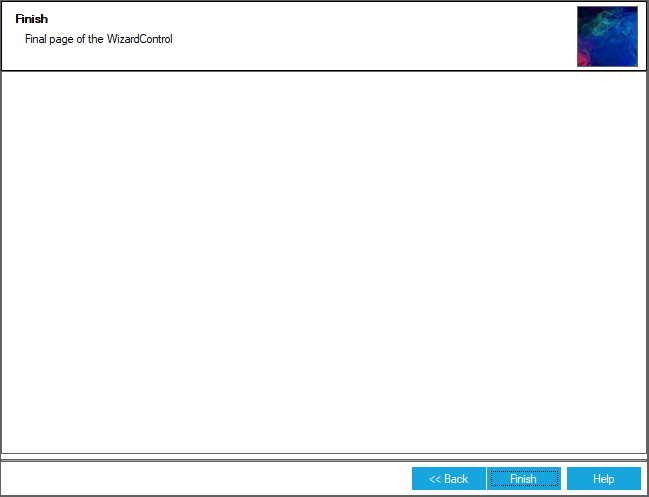
WizardControlPages instances can be added to the WizardPages collection of the WizardControl. Although the WizardPageContainer / WizardContainer model is used internally by the control, it is not required for typical usage scenarios.
To avoid a System.NullReferenceException during the wizard’s reinitialization process, configure the wizard properties and assign the WizardPages collection in the Form1 constructor after the InitializeComponent() call.
// Create instance of page elements
WizardControlPage wizardControlPage1 = new WizardControlPage();
WizardControlPage wizardControlPage2 = new WizardControlPage();
WizardControlPage wizardControlPage3 = new WizardControlPage();

// configure pages
this.wizardControlPage1.Title = "Welcome";
this.wizardControlPage1.Description = "First page of the WizardControl";
this.wizardControlPage1.BackVisible = false;

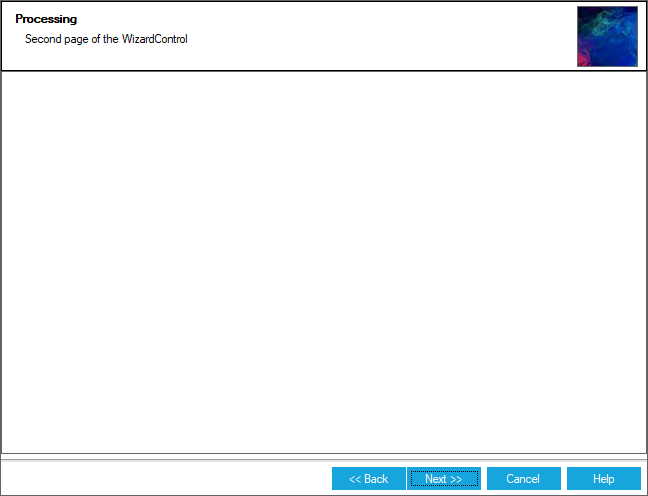
this.wizardControlPage2.Title = "Processing";
this.wizardControlPage2.Description = "Second page of the WizardControl";

this.wizardControlPage3.Title = "Finished";
this.wizardControlPage3.Description = "Final page of the WizardControl";
this.wizardControlPage3.NextVisible = false;
this.wizardControlPage3.CancelVisible = false;
this.wizardControlPage3.FinishVisible = true;

this.pictureBox1.Image = ((System.Drawing.Image)(resources.GetObject("pictureBox1.Image")));
this.wizardControl1.Banner = this.pictureBox1;

// Add pages into the WizardControl
 this.wizardControl1.WizardPages = new Syncfusion.Windows.Forms.Tools.WizardControlPage[] {
        this.wizardControlPage1,
        this.wizardControlPage2,
        this.wizardControlPage3};
' Create instance of page elements
Dim wizardControlPage1 As New WizardControlPage()
Dim wizardControlPage2 As New WizardControlPage()
Dim wizardControlPage3 As New WizardControlPage()
' configure pages
Me.wizardControlPage1.Title = "Welcome"
Me.wizardControlPage1.Description = "First page of the WizardControl"
Me.wizardControlPage1.BackVisible = False
Me.wizardControlPage2.Title = "Processing"
Me.wizardControlPage2.Description = "Second page of the WizardControl"
Me.wizardControlPage3.Title = "Finish"
Me.wizardControlPage3.Description = "Final page of the WizardControl"
Me.wizardControlPage3.NextVisible = False
Me.wizardControlPage3.CancelVisible = False
Me.wizardControlPage3.FinishVisible = True
Me.pictureBox1.Image = (CType(resources.GetObject("pictureBox1.Image"), System.Drawing.Image))
Me.wizardControl1.Banner = Me.pictureBox1
' Add pages into the WizardControl
Me.wizardControl1.WizardPages = New Syncfusion.Windows.Forms.Tools.WizardControlPage() { Me.wizardControlPage1, Me.wizardControlPage2, Me.wizardControlPage3}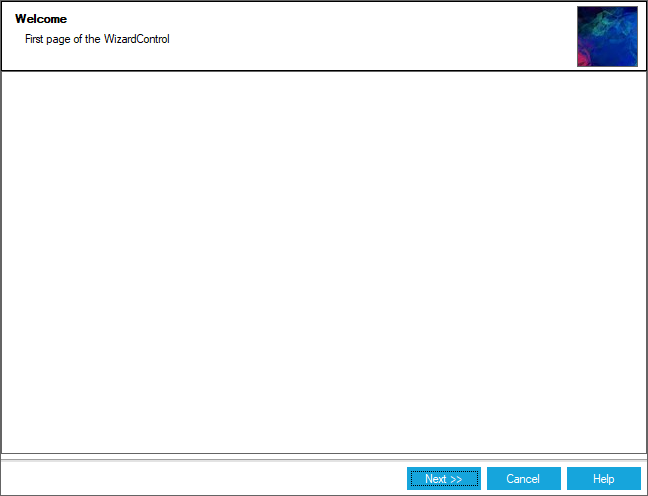
Configure the BannerPanel
Use the BannerPanel property to configure the header area of the WizardControl by assigning a GradientPanel that contains the required title and description labels.
When a panel is assigned to the BannerPanel property, it is automatically re-parented to the WizardControl. Therefore, you do not need to add it separately to the WizardControl.Controls collection.
The Title and Description properties accept Label references. If the specified labels are not children of the BannerPanel, they are automatically re-parented to the assigned panel.
// Create instance of controls to be added

GradientPanel gradientPanel1 = new GradientPanel();
Label label1 = new Label();
Label label2 = new Label();

this.label1.Text = "Page Title";
this.label2.Text = "This is the description of the Wizard Page";

this.gradientPanel1.Controls.Add(this.label1);
this.gradientPanel1.Controls.Add(this.label2);

// Adding it to WizardControl

this.wizardControl1.Controls.Add(this.gradientPanel1);

this.wizardControl1.Title = this.label1;
this.wizardControl1.Description = this.label2;
this.wizardControl1.BannerPanel = this.gradientPanel1;
' Create instance of controls to be added
Dim gradientPanel1 As New GradientPanel()
Dim label1 As New Label()
Dim label2 As New Label()
Me.label1.Text = "Page Title"
Me.label2.Text = "This is the description of the Wizard Page"
Me.gradientPanel1.Controls.Add(Me.label1)
Me.gradientPanel1.Controls.Add(Me.label2)
' Adding it to WizardControl
Me.wizardControl1.Controls.Add(Me.gradientPanel1)
Me.wizardControl1.Title = Me.label1
Me.wizardControl1.Description = Me.label2
Me.wizardControl1.BannerPanel = Me.gradientPanel1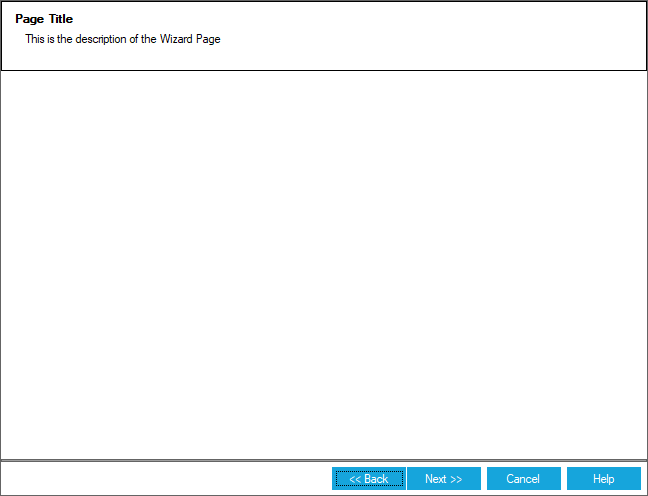
For more information about banner customization, see Banner Settings. For page-specific title and description settings, see Wizard Page Settings. For modern theming using the ThemeName and ThemeStyle properties, see Appearance. For event-related customization, see Event Handling.
Change Navigation Button Visibility
You can control the visibility of the Back, Cancel, Next, Help, and Finish navigation buttons for each WizardControlPage by using the BackVisible, CancelVisible, NextVisible, HelpVisible, and FinishVisible properties.
this.wizardControlPage1.BackVisible = true;
this.wizardControlPage1.NextVisible = true;
this.wizardControlPage1.CancelVisible = true;
this.wizardControlPage1.HelpVisible = true;
this.wizardControlPage1.FinishVisible = false;Me.wizardControlPage1.BackVisible = True
Me.wizardControlPage1.NextVisible = True
Me.wizardControlPage1.CancelVisible = True
Me.wizardControlPage1.HelpVisible = True
Me.wizardControlPage1.FinishVisible = False