Getting Started with WinForms Toggle Button
18 Nov 20183 minutes to read
This section briefly describes how to create a new Windows Forms project in Visual Studio and add a WinForms Toggle Button with its basic functionalities.
Assembly deployment
Refer to the control dependencies section to get the list of assemblies or NuGet package details that need to be added as references to use the control in any application.
Check here to find more details on how to install NuGet packages in a Windows Forms application.
Adding a WinForms Toggle Button control through designer
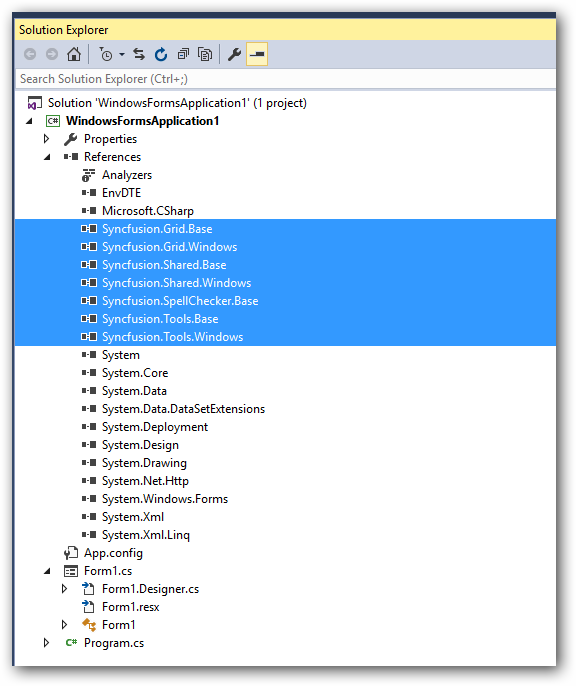
Step 1: Create a new Windows Forms application in Visual Studio. Drag and drop the WinForms Toggle Button from the toolbox into the form design view. The following dependent assemblies will be added automatically.
- Syncfusion.Grid.Base
- Syncfusion.Grid.Windows
- Syncfusion.Shared.Base
- Syncfusion.Shared.Windows
- Syncfusion.Tools.Base
- Syncfusion.Tools.Windows
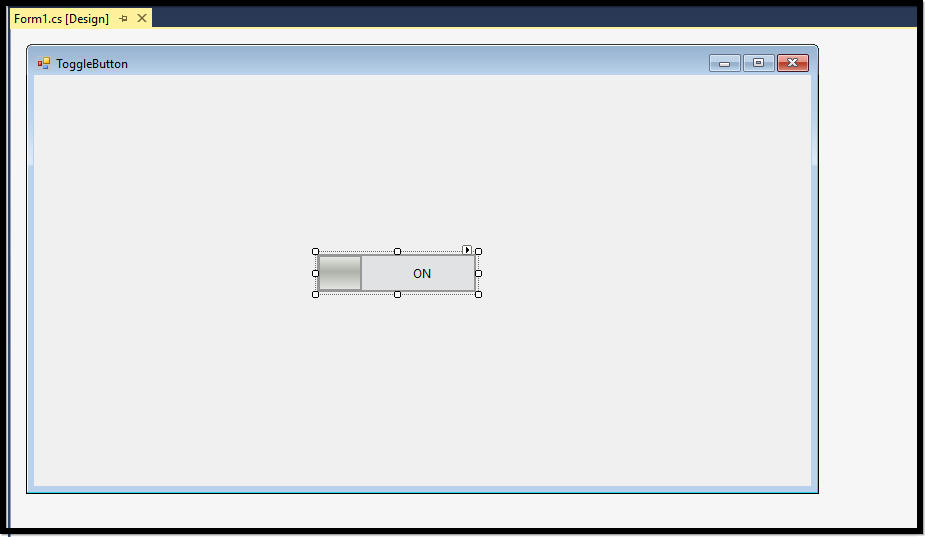
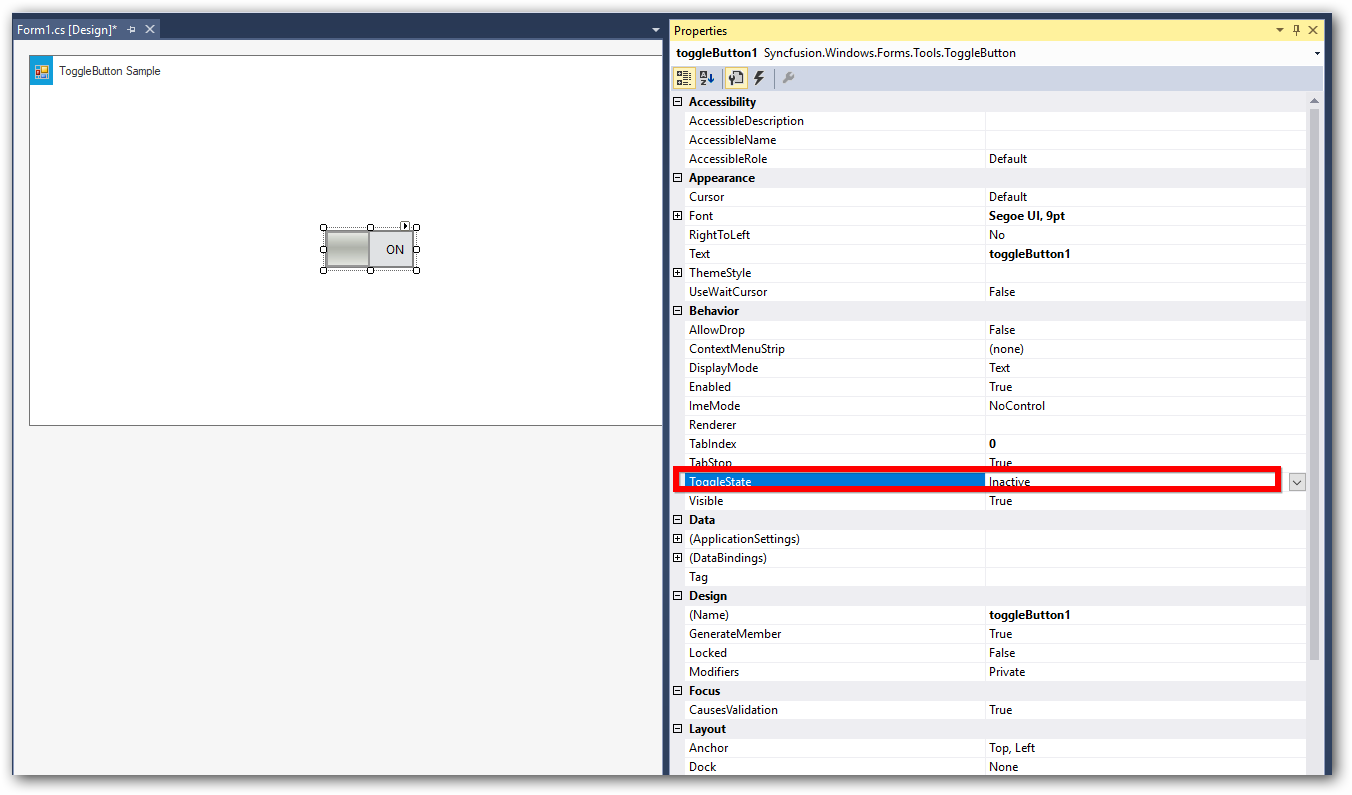
Step 2: You can customize the properties of the WinForms Toggle Button using the Properties panel. The following illustrates how to edit the ToggleState property of the control.
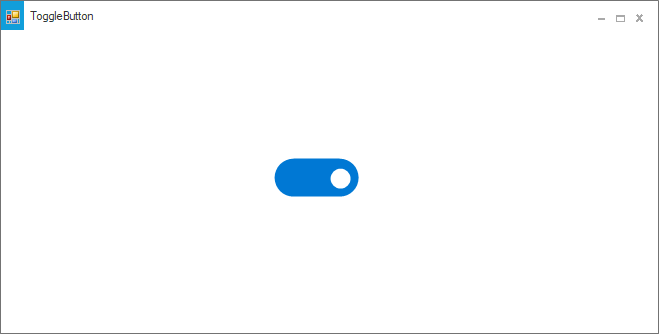
Step 3: Run the application and the following output will be shown.
Adding a WinForms Toggle Button control through code
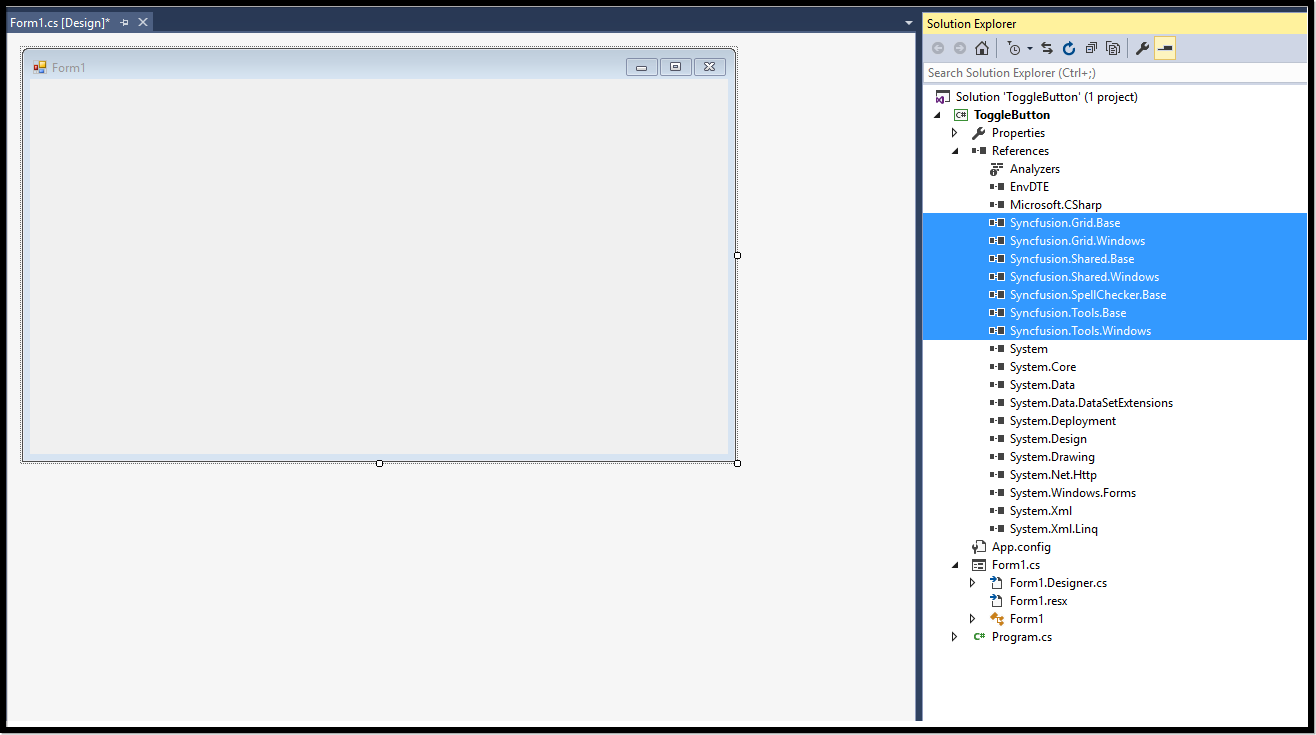
Step 1: Create a new Windows Forms application in Visual Studio. Add the following required assembly references and namespace to the project.
- Syncfusion.Grid.Base
- Syncfusion.Grid.Windows
- Syncfusion.Shared.Base
- Syncfusion.Shared.Windows
- Syncfusion.Tools.Base
-
Syncfusion.Tools.Windows
using Syncfusion.Windows.Forms.Tools;Imports Syncfusion.Windows.Forms.Tools
Step 2: In Form1.cs, create an instance of the WinForms Toggle Button control and add it to the form. You can also customize the control properties using the following code.
public Form1()
 {

            InitializeComponent();
            ToggleButton toggleButton = new ToggleButton();
            toggleButton.Location = new System.Drawing.Point(283, 178);
            toggleButton.Name = "toggleButton1";
            toggleButton.Size = new System.Drawing.Size(100, 40);
            toggleButton.ThemeName = "Office2019Colorful";
            this.Controls.Add(toggleButton);
}
Public Sub New()
InitializeComponent()
Dim toggleButton As ToggleButton = New ToggleButton()
toggleButton.Location = New System.Drawing.Point(283, 178)
toggleButton.Name = "toggleButton1"
toggleButton.Size = New System.Drawing.Size(100, 40)
toggleButton.ThemeName = "Office2019Colorful"
Me.Controls.Add(toggleButton)
End SubStep 3: Run the application and the following output will be shown.