Getting Started with WinForms TabControl
18 Nov 20185 minutes to read
Assembly deployment
Refer to the control dependencies section to get the list of assemblies or NuGet package that needs to be added as a reference to use the control in any application.
You can find more details about installing the NuGet packages in a Windows Forms application in the following link:
Create a simple application with WinForms TabControl
You can create a Windows Forms application with WinForms TabControl using the following steps:
Create a project
Create a new Windows Forms project in Visual Studio to display the WinForms TabControl with tab pages.
Add control through designer
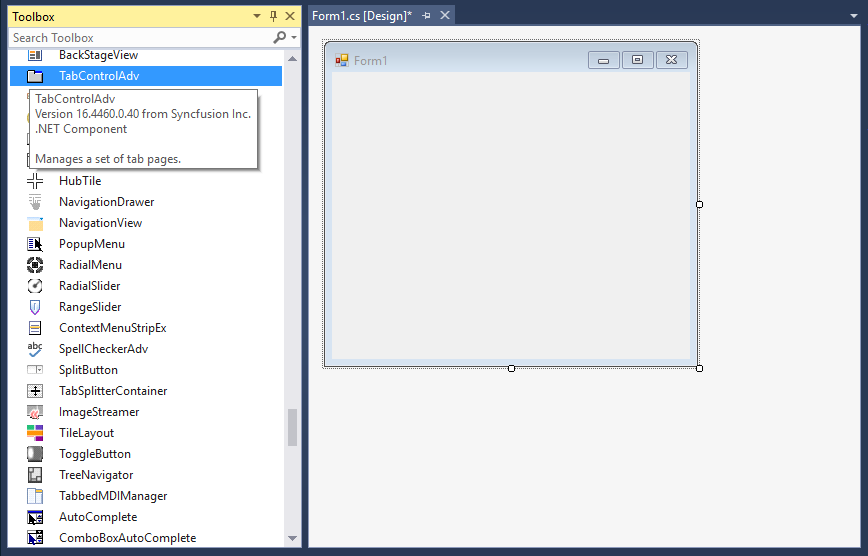
The WinForms TabControl can be added to an application by dragging it from the toolbox to a designer view. The following assembly references are added automatically:
- Syncfusion.Grid.Base.dll
- Syncfusion.Grid.Windows.dll
- Syncfusion.Shared.Base.dll
- Syncfusion.Shared.Windows.dll
- Syncfusion.Tools.Base.dll
- Syncfusion.Tools.Windows.dll
Add tabs
The tabs can be added to WinForms TabControl in the following ways:
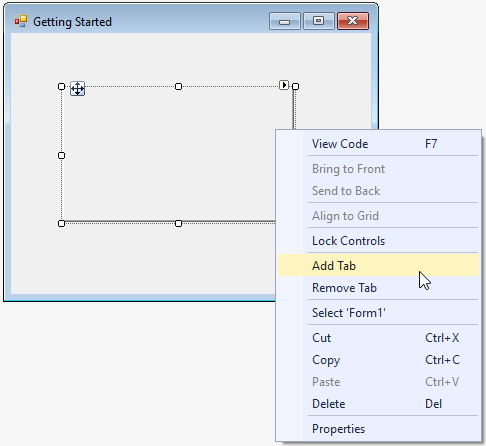
1. Right-click the WinForms TabControl and select the Add Tab option to add the TabPages to WinForms TabControl through designer.
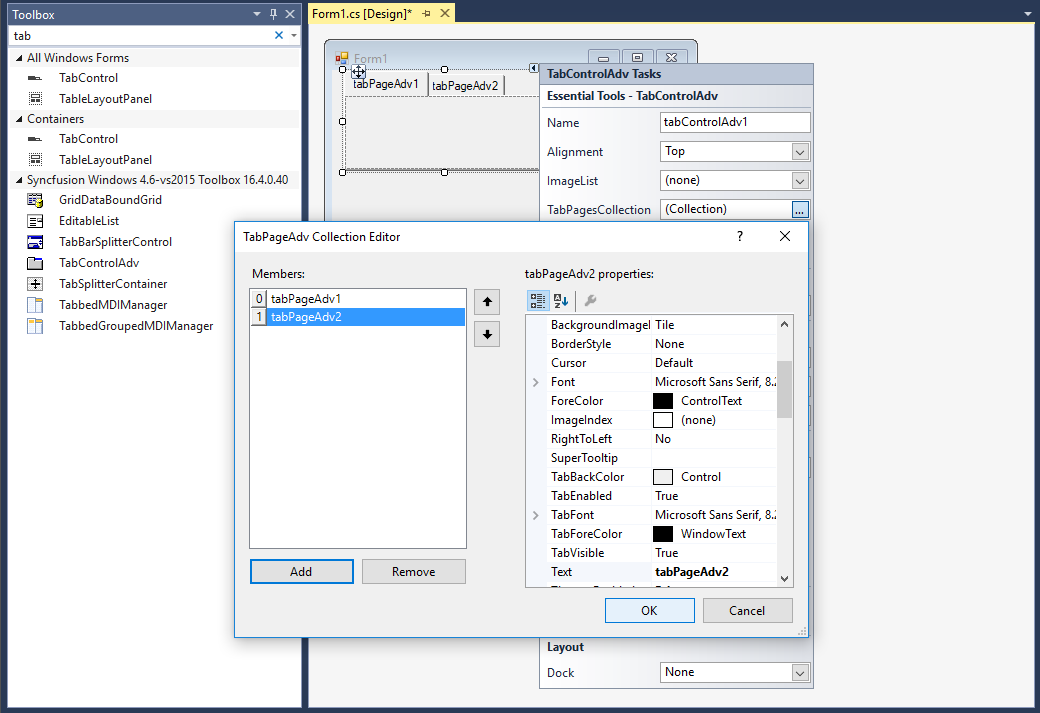
2. Add tabs using TabPagesCollection in smart tags of WinForms TabControl.
Add controls in tab pages
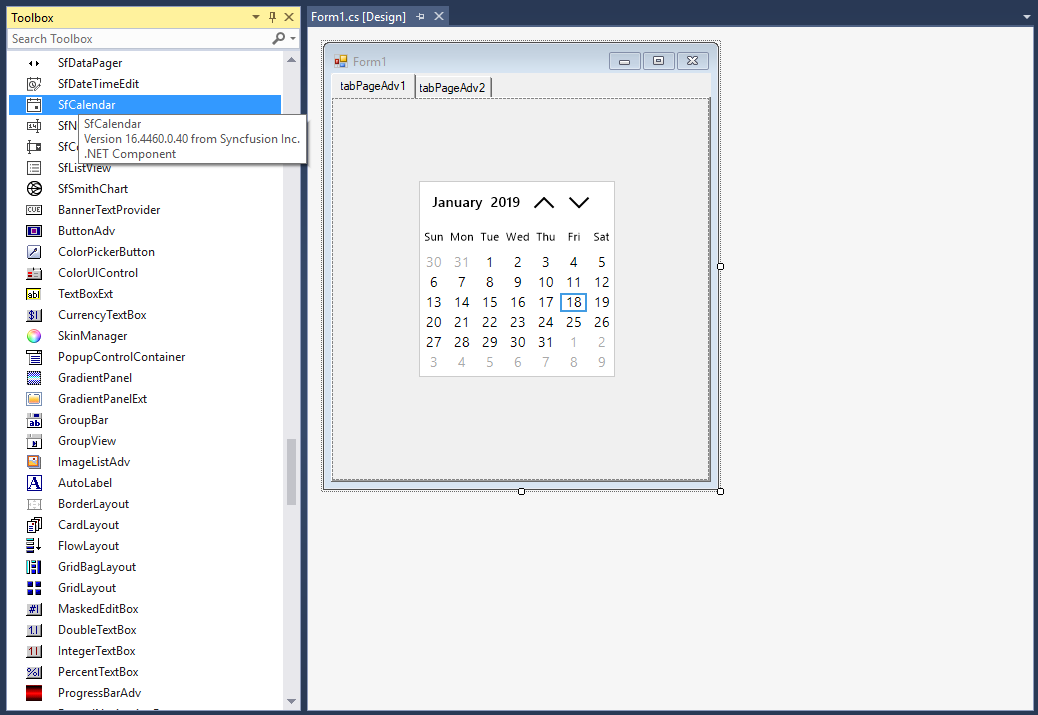
You can add any control in tab page.
Add control manually in code
To add the control manually in code, follow the given steps:
-
Add the following required assembly references to the project:
- Syncfusion.Grid.Base.dll
- Syncfusion.Grid.Windows.dll
- Syncfusion.Shared.Base.dll
- Syncfusion.Shared.Windows.dll
- Syncfusion.Tools.Base.dll
- Syncfusion.Tools.Windows.dll
-
Include the Syncfusion.Windows.Forms.Tools namespace.
using Syncfusion.Windows.Forms.Tools;Imports Syncfusion.Windows.Forms.Tools -
Create a WinForms TabControl instance, and add it to the window.
TabControlAdv tabControlAdv1 = new TabControlAdv();
  this.Controls.Add(tabControlAdv1);
Dim tabControlAdv1 As TabControlAdv = New TabControlAdv() Me.Controls.Add(tabControlAdv1)
Add tabs
Create an instance of TabPageAdv, and add it to the WinForms TabControl.
TabPageAdv tabPageAdv1 = new TabPageAdv();
tabPageAdv1.Text = "tabPageAdv1";
this.tabControlAdv1.Controls.Add(tabPageAdv1);
Dim tabPageAdv1 As TabPageAdv = New TabPageAdv()
tabPageAdv1.Text = "tabPageAdv1"
Me.tabControlAdv1.Controls.Add(tabPageAdv1)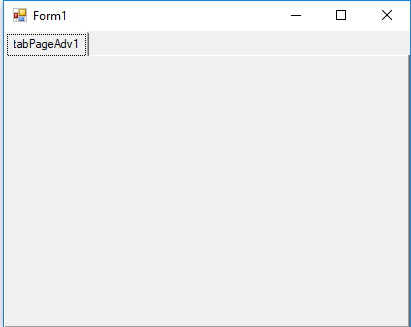
Add controls in tab pages
You can add any control in TabPageAdv. Create an instance of the control, and add it to TabPageAdv.
SfCalendar calendar = new SfCalendar();
tabPageAdv1.Controls.Add(calendar);
Dim calendar As New SfCalendar()
tabPageAdv1.Controls.Add(calendar)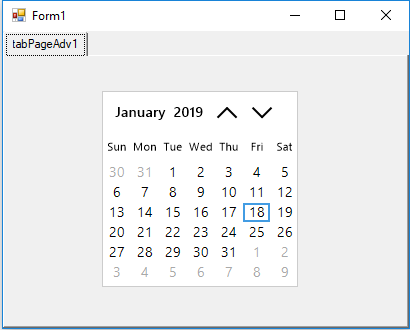
Tab placement
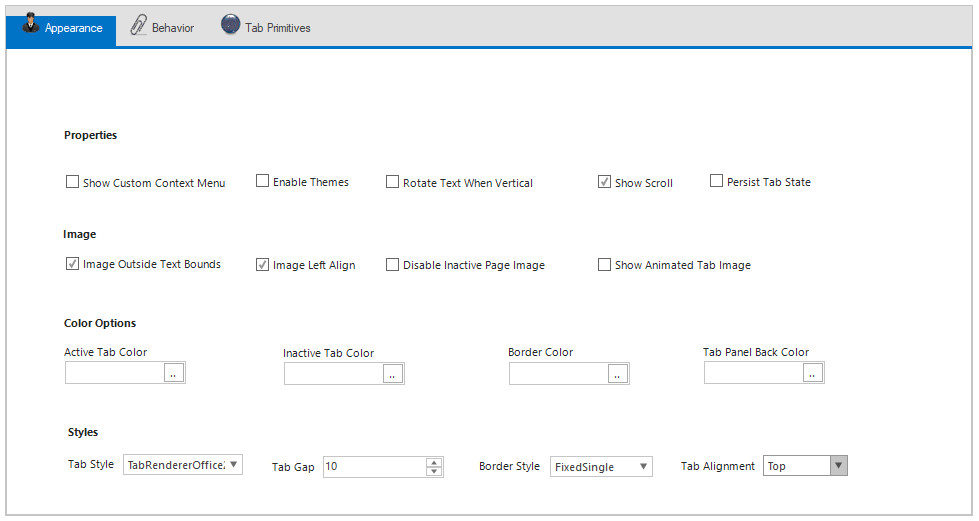
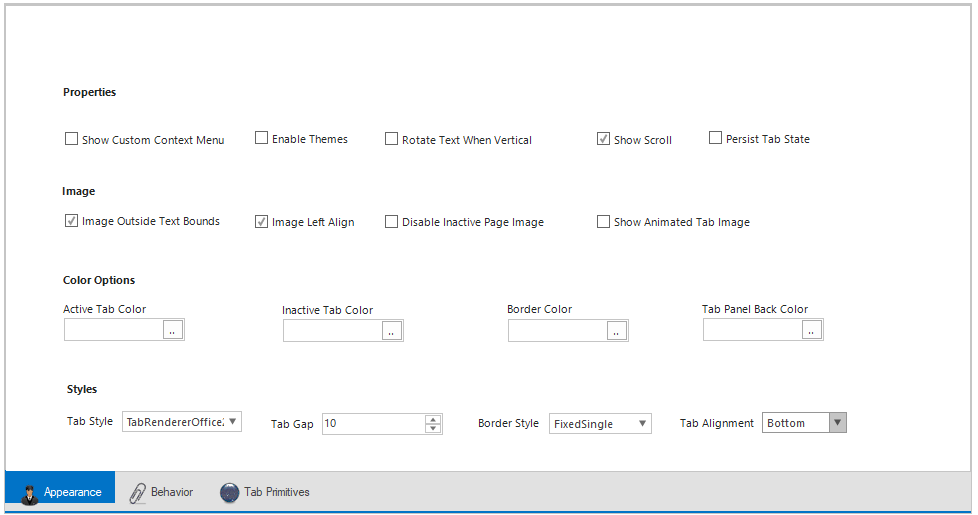
WinForms TabControl provides an option to display tabs horizontally at the top or bottom and vertically at the left or right by setting the Alignment property of WinForms TabControl.
//Tabs placement
tabControlAdv1.Alignment = TabAlignment.Bottom;
'Tabs placement
tabControlAdv1.Alignment = TabAlignment.BottomLeft
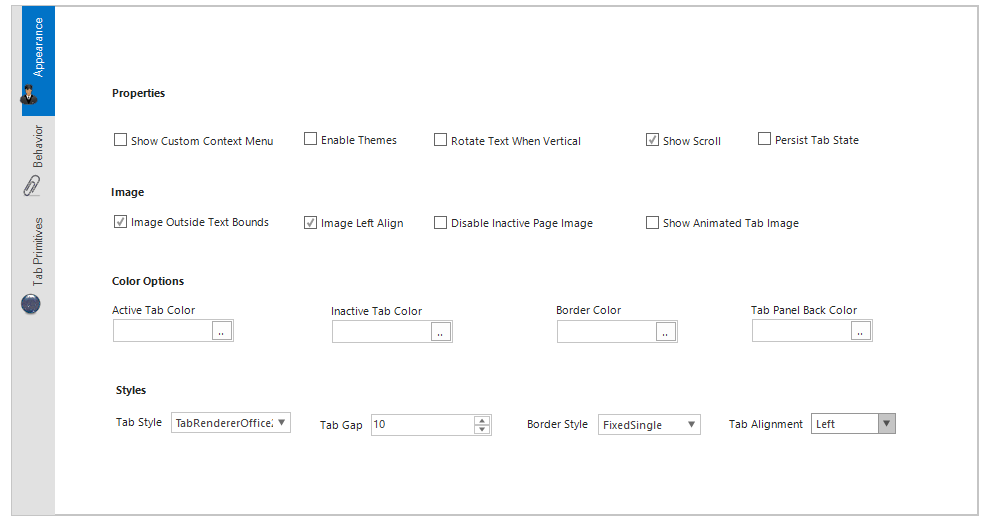
Right
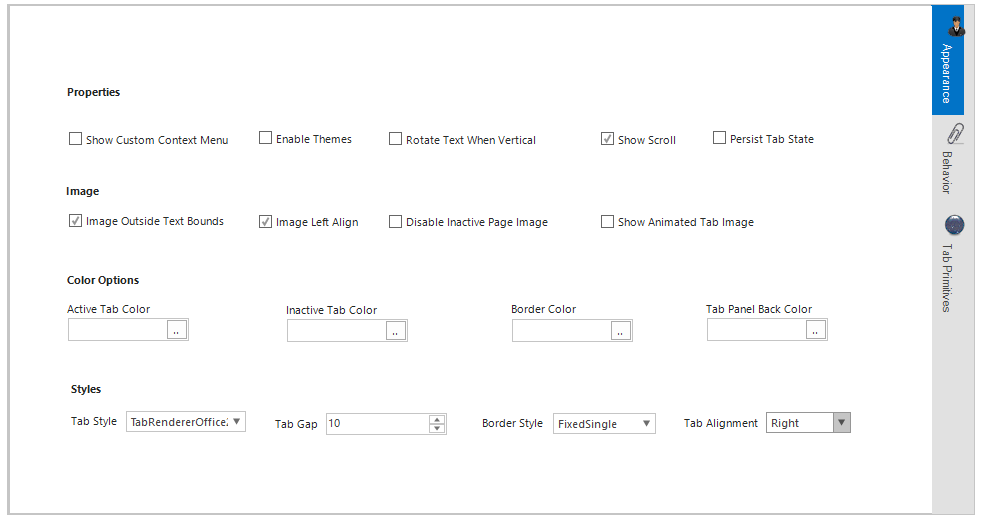
Top
Bottom
Edit header at run time
You can rename the tab header at run time by setting the LabelEdit property of WinForms TabControl to true.
// Renaming header text.
this.tabControlAdv.LabelEdit = true;
' Renaming header text.
Me.tabControlAdv.LabelEdit = True
Multi-line tabs
You can arrange the tabs in multiple rows by enabling the Multiline property of WinForms TabControl.
//Multiline tabs
tabControlAdv1.Multiline = true;
'Multiline tabs
tabControlAdv1.Multiline = True