Getting Started with Windows Forms SplashPanel
18 Nov 201811 minutes to read
This section explains how to get started with the Windows Forms SplashPanel control and its basic features.
Assembly Deployment
Refer to the Control Dependencies section for the list of assemblies and NuGet packages required to use the SplashPanel control.
Refer to NuGet Packages to learn how to install NuGet packages in a Windows Forms application.
To install the required NuGet package using the NuGet Package Manager Console, run the following command:
Install-Package Syncfusion.Tools.WindowsAdding SplashPanel via Designer
The SplashPanel control provides full support for the Windows Forms designer. When the control is dragged from the Toolbox onto the form, the following required assembly references are added automatically:
- Syncfusion.Grid.Base.dll
- Syncfusion.Grid.Windows.dll
- Syncfusion.Shared.Base.dll
- Syncfusion.Shared.Windows.dll
- Syncfusion.Tools.Base.dll
- Syncfusion.Tools.Windows.dll
-
Drag the
SplashPanelcontrol from the Toolbox onto the Windows Form designer.
-
Configure the required properties of the
SplashPanelcontrol. Optionally, add child controls to the panel. Set theTimerIntervalproperty (in milliseconds) to specify how long theSplashPanelremains visible. -
Specify the startup location of the
SplashPanelby using theDesktopAlignmentproperty. -
Display the
SplashPanelby calling theShowSplash()method from an event handler, such as the form’sLoadevent or a button’sClickevent. -
Hide the
SplashPanelby calling theHideSplash()method, for example from a button’sClickevent or the form’sClosingevent.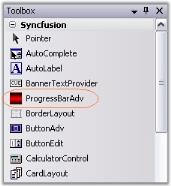
Adding SplashPanel via Code
To create a SplashPanel programmatically and add controls to it, follow these steps:
-
Create a new C# or VB.NET Windows Forms application in Visual Studio.
-
Add the following required assembly references to the project:
- Syncfusion.Grid.Base.dll
- Syncfusion.Grid.Windows.dll
- Syncfusion.Shared.Base.dll
- Syncfusion.Shared.Windows.dll
- Syncfusion.Tools.Base.dll
- Syncfusion.Tools.Windows.dll
-
Include the required namespaces in the form.
using Syncfusion.Windows.Forms.Tools;
using Syncfusion.Drawing;
using System.Reflection;
Imports Syncfusion.Windows.Forms.Tools Imports Syncfusion.Drawing Imports System.Reflection -
Declare the
SplashPanelandButtoncontrols.private Syncfusion.Windows.Forms.Tools.SplashPanel splashPanel1; private System.Windows.Forms.Button button1;Friend WithEvents splashPanel1 As Syncfusion.Windows.Forms.Tools.SplashPanel Friend WithEvents button1 As System.Windows.Forms.Button -
Initialize the controls.
this.splashPanel1 = new Syncfusion.Windows.Forms.Tools.SplashPanel(); this.button1 = new System.Windows.Forms.Button(); this.splashPanel1.SuspendLayout(); ((System.ComponentModel.ISupportInitialize)(this.splashPanel1)).BeginInit(); this.SuspendLayout();Me.splashPanel1 = New Syncfusion.Windows.Forms.Tools.SplashPanel Me.button1 = New System.Windows.Forms.Button Me.splashPanel1.SuspendLayout() CType(Me.splashPanel1, System.ComponentModel.ISupportInitialize).BeginInit() Me.SuspendLayout() -
Configure the required properties of the
SplashPanelandButtoncontrols.// Set the properties for SplashPanel. this.splashPanel1.AnimationSpeed = 10; this.splashPanel1.BackgroundColor = new Syncfusion.Drawing.BrushInfo(Syncfusion.Drawing.GradientStyle.Vertical, System.Drawing.SystemColors.Highlight, System.Drawing.SystemColors.HighlightText); this.splashPanel1.Controls.Add(this.button1); this.splashPanel1.DesktopAlignment = Syncfusion.Windows.Forms.Tools.SplashAlignment.Center; this.splashPanel1.DiscreetLocation = new System.Drawing.Point(0, 0); this.splashPanel1.Font = new System.Drawing.Font("Comic Sans MS", 9.75F, System.Drawing.FontStyle.Bold, System.Drawing.GraphicsUnit.Point, ((byte)(0))); this.splashPanel1.ForeColor = System.Drawing.Color.Pink; this.splashPanel1.Location = new System.Drawing.Point(16, 16); this.splashPanel1.Name = "splashPanel1"; this.splashPanel1.ShowAnimation = true; this.splashPanel1.SuspendAutoCloseWhenMouseOver = false; this.splashPanel1.TabIndex = 0; this.splashPanel1.TimerInterval = 5000; // Set the properties for Button control. this.button1.BackColor = System.Drawing.Color.DimGray; this.button1.Location = new System.Drawing.Point(56, 40); this.button1.Name = "button1"; this.button1.Size = new System.Drawing.Size(96, 23); this.button1.TabIndex = 0; this.button1.Text = "SplashPanel"; // Add the SplashPanel to the Form. this.Controls.Add(this.splashPanel1);' Set the properties for SplashPanel. Me.splashPanel1.AnimationSpeed = 10 Me.splashPanel1.BackgroundColor = New Syncfusion.Drawing.BrushInfo(Syncfusion.Drawing.GradientStyle.Vertical, System.Drawing.SystemColors.Highlight, System.Drawing.SystemColors.HighlightText) Me.splashPanel1.Controls.Add(Me.button1) Me.splashPanel1.DesktopAlignment = Syncfusion.Windows.Forms.Tools.SplashAlignment.Center Me.splashPanel1.DiscreetLocation = New System.Drawing.Point(0, 0) Me.splashPanel1.Font = New System.Drawing.Font("Comic Sans MS", 9.75F, System.Drawing.FontStyle.Bold, System.Drawing.GraphicsUnit.Point, (CByte(0))) Me.splashPanel1.ForeColor = System.Drawing.Color.Pink Me.splashPanel1.Location = New System.Drawing.Point(16, 16) Me.splashPanel1.Name = "splashPanel1" Me.splashPanel1.ShowAnimation = True Me.splashPanel1.SuspendAutoCloseWhenMouseOver = False Me.splashPanel1.TabIndex = 0 Me.splashPanel1.TimerInterval = 5000 ' Set the properties for Button control. Me.button1.BackColor = System.Drawing.Color.DimGray Me.button1.Location = New System.Drawing.Point(56, 40) Me.button1.Name = "button1" Me.button1.Size = New System.Drawing.Size(96, 23) Me.button1.TabIndex = 0 Me.button1.Text = "SplashPanel" ' Add the SplashPanel to the Form. Me.Controls.Add(Me.splashPanel1) -
Call and implement the
ShowSplash()method.this.ShowSplash(false);Me.ShowSplash(False)private void ShowSplash(bool isModal) { Point pt = Point.Empty; SplashPanel currentPanel = this.splashPanel1; int interval = 5000; currentPanel.TimerInterval = interval; if (currentPanel.DesktopAlignment == SplashAlignment.Custom) { pt = Control.MousePosition; } currentPanel.ShowSplash(pt, this, isModal); }Private Sub ShowSplash(ByVal isModal As Boolean) Dim pt As Point = Point.Empty Dim currentPanel As SplashPanel = Me.splashPanel1 Dim interval As Integer = 5000 currentPanel.TimerInterval = interval If currentPanel.DesktopAlignment = SplashAlignment.Custom Then pt = Control.MousePosition End If currentPanel.ShowSplash(pt, Me, isModal) End Sub -
Resume the layout suspended during initialization.
((System.ComponentModel.ISupportInitialize)(this.splashPanel1)).EndInit(); this.splashPanel1.ResumeLayout(false); this.ResumeLayout(false);CType(Me.splashPanel1, System.ComponentModel.ISupportInitialize).EndInit() Me.splashPanel1.ResumeLayout(False) Me.ResumeLayout(False) -
Run the application.