Getting Started with Windows Forms ScrollersFrame
18 Nov 20184 minutes to read
This section explains how to attach the ScrollersFrame to controls and use its basic functionalities.
Assembly deployment
The following assembly should be added as reference to use the ScrollersFrame in any application.
|
Required assembly |
Description |
|---|---|
|
|
Contains the style-related properties and functionalities for the ScrollersFrame. |
Attach ScrollersFrame to control
Add a control to the Windows Forms that should be attached with the Office2007Style scrollbars. Select the control in the ScrollersFrame.AttachedTo property.
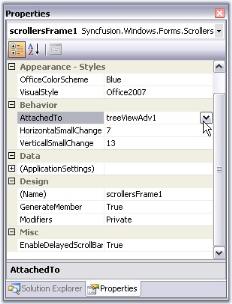
// Attaching ScrollersFrame to a control using the AttachedTo property
this.scrollersFrame1.AttachedTo = this.treeViewAdv1;
' Attaching ScrollersFrame to a control using the AttachedTo property
Me.scrollersFrame1.AttachedTo = Me.treeViewAdv1The
AttachedToproperty lists all the scrollable controls added to the form. You can select any one of them to attach the ScrollersFrame.
Adding controls to the scrollbars
The ControlsAfter and ControlsBefore collection properties are available for the ScrollersFrame that lets you add controls before or after the scrollbars.
// Adding controls to the scrollbars through ControlsAfter and ControlsBefore
this.scrollersFrame2.HorizontalScroller.ControlsBefore.Add(buttonAdv3);
this.scrollersFrame2.VerticalScroller.ControlsAfter.Add(buttonAdv1);
this.scrollersFrame2.VerticalScroller.ControlsAfter.Add(buttonAdv2);
' Adding controls to the scrollbars through ControlsAfter and ControlsBefore
Me.scrollersFrame2.HorizontalScroller.ControlsBefore.Add(buttonAdv3)
Me.scrollersFrame2.VerticalScroller.ControlsAfter.Add(buttonAdv1)
Me.scrollersFrame2.VerticalScroller.ControlsAfter.Add(buttonAdv2)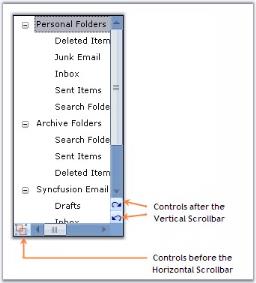
Programmatic scrolling
The horizontal and vertical scrollers each expose a Value property that represents the current position of the scroll box at runtime. This value can be changed using the HorizontalSmallChange and VerticalSmallChange properties.
| Property | Description |
|---|---|
| HorizontalSmallChange |
Gets or sets a value to be added to or subtracted from the Value property when the horizontal scroll box is moved a small distance. Default value is 1. |
| VerticalSmallChange |
Gets or sets a value to be added to or subtracted from the Value property when the vertical scroll box is moved a small distance. Default value is 1. |
this.scrollersFrame2.VerticalSmallChange = 25;
this.scrollersFrame2.HorizontalSmallChange = 25;Me.scrollersFrame2.VerticalSmallChange = 25
Me.scrollersFrame2.HorizontalSmallChange = 25Visual Styles
Visual styles for the ScrollersFrame control can be edited through the VisualStyle property.
| Property | Description |
|---|---|
| VisualStyle | Sets the visual style for the scrollbars. Supported values are Classic, WindowsXP, Office2007, Office2007Generic, and Office2016. |
| OfficeColorScheme | Sets the Office color scheme for the scrollbars when VisualStyle is set to Office2007 or Office2007Generic. The available color schemes are, blue, silver, and black and Managed. |
| Office2016ColorScheme |
Sets the Office 2016 color scheme for the scrollbars when VisualStyle is set to Office2016. The available color schemes are Black, White, Colorful, and DarkGray.
</table>
|