Getting Started with Windows Forms PopupMenu
18 Nov 201811 minutes to read
Important
Starting with v16.2.0.x, if you refer to Syncfusion® assemblies from trial setup or from the NuGet feed, include a license key in your projects. Refer to this link to learn about registering Syncfusion® license key in your Windows Forms application to use our components.
This section provides a quick overview for working with the PopupMenu control in a WinForms application.
Dependent Assemblies
The following assemblies needs to be added as reference to use the control in any application.
- Syncfusion.Tools.Windows
- Syncfusion.Grid.Base
- Syncfusion.Grid.Windows
- Syncfusion.Shared.Base
- Syncfusion.Shared.Windows
- Syncfusion.Tools.Base
- Syncfusion.SpellChecker.Base
Adding popup menu through designer
The PopupMenu control can be added through designer by following the below steps.
-
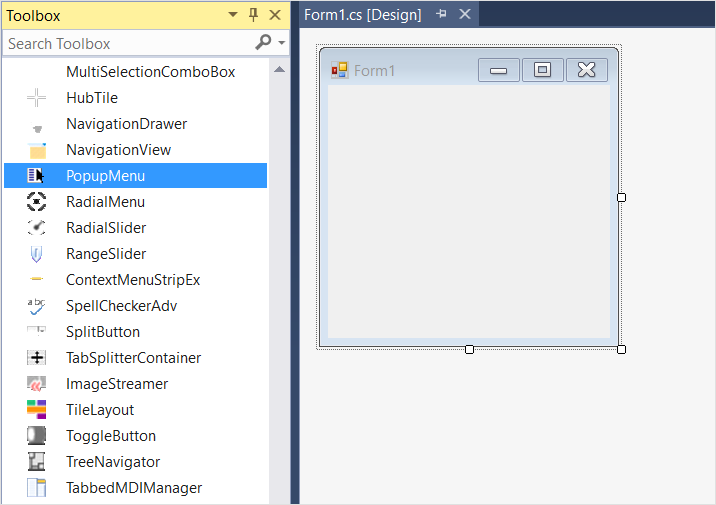
Drag and drop the PopupMenu control from the toolbox (under the section “Syncfusion® Windows Visual Studio Version Toolbox Essential Studio® Version”) into the designer page.
-
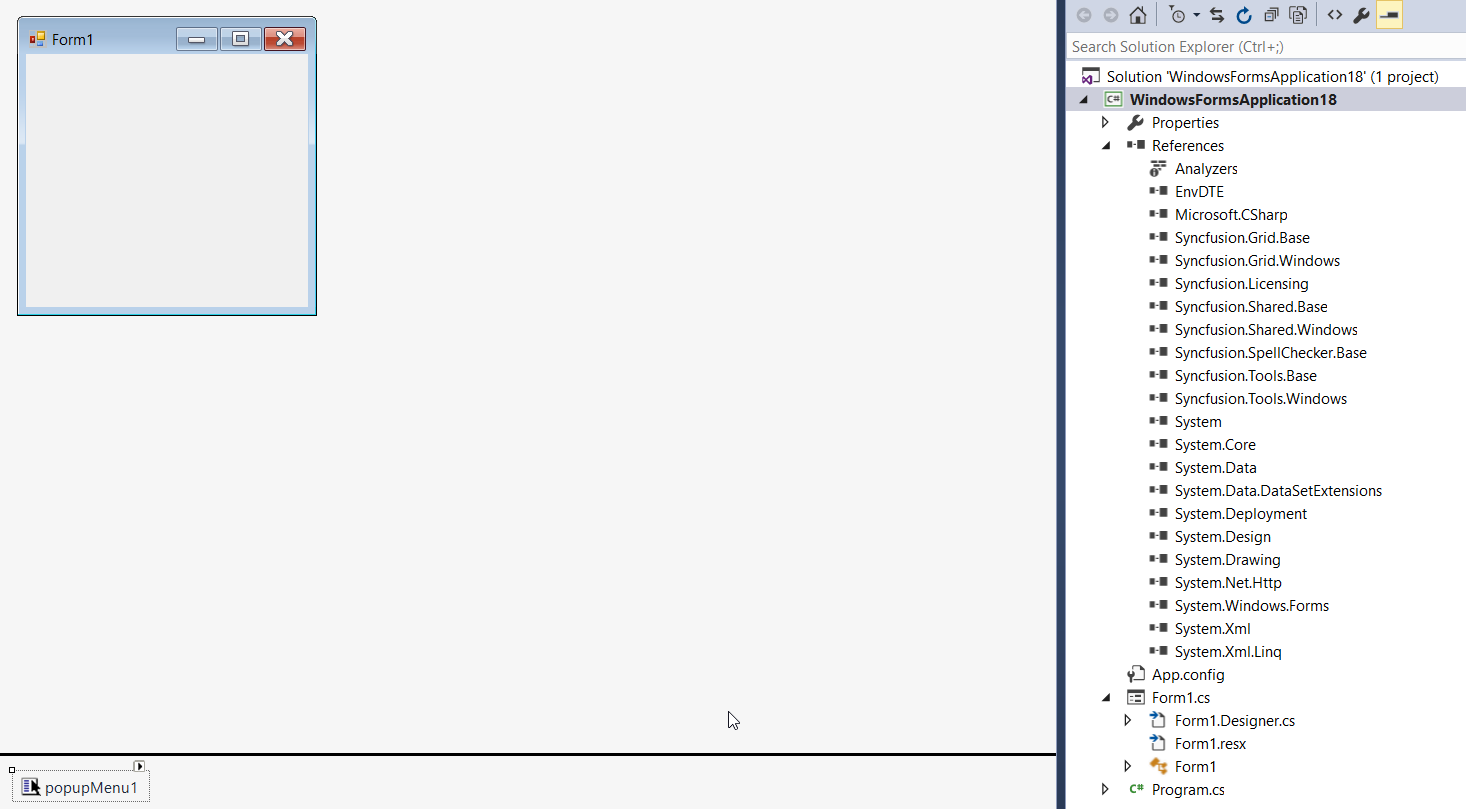
Now the PopupMenu control will be successfully added into the application along with the required dependent assemblies.
-
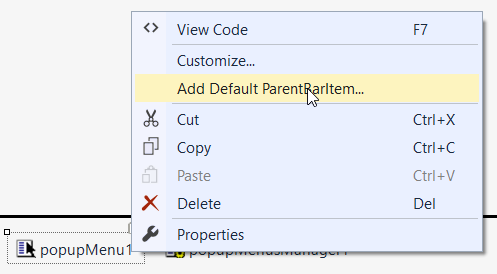
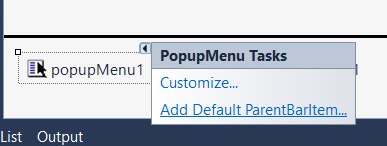
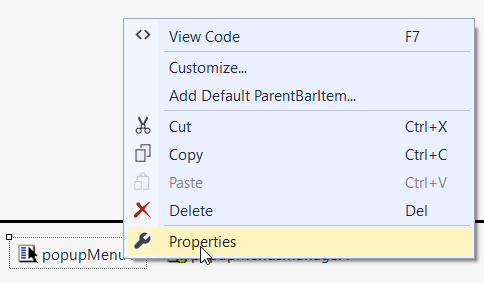
The popup menu needs to be associated with a default parent bar item in order to fill it with bar items. Right-click on the PopupMenu control and select Add Default ParentBarItem… option. You can also add the default parent bar item by selecting the Add Default ParentBarItem… option from the Smart tag menu.
-
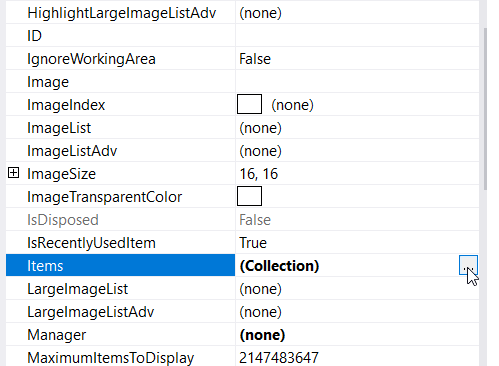
After the Default ParentBarItem is added, add the items by right-clicking on the control in the designer and selecting Properties. Now, in the Properties panel, under Misc > ParentBarItem > Items choose the items by using the BarItem Collection Editor.
-
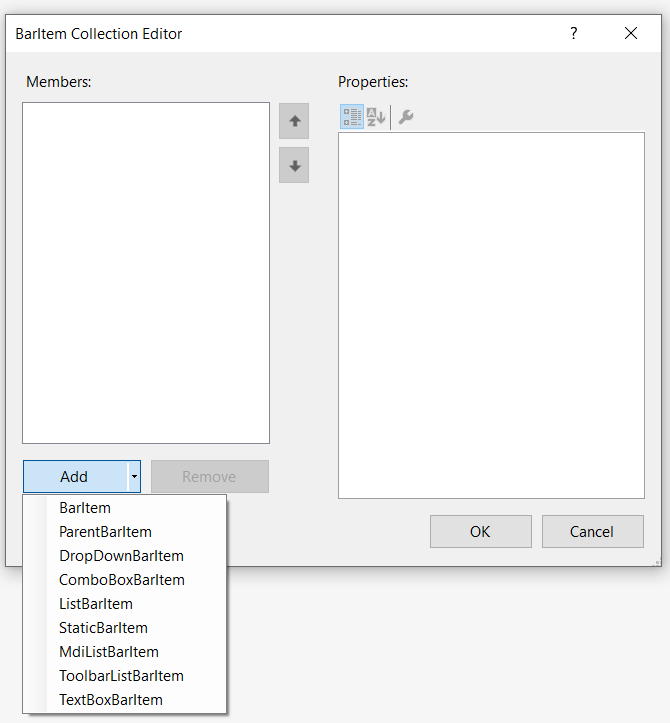
In the BarItem Collection Editor window, click on the down arrow of the Add button. It will display different types of bar items. Using this, the user can add the appropriate bar item as per the need.
-
In this illustration, the BarItem has been added. Similarly, the ParentBarItem, DropDownBarItem, ComboBoxBarItem, ListBarItem, StaticBarItem and TextBoxBarItem can be added.
-
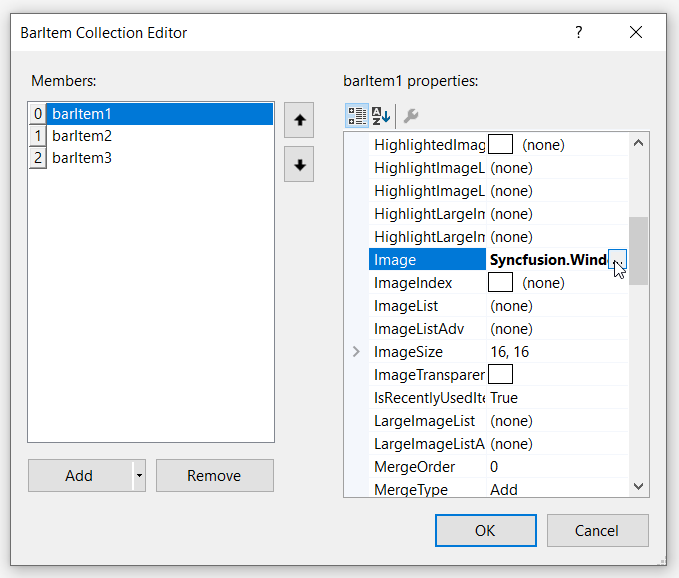
After an item is added, select the particular item in the BarItem Collection Editor window and set the text under the Appearance > Text section.
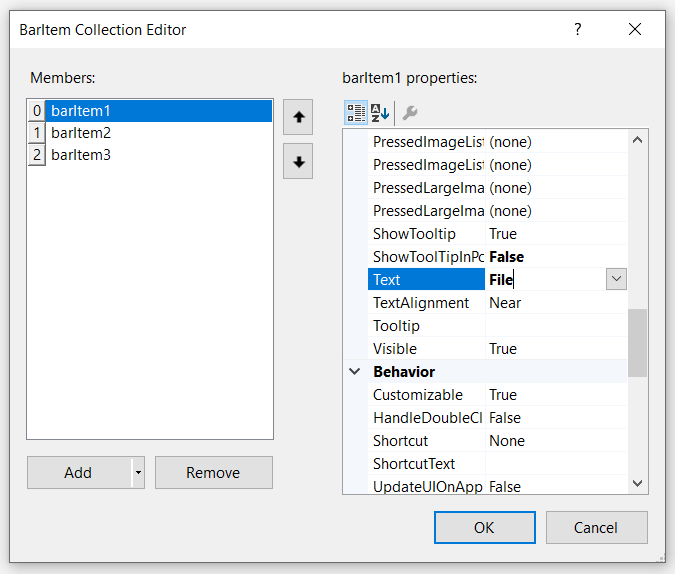
Similarly, the image can be added under the Appearance > Image section.
-
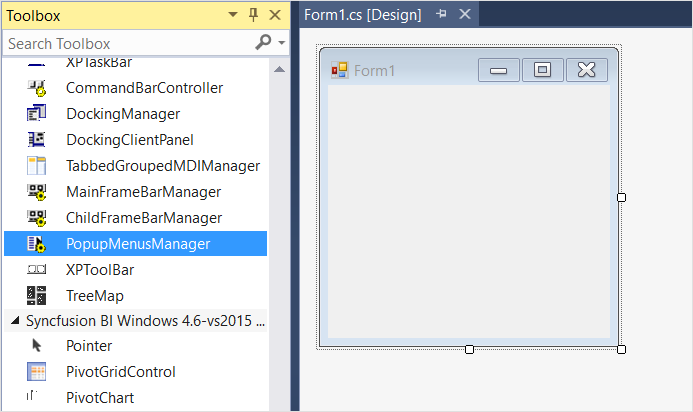
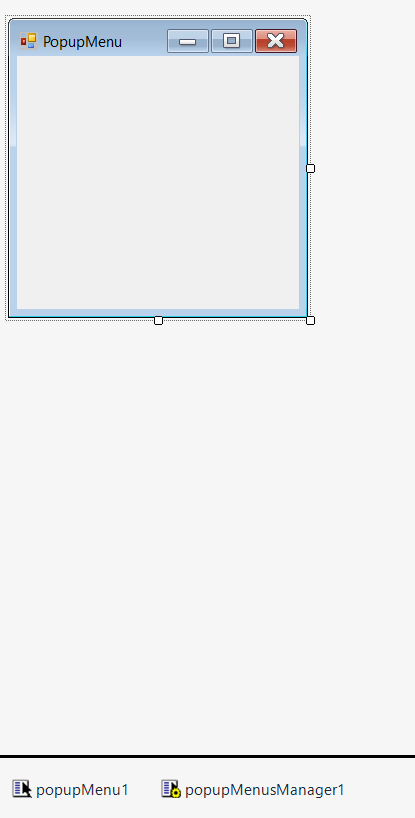
After the popup menu is populated, drag and drop the PopupMenusManager container inside which the popup menu will be hosted for display.
-
Now the popup menu control should be associated with an appropriate control. In this example, the scenario is illustrated with the RichTextBox control.
NOTE:
To associate the PopupMenu control, you can choose any type of control like RichTextBox, Button, Label, TextBox, MaskedTextBox etc., of your choice.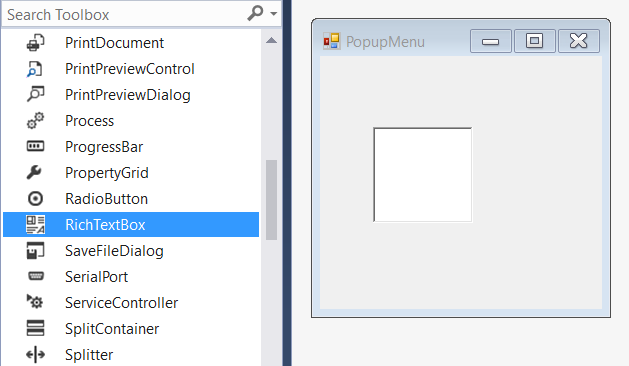
-
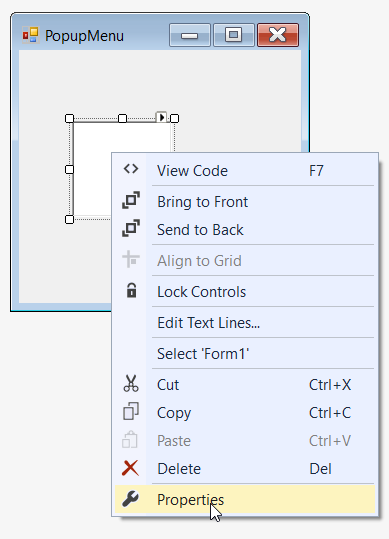
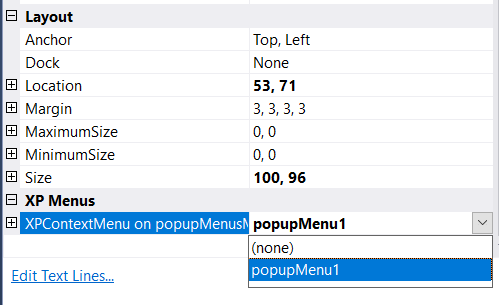
Right-click on the RichTextBox control in the designer and select Properties. Now, in the Properties panel, under XP Menus > XPContextMenu on popupMenusManager1 we need to assign the respective popup menu.
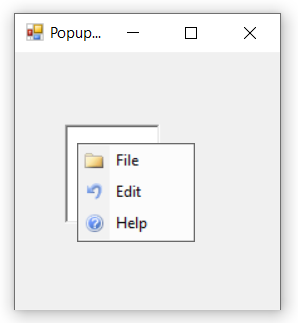
Now, the popup menu is successfully associated with the RichTextBox control.
Adding popup menu through code
The PopupMenu control can be added through code by following the below steps.
-
Add the following dependency assembly references to the project.
- Syncfusion.Tools.Windows.dll
- Syncfusion.Grid.Base.dll
- Syncfusion.Grid.Windows.dll
- Syncfusion.Shared.Base.dll
- Syncfusion.Shared.Windows.dll
- Syncfusion.Tools.Base.dll
- Syncfusion.Licensing.dll
- Syncfusion.SpellChecker.Base.dll
NOTE: You can get these assemblies by browsing to the default assembly location:
{System Drive}:\Program Files (x86)\Syncfusion\Essential Studio\{Platform}\{Build Version Number}\precompiledassemblies\{Framework Version Number} -
The below code snippets adds a PopupMenu control to the application.
//Declaration
   private Syncfusion.Windows.Forms.Tools.XPMenus.PopupMenu popupMenu1;
   private Syncfusion.Windows.Forms.Tools.XPMenus.ParentBarItem parentBarItem1;
   private Syncfusion.Windows.Forms.Tools.XPMenus.BarItem barItem1;
   private Syncfusion.Windows.Forms.Tools.XPMenus.BarItem barItem2;
   private Syncfusion.Windows.Forms.Tools.XPMenus.BarItem barItem3;
   private System.Windows.Forms.RichTextBox richTextBox1;
   private Syncfusion.Windows.Forms.Tools.XPMenus.PopupMenusManager popupMenusManager1;

   //Initializing
   this.popupMenu1 = new Syncfusion.Windows.Forms.Tools.XPMenus.PopupMenu(this.components);
   this.parentBarItem1 = new Syncfusion.Windows.Forms.Tools.XPMenus.ParentBarItem();
   this.barItem1 = new Syncfusion.Windows.Forms.Tools.XPMenus.BarItem();
   this.barItem2 = new Syncfusion.Windows.Forms.Tools.XPMenus.BarItem();
   this.barItem3 = new Syncfusion.Windows.Forms.Tools.XPMenus.BarItem();
   this.richTextBox1 = new System.Windows.Forms.RichTextBox();
   this.popupMenusManager1 = new Syncfusion.Windows.Forms.Tools.XPMenus.PopupMenusManager(this.components);

   // popupMenu1
   this.popupMenu1.ParentBarItem = this.parentBarItem1;

   // barItem1
   this.barItem1.Image = new ImageExt(System.Drawing.Image.FromFile(@"..\..\..\File.png"));
   this.barItem1.SizeToFit = true;
   this.barItem1.Text = "File";

   // barItem2
   this.barItem2.Image = new ImageExt(System.Drawing.Image.FromFile(@"..\..\..\Edit.png"));
   this.barItem2.SizeToFit = true;
   this.barItem2.Text = "Edit";

   // barItem3
   this.barItem3.Image = new ImageExt(System.Drawing.Image.FromFile(@"..\..\..\Help.png"));
   this.barItem3.SizeToFit = true;
   this.barItem3.Text = "Help";

   // parentBarItem1
   this.parentBarItem1.MetroColor = System.Drawing.Color.LightSkyBlue;
   this.parentBarItem1.SizeToFit = true;
   this.parentBarItem1.Items.AddRange(new Syncfusion.Windows.Forms.Tools.XPMenus.BarItem[] {this.barItem1, this.barItem2, this.barItem3});

   // richTextBox1
   this.richTextBox1.Size = new System.Drawing.Size(100, 96);
   this.popupMenusManager1.SetXPContextMenu(this.richTextBox1, this.popupMenu1);

   // Form1
   this.ClientSize = new System.Drawing.Size(282, 253);
   this.Text = "PopupMenu";
   this.Controls.Add(this.richTextBox1);
   this.ResumeLayout(false);
'Declaration
Private popupMenu1 As Syncfusion.Windows.Forms.Tools.XPMenus.PopupMenu
Private parentBarItem1 As Syncfusion.Windows.Forms.Tools.XPMenus.ParentBarItem
Private barItem1 As Syncfusion.Windows.Forms.Tools.XPMenus.BarItem
Private barItem2 As Syncfusion.Windows.Forms.Tools.XPMenus.BarItem
Private barItem3 As Syncfusion.Windows.Forms.Tools.XPMenus.BarItem
Private richTextBox1 As System.Windows.Forms.RichTextBox
Private popupMenusManager1 As Syncfusion.Windows.Forms.Tools.XPMenus.PopupMenusManager
'Initializing
Me.popupMenu1 = New Syncfusion.Windows.Forms.Tools.XPMenus.PopupMenu(Me.components)
Me.parentBarItem1 = New Syncfusion.Windows.Forms.Tools.XPMenus.ParentBarItem()
Me.barItem1 = New Syncfusion.Windows.Forms.Tools.XPMenus.BarItem()
Me.barItem2 = New Syncfusion.Windows.Forms.Tools.XPMenus.BarItem()
Me.barItem3 = New Syncfusion.Windows.Forms.Tools.XPMenus.BarItem()
Me.richTextBox1 = New System.Windows.Forms.RichTextBox()
Me.popupMenusManager1 = New Syncfusion.Windows.Forms.Tools.XPMenus.PopupMenusManager(Me.components)
' popupMenu1
Me.popupMenu1.ParentBarItem = Me.parentBarItem1
' barItem1
Me.barItem1.Image = New ImageExt(System.Drawing.Image.FromFile("..\..\..\File.png"))
Me.barItem1.SizeToFit = True
Me.barItem1.Text = "File"
' barItem2
Me.barItem2.Image = New ImageExt(System.Drawing.Image.FromFile("..\..\..\Edit.png"))
Me.barItem2.SizeToFit = True
Me.barItem2.Text = "Edit"
' barItem3
Me.barItem3.Image = New ImageExt(System.Drawing.Image.FromFile("..\..\..\Help.png"))
Me.barItem3.SizeToFit = True
Me.barItem3.Text = "Help"
' parentBarItem1
Me.parentBarItem1.MetroColor = System.Drawing.Color.LightSkyBlue
Me.parentBarItem1.SizeToFit = True
Me.parentBarItem1.Items.AddRange(New Syncfusion.Windows.Forms.Tools.XPMenus.BarItem() {Me.barItem1, Me.barItem2, Me.barItem3})
' richTextBox1
Me.richTextBox1.Size = New System.Drawing.Size(100, 96)
Me.popupMenusManager1.SetXPContextMenu(Me.richTextBox1, Me.popupMenu1)
' Form1
Me.ClientSize = New System.Drawing.Size(282, 253)
Me.Text = "PopupMenu"
Me.Controls.Add(Me.richTextBox1)
Me.ResumeLayout(False)
Adding popup menu through NuGet package
Refer control dependencies section to get the list of assemblies or NuGet package needs to be added as reference to use the control in any application.
Find more details regarding how to install the NuGet packages in WinForms application in the following link: Steps to install NuGet packages.