Configure Color Schemes in Windows Forms Office2007Form
18 Nov 20182 minutes to read
Office2007Form supports the following Office color schemes, which can be edited through the ColorScheme property.
- Blue
- Silver
- Black
- Managed
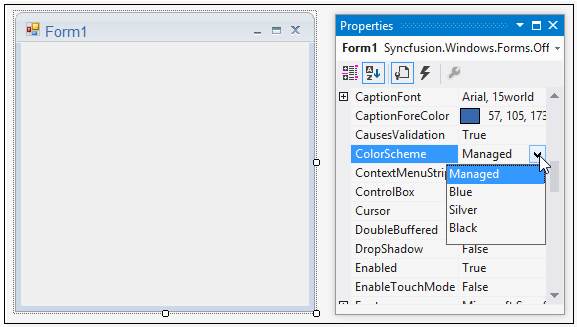
// To set the Blue color scheme

this.ColorScheme = Office2007Theme.Blue;
' To set the Blue color scheme
Me.ColorScheme = Office2007Theme.Blue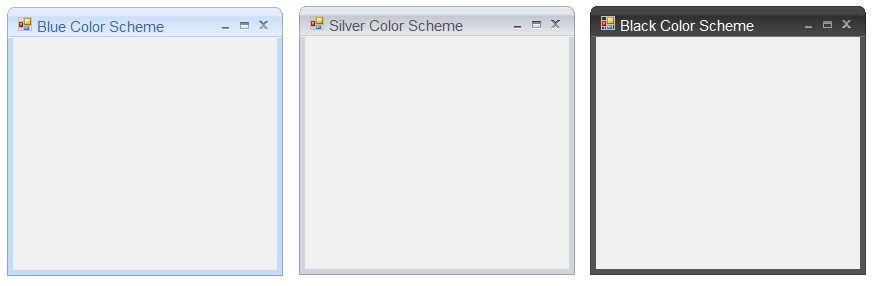
To apply the Managed color scheme, the ApplyManagedColors method is used, as in the following code snippet.
// To set the Managed color scheme

this.ColorScheme = Office2007Theme.Managed;

Office2007Colors.ApplyManagedColors(this, Color.DarkMagenta);
' To set the Managed color scheme
Me.ColorScheme = Office2007Theme.Managed
Office2007Colors.ApplyManagedColors(Me, Color.DarkMagenta)
Background color for Office2007Form
The background color of the Office2007Form can match the color scheme applied to the form. Set the UseOffice2007SchemeBackColor property to true to make this effective.
this.UseOffice2007SchemeBackColor = true;Me.UseOffice2007SchemeBackColor = True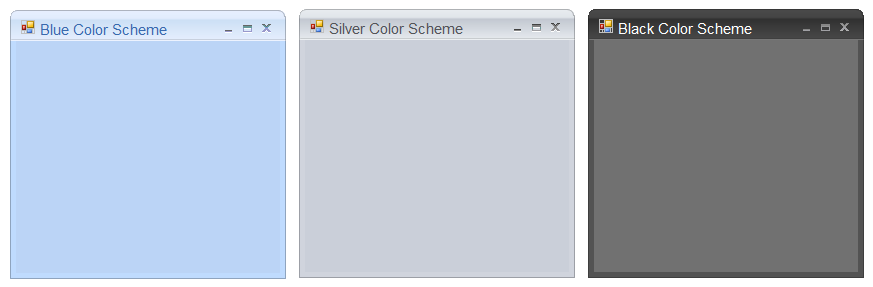
Applying color schemes
Office2007Form can apply or skip the Aero theme on forms with a glassy effect. This is controlled by the ApplyAeroTheme property.
Aero theme support is available for Office2007Form when used on a Vista machine. Earlier, color schemes could not be applied to Office2007Form when Aero theme was enabled. Now color schemes can be applied by disabling Aero theme on Office2007Form.
// Disables Aero theme on Office2007Form.

this.ApplyAeroTheme = false;
' Disables Aero theme on Office2007Form.
Me.ApplyAeroTheme = False