Getting Started with WinForms Numeric TextBox
18 Nov 20188 minutes to read
This section briefly describes how to create a new Windows Forms project in Visual Studio and add WinForms Numeric TextBox with its basic functionalities.
Assembly deployment
Refer to the Control Dependencies section to get the list of assemblies or details of the NuGet package that needs to be added as a reference to use the control in any application.
Refer to NuGet Packages to learn how to install NuGet packages in a Windows Forms application.
Adding WinForms Numeric TextBox control via designer
The following steps describe how to create a WinForms Numeric TextBox control via designer:
-
Create a new Windows Forms application in Visual Studio.
-
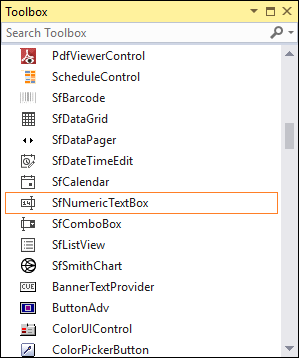
Add the WinForms Numeric TextBox control to an application by dragging it from the toolbox to the design view. The following dependent assemblies will be added automatically:
- Syncfusion.Core.WinForms
- Syncfusion.SfInput.WinForms
- Syncfusion.Shared.Base
Adding WinForms Numeric TextBox control via code
-
Create a C# or VB application via Visual Studio.
-
Add the following assembly references to the project:
- Syncfusion.Core.WinForms
- Syncfusion.SfInput.WinForms
- Syncfusion.Shared.Base
-
Include the required namespace.
Using Syncfusion.WinForms.Input;Imports Syncfusion.WinForms.Input -
Create an instance of WinForms Numeric TextBox, and then add it to the form.
private Syncfusion.WinForms.Input.SfNumericTextBox numericTextBox = new Syncfusion.WinForms.Input.SfNumericTextBox();
this.numericTextBox.Size = new System.Drawing.Size(150, 20);
this.Controls.Add(this.numericTextBox);
Private numericTextBox As Syncfusion.WinForms.Input.SfNumericTextBox = New Syncfusion.WinForms.Input.SfNumericTextBox() Me.numericTextBox.Size = new System.Drawing.Size(150, 20) Me.Controls.Add(Me.numericTextBox)
Value
WinForms Numeric TextBox holds a double value, and it can also hold a null value. The AllowNull property needs to be set to make the value nullable. The Text property of the control is formatted from the Value property.
// To set the value to SfNumericTextBox.
this.numericTextBox.Value = 123.45;
‘ To set the value to the SfNumericTextBox.
Me.numericTextBox.Value = 123.45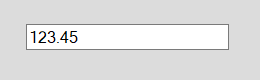
Format types
String formatting is the replacement of a value with a specified string format. Based on the string formatting, the numbers can be formatted into the following three different modes:
- Numeric
- Percent
- Currency
These modes can be applied in WinForms Numeric TextBox using the FormatMode property. By default, the FormatMode is set to Numeric.
// To set the format mode to Numeric.
this.numericTextBox.FormatMode = Syncfusion.WinForms.Input.Enums.FormatMode.Numeric;

// To set the format mode to Currency.
this.numericTextBox.FormatMode = Syncfusion.WinForms.Input.Enums.FormatMode.Currency;

// To set the format mode to Percent.
this.numericTextBox.FormatMode = Syncfusion.WinForms.Input.Enums.FormatMode.Percent;
' To set the format mode to Numeric.
Me.numericTextBox.FormatMode = Syncfusion.WinForms.Input.Enums.FormatMode.Numeric
' To set the format mode to Currency.
Me.numericTextBox.FormatMode = Syncfusion.WinForms.Input.Enums.FormatMode.Currency
' To set the format mode to Percent.
Me.numericTextBox.FormatMode = Syncfusion.WinForms.Input.Enums.FormatMode.Percent
Formatting the value
The formatting functionality allows formatting the values based on the FormatMode of the control. By default, the value is parsed from the application’s CurrentUICulture. Custom formatting can also be done using the NumberFormatInfo property, which allows setting the decimal separator, group separator, negative symbol, number of decimal digits, currency symbol, and percent symbol.
this.numericTextBox.NumberFormatInfo = new CultureInfo("de-DE").NumberFormat;Me.numericTextBox.NumberFormatInfo = New CultureInfo("de-DE").NumberFormat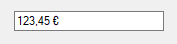
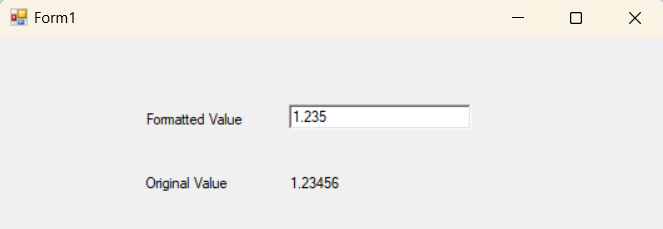
NOTE: The WinForms Numeric TextBox control preserves the full precision of the assigned value in its Value property while displaying the formatted value in the text box. This ensures that you can use the exact value for future calculations without losing accuracy. While editing, the
Valueproperty will be updated based on the current value in the textbox.
Watermark
WinForms Numeric TextBox comes with built-in watermark support. The WatermarkText helps to display the details about what value needs to be entered. The WatermarkText property allows showing the watermark for the control when the value of the control is set to null.
// Sets the watermark text to SfNumericTextBox.
this.numericTextBox.WatermarkText = "Enter your age";

// Sets true to AllowNull property
this.numericTextBox.AllowNull = true;
' Sets the watermark text to SfNumericTextBox.
Me.numericTextBox.WatermarkText = "Enter your age"
' Sets true to AllowNull property
Me.numericTextBox.AllowNull = True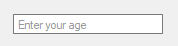
Minimum and maximum values
You can define the range of values that the control can accept. To define this range, you need to provide the minimum possible value and the maximum possible value using the MinValue and MaxValue properties, respectively.
// Sets the minimum and maximum values
this.numericTextBox.MinValue = 10;
this.numericTextBox.MaxValue = 150;
‘ Sets the minimum and maximum values
Me.numericTextBox.MinValue = 10
Me.numericTextBox.MaxValue = 150Hiding the trail zeros
The trailing zeros after the decimal digit can be removed using the HideTrailingZeros property.
// Hides the trailing zeros.
this.numericTextBox.HideTrailingZeros = true;
' Hides the trailing zeros.
Me.numericTextBox.HideTrailingZeros = True
Custom units
Set units or custom messages at the front or end of the text using the Prefix and Suffix properties.
// Sets the custom unit in SfNumericTextBox.
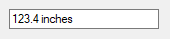
this.numericTextBox.Suffix = "inches";
' Sets the custom unit in SfNumericTextBox.
Me.numericTextBox.Suffix = "inches";